
What's the best AI form filler for Google Forms on a Chromebook?
The best AI form filler for Google Forms on a Chromebook installs from the Chrome Web Store and fills every field type, including dropdowns and checkboxes.
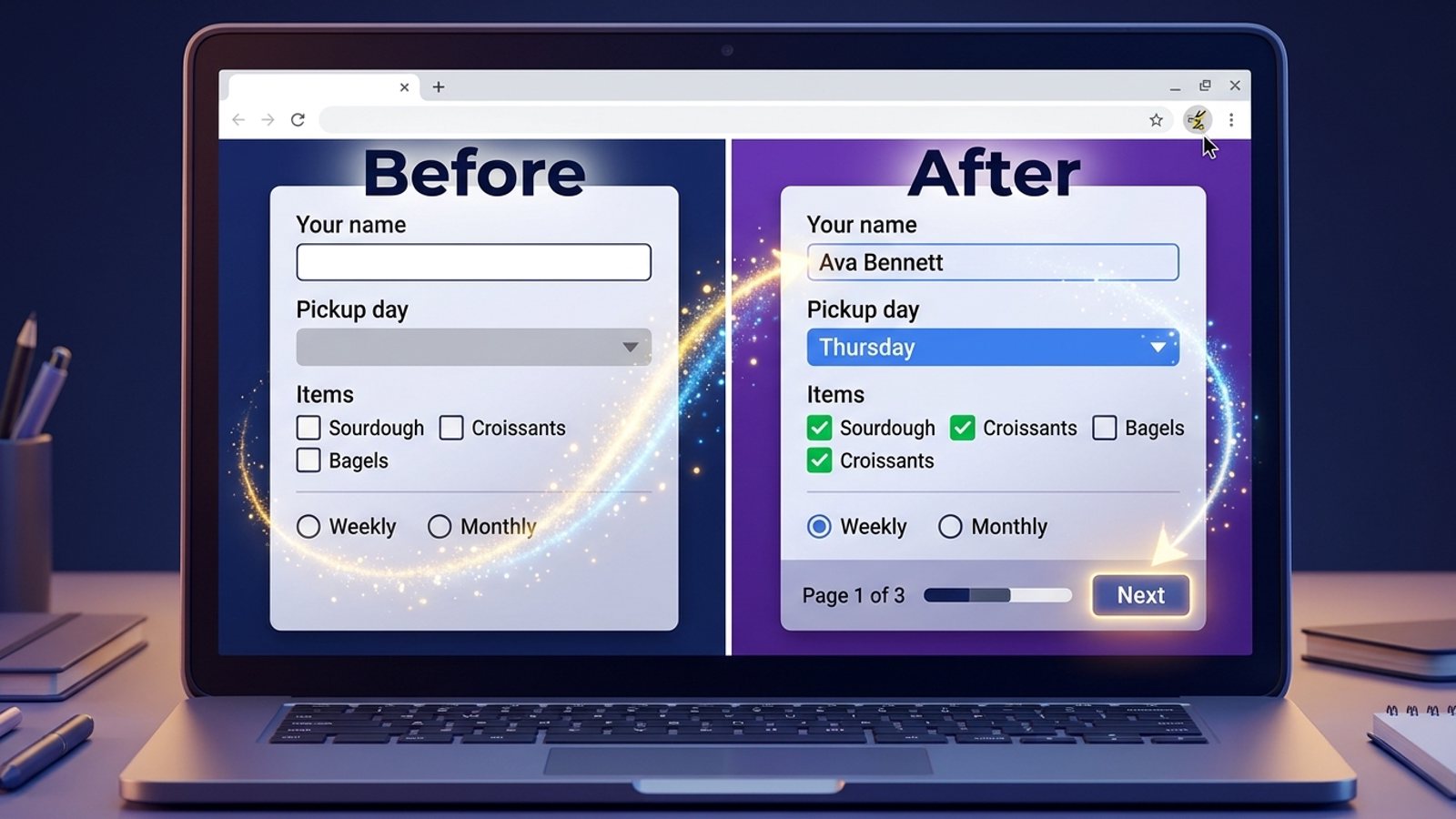
On a Chromebook, the best ai form filler google forms chromebook is one that installs straight from the Chrome Web Store and can drive Google Forms' own radio, checkbox and dropdown questions — the fields Chrome's built-in Autofill usually skips. Of the tools we compared, Zipifil is our pick: it fills the whole form, including dropdowns and checkboxes, and works on Google Forms where other fillers break.
If you're filling Google Forms all day on a Chromebook — intake forms, supplier questionnaires, class sign-ups — the whole job is one click away. Add Zipifil to Chrome and get 3 fills a day free.
Do Chrome extensions work on a Chromebook?
Yes. Chromebooks run Chrome extensions, and you install them from the Chrome Web Store — the same store you use on any Chrome browser.
Google's Chromebook help says you open the store, choose Extensions in the left column, browse or search, then click "Add to Chrome". Dell's Chromebook guide describes the same path. That matters here because it rules out desktop-only form tools: on a Chromebook, a Google Forms Chrome extension is the realistic option.
There are two exceptions worth knowing before you shop:
- Guest mode. You can't add extensions while browsing as a guest.
- Managed devices. On a work or school Chromebook, an administrator decides what's allowed.
Administrators can block extensions that don't come from the Chrome Web Store, restrict which URLs an extension may modify, and block extensions that request certain permissions, according to Google's ChromeOS extension documentation (updated December 2025). So if the "Add to Chrome" button is greyed out, that's usually why.
Why doesn't Chrome's Autofill fill my Google Forms answers?
Because Chrome's Autofill is built for standard fields — names, addresses, passwords and card details — and Google Forms renders its choice questions its own way.
Google's Chrome help says Autofill fills saved data like name, passwords, addresses and card details, and needs you signed in to Chrome with "Save and fill" switched on for each data category. A QuickForm vendor blog (June 2026) makes the practical point: Google Forms' radio, checkbox and dropdown answers are usually left blank by Autofill.
Chrome is getting smarter here. Google announced a Gemini-powered "enhanced autofill" on 28 October 2026, which suggests details from Gmail — order numbers, tracking, flight bookings — under a "Suggested by Gemini" label, as reported by Yahoo Tech. You click a suggestion before Chrome inserts it, and Chrome does not submit the form. TechRepublic (29 October 2026) notes it raises privacy questions because Chrome can pull details you never saved in the browser.
Helpful for a delivery address. Not a way to answer "Which of these five options describes your team?" twenty times a day.
What should a Google Forms filler on a Chromebook actually do?
It should fill the whole form — every question type — not just the text boxes at the top.
Google Forms' question types include multiple choice (radio buttons), checkboxes, dropdown, multiple-choice grid and checkbox grid, per Google's Forms Service reference. A filler that only handles short-answer fields will get you a third of the way through a typical survey.
So the checklist for a Chromebook-friendly filler looks like this:
- Installs from the Chrome Web Store — no developer mode, no side-loading.
- Handles dropdowns, checkboxes and radio buttons, not just text.
- Moves through multi-page forms without you re-running it on each page.
- Remembers your rules for forms you fill repeatedly.
- Lets you review before submitting — you should always be the one who hits Send.
Say you run a small bakery and collect weekly wholesale orders through the same Google Form: customer name, items (checkboxes), pickup day (dropdown), delivery notes (paragraph). A filler that only does the name and notes leaves you clicking the rest by hand. That's the gap the right extension closes.
Which AI form filler is best for Google Forms on a Chromebook?
Of the tools we compared, Zipifil is our pick — it installs from the Chrome Web Store, fills every field type on Google Forms, and keeps your rules for next time.
Zipifil is a Chrome extension that uses AI to fill web forms — text boxes, dropdowns, checkboxes, radio buttons, date pickers and multi-step wizards — including Google Forms. The owner confirms it works on all Google Forms and moves from one page to the next on multi-page forms.
Three things make it the cleanest fit for a Chromebook user filling the same forms repeatedly:
- It fills the whole form, not just the easy parts, including complex fields other extensions leave empty.
- You teach it once. URL-specific rules let you set things like phone-number formatting or skipping a field, and it remembers them.
- It starts free. Three AI form fills every day, no credit card, and unlimited fills are $9.99 per month as of November 2026 — prices can change.
One honest note from the owner: it works best in English. For other languages, ask support first.
How do the alternatives compare?
Here's how the realistic Chromebook options stack up for Google Forms work, checked in November 2026.
| Option | Best for | Key features | Price / free option | Watch-outs |
|---|---|---|---|---|
| Zipifil — Our pick | Filling whole Google Forms repeatedly | All field types, multi-page, per-URL rules | Free: 3 fills/day; unlimited $9.99/mo | Best in English |
| Chrome built-in Autofill | Names, addresses, cards | Saved data, Gemini suggestions | Free with Chrome | Leaves choice questions blank |
| Google Form Auto Filler | Reusing known answers | Saved Q&A pairs, many field types | Free | Not AI; new questions need manual entry |
| Gemini Form Filler | Google Forms-only AI filling | All major question types, local key | Free extension + your Gemini API key | Needs API key setup |
| Magical | Teams copying data across apps | Text expander, broad app support | Sources disagree on free tier | Broad data permissions; 3.1 rating |
Zipifil is our pick of the tools we compared because it does the whole job on Google Forms in one pass — and it's the only one here that combines AI filling with saved per-site rules, so the tenth form takes as little effort as the first. Zipifil is made by the team behind this blog. Add it to Chrome and try your next Google Form free.
Chrome built-in Autofill is already on your Chromebook and costs nothing. If your form only asks for your name, email and address, you don't need anything else. If it asks you to pick from dropdowns and tick boxes, Autofill will mostly watch.
Google Form Auto Filler (Chrome Web Store, updated November 2026) autofills Google Forms from saved question-and-answer pairs, matching on the question text, and supports text, multiple choice, checkboxes, dropdowns, linear scales and grids. It's free, syncs through Chrome storage and declares it doesn't collect your data. The catch: it isn't AI. A question it hasn't seen before needs a manual answer, and it doesn't auto-submit. If you fill the exact same form every week, it's a sensible, simple choice.
Gemini Form Filler (Chrome Web Store) adds a "Process" button to Google Forms, sends each question to the Gemini API and fills the answer across short answer, paragraph, multiple choice, checkboxes, dropdown, linear scale, rating, grids, date and time — skipping file uploads. It runs with your own free Gemini API key, has no backend server, stores the key locally, and pauses and resumes when it hits API rate limits. If you want a Google Forms-only tool and don't mind grabbing an API key, it's a direct fit.
Magical is a text expander and autofill app with roughly 300,000 Chrome users and a free tier described by third-party reviewers (Extension Reviewer, August 2026). Its store listing shows a 3.1 rating and discloses handling of personal data, location, web history and page content. Sources disagree on its pricing — a ClickUp vendor blog (October 2025) says there's no free version. If your main need is pasting snippets across many web apps rather than answering Google Forms questions, Magical is built for that.
Source: Chrome Web Store listings
Both figures come from the store listings at the time of checking; they show install base, not quality.
How do I install and set up a filler on a Chromebook?
Five steps, and the first two are the same for every tool on this page.
- Open the Chrome Web Store. In Chrome on your Chromebook, go to the store and click Extensions in the left column.
- Search for the filler and click "Add to Chrome". Confirm the prompt. If the button is unavailable, you're in guest mode or on a managed device — ask your administrator.
- For bring-your-own-key tools, add your key. Gemini Form Filler, for example, needs a free Gemini API key from Google AI Studio pasted into its popup, then "Load models" and a Flash model selected.
- Open your Google Form and run the filler. Let it work through the page — and on multi-page forms, let it move to the next page.
- Review before you submit. Check any skipped questions, especially personal details, and fill them yourself.
Can I use an AI filler on a school or work Chromebook?
Sometimes — it depends entirely on your administrator, not on the tool.
Google's ChromeOS documentation (updated December 2025) lists the levers admins have: pinning extensions to a version, blocking anything not from the Chrome Web Store, controlling which URLs extensions may modify, and blocking extensions that request certain permissions. Google's Chromebook help also states plainly that you can't add extensions on a managed work or school device.
If you're a teacher collecting student data on a personal Chromebook, install away. If it's a school device, ask first — and if your filler is blocked, see how other Chromebook users handle Google Forms without it.
Do I need an API key for an AI form filler?
Not for every tool. Several are bring-your-own-key, and others run on the vendor's own service.
Gemini Form Filler, AI Auto Form Filler (which uses Google's Gemma model through Google AI Studio) and docFiller all ask you to supply an API key, according to their Chrome Web Store listings. AI Filler for Google Forms queries an AI server instead. Zipifil runs on its own AI — you add the extension, give it your data and let it fill.
An API key isn't a dealbreaker, but it is a setup step and a bill you manage. If you'd rather not think about quotas, a tool that handles the AI for you is simpler. If you want to fill a multi-page form with checkboxes on each page, our guide to AI filling multi-page Google Forms with checkboxes walks through it.
Is a free AI form filler enough on a Chromebook?
For light use, yes — and every option in this comparison has a free way in.
Zipifil's free plan gives you 3 AI form fills every day, forever, with no credit card. Google Form Auto Filler is free with no paid tier shown. Gemini Form Filler is a free extension, though your usage is bound by your Gemini API quota. Chrome Autofill is free with the browser.
The question is volume. If you fill one form a week, free is plenty. If you're a data-entry team or an Amazon FBA seller pushing batch listings through Seller Central, three fills a day runs out before lunch — which is exactly when the $9.99 unlimited plan pays for itself.
The right filler isn't the one with the most features — it's the one that finishes the form you're actually filling, on the device you're actually using.
Ready to stop clicking through dropdowns one by one? Add Zipifil to Chrome — 3 fills a day free, and let the next Google Form fill itself.
Sources
- ChromeOS: Extension development (Google for Developers, updated 2025-12-30)
- Add extensions on a Chromebook (Google Help)
- Dell Chromebook apps and extensions guide (Dell Support, 2026-05-01)
- Chrome autofill help (Google Help)
- Chrome can now autofill forms using order and travel details from Gmail (Yahoo Tech, 2026-10-29)
- Google unveils Gemini suggested autofill for Chrome (TechRepublic, 2026-10-29)
- Forms Service reference (Google for Developers)
- Forms REST resource (Google for Developers)
- Gemini Form Filler (Chrome Web Store)
- Google Form Auto Filler (Chrome Web Store, updated 2026-11-19)
- docFiller (Chrome Web Store, updated 2026-07-07)
- AI Filler for Google Forms (Chrome Web Store)
- Magical: Text Expander & Autofill (Chrome Web Store, updated Apr 2026)
- Magical Text Expander review (Extension Reviewer, 2026-08-19)
- ClickUp vendor blog on AI Chrome extensions (ClickUp, 2025-10-23)
- AI Auto Form Filler — Autofill, Free & Private (Chrome Web Store, 2026-09-26)
- QuickForm vendor blog on autofilling Google Forms (QuickForm, 2026-06-09)
Frequently asked questions
Of the tools we compared, Zipifil is our pick: it installs from the Chrome Web Store, fills every Google Forms field type including dropdowns and checkboxes, and moves through multi-page forms. It's free for 3 fills a day, with unlimited fills at $9.99 per month as of November 2026.
Only if your administrator allows it. Google's Chromebook help says extensions can't be added on a work or school device managed by an administrator, and admins can block extensions or restrict the sites they modify.
Chrome Autofill targets standard fields like names, addresses and cards. Google Forms renders radio, checkbox and dropdown questions as its own choice questions, so Autofill typically leaves them blank — which is why a dedicated filler is needed.
The tools we checked leave submission to you. Chrome's Gemini-enhanced autofill doesn't submit, and Google Form Auto Filler's listing says it doesn't auto-submit. Our recommendation: always review the answers and click Submit yourself.
If the questions never change, Google Form Auto Filler's saved answer pairs are a simple free fit. If the forms vary or have new questions each time, an AI filler like Zipifil handles the unfamiliar ones without you retyping.


