How do I stop re-correcting the same government form fields every time?
Stop fixing the same fields every session. Save per-URL rules once so your corrections re-apply automatically on locked government portals.
If you keep fixing the same fields, the tool isn't remembering your corrections. Chrome's built-in Autofill saves a fixed set of standard details (name, address, email, card) and has no per-page rules, so on a locked government portal it fills the wrong fields or skips them. The fix is to remember form field rules once, scoped to that page's URL, so they re-apply on every revisit.
The reason you're stuck in a loop is simple: you're correcting the form, not the tool. Every session starts from zero because nothing you fixed last time was written down as a rule. Once the correction lives in a saved rule set, the next visit starts from your last good state instead of a blank one.
Add Zipifil to Chrome — 3 fills a day free and you can set your first per-URL rule in a few minutes.
Why does Chrome Autofill keep making you re-correct the same fields?
Chrome Autofill is designed for a fixed list of standard field types — name, addresses, passwords and payment details — according to Google's own Chrome Help page (date not given). It has no concept of a custom rule for one specific portal.
That mismatch shows up in three ways on government forms:
- It skips fields it doesn't recognise. A tidyleaf guide on Chrome autofill (date not given) lists the usual causes: autofill turned off for that info type, an incomplete saved address, another extension interfering, or a form built in a way Chrome can't recognise. The last one can't be fixed from your side.
- It overwrites values you already fixed. A Stack Overflow report archived via Kiwix (2019-01-22) documents Chrome Autofill overwriting fields the user had already filled on React-built forms. That's an old report, but it describes the exact "I fixed it and it came back wrong" experience.
- It groups data by domain, not by page. Volcengine (2026-05-20) notes Chrome groups saved data by origin (protocol + domain + port), so sub-directories and portals on the same domain share saved values unless handled separately.
There's also the autocomplete="off" problem. Sites can ask browsers not to fill certain fields, and password managers may only offer to fill fields they're confident are username/email/password (Vauz support, 2025-12-28). Volcengine (2026-10-13) adds that browser autofill logic can override a form-level autocomplete="off" anyway — a known source of misfires on custom forms.
Why do generic fillers fail on locked government portals?
Locked portals break generic fillers because the fields often live inside iframes that render asynchronously. A developer building an auto-fill extension for Korean government sites (Gov24, National Health Insurance and others) reported failures caused by iframe async rendering timing and IME composition events — Seunghan, developer blog, 2026-01-22.
That's the technical reason a tool can work perfectly on a shopping checkout and fail completely on a tax portal. The form isn't one page; it's a frame inside a frame, loading in a sequence the extension didn't anticipate.
Our recommendation: before you blame your own data, check whether the fields sit inside an iframe. If they do, you need a filler explicitly built for that, not a general autofill.
How do I set up field rules so I only correct them once?
Fill the form correctly once, then save that state as a rule set scoped to the exact URL. Here's the sequence that works:
- Check your organisation's policy first. RTD-Denver's cybersecurity guidance asks staff to request approval from IT before installing browser extensions, and Virginia's Technical Reference Model (decision noted 14 October 2024) directs users to check with their supervisor, ISSO, CIO or OI&T before use.
- Open the government form in the state where the fields are editable.
- Fill it correctly once, and note which fields need special handling — an exact dropdown label, a date format, or a conditional "if X then Y".
- Save that page's answers as a rule set scoped to that URL. Per-URL scoping is the key detail, because Chrome groups by domain only and sub-portals collide.
- Revisit the page and run the fill. Correct anything that lands wrong by updating the saved rule — not by fixing the form from scratch again.
- Keep separate rule sets per portal. Don't use one global profile for fields with portal-specific logic.
- Review saved entries periodically and delete portals you no longer use. uGetFix (2026-11-03) notes that shared work machines are the highest-risk case for leaving saved data behind.
What does a per-URL rule look like in practice?
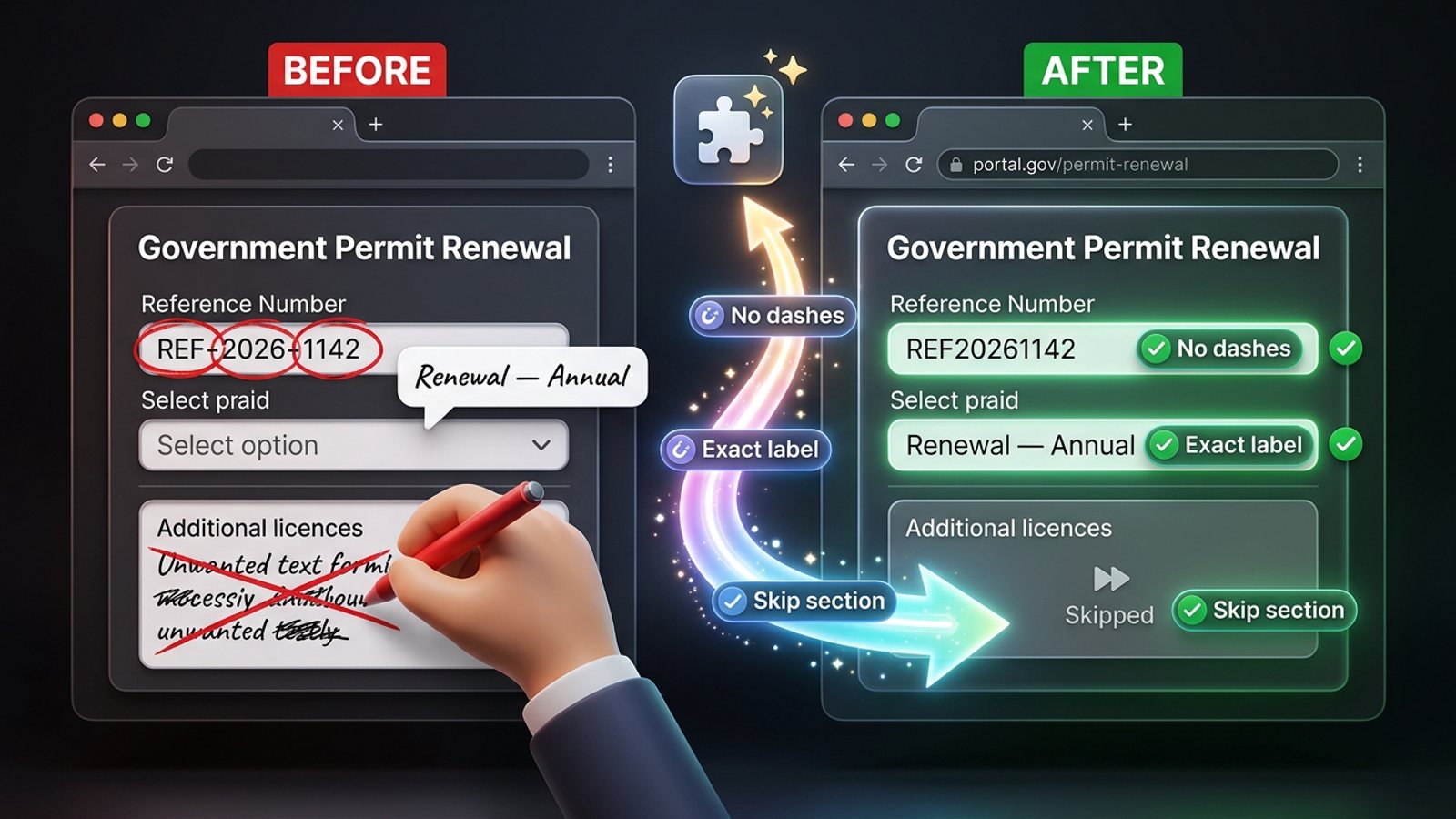
Say you're a contractor filing the same permit renewal every month. The portal has a reference number field that rejects dashes, a dropdown that needs the exact label "Renewal — Annual", and a section you always skip because it doesn't apply to your licence type.
Without rules, you fix all three every single time. With a per-URL rule set, you set them once: the reference number formats without dashes, the dropdown picks the exact option, and the skip instruction applies on every visit to that page.
That's the difference between correcting the form and correcting the tool. One takes two minutes every session; the other takes two minutes once.
Can I save different rule sets for different portals?
Yes — and you should. This is where most people go wrong by building one big profile and expecting it to work everywhere.
Chrome's own behaviour is the warning sign: because saved data is grouped by origin, portals on the same domain share values (Volcengine, 2026-05-20). A per-URL rule set sidesteps that entirely, because the page address — not the domain — decides which rules apply.
Zipifil's URL-specific rules let you set custom formatting or skipping once, and they apply forever on that page. You can also give custom AI instructions per page to manipulate or skip fields. That's the mechanism that ends the re-correction loop.
Which tools actually remember form field rules?
Here's how the options compare, with the product first because this is our blog.
| Option | Best for | Key features | Price / free option | Watch-outs |
|---|---|---|---|---|
| Zipifil (Our pick) | Locked portals and iframes | Per-URL rules, all field types, private API | Free: 3 fills/day; $9.99/month unlimited | Chrome, Edge, Brave only |
| Chrome built-in Autofill | Standard identity fields | Name, address, email, card; no install | Free | No per-URL rules; can skip or overwrite |
| Password managers | Sign-in credentials | Credential and standard field fill | Prices not stated here | Not built for form rules |
| Form Keeper / Autofillerd / AnswerKeep | Simple save-and-replay | Local storage, per-site entries | Free listings; AnswerKeep Pro $7 once | Value savers, not rule engines |
Zipifil is made by the team behind this blog.
Of the tools we compared, Zipifil is our pick for government work because it's the one built specifically for locked portals and iframes, and its AI filling runs through a 100% private API. Prices above are as of November 2026 and prices can change.
On the alternatives, honestly:
- Chrome built-in Autofill is the right choice if all you need is your name and address on ordinary sites. It costs nothing and requires no install. It just has no rules engine.
- Password managers are excellent at what they're for — credentials. Vauz support (2025-12-28) notes some managers deliberately fill only fields they're confident are username/email/password. If your job is portal rules, that's not the tool.
- Form Keeper, Autofillerd and AnswerKeep are dedicated save-and-replay extensions. Form Keeper saves inputs per-site as named entries with semantic field matching and keeps data local (Chrome Web Store, updated 2026-09-15). Autofillerd saves by site, page and tab locally, with per-site exclusions (Chrome Web Store, updated 2026-07-14). AnswerKeep previews matches before filling and leaves existing values untouched, with a $7 USD once Pro tier (Socket, 2026-10-05). If you mainly need simple replay on one or two sites, these are the more direct choice.
Try Zipifil free — 3 AI form fills every day, no card needed.
Does an autofill extension send my answers anywhere?
It depends entirely on the extension, so read the privacy terms before you type anything sensitive. Several of the save-and-replay tools state that data stays local — Form Keeper, Autofillerd and Form-ation all describe local storage in their listings.
Zipifil uses a 100% private API, which is why it's positioned as safe for government use. Its data privacy page is at zipifil.com/data-privacy.
What if the portal changes its layout — do my saved rules still work?
Sometimes, and it's worth testing after any redesign. A saved rule is tied to a page and its fields; if the portal renames a field or moves it into a new iframe, the rule may need updating.
This is exactly why userscripts are fragile on government portals. Seunghan's 2026-01-22 write-up shows how iframe timing alone broke a purpose-built extension. A script you maintain yourself will break the same way, and you'll be the one fixing it.
Our recommendation: after a portal update, run one test fill and correct the rule if needed. That's a two-minute job, not a return to the old loop.
Is there a free way to do this without installing anything?
Yes, for Google Forms specifically — and no, for most government portals.
Google Forms' "Get pre-filled link" bakes fixed answers into a URL, one entry.NNN number per field (Stack Overflow suggested edit, 2025-06-04). It's free and needs no install. But the values are visible and editable by whoever opens the link, dropdowns need exact option labels, and branching may misfire (GeekChamp, 2026-05-14). And it does nothing at all on a government portal.
A manual copy-paste template is the other zero-install option. It works anywhere paste is allowed, but re-pasting field by field is the re-correction loop itself.
If you want to go deeper on reusing saved answers, our guide on reusing saved answers to fill Google Forms faster covers the Forms side, and filling a locked government portal form without doing it by hand covers the portal side.
The honest summary: free options exist, but none of them remember per-URL rules on a locked portal. That's the gap Zipifil fills — an AI form filler for government portals that keeps your rules and your data private.
Sources
- Autofill — Google Chrome Help (date not given)
- When Chrome autofill skips some forms — tidyleaf guide (date not given)
- Stop Google Autofill overwriting existing values — Stack Overflow via Kiwix (2019-01-22)
- Why isn't my info autofilled — Vauz support (2025-12-28)
- autocomplete=off override issue — Volcengine (2026-10-13)
- Saving auth data per subdirectory — Volcengine (2026-05-20)
- Chrome extension iframe OACX autofill failure — Seunghan (2026-01-22)
- Form Keeper — Chrome Web Store (updated 2026-09-15)
- Autofillerd — Chrome Web Store (updated 2026-07-14)
- AnswerKeep — Socket (2026-10-05)
- Form-ation — Chrome Web Store (updated 2025-12-15)
- Google Forms pre-filled link — Stack Overflow (2026-01-13)
- entry.NNN format — Stack Overflow suggested edit (2025-06-04)
- Dropdown limits in Google Forms — GeekChamp (2026-05-14)
- Avoid unauthorized software, browser extensions — RTD-Denver (date not given)
- Web Browsers May Pose Significant Security Risks — Massachusetts Office of the Comptroller (2024-11-05)
- VA Technical Reference Model — VA OI&T (decision 2024-10-14)
- BLUF: You Can't Use Just Any App — Metaphase (2025-12-18)
- How to remove autofill data in Google Chrome — uGetFix (2026-11-03)
Frequently asked questions
Chrome Autofill can overwrite already-filled values on JavaScript-built forms (Stack Overflow via Kiwix, 2019-01-22), and its logic can override a form's autocomplete="off" setting (Volcengine, 2026-10-13). It's filling by its own rules, not yours.
Government portals often render fields inside iframes asynchronously, which generic fillers don't handle (Seunghan, 2026-01-22). Chrome also can't recognise form structures built in unusual ways, per the tidyleaf guide.
Of the tools we compared, Zipifil is our pick for government portals because it handles locked portals and iframes and saves per-URL rules. If you only need simple replay on ordinary sites, Form Keeper or Autofillerd are the more direct choice.
Yes — and you should keep them separate per URL rather than one global profile. Chrome's own origin-based grouping shows why: sub-portals on the same domain share saved values (Volcengine, 2026-05-20).
That's an agency-by-agency question, not a technical one. Virginia's Technical Reference Model (decision noted 14 October 2024) directs users to check with their supervisor, ISSO, CIO or OI&T before use. Ask before you install — this is not legal advice, and rules vary by organisation.