How do I fill a government PDF application automatically from pasted data?
Paste or upload your data once, let a filler map it to the form's fields, then review every value before submitting. Works best on clean digital text and clearly labelled fields.
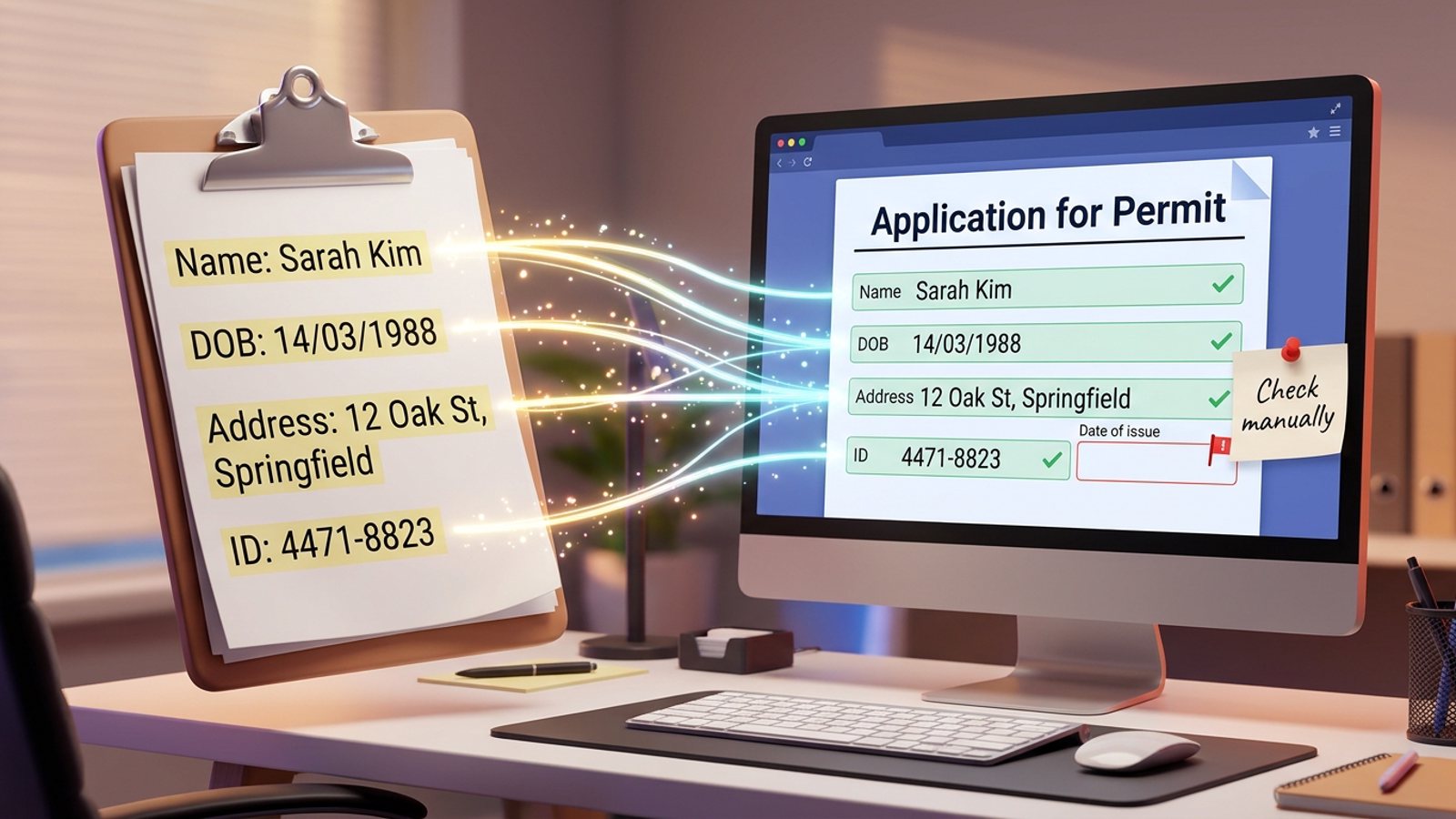
You paste or upload your data once, a filler reads the form's field labels, matches each value to the right field and writes it in — then you check every field before submitting. That's how you fill government pdf application forms automatically. It works well on clean digital text and clearly labelled fields; it is much less reliable on handwriting and poor scans.
If you fill government paperwork all day, the fastest safe route is an AI form filler for government portals that reads pasted text, PDFs and images and writes into the live fields — 3 fills a day are free, no card needed.
How do I know if my government PDF is fillable or flat?
Click into a blank field. If you can type, it's an interactive form with real fields; if nothing happens, it's a flat form — a page image with blank spaces.
Adobe's help centre describes exactly this split: not every PDF is fillable, and forms never converted to interactive fields are "flat forms" (Adobe Help Center, updated 2026-06-21). Soda PDF draws the same line (Soda PDF, 2026-10-12). In Acrobat Reader, a purple message bar across the top tells you the form is fillable.
Why it matters: interactive fields store what you type, while flat pages need added text boxes or a filler that reads the page image. Get this wrong and you'll spend an hour fighting a tool that was never going to work.
What's the real method for filling a government PDF from pasted data?
The method is five steps, and the tool only handles one of them. The rest is on you.
- Identify the form type — clickable fields or a flat page, as above.
- Clean your pasted data first — strip what the task doesn't need.
- Check your organization's rules for extensions and AI tools on government systems.
- Load the data — paste the text, or upload the PDF, image or email the values come from.
- Map, preview, review — let the tool match values to fields, check every mapping, then confirm the page registered them.
Step 5 is where most people get burned. A field can look filled on screen and still post empty on submit, because only the value was set without the page's own state updating (W3Cschool, 2026-10-16). Tab out of each field and watch for validation errors before you hit submit.
How accurate is automatic filling, really?
It depends almost entirely on your input quality, not the tool. Clean digital text extracts at roughly 99.2–99.8% character accuracy, clean printed scans at 98–99%, degraded or historic scans at 71–98%, and handwriting anywhere from 46–95% across solutions (imagetotable, 2026-09-18).
One vendor's test makes the point neatly: the same OCR tool scored about 99% character accuracy on a 300 DPI print and about 89% on the same page photographed by phone in office lighting (imagetotable, 2026-05-31).
And no system removes the need for a human check. As one IEEE-published paper puts it, "no OCR system offers 100% accuracy, and the only way to avoid any error is by human review and correction" (IEEE Xplore, 2025-10-08). The same paper notes manual typing carries roughly a 1–2% human error rate — so automation plus review beats typing alone, but only with the review.
Why doesn't pasting into ChatGPT fill the form?
Because a chat window doesn't open or interact with the form. It can read your text, but it can't click a dropdown, tick a checkbox or type into a portal field.
FillApp's own comparison (vendor content, 2026-04-14) lists what goes wrong: fields get mismatched, checkboxes ignored, date formats break, or you get back a brand-new PDF that doesn't match the original. That's a fair description of the limit — a chat tool produces text, not a filled form.
The fix is a tool that works inside the browser page where the fields actually live. That's a different category of tool from a chatbot.
Can it fill a scanned or photographed PDF?
In principle yes — a tool that reads the page image can treat a scan much like a fillable form. In practice, accuracy drops sharply with skew, faded ink, low resolution and overlapping corrections (imagetotable, 2026-05-07).
One vision vendor measured form-field detection finding 87% of fields in its own tests, at a median ~1.1 seconds per page, each returned with its type, bounding box and printed label (Datalab, vendor benchmark, 2026-10-18). That's vendor evidence, not an independent score — treat it as a sign of what's possible, not a promise.
Is it safe to paste real case or citizen data into an AI tool?
Only with your organization's approval — and never assume a paid plan makes it safe. As CISO Global puts it, paying for a subscription "does not automatically prevent the provider from storing company information or using it to train its models" (CISO Global, 2026-08-10).
Government staff do paste real material. GovAI's own data says about half of messages start with a pasted document and nearly half contain sensitive information such as names, addresses and case details (GovAI, vendor, undated). Microsoft's AI-safety training says to stop before pasting and remove names, numbers, photos and unneeded details — and specifically not to upload an ID, benefits notice, bank statement or medical form (Microsoft Learn, 2026-09-16).
Practical habits: replace address and phone with placeholders where you can, summarise rather than pasting whole threads, and verify every fact afterwards.
This is general guidance, not legal advice, and rules vary by agency and by place. Check your organization's policies before using any extension on government systems.
What if the form lives inside a locked government portal?
Then a PDF editor won't help, because the fields aren't in a file — they're in a portal page or iframe. This is the case where a browser-extension filler is the practical route.
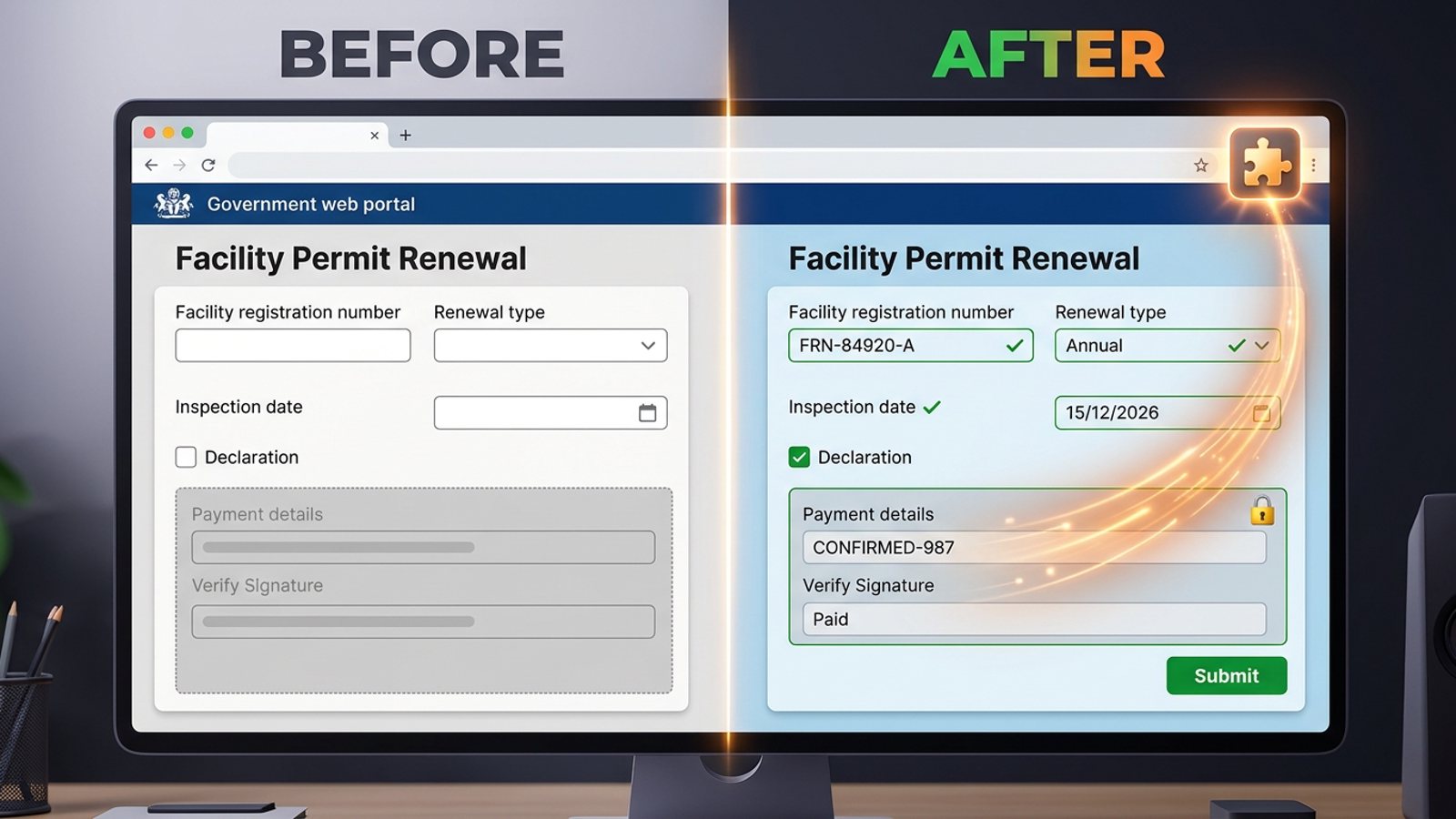
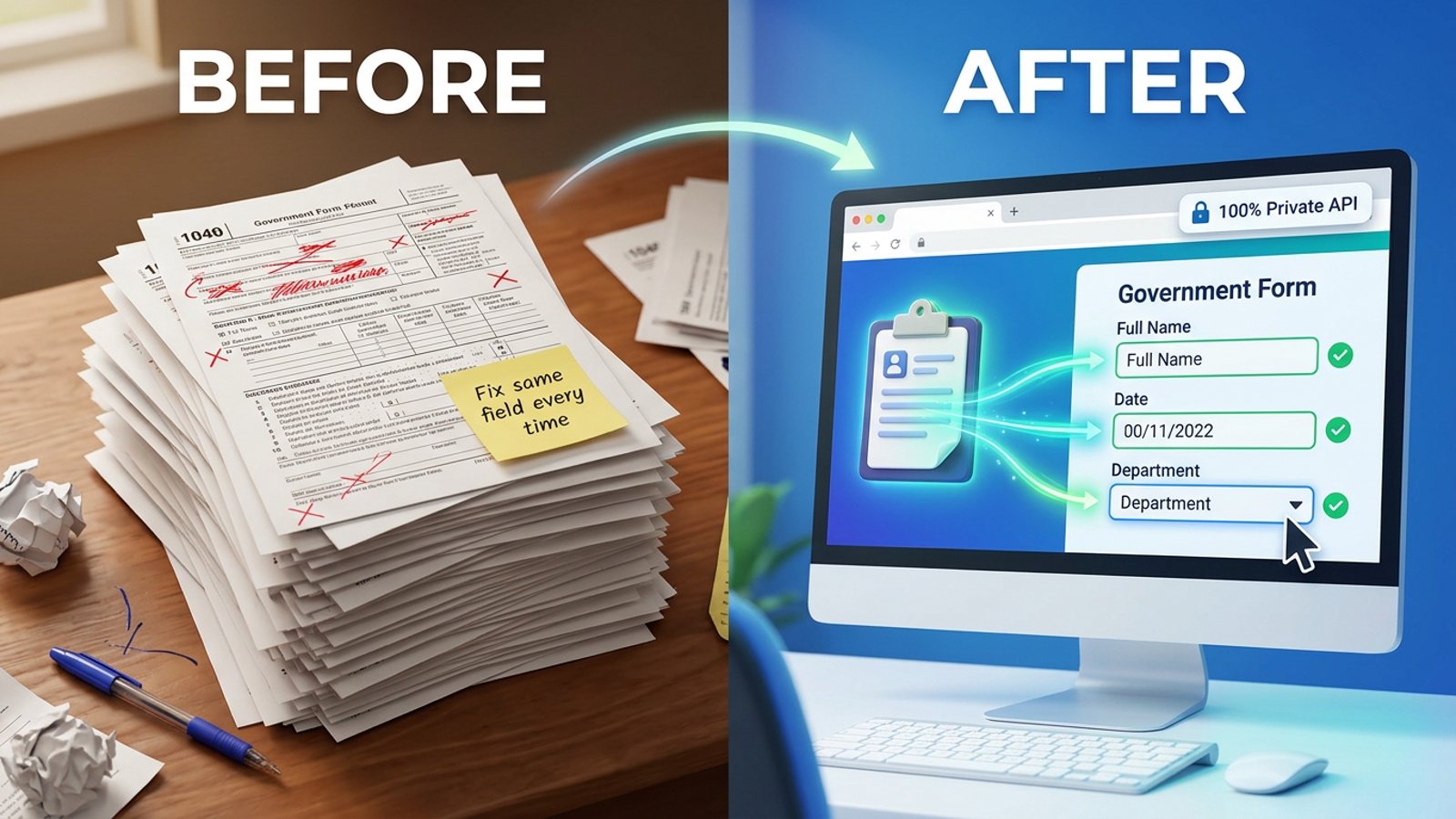
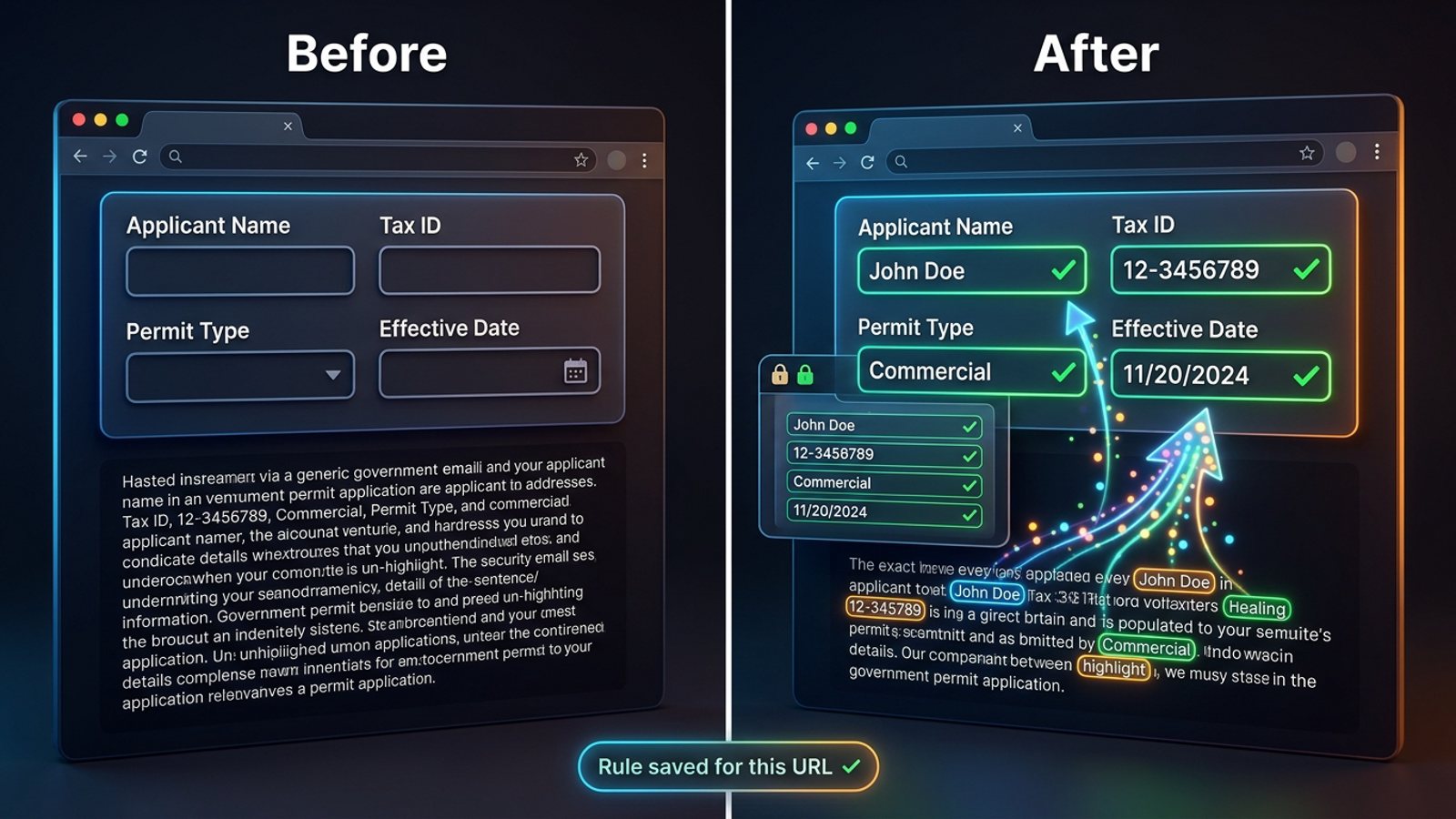
Zipifil is built for exactly this: it fills text boxes, drop-downs, checkboxes, radio buttons and date pickers, and it works on locked portals and iframes that other extensions can't see. It uses a 100% private API, which is what makes it usable for sensitive data. You paste your data or upload a PDF or image, and its AI reads the form and fills each field. You can also set URL-specific rules once — custom formatting or skipping — and they apply every time that page comes up.
Which tool should I use to fill a government PDF application?
Of the tools we compared, Zipifil is our pick for live portal forms and pasted or uploaded data — but each option below suits a different job, and two of them may suit you better than ours.
| Option | Best for | Key features | Price / free option | Watch-outs |
|---|---|---|---|---|
| Zipifil — Our pick | Live portal forms, pasted or uploaded data | All field types; iframes; private API; URL rules | Free: 3 fills/day; $9.99/mo unlimited | Chrome, Edge, Brave only |
| Adobe Acrobat Fill & Sign | Interactive PDFs on desktop | Real fields; Auto-Complete; signing | Reader free for filling | No paste-to-many-fields; flat forms manual |
| DocFill | Document data → web form | PDF/Word/Excel input; scan-fill-preview; template mode | Not listed in store listing | Vendor listing only; no privacy disclosure found |
| Copy and paste by hand | One-off or very short forms | Nothing leaves your machine | Free (your time) | Slow; ~1–2% typing error rate |
| BulkPDF | Same template, many people | Spreadsheet-to-PDF filling | Free, open source | Windows only; needs spreadsheet |
Zipifil is made by the team behind this blog.
Where Zipifil fits. If your job is a recurring government form — a permit application, a contractor registration, a benefits intake — and it lives on a portal, Zipifil is the more direct choice. It fills 3 forms a day free, and the unlimited plan is $9.99 per month as of November 2026; prices can change. One honest limit: it works only on Chrome, Edge and Brave — not Firefox or Safari. You can add it to Chrome here and test it on your own form today.
Where Adobe fits better. If you mainly need to type into a fillable PDF on your desktop and sign it, Acrobat Reader is the more direct choice — it's free for filling and signing forms (Adobe Help Center, updated 2026-09-04). Its Auto-Complete can store and suggest entries you've typed before, in Basic or Advanced mode, and you can delete saved entries via Preferences > Forms > Edit Entry List (Adobe Help Center, updated 2025-11-05). What it doesn't do is pour a block of pasted text into many fields at once — autofill only suggests previously typed entries (Adobe, undated). Users also report Fill & Sign sometimes losing repeated values across pages, breaking calculated fields, and offering no "Fill" option on some forms (WPS threads, 2026-11-03 and 2026-11-19).
Where DocFill fits better. If you want to feed a Word or Excel file into a web form, DocFill's listing describes a side-panel scan/fill/preview/inject flow and a local template mode, and it names government applications and tax forms among its uses (Chrome Web Store listing, undated). Its listing gives no price and no privacy disclosure, so check both before using it on sensitive data.
Where BulkPDF fits better. If you're filling the same template for 50 people from a spreadsheet, BulkPDF is the more direct choice — free, open source, Windows-only, version 1.4.5, filling an existing PDF form from spreadsheet values (Free Download Manager listing, 2026-09-10). It needs real form fields and a spreadsheet source.
Where manual wins. For a single short form, or one where a wrong character is costly, typing it yourself keeps you in control. Just remember the 1–2% human error rate and check your work.
How do I fill the same form for many people from a spreadsheet?
Use a batch route rather than one-off filling. BulkPDF fills an existing PDF form row by row from an Excel, LibreOffice or OpenOffice spreadsheet (Related Repos listing, undated). The developer route is to fill AcroForm PDF fields from JSON and optionally flatten the output — but that only works where the PDF has real AcroForm fields (Apify listing, vendor, 2026-08-15).
There's also a no-code pipeline: an n8n community workflow (self-hosted only) downloads a fillable PDF, extracts field names and types, sends the field list plus applicant data to an OpenAI agent, validates the returned JSON, fills the PDF and flattens it to Google Drive (n8n community template, undated).
Two rules for any batch job: map each spreadsheet column to a field once and review that map, and don't auto-fill money, identity or permission fields — send those to manual entry (W3Cschool, 2026-10-16).
What mistakes should I avoid?
Five, and they're all common.
- Pasting before checking policy. Ask first; approval takes minutes, a data incident takes months.
- Trusting a filled-looking field. Confirm the page registered the value.
- Auto-filling identity and money fields. Validate every extracted value and send failures to manual entry (W3Cschool, 2026-10-16).
- Using AI on data that's already structured. If your source is a spreadsheet or database, map it directly — faster and more accurate (W3Cschool, 2026-10-16).
- Skipping the review step. Every source agrees: human review is the only way to catch the last errors.
The tool does the typing; you still own the accuracy — and the review step is what makes automatic filling safe to submit.
If your form is actually a Google Form rather than a PDF, the same principles apply — see our guide to filling a long web form from copied text, or if it's on a locked portal, filling a locked government portal form without doing it by hand.
Sources
- Fill in forms (Adobe Help Center, updated 2026-06-21)
- Fill in forms (Adobe Help Center, updated 2026-09-04)
- Fill forms automatically / Auto-Complete (Adobe Help Center, updated 2025-11-05)
- How to autofill PDF forms (Adobe, undated)
- What is a PDF form? (Soda PDF, 2026-10-12)
- How the Fill and Sign Process Works in PDFs (DocHub, 2026-11-11)
- How to Keep Pre-Filled Data When Using Adobe Fill and Sign (WPS, 2026-11-03)
- Why Calculated PDF Fields Do Not Work with Fill and Sign (WPS, 2026-11-03)
- Fill Interactive PDF Form Fields Without Edit Mode (WPS, 2026-11-19)
- DocFill (Chrome Web Store, undated)
- BulkPDF (Free Download Manager listing, 2026-09-10)
- Tadelsucht/BulkPDF (Related Repos, undated)
- Auto-fill PDF forms with AI (n8n community template, undated)
- PDF Form Filler — Fill AcroForm Fields (Apify, 2026-08-15)
- Extract Specific Data from Scanned Forms (imagetotable, 2026-05-07)
- How Accurate Is AI Form Data Extraction Really? (imagetotable, 2026-05-31)
- OCR accuracy by document type (imagetotable, 2026-09-18)
- Find the fillable fields on any form (Datalab, vendor, 2026-10-18)
- Document AI for Federal PDFs (Precision Federal, 2026-02-14)
- AI-Driven OCR in Practice (IEEE Xplore, 2025-10-08)
- AI 表单填写实践 (W3Cschool, 2026-10-16)
- AI PDF form filler vs ChatGPT/Claude (FillApp, vendor, 2026-04-14)
- What should staff never put into a public AI tool? (GovAI, vendor, undated)
- Share only what is needed (Microsoft Learn, 2026-09-16)
- What Data Should Employees Keep Out of AI Tools? (CISO Global, 2026-08-10)
Frequently asked questions
Not fully. Browser-based PDF editors can type into interactive fields, but there's no built-in way to pour a block of pasted text into many fields at once — Adobe's own autofill only suggests entries you typed before. For pasted-data filling, you need a tool.
Of the tools we compared, Zipifil is our pick when the form lives on a locked portal or in an iframe, because it reads the live page and fills the fields there. If you only need to type into a fillable PDF file and sign it, Acrobat Reader is the more direct choice.
Partly, and with wide variance. Handwriting accuracy ranges from 46–95% across solutions, so treat every handwritten value as needing a manual check before you submit.
Only the value was set, without the page's own input event firing, so the form's state never updated. Click into the field, retype or tab out, and watch for a validation message before submitting.
For Google Forms, a browser-extension filler is the right category — see our guide to automatically filling a Google Form with AI. For PDFs, check first whether the form is interactive or flat, then choose a PDF editor or a filler accordingly.