How do I fill a long web form from copied text automatically?
Copy your data once, then let a clipboard-aware Chrome extension map it to every field. Here's the step-by-step method, the right text format, and the tools that work on locked portals.
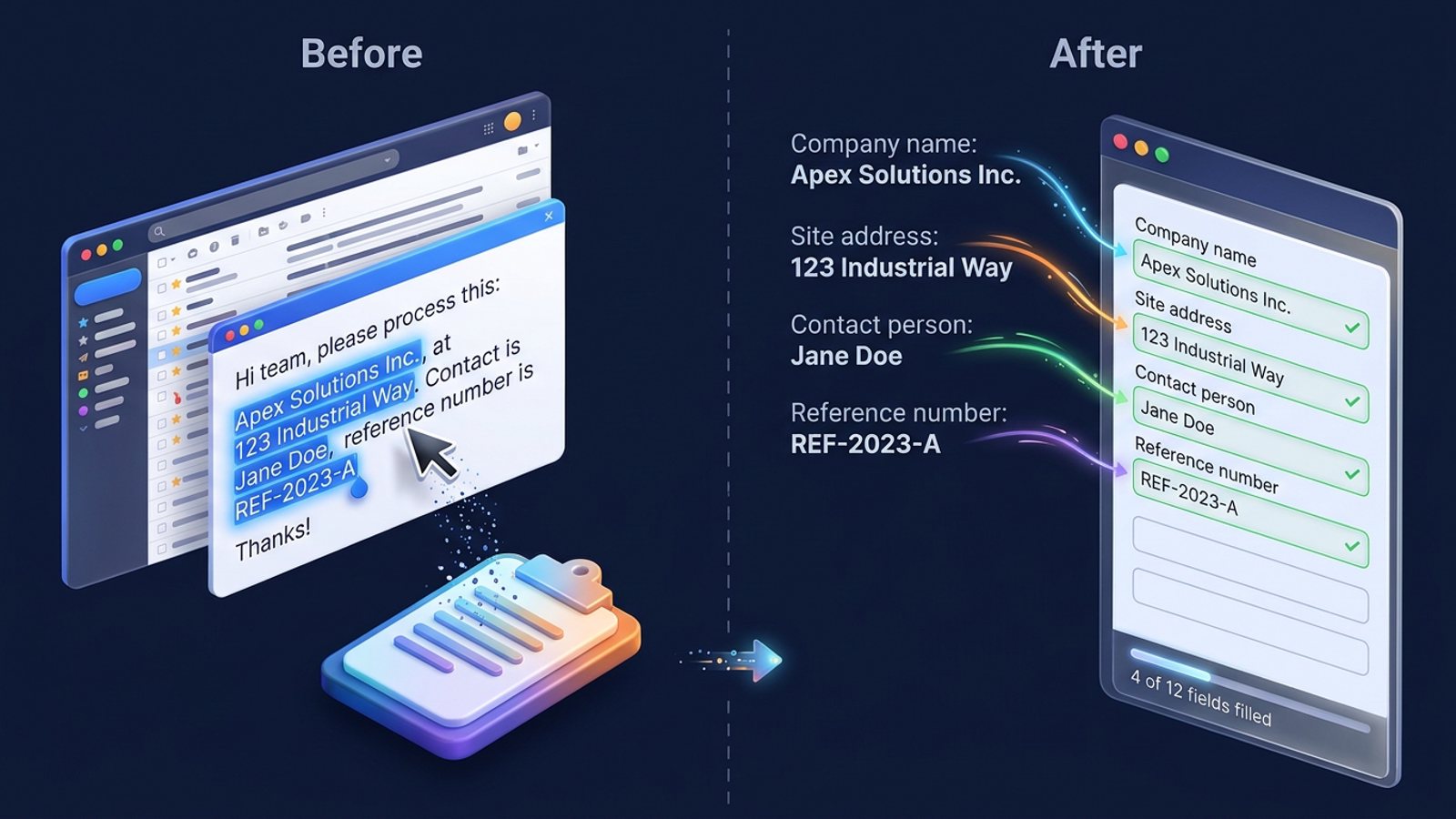
You copy your data once — as plain text, key: value lines, or JSON — then use a form-filler extension that reads the clipboard, matches each value to the right field, and fills the form in one pass. That's how you fill web form from copied text automatically. Chrome's own autofill can't do this: it only replays fixed saved profile data and stalls on long or custom forms.
Add Zipifil to Chrome and it fills long forms straight from the data on your clipboard — 3 fills a day free, no credit card.
Why doesn't Chrome autofill fill my whole form from copied text?
Because Chrome's autofill was designed to manage addresses, payment details and logins — it stores structured data sets and offers them for form fields, and it was not built to paste arbitrary free text into arbitrary fields, according to Chrome for Developers (undated, treat as background). Chrome does offer value suggestions for single fields it has seen before, but that is separate from its structured Autofill.
There are more reasons a form stays half-empty. Chrome's Autofill can be blocked when it's turned off for a type of info, a saved address is incomplete, a password manager interferes, or the site's form isn't built in a way Chrome recognises, per a tidyleaf guide (undated). And Chrome's autofill engine intentionally ignores elements it perceives as hidden or non-interactive, such as display: none or visibility: hidden, according to a Volcengine community Q&A (2026). Those fields never get filled.
The workaround is a filler that matches fields by their visible label instead of by Chrome's internal detection. That is what a clipboard-driven extension does.
How do I fill a long web form from copied text, step by step?
The real technique has six steps, and they work with almost any clipboard filler:
- Prepare your data once as
key: valuelines or JSON — for examplefirst_name: John,email: john@example.com— or as plain text if the tool accepts it (QuickFill and AI Auto Form Filler listings, Chrome Web Store). - Copy it to the clipboard. The clipboard becomes the source of truth for the fill.
- Open the form page in Chrome, click the extension in the toolbar, and run its read-clipboard / fill action (QuickFill's vendor workflow: "Read Clipboard", then "Fill Form").
- Review any preview or proposed field map before it commits — GhostFill and Jev Form Fill both show proposals for review first.
- Fill. Anything left unmatched stays blank, so complete those fields by hand.
- Review every filled field and submit yourself. Most listed fillers don't auto-submit, and Jev keeps an undo option.
That's the honest shape of it: the tool does the typing, you do the checking. The step people skip is step 1 — and it's the one that decides whether the fill works.
What format should the copied text be in?
It depends on the tool, and this is where most failed attempts go wrong. QuickFill accepts key: value (one per line), key = value, or JSON like {"first_name": "John", "email": "john@example.com"}, matched to fields by key. GhostFill takes structured clipboard data in JSON, CSV or YAML. JSON Form Filler works from a JSON document on the clipboard and can even scan a page and copy a ready-to-fill JSON template of every form and field on it.
AI-based fillers are looser. AI Auto Form Filler lets you paste plain text — a resume, a bio, contact lines — and click "Fill Form". Zipifil goes further in the same direction: it fills forms from unstructured data, so you can copy an entire email with information that is even irrelevant and it will pick out only the parts needed for the form.
| Format | Works with | Watch-outs |
|---|---|---|
| Plain free text | AI fillers | Matching depends on the AI reading it |
key: value lines | QuickFill, Clipboard Autofill | Field names must match keys |
| JSON / CSV / YAML | QuickFill, GhostFill, JSON Form Filler | Needs care with quotes and commas |
Our recommendation: if you'll fill the same kind of form repeatedly, structured key: value is the most predictable. If your source is a messy email or a PDF, use an AI filler that reads free text.
Can an AI form filler read messy copied text, like a whole email?
Yes — that's the main reason to pick an AI filler over a key/value one. Zipifil fills forms from unstructured data, so an entire email copied to the clipboard gets mined for just the parts the form needs. The tool's own guidance is simple: whatever data is on your clipboard is used to fill the form, so come ready with your clipboard full of the data to be filled and it matches perfectly.
Say you're a contractor and a client emails you their company name, site address, contact person and reference number in three rambling paragraphs. You select the whole email, copy it, open the permit form and run the fill. The AI picks out the four values and drops them into the matching fields. You check them and submit.
That's the before → after worth having: a five-minute copy-paste marathon becomes a copy, a click and a review.
Does it work on locked government portals and iframes?
Some do, many don't — and this is the question that matters most if you work in government. Standard extensions often can't see inside iframes or locked portals. Zipifil is built for exactly that case: it works on locked portals and iframes that other extensions can't see, and uses a 100% private API that's safe for government use and sensitive data.
Privacy is the other half of the question. Check what an extension discloses before you install it. FillDef's Chrome listing discloses it handles authentication information, web history, user activity and website content. MultiField CopyCat's listing discloses personally identifiable information and authentication information. Form Magnet's listing discloses personally identifiable, health, financial, payment and authentication information, location and web history. Those disclosures are what each vendor chose to declare — read them against your own rules.
There's a precedent worth knowing: Passpaw's terms for a USDA portal add-on put responsibility on the user to confirm use complies with third-party and government-system rules, and warn of possible account suspension or rejection (Firefox Add-ons, updated 2026-04-28). FillApp's safety notice (updated 2025-09-03) advises against using its "Agent mode" on government portals with sensitive personal data until stricter guardrails ship.
What are the best tools to fill a web form from copied text?
Here's how the options compare, as of November 2026. Prices for other tools can change — check each listing before you buy.
| Option | Best for | Key features | Price / free option | Watch-outs |
|---|---|---|---|---|
| Zipifil (Our pick) | Locked government portals, privacy-first teams | Clipboard and PDF/image input, all field types, URL rules | Free: 3 fills/day; unlimited $9.99/mo | Chrome, Edge, Brave only |
| Chrome built-in autofill | Saved addresses, cards, logins | Free, no install | Free | Not for pasted free text |
| QuickFill – Auto Form Filler | Structured key: value / JSON data | Reads clipboard, fills by key | Not stated in listing | Needs key/value shape |
| AI Auto Form Filler | Plain-text bios and resumes | Paste text, click Fill Form | Not stated in listing | Text, textareas, dropdowns |
| Copy-paste by hand | Any form, zero permissions | Full control | Free | Slow, error-prone on long forms |
Our pick: Zipifil, for the reasons in the product facts — it fills text boxes, drop-downs, checkboxes, radio buttons and date pickers, works on locked portals and iframes, and uses a 100% private API. It also learns your rules once per URL and remembers them, which cuts corrections on the second, third and tenth form of the same kind. The free plan gives 3 AI form fills every day with no credit card, and unlimited fills are $9.99 per month as of November 2026 (prices can change).
Honest limits: Zipifil works only on Chrome, Edge and Brave — not Firefox or Safari. It works best in English; for other languages you can ask support. And it's one account per user, with no team or enterprise plan for offices.
If you mainly need to push structured key: value or JSON data and nothing else, QuickFill is the more direct choice. If your data is a plain-text bio and the form is simple, AI Auto Form Filler suits that job. If you want a preview of the field map before anything is written, GhostFill shows one. And if the form is short and the stakes are high, copying by hand costs nothing and carries no permission risk.
Zipifil is made by the team behind this blog.
How do I keep errors out of a filled form?
Review before you submit, every time. Every filler in this comparison leaves submission to you, and that's a feature, not a gap. The habit that works:
- Check the fields the tool matched against your clipboard text, one by one, on the first form of a new type.
- Fill the blanks by hand — unmatched fields stay empty by design (Jev Form Fill, AI Auto Form Filler listings).
- Use previews where offered, so you see the map before it commits (GhostFill, Jev).
- Keep undo within reach — Jev Form Fill includes one.
- Set rules once for repeated pages. Zipifil's URL-specific rules let you set custom formatting or skipping once and it applies forever, and custom AI instructions per page let you manipulate or skip fields.
The first form of a new type takes the longest. The tenth takes seconds, because the rules are already set. That's the compounding win of doing this properly.
Ready to stop retyping? Add Zipifil to Chrome — 3 fills a day free, no credit card, and your clipboard does the typing.
Sources
- Chrome DevTools autofill post — Chrome for Developers blog, undated
- Chrome autofill not working some forms — tidyleaf guide, undated
- Troubleshooting hidden field autofill — Volcengine Q&A, 2026-05-27
- QuickFill – Auto Form Filler — Chrome Web Store, undated
- AI Auto Form Filler — Chrome Web Store, 2026-10-25
- GhostFill clipboard-to-form filler — Chrome Web Store, undated
- JSON Form Filler — Chrome Web Store, undated
- Clipboard Autofill — Chrome Web Store, last update 2025-01-01
- Jev Form Fill — GitHub, 2026-10-02
- FillDef listing — Chrome Web Store, updated 2026-06-04
- MultiField CopyCat listing — Chrome Web Store, updated 2026-09-26
- Form Magnet — AI Form Filler — Chrome Web Store, undated
- Passpaw VEHCS Assistant privacy/terms — Firefox Add-ons, updated 2026-04-28
- FillApp Safety & Use Notice — fillapp.ai, updated 2025-09-03
- Fill it Up! — Firefox Add-ons, 2025-05-15
- TagFill paper abstract — ACM Digital Library, 2026-05-31
Frequently asked questions
Only by pasting into each field by hand. Chrome's built-in autofill replays saved structured data and isn't built for arbitrary pasted text, so filling from copied free text needs a clipboard-aware extension or a script you write and maintain yourself.
For long, repeated forms — especially on locked government portals — we recommend an AI form filler for government portals: it fills from clipboard data, handles all field types and keeps data private. For simple structured data, QuickFill is the more direct choice; for a preview-first workflow, GhostFill.
Most don't. GhostFill, Jev Form Fill, FillDef and Passpaw all leave submission to the user. Plan on reviewing every field and clicking submit yourself.
It depends on the vendor's privacy terms and your organisation's rules. Zipifil uses a 100% private API and publishes its privacy details at zipifil.com/data-privacy. Check your agency's policy before installing anything on a government system — not legal advice, and rules vary by place.
Not with Zipifil — it works only on Chrome, Edge and Brave. Firefox has its own add-ons, such as Fill it Up! (Firefox Add-ons, 2025), but they aren't the same tools.