How do I fill the same web form many times without retyping?
Stop retyping the same form: keep your answers outside the browser and let a clipboard-based filler put them back into each field, even on locked portals.
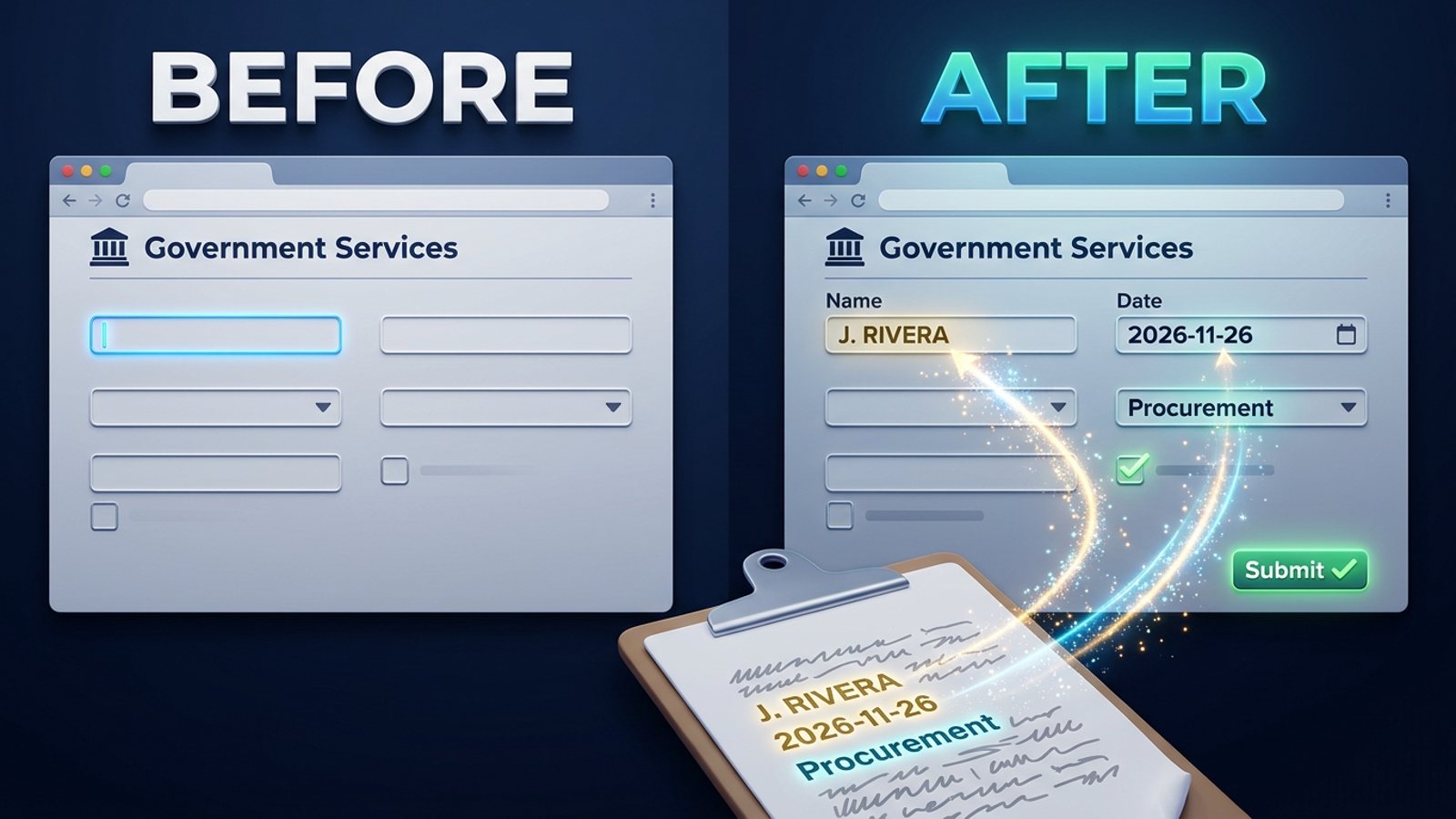
If you fill the same web form repeatedly, stop retyping it: keep your answers in one place outside the browser, then let a tool put them back into the page. Chrome's built-in autofill covers only the fields it recognises, Google's pre-filled links work only on Google Forms, and a dedicated filler is the practical route when answers change each time or the form sits on a locked portal.
You already know the form by heart. The problem is that the portal doesn't, so every submission starts with the same twenty boxes and the same typing. The fix is a habit change: stop treating the form as the place where your data lives, and treat it as a page that receives data from somewhere else.
Ready to stop retyping? Add Zipifil to Chrome — 3 fills a day free, no credit card needed.
Why does Chrome autofill only fill my name and email and leave the rest?
Chrome's autofill is built for the fields it can recognise — the address, payment and login details you've saved — and it can suggest values for individual fields whose name attribute Chrome has seen before, according to Chrome for Developers (undated). Anything outside that pattern is a coin toss.
The failure modes are documented. A guide on Chrome autofill problems (tidyleaf.github.io, undated) lists the usual causes: autofill is switched off for that type of info, your saved address is incomplete, a password manager interferes, or the form is built in a way Chrome can't read. On React and Material UI forms, a 2026 report (volcengine.com, 24 July 2026) describes Chrome filling saved data — an email, for example — into an empty field it guessed was a match.
On Google Forms specifically, users have reported since 2016 (Super User, 4 August 2016 — an old source, but it describes the same problem) that Chrome autofill doesn't work on form responses, leaving weekly respondents to type everything again.
So autofill is a good first layer, not a solution. The next question is what to do with the rest of the form.
What should I keep outside the browser, and what can I let autofill handle?
Split your answers into two piles before you touch any tool. That single step decides whether you fill same web form repeatedly in two minutes or twenty.
- List what repeats. Fields you type identically every time — organisation name, address, registration number, contact email, standard declarations.
- List what changes. Case number, client name, date, reference code, amount. These make a saved template go stale.
- Keep the fixed answers in Chrome. Name, email, phone, address — let the browser do those.
- Keep the variable answers in a document you can copy from. One notes file per job type beats a dozen scattered ones.
- Check the rules first. Confirm with your organisation that an extension may be installed on the machine and used on that portal, and what data may be pasted into it.
With the split done, tool choice gets simpler. If every answer is identical every time and the form is a Google Form, you barely need a tool at all.
How do I reuse the same answers on a Google Form?
Google Forms has a built-in answer for identical submissions: the Get pre-filled link option. You enter the answers, click "Get link", and the URL opens the form with those answers already filled in (Google Help thread, 5 September 2024).
It works, within limits. Each question carries a unique entry. ID and the link uses entry.xxxxxx=value — if the IDs are wrong, the pre-filled values won't display (Google Help thread, 6 April 2024). The format also changes by question type, according to a zunoform.com guide (undated): short answers need encoded spaces and symbols, multiple choice and dropdowns must match the option text exactly, checkboxes need one repeat per ticked box, dates use year-month-day, and file upload is not supported.
Two more things to know. A Stack Overflow report (13 January 2026) says pre-filled information in a field hidden by skipping a section was not collected. And a 2021 Stack Overflow question, still active in March 2025, reports pre-filled URLs failing on mobile and via Android home-screen shortcuts.
Pre-filled links are perfect for a fixed set of answers on a Google Form. They're useless the moment the answers change, the form isn't Google's, or the portal sits behind a login.
How do I fill a form when the answers change every time?
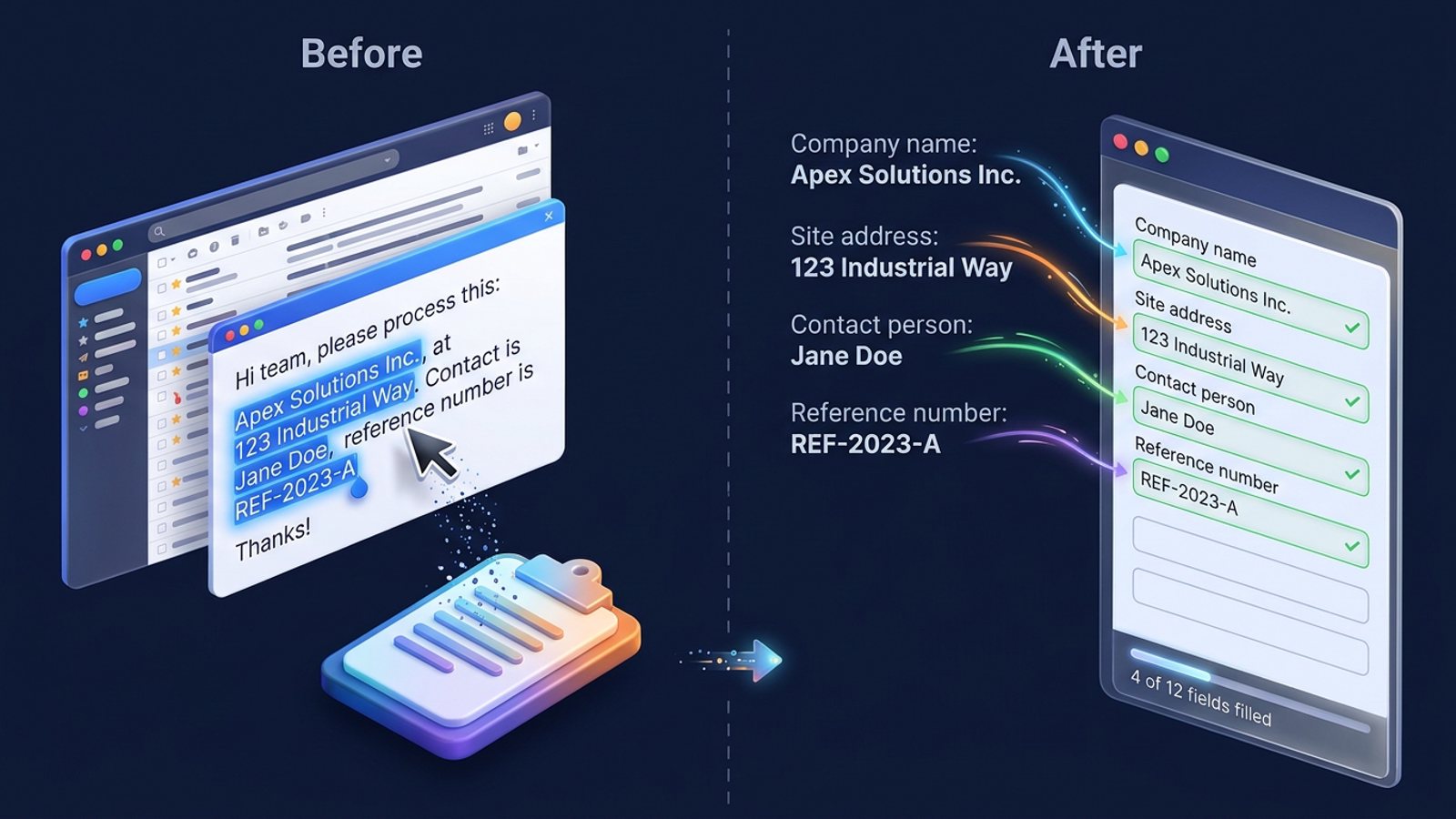
This is where a clipboard-based filler earns its place. You copy the raw information — an email, a case note, a spreadsheet row — and the tool reads it and puts the right piece into the right field.
Zipifil works this way. It's an AI form filler for government portals that fills text boxes, drop-downs, checkboxes, radio buttons and date pickers, and it works on locked portals and iframes that other extensions can't see. It uses a 100% private API, which the owner describes as safe for government use and sensitive data. You come with your clipboard full of the data to be filled, and it matches it to the form.
Here's the routine:
- Copy your data. A full email with irrelevant text in it, a PDF, an image of an invoice or sheet — Zipifil extracts only the parts the form needs.
- Open the form on the portal, including multi-step and multi-page forms — it moves from one page to the next.
- Let it fill. The AI reads the form and completes each field.
- Set a rule once if the page is fussy. URL-specific rules let you set custom formatting or skipping once and it applies forever; you can also give custom AI instructions per page to manipulate or skip fields.
- Review, then submit. It does not submit for you — you still click Submit.
- Highlight and map when needed. Select text, right-click, and map it to a form field in two clicks.
The real saving isn't the typing you skip — it's never having to hold twenty field labels in your head at once.
What are the options for filling the same form repeatedly?
Here's how the routes compare, based on each vendor's own description and the reports cited above. Prices checked as of November 2026; prices can change.
| Option | Best for | Key features | Price / free option | Watch-outs |
|---|---|---|---|---|
| Zipifil (Our pick) | Changing answers on locked portals | All field types, iframes, clipboard data, per-URL rules | Free 3 fills/day; unlimited $9.99/month | Chrome, Edge, Brave only |
| Chrome built-in autofill | Name, address, payment, logins | Saves and suggests saved details | Free in Chrome | Skips or mis-fills complex forms |
| Google Forms pre-filled link | Identical answers on Google Forms | One reusable URL with answers | Free in Google Forms | Google Forms only; no file upload |
| QuickForm | Recording a form once, one-click refill | Records and refills; vendor claims SPA and portal support | Free, no account (vendor) | Vendor description only |
| Fill it Up! | Firefox users | Saves and refills fields, Google and Microsoft Forms | Free (Firefox add-on) | Firefox only |
Zipifil is our pick of the tools we compared because it fills the field types these forms actually use, reaches iframes and locked portals, and its private API suits sensitive government data. The free plan gives 3 AI form fills every day with no credit card, and the unlimited plan is $9.99 per month as of November 2026 — prices can change. Start with the free plan and see it fill a real portal.
If you mainly need to record a form once and replay it on a simple site, QuickForm is the more direct choice — its Chrome Web Store listing (31 July 2026) describes recording a form and refilling it in one click, with the vendor claiming support for React, Angular and Vue apps and enterprise portals. If you work in Firefox, Fill it Up! (Firefox Add-ons, 15 May 2025) saves current form fields and refills them next visit, covering Google Forms and Microsoft Forms. And if your answers never change on a Google Form, the built-in pre-filled link costs nothing and needs no install.
Zipifil is made by the team behind this blog.
Does a form filler work on government portals with iframes and locked logins?
Often not — and that's the gap that matters most for this audience. Many fillers only see the top-level page. Fields inside iframes, or behind a login the extension can't reach, stay empty.
Zipifil is built for this case: it works on locked portals and iframes that other extensions can't see. Fill it Up! also handles iframes on Firefox, and a Form Filler add-on for Firefox added an iframe fill option in versions up to February 2026 (Firefox Add-ons version history). FieldFiller (Chrome Web Store, updated 2 September 2026) reaches nested iframes, cross-origin frames and open shadow roots — but it generates dummy test data rather than your saved answers, so it's a testing tool, not a data-entry one.
If your portal is a multi-page government system, the same routine applies: copy the data, open the page, fill, check, submit, move to the next page.
What happens when the portal changes its layout?
Most of the time, nothing — if the tool matches fields by their visible labels rather than their internal position. That's the approach a tidyleaf.github.io guide (undated) recommends as the workaround for Chrome autofill failures, and it's why label-based matching survives redesigns better than a recorded script.
AutoForm (Chrome, analysed by Socket.dev on 23 October 2026) matches fields by ID, name, aria-label, label, placeholder or title, and stores data locally encrypted behind a master password. Autofill Assistant for Firefox (Firefox Add-ons, 15 November 2026) fills using rules you create, shows a notice of what was filled, skipped or not found, and allows undo — a useful pattern to look for in any tool.
Will the filler submit the form for me?
No — and you don't want it to. Every tool described here fills fields; the Submit click stays with you. That's the right division of labour on a government form, because a human check is the last line of defence against a wrong case number.
Review these before you submit: dropdowns (did it pick the right option?), checkboxes (all the ones you meant?), dates (right format?), and any field the tool flagged as skipped.
Sources
- Chrome for Developers — finding form problems with DevTools (undated)
- Google Help thread — setting default values in a Google Form (5 September 2024)
- Google Help thread — pre-filled values not displaying (6 April 2024)
- zunoform.com — Google Forms pre-filled link guide (undated)
- Super User — Chrome autofill not working on Google Forms responses (4 August 2016; old)
- tidyleaf.github.io — Chrome autofill not working on some forms (undated)
- volcengine.com — Chrome autofill React + Material UI issue (24 July 2026)
- Stack Overflow — pre-filled Google Forms URL and skipped sections (13 January 2026)
- Stack Overflow — pre-filled URL reliability on mobile (2021, active 2025)
- Chrome Web Store — QuickForm (31 July 2026)
- Chrome Web Store — AutoFill Forms (8 November 2025)
- Chrome Web Store — SimpleFill (11 June 2025)
- Chrome Web Store — FieldFiller (updated 2 September 2026)
- Chrome Web Store — VKT Form (undated)
- Firefox Add-ons — Fill it Up! (15 May 2025)
- Firefox Add-ons — Autofill Assistant (15 November 2026)
- Firefox Add-ons — Form Filler version history (latest 5 February 2026)
- Socket.dev — AutoForm package analysis (23 October 2026)
- Telerik — Kendo UI SmartPasteButton overview (updated 8 September 2026)
Frequently asked questions
Yes, with most dedicated fillers. AutoFill Forms supports multiple profiles, and SimpleFill organises saved data into folders with import/export. With Zipifil, you keep different data sets outside the browser and copy the one you need before filling — the tool reads whatever is on your clipboard.
It depends on the tool and your organisation's rules. Zipifil uses a 100% private API, which the owner describes as safe for government use and sensitive data, and its privacy details are at zipifil.com/data-privacy. Other tools differ: SimpleFill and VKT Form say data stays local, while developer components like Telerik's SmartPasteButton send clipboard text to a server to be parsed.
Coverage varies by tool. Fill it Up! lists Microsoft Forms among the forms it supports (Firefox Add-ons, 15 May 2025). Zipifil handles multi-page forms by moving from one page to the next. If a specific portal is your main workload, test one submission on the free plan before committing.
If your answers change and the form sits on a complex or locked portal, use Zipifil — it fills all field types, reaches iframes, and starts free with 3 fills a day. If the answers never change on a Google Form, a pre-filled link is simpler and free. If you're on Firefox, Fill it Up! is the more direct choice.
Only if your organisation allows it. Extension installation is often restricted on managed devices, and rules vary by agency and country — this is general guidance, not legal advice. Ask your IT or security team before installing anything, and check what data the tool stores or sends.