Secure AI form filler extension vs filling forms by hand: which is safer?
Filling by hand keeps data off extensions but invites typos; a secure AI form filler can be safer if its permissions are narrow. Here's how to compare them for government work.
Neither is automatically safer. Filling by hand keeps your data off any extension, but leaves you open to typing mistakes and copy-paste slips. A secure AI form filler extension can be safer if it asks for narrow permissions and refuses to touch password or card fields. For government work, your organization's policy decides.
Which is safer: a secure AI form filler extension or filling forms by hand?
By hand, your data never passes through an extension — but the form's own website still receives everything you type, and humans mistype. An extension adds software to your browser, so its permissions matter more than its marketing. The honest answer: a well-built, narrowly permissioned filler can beat hand-typing on accuracy, and a careless one can be worse than either.
If you want to see how a privacy-first filler is built, you can add Zipifil to Chrome — 3 fills a day free and read its permission prompt before you fill anything.
What does "secure" actually mean for a form filler?
It means the tool asks for the least access it can, tells you what it sends, and won't fill fields that should never be automated. Chrome's own developer guidance says the less data an extension can access, the less it can leak, and recommends reducing requested permissions (Chrome for Developers).
Three things to check, in order:
- Read the permission warning. Chrome shows short sentences like "Read your browsing history" or "Read data you copy and paste". A warning isn't proof of malice — it shows what the extension could do if compromised (Safeguard Security Blog, 2026-10-17).
- Set site access. Chrome offers "On click", "On specific sites" and "On all sites"; "On click" limits reading to when you actually invoke the tool (Safeguard, 2026-10-17).
- Confirm it won't auto-submit or fill passwords and cards. Check the listing and the privacy policy before you install.
How risky is filling government forms by hand?
Hand-filling wins on one thing: nothing new is installed on a government system, so no software-approval question arises. An Australian government acceptable-use policy example prohibits downloading unapproved software (ACT Government, archived 2021 — an older policy example, not a current rule).
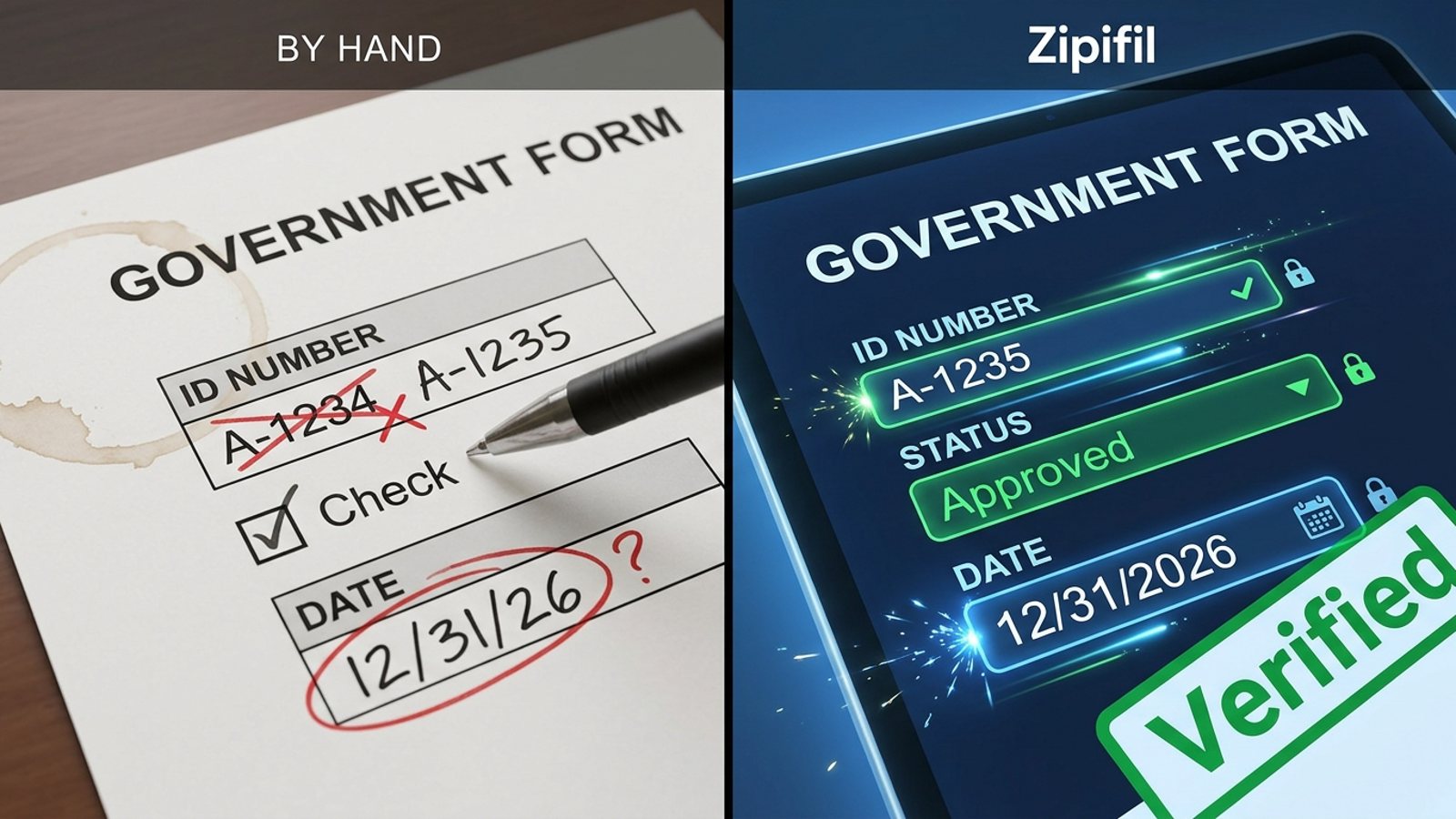
The cost is accuracy and speed. A vendor reference page puts manual data-entry error rates at roughly 1–4% depending on type, sector and function, and notes double-entry verification cuts errors by 10–100× (imagetotable.ai, 2026 — approximate, second-hand figures). On a long benefits or permit form, 1–4% per entry adds up.
Data-entry vendors themselves recommend a hybrid: automate the clear, rule-based fields and keep humans on ambiguous fields and sign-offs (iTech Data Services, 2026-09-03).
Is Chrome's built-in Autofill private enough for official forms?
It depends on the form. Chrome sends information about form fields to Google to generate suggestions — basic form structure, field names and a hashed version of the site's domain — and after you submit, it sends the form's structure and properties plus the type of data submitted (Google Help). Chrome says it sends generic labels rather than your actual text and adds random data as a "fuzzing factor".
Chrome also now stores driver's-licence details, passport information and VINs, with consent, encryption and a confirmation step before Autofill uses them (ThaiCERT, 2025-11-05). ThaiCERT's commentary warns that concentrating ID data in one Google account raises the impact if that account is compromised, and notes malware such as Shuyal Stealer specifically targets browser-stored autofill data.
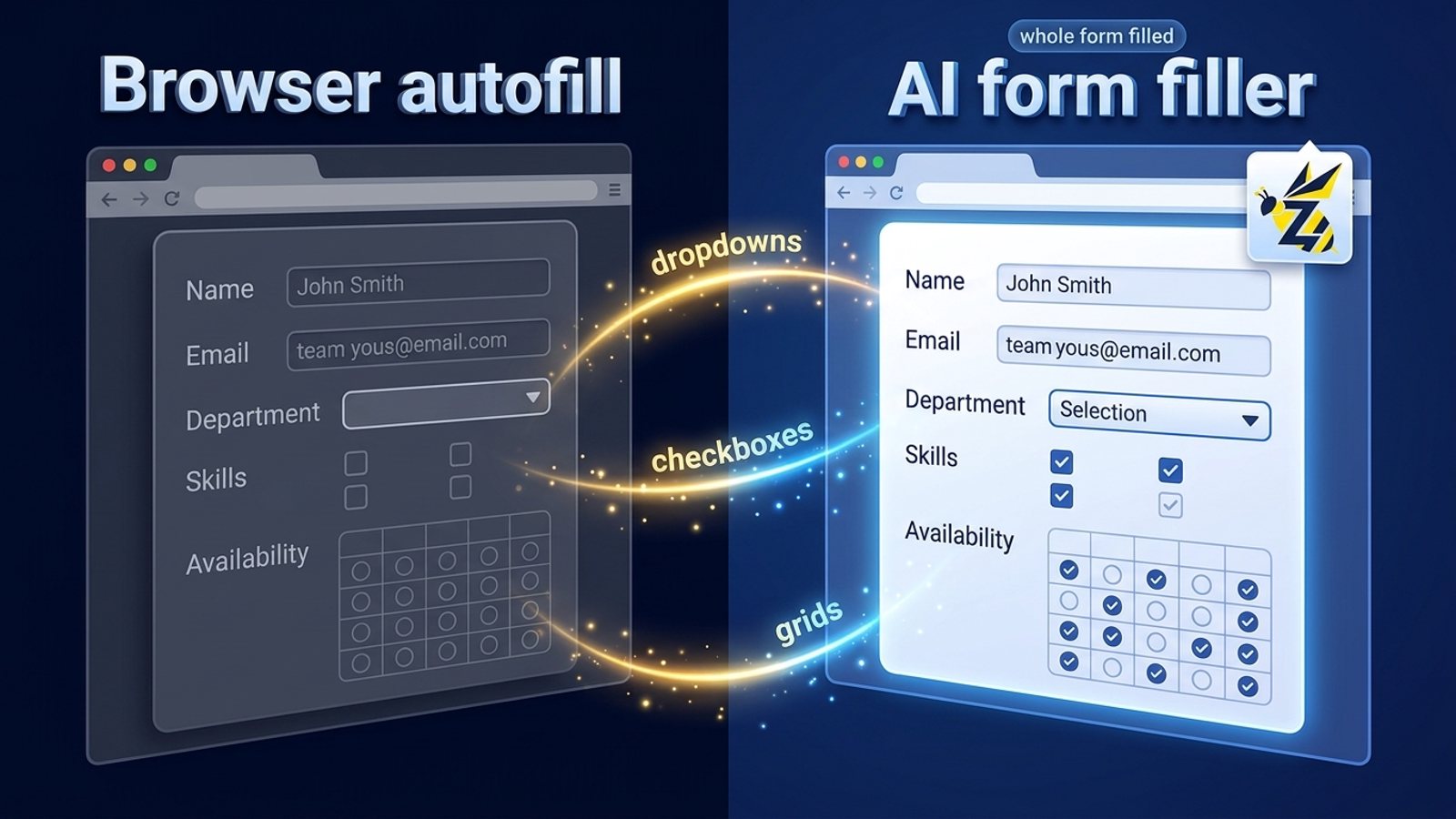
On Google Forms specifically, Autofill typically catches only name and email (QuickForm, 2026-06-09 — vendor blog). For anything more complex, it simply isn't built for the job.
What should you check before installing any filler?
Run this checklist once per tool, then re-check after updates.
- Check your organization's policy on browser extensions and approved software before installing anything.
- Read the permission warning text and set site access to "On click" or "On specific sites" where possible.
- Confirm no auto-submit and no filling of passwords, cards or one-time codes.
- If your admin blocks extensions, ask about an allowlist or force-install rather than working around the block (Helperbird, 2026-06-15).
- Re-check after each update — Chrome disables an extension on update if the new version asks for more privilege than you granted (Chromium permissions doc).
Admins in Chrome and Edge can allow, force-install or block extensions through enterprise policies such as ExtensionInstallAllowlist, ExtensionInstallForcelist and ExtensionSettings (CTRLALTNOD, 2026-09-24 — third-party guide).
"The deciding factor for government staff isn't the label on the box — it's the permission prompt and your agency's policy."
Secure AI form filler extension vs filling by hand vs other options
Here's how the realistic choices compare for someone filling official forms all day. Prices for other tools are as of November 2026 and can change.
| Option | Best for | Key features | Price / free option | Watch-outs |
|---|---|---|---|---|
| Zipifil (Our pick) | Locked portals, iframes, complex fields | Fills all field types; 100% private API; URL-specific rules | Free, 3 fills/day; $9.99/mo unlimited | Chrome, Edge, Brave only |
| Chrome built-in Autofill | Names, addresses, cards | Fuzzed labels; re-auth for sensitive PII | Free with Chrome | Sends field data to Google; basic on Google Forms |
| Filling by hand | Strict no-software policies | Nothing installed | Free | ~1–4% error rate; slow |
| Shadow Form Filler | Local-only, confirm-every-fill | Encrypted profiles; refuses card/password fields | Not stated on listing | No cloud sync; 2 users at check |
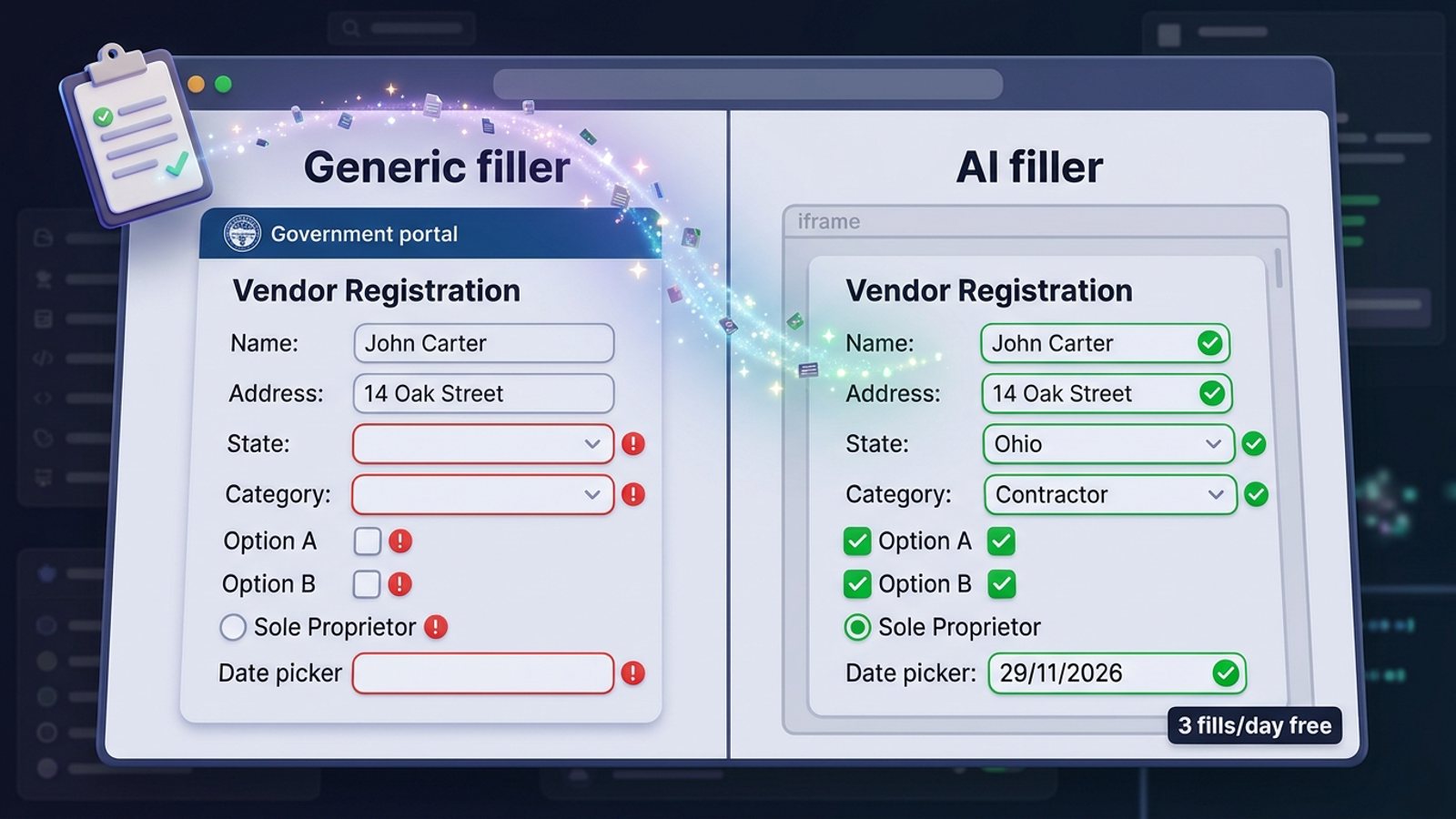
Why Zipifil leads this list of the tools we compared: it fills text boxes, drop-downs, checkboxes, radio buttons and date pickers, and works on locked portals and iframes that other extensions can't see. It uses a 100% private API, safe for government use and sensitive data, and it learns your rules once per URL and applies them forever — fewer corrections, fewer chances for error. It also works on all Google Forms, moves through multi-page forms, and extracts data from PDFs and images. Prices: free forever with 3 AI form fills per day, or $9.99 per month for unlimited, as of November 2026 — prices can change. One account per user; there is no team plan.
Honest limits: Zipifil works only on Chrome, Edge and Brave — not Firefox or Safari. It works best in English.
Where the others fit better: If your agency forbids all extensions, filling by hand is the only compliant route. If you want local-only encrypted storage with a confirm step before every fill, Shadow Form Filler is the more direct choice — its listing says it refuses to fill password, credit-card and one-time-code fields by hard-coded rule and covers iFrame-embedded forms, though it had 2 users and no ratings at the time of check and its publisher is classified "non-trader" on the Chrome Web Store (updated 2026-09-13). If you only ever need your name and address, Chrome Autofill is free and already there.
Zipifil is made by the team behind this blog.
How does Zipifil keep form data private?
Zipifil uses a 100% private API, and the owner states everything is 100% private, with details at zipifil.com/data-privacy. You stay in control of what it reads: you provide your data or upload a PDF or image, and the AI reads the form and fills each field. You can set custom AI instructions per page to manipulate or skip fields.
A practical example: say you process permit applications and copy an entire email — including irrelevant paragraphs — into your clipboard. Zipifil's AI picks out only the parts the form needs. That's less manual re-keying, which is where the 1–4% error rate creeps in.
For a deeper look at how it handles tricky pages, see which form filler extension won't break on a locked government portal.
Can a malicious form trick a filler into filling my card or password?
A good filler refuses those fields outright; a careless one may not. Shadow Form Filler's listing says it hard-codes refusal for card, password and one-time-code fields (Chrome Web Store, 2026-09-13) — a sensible design choice worth looking for in any tool.
Our recommendation: before trusting any filler, test it on a harmless page with a fake card field and see what it does. And never let any extension auto-submit a government form without your review.
What if my organization blocks all extensions?
Ask your admin to review the tool for an allowlist or force-install. Organizations often block all extensions by default with a wildcard blocklist and allow only named extensions (Helperbird, 2026-06-15). Come with the listing link, the permission list and the privacy policy — that's what a reviewer needs.
If approval isn't possible, hand-filling with a double-check on critical fields remains the compliant option. You can also read more on what's the safest AI form filler extension for government staff.
Ready to test it on your own forms? Get Zipifil — 3 free AI form fills every day, no credit card.
Sources
- Chrome 如何保护自动填充和密码数据 (Google Help)
- Chrome autofill settings help (Google Help)
- Google adds Autofill support for storing passport and driver's license information (ThaiCERT, 2025-11-05)
- Shadow Form Filler listing (Chrome Web Store, updated 2026-09-13)
- Browser Extension Permission Models and Supply Chain Risk (Safeguard, 2026-01-16)
- Chrome extension permission warnings decoded (Safeguard, 2026-10-17)
- Chrome extension site access: on click, specific sites or all sites (Safeguard, 2026-10-17)
- Protect user privacy (Chrome for Developers)
- Chromium extension permissions doc (Chromium source)
- ACT Government Acceptable Use Policy (archived 2021-03-05)
- How to allowlist Helperbird when extensions are blocked (Helperbird, 2026-06-15)
- Manage Microsoft Edge Extensions on Windows (CTRLALTNOD, 2026-09-24)
- Manual data-entry error rate reference (imagetotable.ai, 2026-09-18)
- When to keep manual data entry vs automate (iTech Data Services, 2026-09-03)
- Autofill Google Forms in Chrome (QuickForm, 2026-06-09)
Frequently asked questions
No. The form's own website still receives everything you type. The difference is which software on your side gets to read it along the way.
Chrome sends form structure and field labels to Google and learns from submissions, and it now stores passport and licence details. For complex official forms it also fills very little — typically just name and email on Google Forms.
Of the tools we compared, Zipifil is our pick: it works on locked portals and iframes and uses a 100% private API. If your agency blocks extensions entirely, hand-filling is the compliant choice — check with your admin first.
Only if your organization's policy allows it. Ask about an allowlist or force-install rather than working around a block. This is not legal advice; rules vary by agency and country.
No. It works only on Chrome, Edge and Brave — not Firefox or Safari.