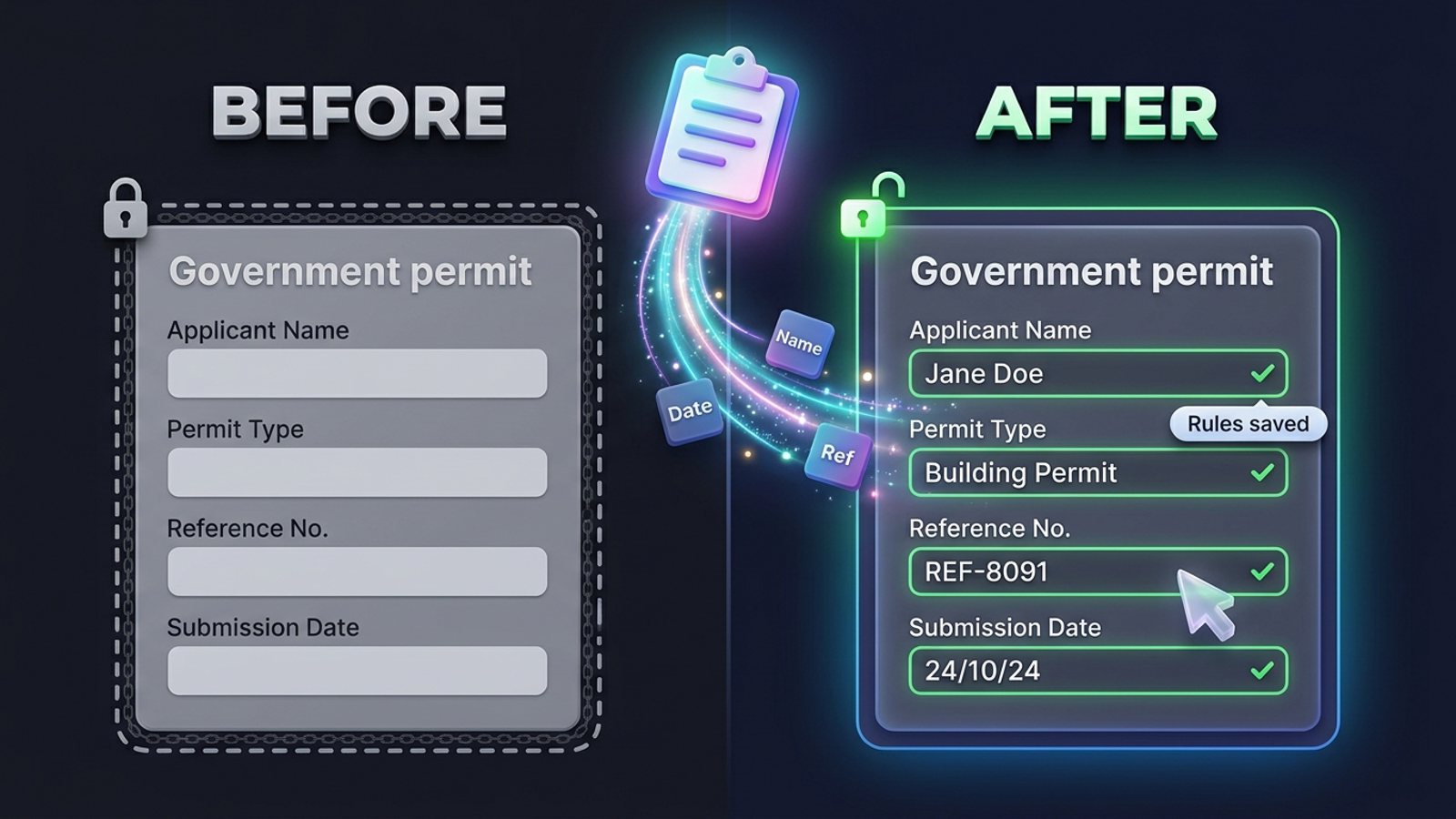
Top 5 Private AI Form Fillers for Government Clerks in 2027
The 5 private AI form fillers worth comparing for government clerks in 2027, what to check before installing, and why Zipifil leads on locked portals.
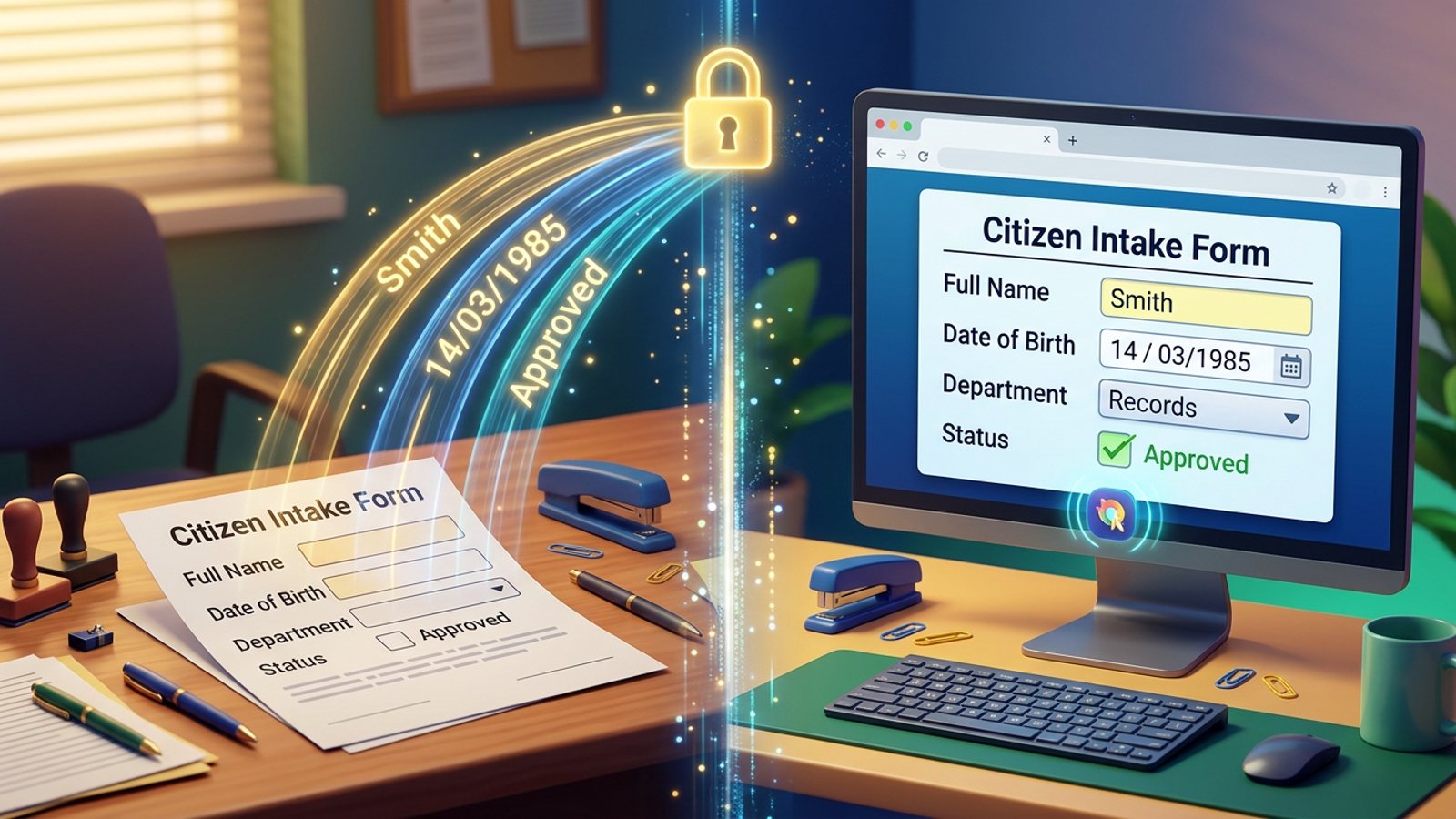
For government clerks, a private AI form filler should let you check two things: where your form data is processed, and what the extension's listing and privacy policy say it collects. Zipifil is our pick of the tools we compared, because it works on locked portals and iframes and uses a 100% private API — but check your organisation's policies before installing any extension on government systems.
What should a private AI form filler for government clerks actually do?
It should fill the whole form — including dropdowns, checkboxes, radio buttons and date pickers — on the portals you actually use, and it should be clear about where your data goes. A private ai form filler clerks can rely on does both.
Government portals are a hard test. my-id.ca (2026) explains that browser autofill is a "checkout accelerator" built for a small fixed vocabulary of fields — names, addresses, email, phone, card numbers — and that government forms use labels and field types it wasn't trained on. The result: it fills a couple of fields and stops.
So the bar for a clerk's tool is higher than for a shopper's. It has to read unfamiliar labels, handle field types beyond text boxes, and reach inside iframes on locked portals. And because the data is often a citizen's, it has to be honest about processing.
How do you check whether an AI form filler is really private?
Start with the store listing's privacy section and the linked privacy policy, and note two things: whether data is processed locally or on a server, and whether any third party is involved. That is the single most useful check you can do in five minutes.
Then work through the rest:
- Read the listing's data section. Chrome Web Store rules require disclosure even when data is only processed or stored locally and never sent to external servers (Chrome for Developers, User Data FAQ).
- Compare permissions with purpose. Permission prompts tell you what an extension may access, not how the developer uses it — MEFMobile (2026) recommends comparing requested permissions against the stated purpose and checking who maintains the extension.
- Question the broadest permission. An extension that asks to "read and change all your data on all websites" gets very broad access, as MakeUseOf (2026) notes.
- Check your organisation's rules. Confirm with your IT or security team that the extension is permitted on government systems.
- Test on a throwaway profile first. Try a low-risk internal form, including inside iframes, before you touch live citizen data.
- Re-check after updates. Chrome's 2026 policy update requires developers to notify users if data practices change after install (Chrome for Developers, 2026-07-01).
The top 5 private AI form fillers for government clerks in 2027
Here are the five options we compared, with Zipifil first for the reasons in the product facts. Every other entry is described only from its store listing, third-party commentary or comparison notes — no vendor page for the alternatives was fetched for this article.
| Option | Best for | Key features | Price / free option | Watch-outs |
|---|---|---|---|---|
| Zipifil (Our pick) | Clerks on locked government portals | All field types, iframes, private API, per-URL rules | Free: 3 fills/day; $9.99/mo unlimited | Chrome, Edge, Brave only |
| Chrome built-in Autofill | Quick checkout-style fields | Saved names, addresses, cards; Gemini suggestions | Free with Chrome | Stops on government forms |
| Lightning Autofill | People who like building rules | Rule-based filling | Not confirmed in our sources | Doesn't read labels alone |
| Magical | Short repeated answers | Text expansion | Not confirmed in our sources | Weak on complex portals |
| FormBuddy | Document-heavy forms | Reads passports, bills, tax forms | No subscription; pay AI provider | Data goes to that provider |
1. Zipifil — our pick of the tools we compared
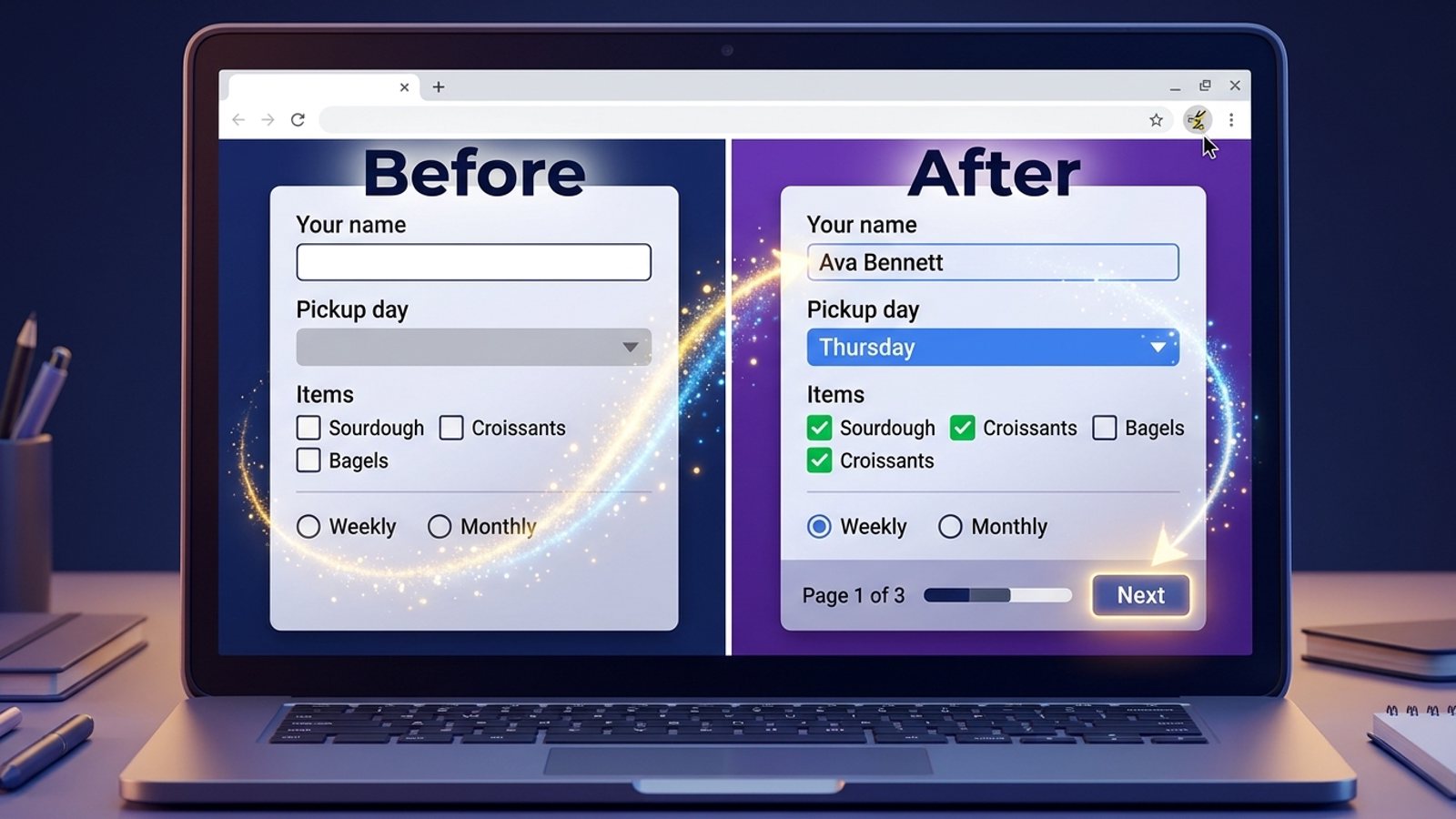
Zipifil fills text boxes, drop-downs, checkboxes, radio buttons and date pickers, and it works on locked portals and iframes that other extensions can't see. It uses a 100% private API, which is the reason it leads this list for government clerks.
The feature that matters most on a clerk's desk is URL-specific rules. You set custom formatting or skipping once, and it applies forever — so the same portal doesn't need correcting every time. You can also give custom AI instructions per page to manipulate or skip fields, and highlight text, right-click and map it to a form field in two clicks.
It also fills from unstructured data: copy an entire email, even one with irrelevant detail, and it picks out only the parts the form needs. PDFs and images work too — upload an invoice or a sheet and the form fills itself.
Pricing, as of November 2026 and subject to change: a free forever plan with 3 AI form fills per day, no credit card needed, and an unlimited plan at $9.99 per month. Prices can change. It runs on Chrome, Edge and Brave only — not Firefox or Safari — and one account per user, with no team plan.
Zipifil is made by the team behind this blog.
Add Zipifil to Chrome — 3 fills a day free and test it on one portal before rolling it out.
2. Chrome built-in Autofill — free, but built for checkout
Chrome's Autofill fills saved data such as names, passwords, addresses and card details, and can pull name and email from your Google Account (Google Help). It only works when you're signed in with a Google Account and "Save and fill" is on for that data category, and not all features are available in every country or region.
Since 28 October 2026, Chrome's Gemini-powered "enhanced autofill" can suggest details from Gmail such as order numbers and flight bookings under a "Suggested by Gemini" label — you must click a suggestion before Chrome inserts it, and Chrome does not submit the form (Yahoo Tech, 2026-10-29).
The limit is the field vocabulary. my-id.ca (2026) describes it as built for a small fixed set of field types, which is why it stalls on government layouts. If you mainly need names, addresses and card details at a checkout, Chrome's built-in Autofill is the more direct choice — it's already there.
3. Lightning Autofill — rule-based and patient
Lightning Autofill is a rule-based filler: it depends on the rules you set up rather than reading unfamiliar labels on its own. Our comparison notes describe rule-based fillers as rewarding patience with per-site rules but not interpreting labels by themselves.
If you fill the same handful of portals with stable layouts and you enjoy building rules once, that model suits you. On a portal you've never seen, expect setup work first. Our sources for this article don't include its pricing or free-tier details.
4. Magical — fast for short repeated answers
Magical is a text expander, and our comparison notes rate it fast for short repeated answers. Those same notes rate it the weakest of the compared options on complex portals.
If most of your day is typing the same reference numbers and standard phrases into notes and emails, a text expander is a genuinely useful second tool. For a long government form with dropdowns and iframes, it isn't the right instrument. Our sources for this article don't include its pricing or privacy policy text.
5. FormBuddy — reads your documents, but sends them out
FormBuddy reads documents — passports, tax forms, insurance cards, utility bills — and suggests a value for each field. Its store listing claims multi-page support and names "medical and government forms" among its uses.
The catch is the data path. Its listing says there is no FormBuddy subscription or monthly fee and that users pay the AI provider directly, which means document data leaves the browser to that provider. The provider's terms weren't in the material we checked, so read them yourself before uploading a citizen's documents.
If you mainly need a filler that reads uploaded documents and you're comfortable paying an AI provider directly, FormBuddy is the more direct choice. If you need to keep processing inside a private API on locked portals, Zipifil is.
Where is your form data actually processed?
This is the question to ask every vendor, and the answer should be specific. Some extensions send form questions and answers to third-party AI providers; others keep everything in the browser.
The range is wide. docFiller's privacy policy (2025) says form questions and answers go to third-party AI providers chosen by the user via their own API key, and that the developer cannot guarantee whether those providers retain the data. At the other end, one small AI filler's policy (2026-03-05) says it keeps API keys, profile text, uploaded files and learned answers in chrome.storage.local and doesn't transmit to the developer, and another (2026-08-09) states it runs locally, collects nothing and uses no analytics.
Zipifil sits on the private side: its 100% private API is designed to be safe for government use and sensitive data, and the data privacy page is at zipifil.com/data-privacy. As a private form filler Chrome extension, that's the claim to test against your organisation's rules.
Chrome Web Store rules back this up. Extensions must transmit user data over a secure connection and store it at rest with strong encryption such as RSA or AES (Chrome for Developers, User Data FAQ). The Limited Use policy, with updates announced 1 July 2026 and enforcement from 1 August 2026, requires collected data to be strictly necessary for the extension's single disclosed purpose.
Privacy isn't a badge on a listing. It's a data path you can trace from the field you type in to the place the value ends up.
What are the most common mistakes clerks make with form fillers?
The biggest one is installing first and reading the policy later. The second is assuming a permission prompt tells you how data is used — it doesn't.
Watch for these:
- Trusting "local" without checking. Chrome Web Store rules require disclosure even for local-only processing, so the answer should be written down somewhere.
- Using autofill on sensitive login pages. A LinkedIn poster (2026, anecdotal) reports that password-manager autofill on login.gov and sam.gov can trigger "email is not recognized" or bot-like errors, and suggests typing credentials manually. Treat that as one person's experience, not a rule.
- Skipping the iframe test. A filler that works on the outer page may not reach fields inside an iframe — test that specifically.
- Forgetting the policy re-check. Data practices can change after install, and developers are now required to notify you when they do.
Sources
- Chrome Web Store policy updates (Chrome for Developers, 2026-07-01)
- Chrome Web Store User Data FAQ (Chrome for Developers)
- Limited Use policy (Chrome for Developers)
- Chrome autofill settings help (Google Help)
- Why browser autofill fails on government forms (my-id.ca, 2026-08-17)
- Chrome now autofills forms using Gemini (Yahoo Tech, 2026-10-29)
- Are browser extensions safe? (MEFMobile, 2026-10-03)
- 7 signs a Chrome extension is doing too much (MakeUseOf, 2026-08-11)
- Permission Scanner listing (Chrome Web Store)
- PermCheck listing (Chrome Web Store)
- FormBuddy listing (Chrome Web Store)
- docFiller privacy policy (Firefox Add-ons, 2025-01-02)
- AI Form Filler privacy policy (shivam-s-bisht.github.io, 2026-03-05)
- File Form Filler & AI Form Filler with File privacy policy (lukaskapps.github.io, 2026-08-09)
- Autofill bot-error warning on login.gov/sam.gov (LinkedIn, 2026-07-29, anecdotal)
Frequently asked questions
Zipifil is our pick of the tools we compared, because it works on locked portals and iframes and uses a 100% private API, with 3 free fills a day to test it. If you only need checkout-style fields, Chrome's built-in Autofill is already there and free.
Yes. Under Chrome Web Store rules, an extension must disclose how it handles user data even when that data is only processed or stored locally on the user's device and never sent to external servers.
Type credentials manually on sensitive sign-in pages if autofill misbehaves — one LinkedIn poster (2026) reports bot-like errors from password-manager autofill there. That's anecdotal, but the manual fallback costs you seconds.
Yes. Permission Scanner and PermCheck are free Chrome Web Store tools that read installed extensions and explain their permissions in plain English without sending data out. Use them alongside the privacy policy, not instead of it.
Zipifil works on Chrome, Edge and Brave. It does not work on Firefox or Safari, so a Firefox-only desk should look at Fill it Up!, a Firefox form filler, instead.