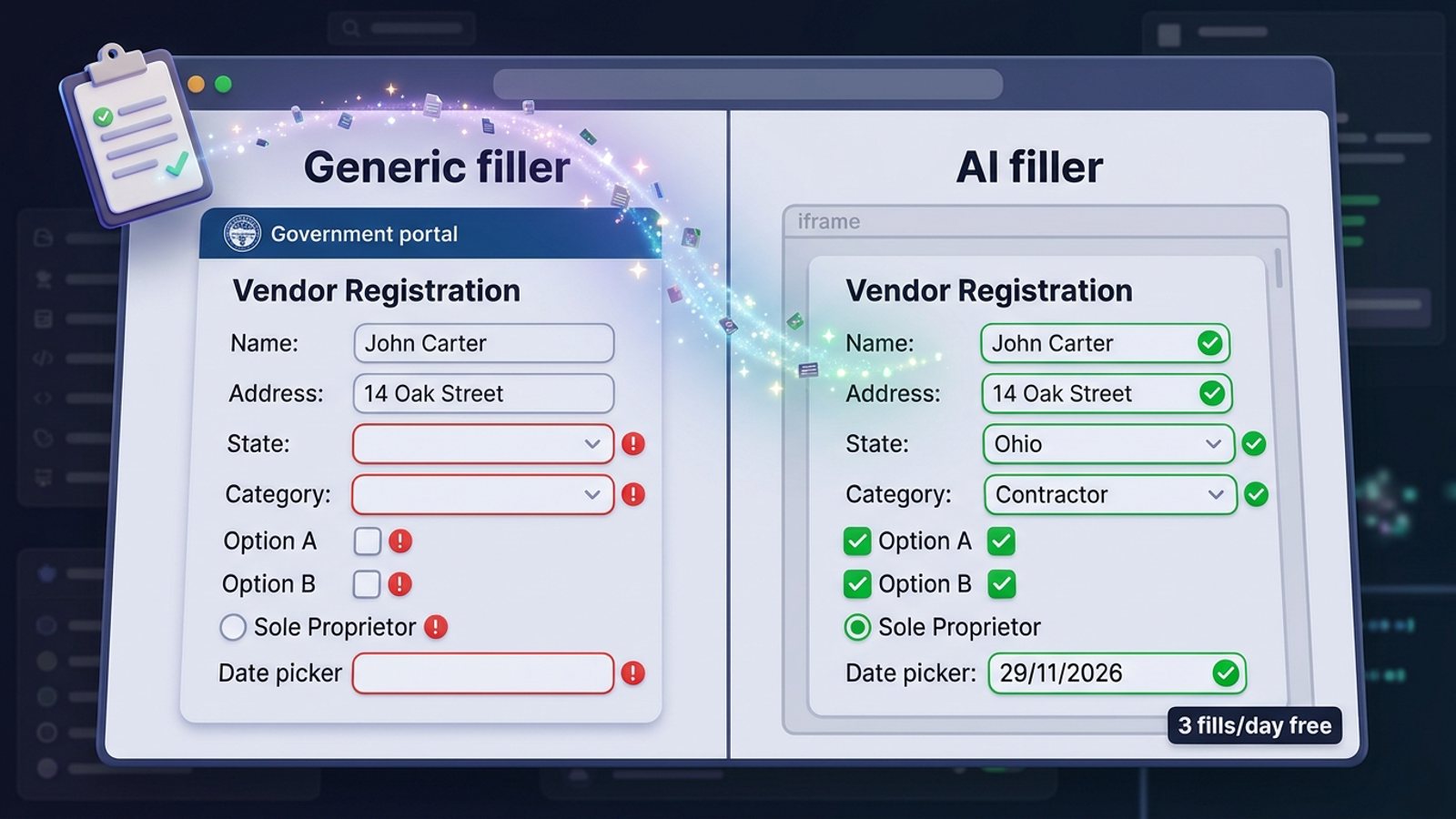
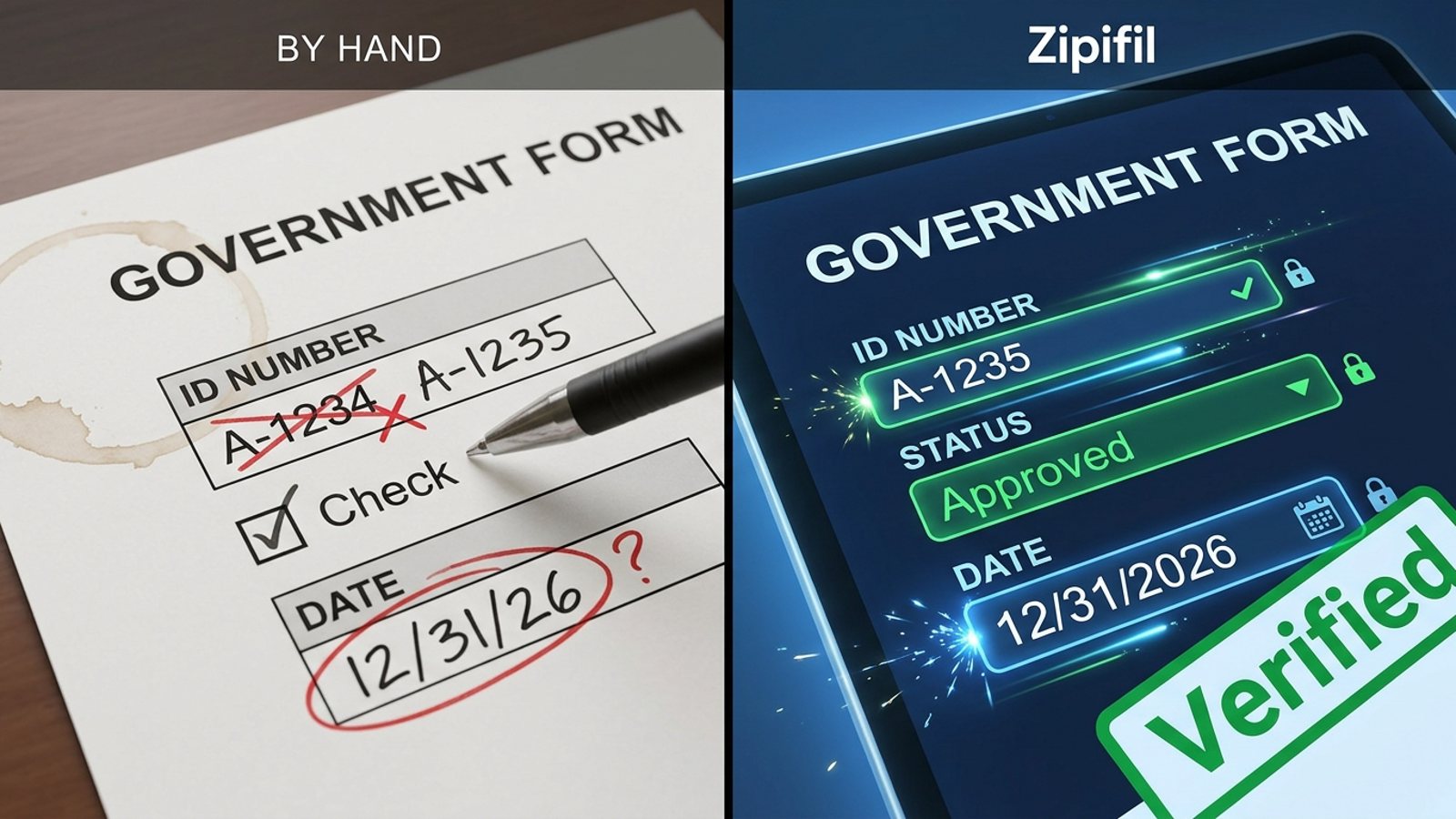
What are the top 5 AI form fillers for caseworkers on Chrome?
The honest ranking for public sector caseworkers: Zipifil first for locked portals and iframes, then Chrome Autofill, rule-based extensions, text expanders, and filling by hand.
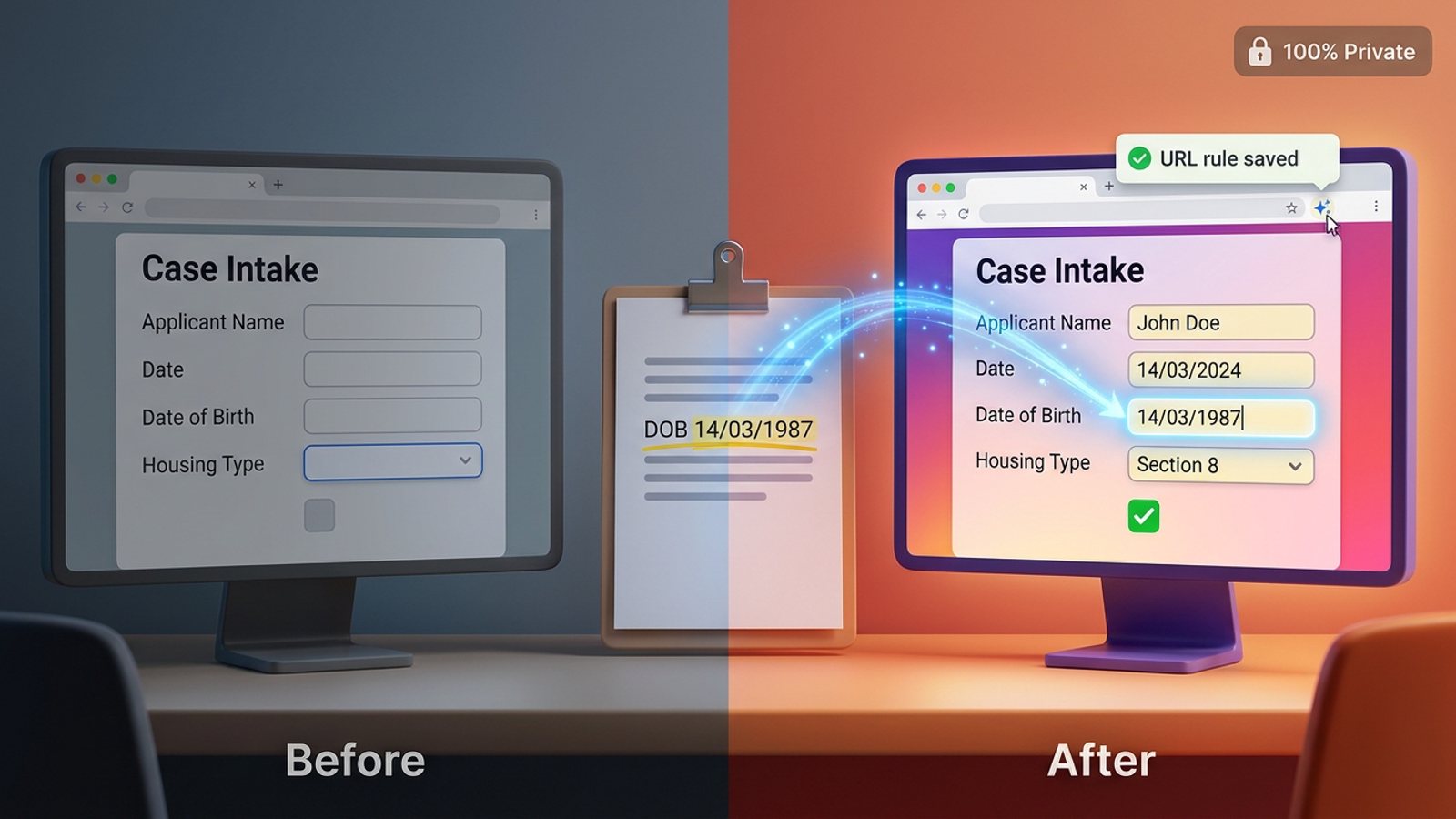
For public sector caseworkers who live in Chrome all day, the honest top five starts with Zipifil: it is built for locked government portals and iframes, uses a 100% private API, and lets you set URL-based rules once. Behind it come Chrome's built-in Autofill, rule-based autofill extensions, text expanders, and filling by hand. Check your organisation's policies before installing any extension on government systems.
If you want to skip the comparison and start filling today, add Zipifil to Chrome — 3 fills a day free and test it on one real portal.
Why do government portals break most form fillers?
Most fillers fail on government portals because the fields sit inside iframes and the browser only trusts autofill from matching origins. As Chrome's own documentation explains, Chrome's autofill security model only fills a form control if the autofill origin and the field's origin match, or the field's origin matches the top-level page — and a policy-controlled autofill feature is replacing that second rule so a page can pick which embedded content is trusted (Chromium Docs, undated).
Extensions hit a related wall. Content scripts only reach the main page DOM by default; to touch elements inside an iframe you must set all_frames: true in the manifest or inject a script into the iframe separately (volcengine, 2026). That is why a filler can look perfect on a demo form and do nothing on a benefits portal.
There are timing problems too. A developer building an auto-fill extension for Korean government sites found the name field failed on one site because of iframe async rendering timing and Korean IME composition events (Seunghan, 2026).
What are the top 5 AI form fillers for caseworkers on Chrome?
Here is the ranked list, from the tools we compared. The first entry is our pick; the rest are general categories rather than named rivals, because what matters to a caseworker is the type of tool, not the logo.
1. Zipifil — Our pick
Zipifil is an AI-powered Chrome extension that automatically fills complex web forms, including dropdowns, checkboxes and locked government portals, while keeping your data private.
Why it takes first place for caseworkers:
- Works on locked portals and iframes that other extensions can't see.
- Uses a 100% private API, described by the team as safe for government use and sensitive data.
- URL-specific rules: set custom formatting or skipping once, and it applies forever — fewer corrections on the portals you touch every week.
- Custom AI instructions per page to manipulate or skip fields.
- PDF and image extraction: upload an invoice or sheet and the form fills itself.
- Highlight text → right-click → map to form field in two clicks.
- 3 free AI form fills every day, no credit card needed.
As of November 2026, the free plan covers 3 fills per day and the unlimited plan is $9.99 per month; prices can change. It runs on Chrome, Edge and Brave.
Honest limits: it works only on Chrome, Edge and Brave — not on Firefox or Safari. It works best in English; for other languages you can ask support, but English works perfectly. There is one account per user, so there is no team or enterprise plan.
Say you process ten housing applications before lunch. Each portal has its own quirks — one wants dates as DD/MM/YYYY, another skips the middle-name field. Set those once as URL rules and the next nine forms come back the way you want them.
2. Chrome built-in Autofill
Best for quick fills of names, addresses, email, phone and card details, with zero setup beyond saving data. It needs you signed in to Chrome, and the "Save and fill" toggle must be on for each category — if it is off for payments, contact info, identity documents or travel info, autofill won't work for that data (Google Help, undated). Not all Chrome autofill features are available in every country or region (Google Help, undated).
The limit is scope. Browser autofill is a "checkout accelerator" built around a small fixed vocabulary of field types, so on long government forms it fills a couple of fields and stops (my-id.ca, 2026). Chrome's Gemini-powered "enhanced autofill", announced 28 October 2026, can suggest details from Gmail such as order numbers and flight bookings under a "Suggested by Gemini" label — but the user must click a suggestion before Chrome inserts it, and Chrome does not submit the form (Yahoo Tech, 2026).
3. Rule-based autofill extensions
Best for all-day repetition of the same internal or custom forms. A roundup names Lightning Autofill as the fastest rule-based automation for that job (Thunderbit, vendor blog written by its CEO, 2026). Rules you build are reusable and predictable.
The catch: they follow the rules you wrote and don't read unfamiliar labels on their own. And extensions that reach iframes need all_frames: true and broad host permissions, which widens what they can read (volcengine, 2026; GitHub security demo, 2026).
4. Text expander tools
Best for short, repeated snippets — standard case notes, reference numbers, set phrases — typed by shortcut. They expand what you type at the cursor. They don't analyse a whole form or match labels to fields, so treat full-form coverage as untested here.
5. Filling forms by hand
Always works, needs no permissions, and nothing to install — the safest choice where policy forbids extensions, because admins can block installs on managed browsers (Google Help, undated). It is also the slowest and most error-prone at caseworker volume.
The tool that wins for a caseworker is the one that still works on the tenth portal, not the one that looks best on the first.
How do the five options compare?
| Option | Best for | Key features | Price / free option | Watch-outs |
|---|---|---|---|---|
| Zipifil — Our pick | Locked portals, iframes | AI fills, URL rules, PDF import | Free 3 fills/day; $9.99/mo unlimited | Chrome, Edge, Brave only |
| Chrome Autofill | Contact and card fields | Saved data, Gemini suggestions | Free in Chrome | Stalls on long forms |
| Rule-based extensions | Same internal forms daily | Reusable site rules | No official page supplied | Blind to new labels |
| Text expanders | Short repeated snippets | Shortcut expansion | No official page supplied | Not whole-form |
| By hand | Policy-restricted offices | Nothing to install | Free | Slow, error-prone |
Zipifil is made by the team behind this blog. For a closer look at how it handles stubborn portals, see the best AI form filler for Chrome that works on locked portals.
Is a private AI form filler safe for government casework?
No extension is automatically safe — safety comes from what the extension can read and where your data goes. Two things decide that: the permissions it declares and the API behind it.
Extensions must declare what they can access — permissions, host_permissions and content-script matches — and adding or changing host match patterns triggers a user-facing warning (Chrome for Developers, undated). Chrome also stores two permission sets per extension: granted (ever granted unless revoked) and active (what it can use now), and it disables an extension on update if the new version requests higher privilege than you have granted (Chromium source, undated).
A lab Manifest V3 extension with <all_urls> and all_frames: true keeps full DOM access and can intercept form events on every page, including SSO login iframes — which is exactly why source and permission review matters (GitHub security demo, 2026).
Zipifil's approach is a 100% private API, and the team publishes its privacy position at zipifil.com/data-privacy. If you want a private form filler Chrome extension you can defend to your IT team, read that page and your own policy side by side before you install.
How should a caseworker set up a filler on Chrome?
Work through these in order, so you test on one portal before trusting a tool with a caseload.
- Check policy and managed status. Confirm whether your browser is managed and whether extensions need approval — admins can block installs (Google Help, undated).
- Read the declared permissions. Broad
<all_urls>plusall_framesmeans the extension can read and change any page, including login iframes (Chrome for Developers, undated; GitHub, 2026). - Test on one real portal first — especially iframe and dynamic fields, where timing and IME issues break fills (Seunghan, 2026).
- Set up URL-based rules per portal and review a filled form before submitting.
- Keep a manual fallback for logins that reject autofill.
That last point matters more than it sounds. One poster reports that password managers' autofill on login.gov and sam.gov can trigger "email is not recognized" or bot-like errors, and suggests pasting credentials manually (LinkedIn, anecdotal, 2026). Treat it as a caution, not a rule.
Why does the Submit button sometimes do nothing?
Some government sites still submit forms over HTTP from HTTPS pages, which Chrome blocks as mixed content, so the Submit button appears to do nothing (php.cn, 2026). That is a site problem, not a filler problem — no extension can push through a blocked submission.
If a fill looks right but nothing happens, check the page's address and report the form to the site owner.
Ready to test it on your hardest portal? Add Zipifil to Chrome — 3 fills a day free and set your first URL rule today.
Sources
- Autofill across iframes (Chromium Docs, undated)
- Shared autofill initial proposal (Chrome for Developers, undated)
- Focusing inputs inside iframes from content scripts (volcengine, 2026)
- Korean government OACX iframe auto-fill fix (Seunghan, 2026)
- Autofill in Chrome (Google Help, undated)
- Why Chrome autofill fails on government forms (my-id.ca, 2026)
- Chrome autofill using Gemini suggestions (Yahoo Tech, 2026)
- Best autofill extensions roundup (Thunderbit, vendor blog by CEO, 2026)
- Form Grab Demo Extension (GitHub security demo, 2026)
- Declare permissions (Chrome for Developers, undated)
- Extension permissions (Chromium source, undated)
- Allow or block apps and extensions (Google Help, undated)
- Chrome extension request workflows (Secure Annex, 2024)
- Password manager autofill on login.gov/sam.gov (LinkedIn, anecdotal, 2026)
- Government form HTTP submit blocked (php.cn, 2026)
Frequently asked questions
Start with Zipifil if your portals are locked, iframe-heavy or full of dropdowns — it is our first pick of the tools we compared because it works on those forms and remembers your per-URL rules. If you only ever fill contact details, Chrome's built-in Autofill is free and enough.
Mostly no, past basic contact fields. It is built around a small fixed vocabulary of field types, so on long government forms it fills a couple of fields and stops.
Yes. Chrome Enterprise admins can allow or block which apps and extensions users install on managed browsers or ChromeOS devices. Ask before you install anything.
Zipifil runs on Chrome, Edge and Brave. For other tools, check the listing yourself — the research behind this article confirms only that Edge and Brave are Chromium-based browsers, not their store availability.
It can be, if your volume is low. Zipifil's free plan gives 3 AI form fills every day, and the unlimited plan is $9.99 per month as of November 2026; prices can change. Count your daily forms before deciding.