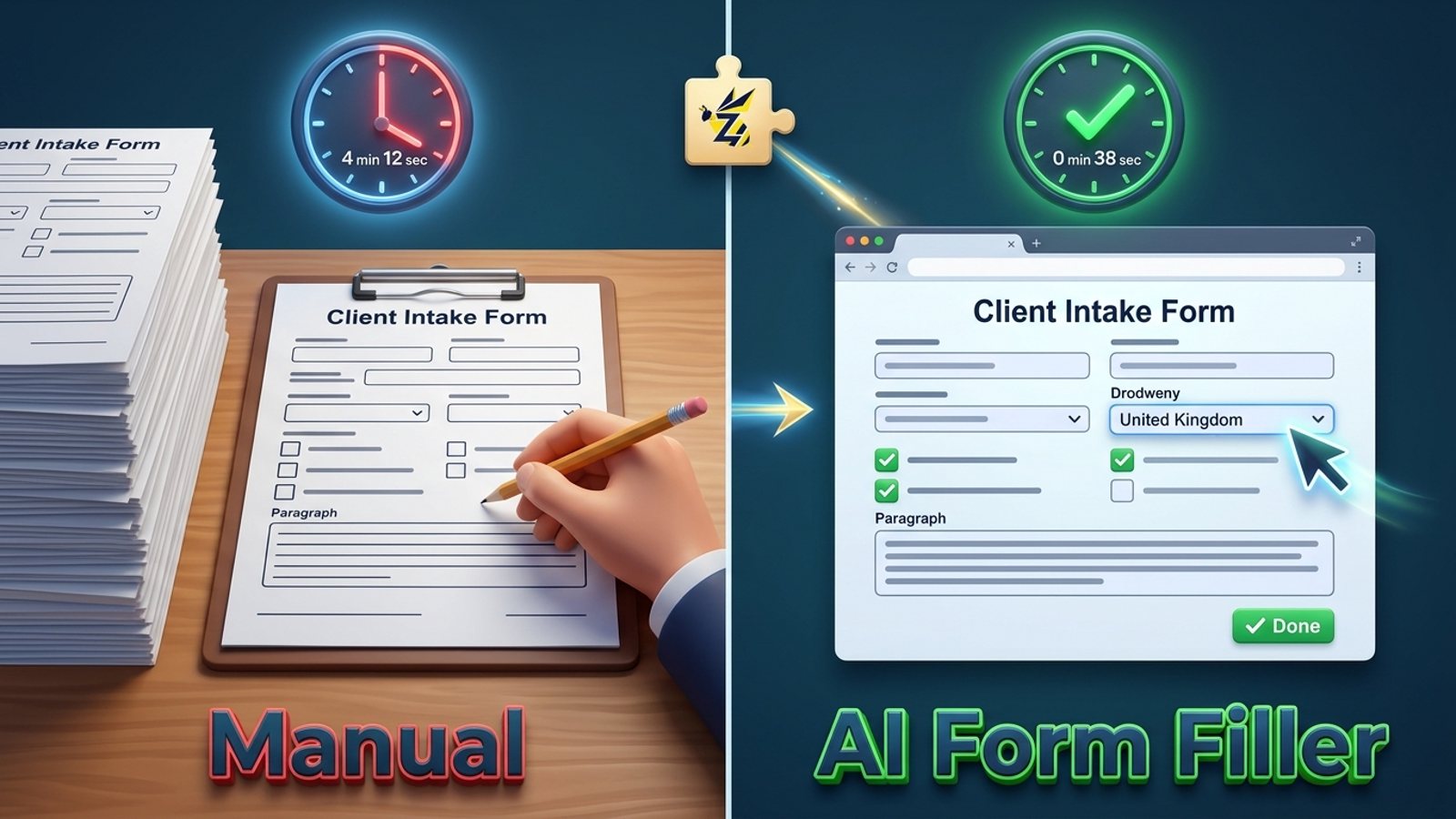
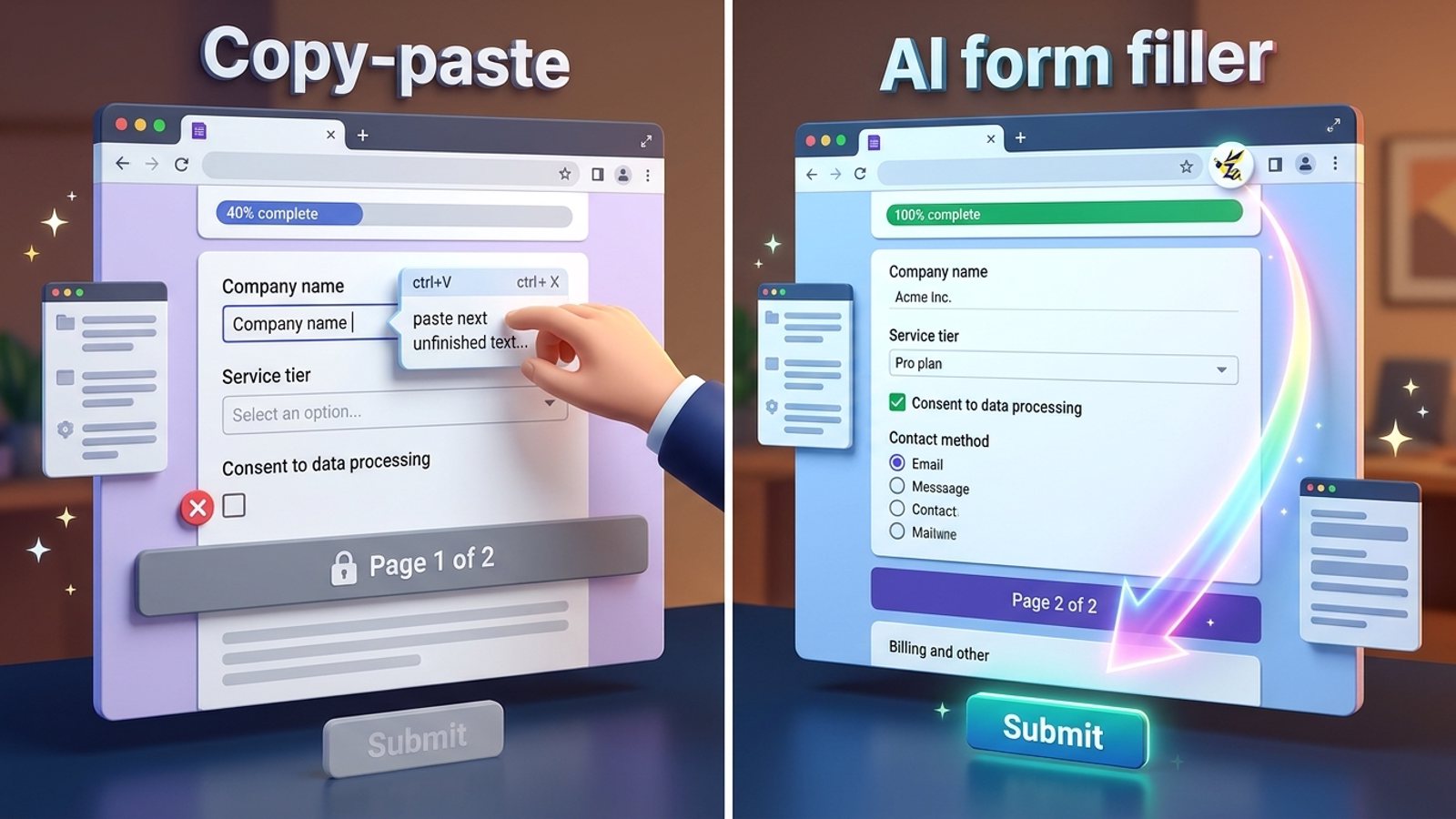
Is browser autofill good enough for Google Forms with dropdowns and multiple pages?
Browser autofill stalls on Google Forms dropdowns, dates and page breaks. Here's where it fails, and which tools actually finish the whole form.
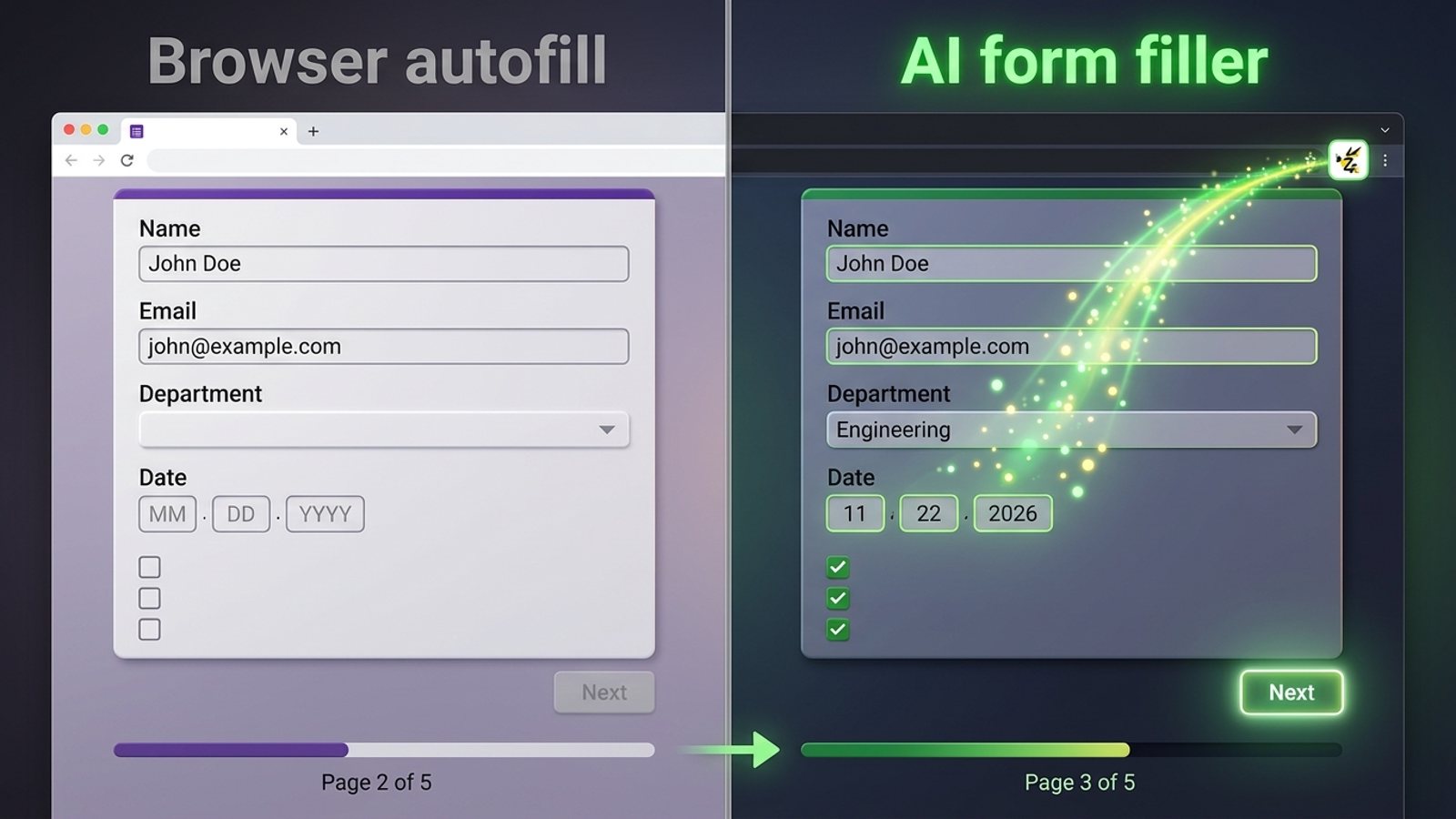
For a Google Form with dropdowns and more than one page, browser autofill is usually not good enough. Chrome's autofill is built around standard HTML forms and developer-declared field types, while Google Forms renders through a custom JavaScript layer — so it often catches your name and email, then leaves dropdowns, dates and the later pages blank.
If you fill the same Google Form again and again — onboarding, QA checks, supplier details — you've felt the pattern: Chrome fills the top two boxes and gives up. Let's look at exactly where it stalls, and what actually finishes the job.
Add Zipifil to Chrome — 3 fills a day free, and it fills the whole form, dropdowns and page breaks included.
Why does Chrome autofill work on checkout pages but not on Google Forms?
Because Google Forms isn't a standard HTML form. Chrome's autofill is designed around developer-declared field types — the autocomplete attributes a site puts on its inputs — per Chrome's own developer documentation. Google Forms instead builds its questions through a custom JavaScript layer, and a long-standing Super User thread (2016) points out the inputs use designated class attributes rather than a standard <form> element, which is what Chrome looks for.
That mismatch explains the half-filled form. Google's help pages list two reasons Chrome may not show saved info: the site isn't secure enough to share info, or Chrome can't detect some fields in the form. On Google Forms, it's the second one.
Where exactly does browser autofill stall on Google Forms?
Four places, and they're the four that matter on a real survey.
Dropdowns
Autofill generally can't choose a dropdown option like "Department" or "Office location" unless the form uses prefill links with exact option labels, according to GeekChamp's 2026 guide. Chrome has no idea which of twelve departments you belong to.
Radio buttons and checkboxes
These are opinion and selection fields, not identity fields. Chrome's saved data — addresses, passwords, payment info — has nothing to put there.
Date pickers
A Google Forms date question takes the format mm/dd/yyyy, but it's built as three separate inputs (day, month, year). Axiom.ai's guide notes that typing a full date as one string doesn't work reliably — each part has to be entered in order. Autofill doesn't do that.
Page breaks
In Google Forms, a section is a page: questions in one section show on one screen and respondents click Next to move on (Formswrite, 2026). Google Forms allows up to 75 sections in one form (Formester, 2026). Autofill has no concept of clicking Next — it fills the visible screen and stops.
What are the honest alternatives to browser autofill for Google Forms?
Four real options, and each suits a different job.
Google's "Get pre-filled link"
Answer the form once, and Google generates a URL where each entry. number maps to a field — a Stack Overflow edit from 2025 shows the format viewform?usp=pp_url&entry.798192315=Foo1. It's free, exact, and works for hidden fields on later pages if you build a section for them first (Stack Overflow, 2025). The catch: it only replays answers you hard-code. Dropdowns need the exact option label, and branching may not trigger the right section unless prerequisite fields are set (GeekChamp, 2026).
Manual copy-paste
Free, works on every question type including grids and dates, and you control every field. It also costs you every field, every time — fine for one form, painful for fifty.
Profile-based filler extensions
FormFiller, a Google Forms-specific extension, matches by question text with fuzzy matching (so "E-mail" finds "Email Address") and fills text, dropdowns, dates, radio and checkbox without auto-submitting. Another listing, Google Form Auto Filler (updated September 2026), adds linear scales and grids. The honest limit: profile tools need your answers pre-saved, and user reviews of one Google Forms filler report navigation stopping after the second page of a multi-page form (Chrome-Stats, forum-style reviews).
AI form fillers
These wait for the JavaScript to render, scan the page and fill what they can map with confidence — Filliny's 2026 guide describes exactly that approach, and notes AI fillers leave login, payment and CAPTCHA fields alone. Accuracy still depends on the AI, and some tools skip personal-information questions by design.
Browser autofill vs an AI filler: which handles dropdowns and pages better?
An AI filler, on the fields where autofill structurally can't compete. Here's the head-to-head on the exact sticking points.
| Field type | Chrome autofill | AI form filler |
|---|---|---|
| Name, email | Usually fills | Fills |
| Dropdowns | Rarely | Selects the option |
| Radio / checkboxes | No | Ticks them |
| Date picker | No | Enters day, month, year |
| Second page | No | Advances page to page |
| Setup | Sign in to Chrome | Give it your data once |
A vendor-run test by Filliny (February 2026, 20 sites per category) reports Chrome autofill at 65% on e-commerce and 20% on job portals versus AI form filling at 95% and 90%. Treat those as vendor figures — Filliny sells an AI filler — but the direction matches what you see on Google Forms.
Source: Filliny, AI vs Browser Autofill: 100-Site Test (vendor blog, 2026-02-12)
How do the main options compare for filling Google Forms?
Here's the short version, with the product first for the reasons in its own facts.
| Option | Best for | Key features | Price | Watch-outs |
|---|---|---|---|---|
| Zipifil (Our pick) | Whole Google Forms, dropdowns and pages | All field types, page-to-page, per-URL rules | Free 3 fills/day; $9.99/mo unlimited | Works best in English |
| Chrome autofill | Simple contact and address fields | Saved addresses, passwords, payment | Free | Skips custom fields |
| Get pre-filled link | Repeating one fixed set of answers | Exact entry numbers, hidden fields | Free with Google Forms | Hard-coded answers only |
| Profile-based fillers | Saved answer profiles, QA and admin | Label matching, dropdowns, dates | Not stated in listings | May stall after page two |
Our pick is Zipifil of the tools we compared, because it fills every field type — text boxes, dropdowns, checkboxes, radio buttons, date pickers and multi-step wizards — and works on the tricky forms other fillers give up on. It goes from one page to the next on multi-page Google Forms, and you can set URL-specific rules once so it remembers your formatting forever.
Zipifil is made by the team behind this blog. It's not a Google product and doesn't integrate with Google Forms beyond working on the page.
Pricing, as of November 2026 and prices can change: free forever with 3 AI form fills every day, no credit card, or $9.99 per month for unlimited fills, custom domain rules and prompts, PDF and image extraction, and priority AI execution.
Get Zipifil AI Form Filler Chrome Extension — it fills the whole form, not just the easy parts.
Is there a free way to handle a multi-page Google Form?
Yes, if your answers never change. The pre-filled link is the free route: answer the form once, copy the generated URL, reuse it. For later-page hidden fields, add a section, put the fields there, grab the link with sample values, then swap in the real ones (Stack Overflow, 2025).
It breaks down in three situations: the answers change per respondent, the form branches on a dropdown or multiple-choice answer ("Go to section based on answer" — formlova, 2026), or a required question blocks the path. Then you're back to typing.
What should you check before blaming autofill?
Three quick checks, in order.
- Confirm autofill is switched on. In Chrome, go to Settings → Autofill and passwords and check that addresses, passwords and payment methods are each enabled (Proton blog, 2025).
- Sign in to your Google Account. Chrome's smarter form understanding and account-based autofill need you signed in (Google Chrome Help).
- Turn off other extensions temporarily. A password manager or another autofill extension can interfere when Chrome stops filling some forms (tidyleaf guide).
If all three are fine and the dropdowns are still empty, the problem is the form's build, not your settings. That's the point to switch tools.
The real test of any filler isn't the name field — it's whether it can pick "Finance" from a dropdown and click Next on page three.
How do you fill a Google Form with dropdowns and pages automatically?
Give a label-reading filler your data once, then let it work the page.
- Install the extension in Chrome, Edge or Brave.
- Give it your data — the answers, profile details or a document it can read.
- Let it fill the visible page, including dropdowns, radios and dates.
- Advance to the next section and repeat, or let the tool move page to page.
- Set a rule for that URL so every future fill follows the same instructions.
Zipifil does steps 3 to 5 for you: it goes from one page to the next on multi-page Google Forms, and you can add custom AI instructions per page to skip or format fields exactly how you want. It works on all Google Forms, and it works best in English — for other languages, support can advise.
For a deeper walkthrough of the field types, see how to auto-fill a Google Form with dropdowns, checkboxes and date fields.
Sources
- Change autofill info you save to use in Chrome (Google Chrome Help)
- Why Chrome may not show saved info (Google Chrome Help)
- Chrome Autofill (Chrome for Developers)
- Google autofill settings (Proton blog, 2025-03-20)
- Chrome autofill not working on some forms (tidyleaf guide)
- Chrome autofill not working on Google Forms responses (Super User, 2016-08-04)
- Choose a question type for your form (Google Help)
- Fill a date picker in a Google Form (Axiom.ai guide)
- Google Forms sections (Formswrite, 2026-07-13)
- How to create form sections in Google Forms (Formester, 2026-06-04)
- Google Forms sections guide (formlova, 2026-09-03)
- Suggested edit: pre-filled link URL format (Stack Overflow, 2025-06-04)
- Pre-filling hidden fields on later pages (Stack Overflow, 2025-02-23)
- Auto-fill in Google Forms step-by-step guide (GeekChamp, 2026-05-14)
- Reviews of Form Tools – Autofill Forms (Chrome-Stats, forum-style)
- Autofill for Google Forms – FormFiller listing (Chrome Web Store)
- Google Form Auto Filler listing (Chrome Web Store, 2026-09-14)
- AI vs Browser Autofill: 100-Site Test (Filliny, vendor blog, 2026-02-12)
- Complete Guide to AI Form Filling 2026 (Filliny, vendor blog, 2026-02-21)
Frequently asked questions
No. Chrome autofill is built for standard HTML forms and developer-declared field types, so on Google Forms it typically fills name and email, then leaves dropdowns, radio buttons, dates and later pages empty.
Google Forms renders its inputs through a custom JavaScript layer with designated class attributes rather than a standard form, and date fields are three separate boxes for day, month and year. Chrome has no saved data or field map for either.
Yes for fixed answers — each entry number maps to a field, and hidden fields on later sections can be pre-filled. It won't reliably follow branching, and dropdown answers need the exact option label.
If you fill the same form repeatedly, an AI form filler that reads visible labels is the most direct choice — Zipifil is ours, and it fills all field types and moves page to page. If your answers never change and the form doesn't branch, Google's free pre-filled link does the job.
Not the ones described here. Filliny's 2026 guide notes AI fillers handle form data only and leave login, payment and CAPTCHA fields alone.