Google Forms built-in autofill vs manual filling: which is faster for repetitive forms?
Chrome autofill saves time on standard fields, but Google Forms dropdowns and checkboxes still need manual work. See which option is fastest for repetitive forms.
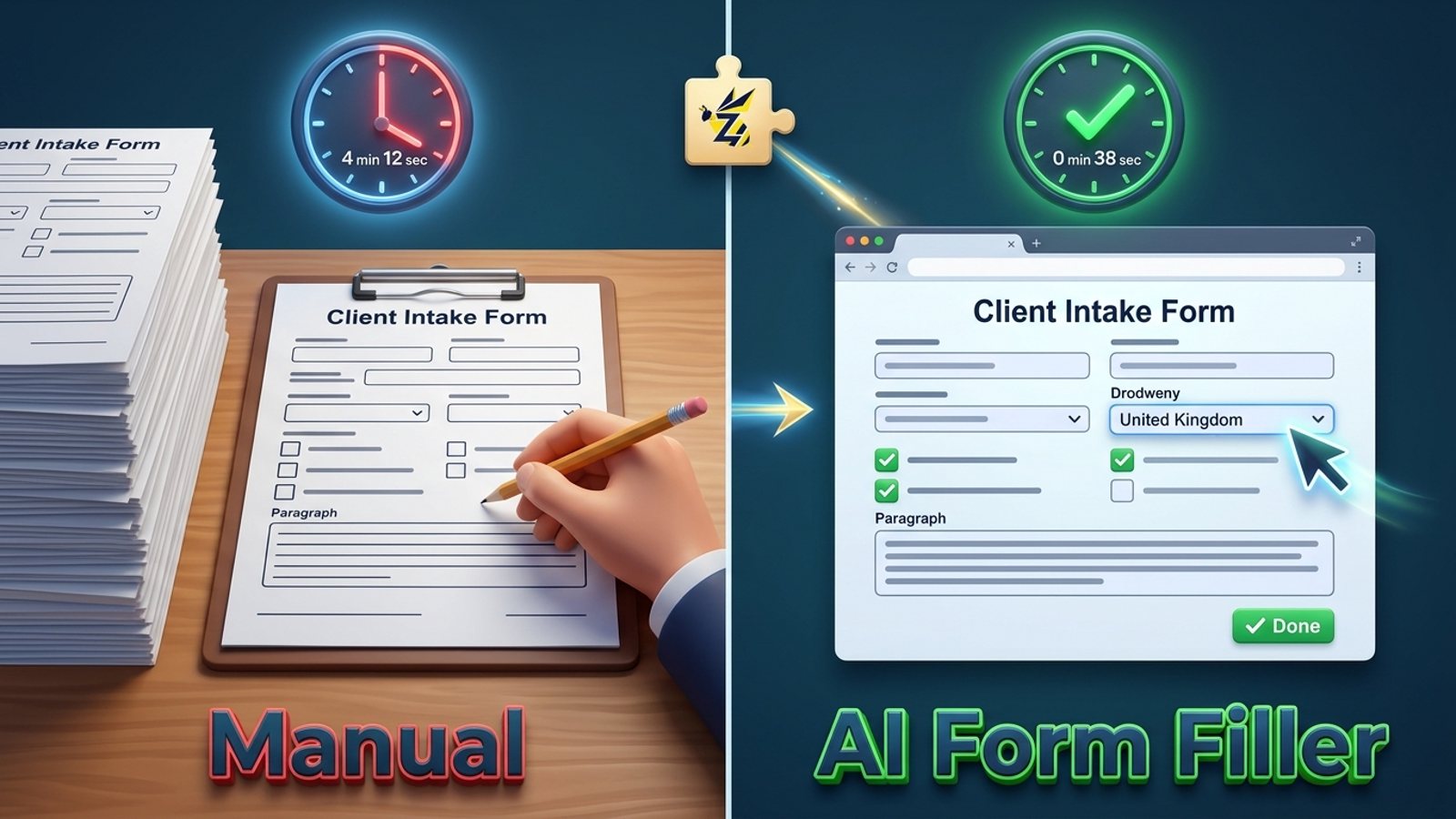
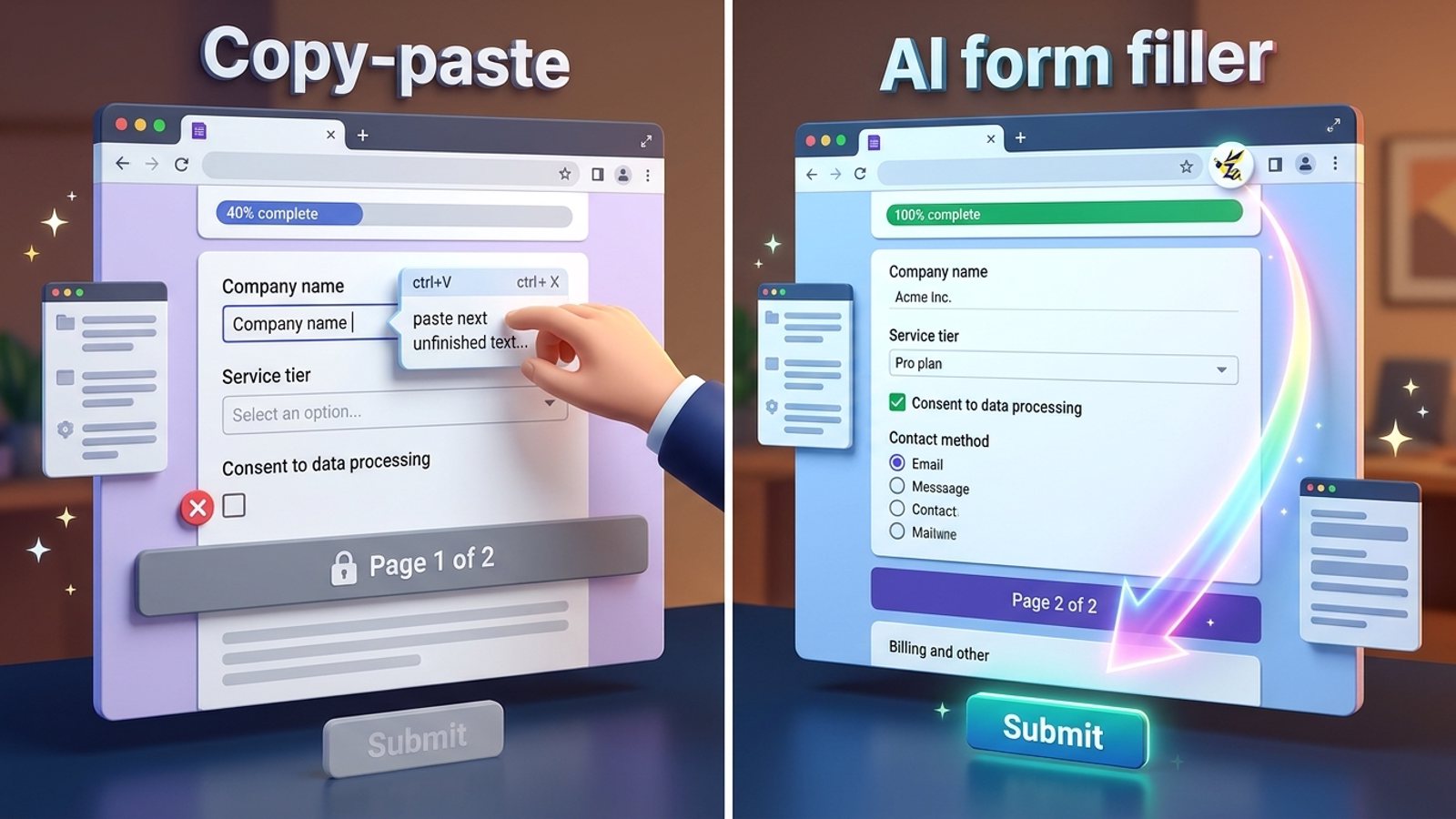
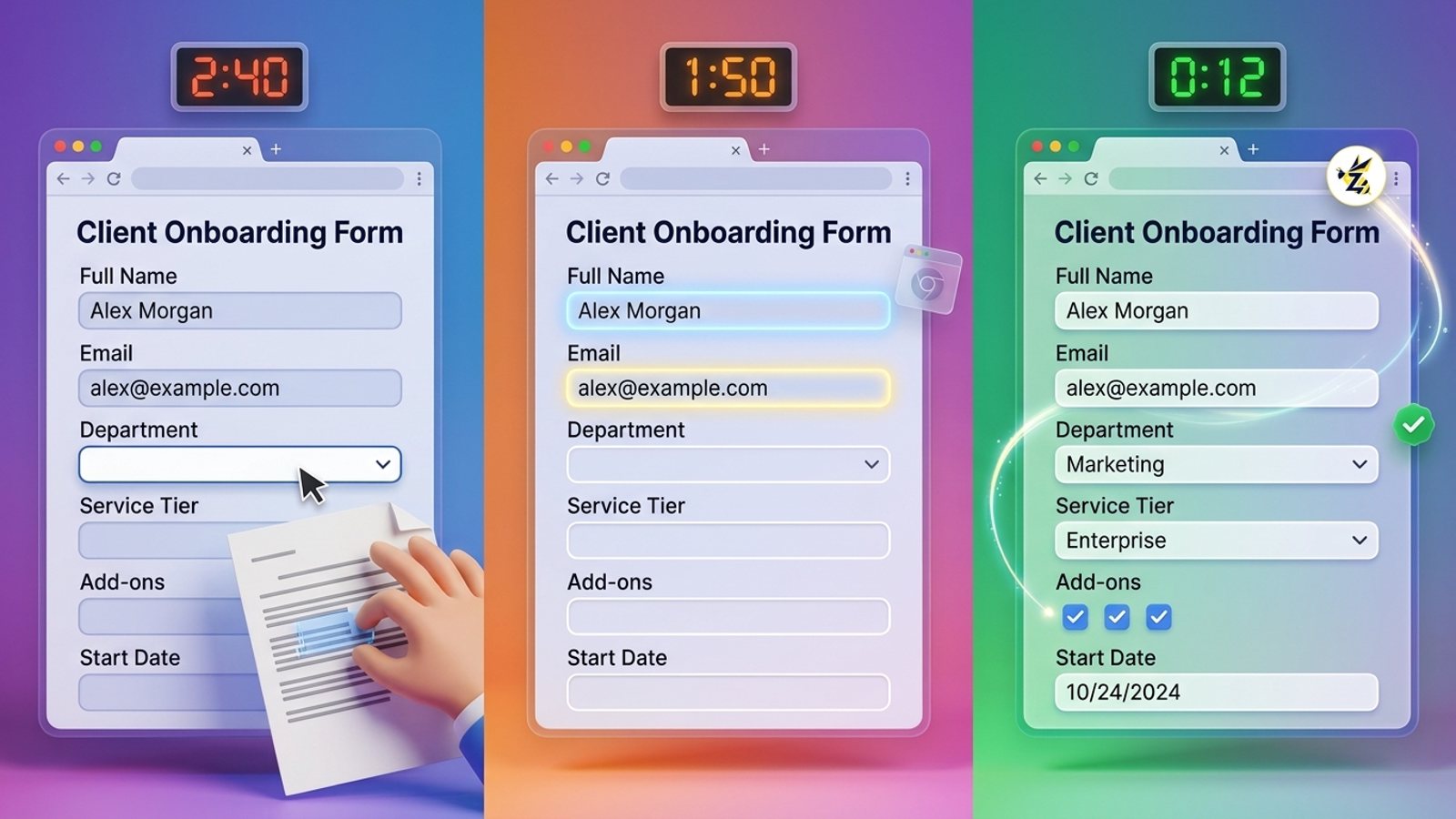
For a one-off form with name and email fields, Chrome's built-in autofill is faster than typing by hand — the Chrome team's 2024 study measured about 35% less filling time with autofill. But on Google Forms, autofill only catches the standard fields it recognises, so dropdowns, checkboxes and grids still need manual clicking. For repetitive forms, a google forms autofill vs manual comparison usually ends the same way: a little autofill, then manual anyway.
Ready to stop retyping the same form? Add Zipifil to Chrome — 3 fills a day free and let it handle the whole form, not just the easy fields.
How much faster is Google Forms autofill than typing by hand?
On the fields it recognises, autofill is meaningfully faster — but only on those fields. The Chrome team published a study on 17 December 2024, based on millions of page views of address and credit-card forms in the US, finding that autofill reduced form-filling time by about 35% and form abandonment by 75% compared with purely manual typing.
Two honest caveats. The study is correlational, so the Chrome team notes results may be biased. And the same study defines "with autofill" as using autofill for some fields — partial autofill is the typical case, not the exception.
That's the fair headline for Chrome autofill vs manual typing: autofill wins on standard fields. The problem starts when the form isn't standard.
Why does Chrome autofill leave most of a Google Form empty?
Because Google Forms doesn't use a standard HTML <form> with standard inputs, and Chrome's autofill was built for exactly those. A 2016 Super User thread documented Chrome autofill failing on Google Forms responses, and a 2026 vendor blog from QuickForm describes the same pattern: Google Forms renders through a custom JavaScript layer, so autofill may catch your name or email and then leave the rest of the survey blank.
Google Forms question types include short answer, paragraph, multiple choice, checkboxes, dropdown, linear scale, grids, date, time and file upload, per Google Help. Most of those aren't fields Chrome's saved-info autofill knows what to do with.
What does manual filling get right that autofill doesn't?
Everything — at the cost of time. Manual typing is the most reliable path field-for-field, works on every form, needs no setup and installs nothing. That's precisely why the Chrome team used "typing values exclusively" as the baseline in its study.
The catch is that the cost scales with every repeated submission, as QuickForm's 2026 vendor blog points out. If you fill the same onboarding form for ten clients a week, manual filling is ten rounds of the same clicks.
Is there a third option that fills the whole Google Form?
Yes — a form filler Chrome extension that matches questions by their visible text rather than hidden field names. That's the difference that matters: Chrome autofill looks for fields it recognises; a text-matching filler reads the actual question ("What's your phone number?") and answers it, whatever the underlying code looks like.
The Filler extension, for example, markets reading the actual question text on the page and filling text fields, dropdowns, radio buttons, checkboxes and long-answer boxes. Google Form Auto Filler fills by question text across text, multiple choice, checkboxes, dropdowns, linear scales and grids. Powerful Google Form Filler lists text, choice, checkbox, dropdown and date/time support.
Here's the practical sequence for a repetitive Google Form:
- Try Chrome autofill first. Sign in to your Google Account and check "Save and fill" is on for contact info and addresses, per Google Chrome Help.
- Count what's left. Note the dropdowns, checkboxes, grids and paragraphs autofill won't touch.
- If you own the form, use a pre-filled link. In Google Forms, open the three-dot menu and choose "Get pre-filled link," per Blink's Help Centre guide — then edit the
entry.<number>values in the URL per version, as documented on Stack Overflow. - If the form is sent to you and repeats, install a text-matching form filler that covers every field type.
- Review before submitting. Google Form Auto Filler, for instance, doesn't auto-submit — so check each answer.
Which option is fastest for repetitive Google Forms?
For a form you fill over and over, a filler that handles every field type wins — because it removes the manual remainder that autofill leaves behind. Here's how the options compare, with Zipifil first because it's the tool this blog is about.
| Option | Best for | Key features | Price / free option | Watch-outs |
|---|---|---|---|---|
| Zipifil — Our pick | Repetitive Google Forms, mixed field types | All field types; per-site rules; PDF/image upload | Free: 3 fills/day; $9.99/month unlimited (as of Nov 2026) | Works best in English |
| Chrome built-in autofill | Standard name/email/address fields | Saved contact, payment, address info | Free, built into Chrome | Skips most Google Forms fields |
| Google Forms pre-filled link | Forms you own and control | Pre-set values via URL | Free, built in | Useless on forms sent to you |
| Google Form Auto Filler | Simple text-and-choice forms | Matches by question text; many field types | Free extension (listing price not stated) | Doesn't auto-submit |
| Powerful Google Form Filler | Dropdown and date-heavy forms | Text, choice, checkbox, dropdown, date/time | Free extension (listing price not stated) | Narrower field coverage |
Zipifil is made by the team behind this blog. It's our pick of the tools we compared because it fills the whole form — every field type, including the dropdowns and checkboxes that make "autofill vs manual" a false choice — and because you can set URL-specific rules once so it remembers your formatting and skips forever. It works on Google Forms and other forms where other fillers break. The free plan gives you 3 AI form fills a day, no card required; the unlimited plan is $9.99/month as of November 2026, and prices can change.
If you mainly need a free extension for simple text-and-choice forms, Google Form Auto Filler is the more direct choice — its 2026 listing says it uses Chrome sync storage and states it doesn't collect or use your data. If your forms are mostly dropdowns and dates, Powerful Google Form Filler covers those field types.
The fastest option isn't the one that fills the most fields automatically; it's the one that leaves you the fewest fields to finish by hand.
When is autofill actually the right call?
When the form is short, standard, and you'll only fill it once. A contact form with a name, email and address is exactly what Chrome's saved-info autofill was designed for, and the Chrome team's 2024 numbers show it working there. Since November 2025, enhanced autofill on desktop can also fill passport and driver's-licence numbers and vehicle info, per Google's blog, and Android Police reported in June 2026 that those categories reached Android and iOS.
But note the conditions in Google Chrome Help: you must be signed in to your Google Account, each category only works if "Save and fill" is on for it, and not all autofill features are available in all countries. When Chrome fills some forms but skips others, a tidyleaf guide lists likely causes: autofill off for that info type, an incomplete saved address, another extension interfering, or a form Chrome can't recognise.
Can you make a Google Form prefill itself?
Yes — if you own the form. Google Forms has a built-in "Get pre-filled link" option: open the form, use the three-dot menu, enter values in the fields you want pre-filled, and get the link, per Blink's Help Centre. The URL comes out looking like entry.798192315=Foo1, where each entry.<number> maps to a field, and you can change the values per link, as documented on Stack Overflow.
For teams, Apps Script's FormResponse.toPrefilledUrl() generates a pre-filled URL from an existing response, per Google's developer reference updated April 2026. One caveat from a 2026 Stack Overflow question: the pre-filled answer stays visible and editable unless it's hidden in a skipped section.
If you're weighing that against other free routes, our breakdown of free browser autofill vs manual filling for Google Forms goes deeper, and if you're deciding between pasting and typing, see Google Forms autofill vs copy-paste.
What's the fastest setup for someone filling dozens of forms?
Set the filler up once, then reuse it. Our recommendation: start with the free tier of an AI form filler, fill your three most common Google Forms, and add per-site rules for anything you format the same way every time — phone numbers, dates, or fields you always skip.
With Zipifil, you give it your data and it types, selects dropdown options and ticks checkboxes across the whole form, including multi-step wizards — it goes from one page to the next on multi-page Google Forms. You can add custom AI instructions per page to format or skip fields, and upload a PDF or image like a supplier invoice to have the form fill itself. It works best in English; for other languages, support can advise.
When you're ready to stop choosing between autofill and manual, add Zipifil to Chrome — 3 fills a day free and keep the unlimited plan for $9.99/month if you need more.
Sources
- Fill out forms automatically in Chrome (Google Chrome Help, undated)
- Autofill in action: real-world insights (Chrome for Developers, 2024)
- Chrome now helps you fill in passport, driver's license, vehicle information and more (Google Blog, 2025)
- Chrome's autofill update makes filling out forms on your phone a breeze (Android Police, 2026)
- Google Forms question types (Google Help, undated)
- Chrome autofill not working on Google Forms responses (Super User, 2016)
- How to autofill Google Forms in Chrome (QuickForm, vendor blog, 2026)
- Chrome autofill not working on some forms (tidyleaf guide, undated)
- Creating Google Forms (Blink Help Centre, 2025)
- Pre-filling hidden fields in Google Forms (Stack Overflow revision, 2025)
- Autofilling data based on shared URL in Google Forms (Stack Overflow, 2026)
- Class FormResponse / toPrefilledUrl() (Google for Developers, updated 2026)
- Google Form Auto Filler (Chrome Web Store, updated 2026)
- Powerful Google Form Filler (Chrome Web Store, updated 2026)
- Filler – fill forms from your profile (Chrome Web Store, undated)
Frequently asked questions
Partly. It catches standard fields like name, email and address, but Google Forms renders through a custom JavaScript layer, so dropdowns, checkboxes, grids and most question fields stay empty and need manual input.
That's the figure from the Chrome team's December 2024 study of address and card forms in the US — about 35% less filling time and 75% fewer abandonments. It's a correlational study, and it measured partial autofill, not complete form filling.
Google Chrome Help notes autofill only works for a category if "Save and fill" is on for it, and you must be signed in. A tidyleaf guide adds incomplete saved addresses, interfering extensions and forms Chrome can't recognise as common causes.
For forms with dropdowns, checkboxes and multiple pages, use a filler that matches question text and covers every field type — Zipifil is our pick of the tools we compared, with 3 free fills a day. For simple text-only forms, Google Form Auto Filler is a fair free alternative.
Not with Google's pre-filled link — that only works on forms you own. For a form sent to you that repeats, a form filler extension is the practical route.