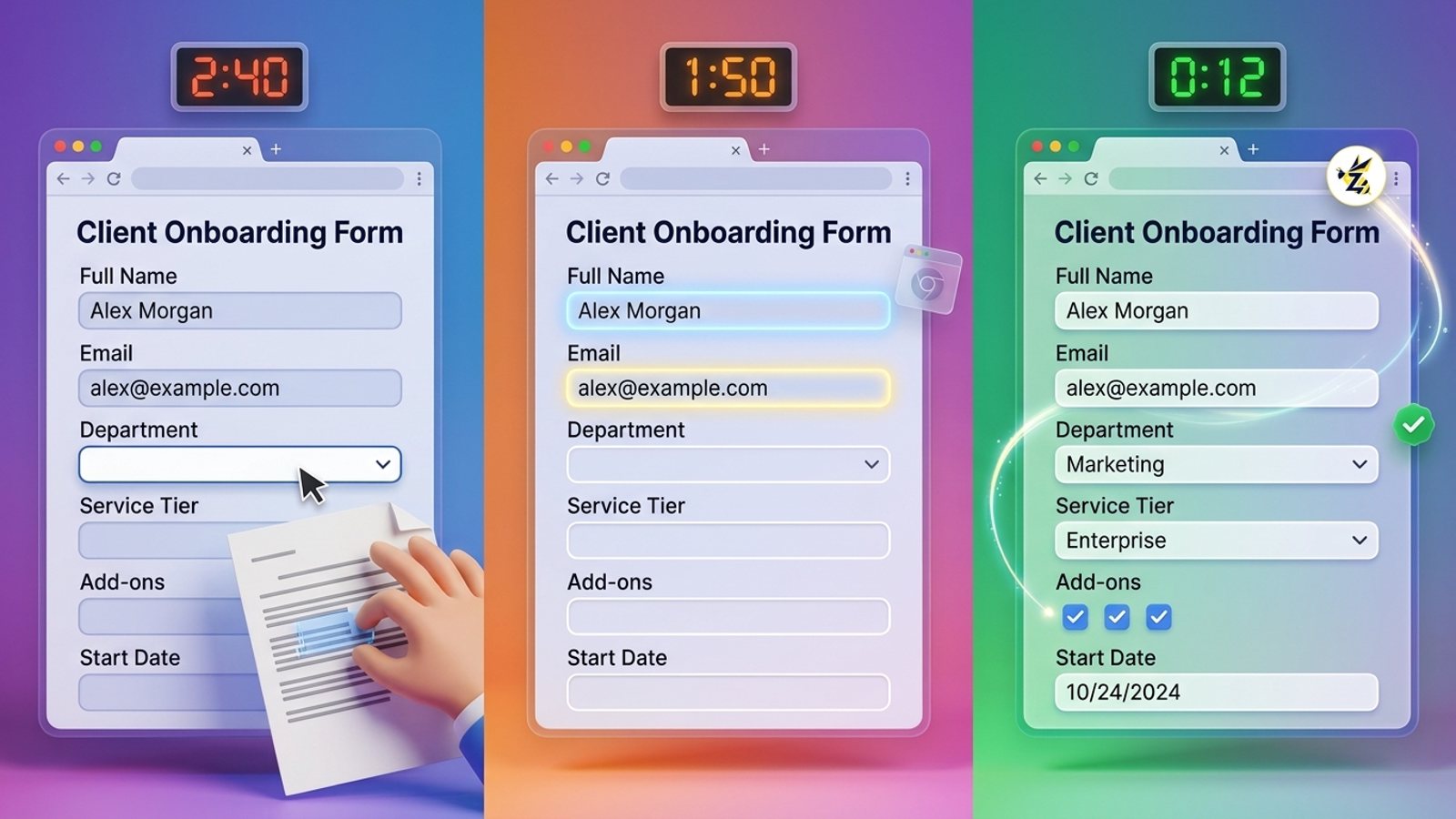
Copy-paste from a document vs an AI form filler: which is better for repetitive Google Forms?
Copy-paste is free and fine for one-off text forms, but it can't tick checkboxes, pick dropdowns or reach later pages. See where an AI form filler earns its place.
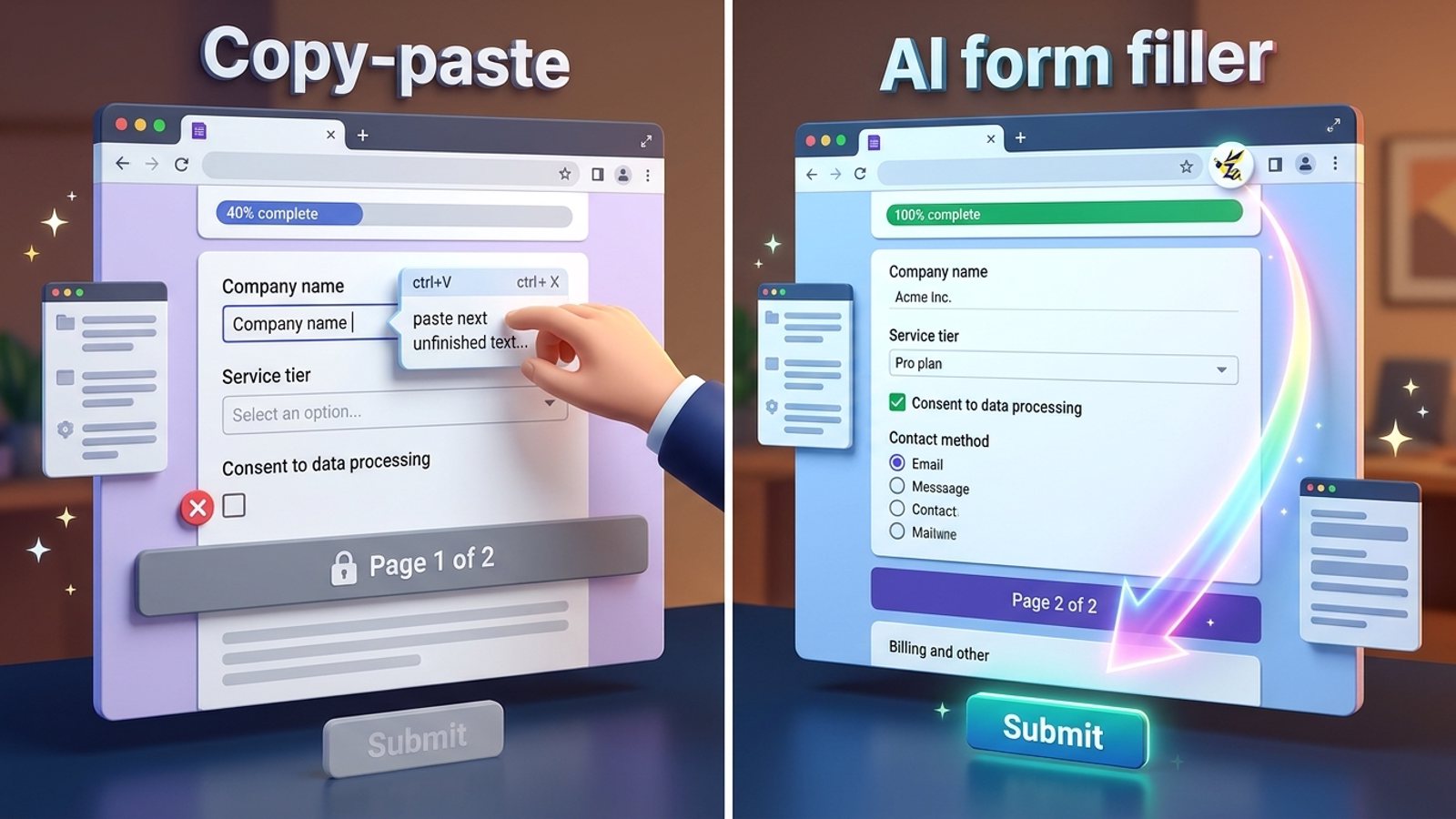
For repetitive Google Forms, an AI form filler is better. Copy-paste is free and fine for a one-off text-only form, but it can't tick checkboxes, pick dropdown options or reach questions on later pages. An AI filler handles those fields and moves through sections — as long as you review before submitting.
Is copy-paste or an AI form filler better for repetitive Google Forms?
An AI form filler is better for repetitive Google Forms; copy-paste is better for a one-off. The difference isn't speed on the first form — it's what happens on the fifth, the twentieth, the hundredth.
Here's the problem with copy paste vs ai form filler as a straight contest: they don't fail in the same places. Copy-paste fails structurally — it can't tick a checkbox, and it can't reach a question that hasn't loaded yet. An AI filler fails occasionally and visibly, by misreading a question, which is why the review step matters.
Say you run a small agency and onboard ten new clients a month through the same Google Form: company name, contact details, service tier from a dropdown, preferred contact method as radio buttons, a checklist of services, then a second page with billing details. Copy-paste gets you the name and the notes. Everything else is manual, on every single client.
Why doesn't copy-paste fill Google Forms dropdowns and checkboxes?
Because those aren't text boxes — they're choice questions built from a fixed list of options, and pasting text doesn't select an option. Google Forms offers short answer, paragraph, multiple choice (radio), checkboxes, dropdown, multiple-choice grid, checkbox grid, linear scale, date and time question types (Google Help). Only the first two accept typed or pasted text.
Two more traps catch people who paste:
- Shuffled options. Choice questions carry a shuffle flag that randomises option order (Google for Developers), so a remembered "third option down" can be wrong next time.
- Grids. A checkbox grid or multiple-choice grid asks several sub-questions in one block. There's no single box to paste into at all.
Why do multi-page Google Forms break copy-paste?
Because a section break creates a new page, and the later questions don't exist on screen until you advance. Google Forms lets you split a form into sections and send respondents to a specific section based on a multiple-choice or dropdown answer — "Go to section based on answer" only works with those two question types (Google Help).
Google's own API treats a page break as its own item ("pageBreakItem"), which confirms multi-page forms are structurally split rather than one long scrolling page (Google for Developers). Apps Script's item list likewise separates content items like CHECKBOX and TEXT from layout items like SECTION_HEADER (Google for Developers).
So the copy-paste workflow becomes: paste two fields, click Next, paste two more, click Next. You're not saving meaningful time — you're doing the form by hand with extra steps.
An AI filler's real advantage isn't typing speed — it's that it can move through the form the way a person does, page by page, and still handle the fields a paste can't touch.
What should you check before trusting any filler on a Google Form?
Check three things: whether it handles every question type on your form, whether it moves through sections, and what it does with your data.
Question types. A dedicated filler should list support for text, radio, checkbox, dropdown, scale and grid questions. Google Form Auto Filler does exactly that, and it does not submit forms automatically (Chrome Web Store, updated November 19, 2026). Google Forms Autofill covers text, email, number, URL, paragraph, radio, checkbox, dropdown, date and time fields, and can import and export mappings as JSON (Chrome Web Store, updated August 29, 2026).
Sections. Ask whether the tool advances through pages. Zipifil, for one, goes from one page to the next on multi-page Google Forms, per the owner.
Data. Read the store privacy disclosure before installing. Google Form Auto Filler's developer states it collects and uses no data (Chrome Web Store, updated November 19, 2026). Magical's listing discloses handling personally identifiable information, location, web history, user activity and website content (Chrome Web Store, updated April 4, 2026).
How do you fill a repetitive Google Form with copy-paste, step by step?
Keep the document method for the cases where it genuinely wins — short forms, text-only answers, one submission:
- Write your answers in a document first, one line per question, in the order the form asks them.
- Paste into short-answer and paragraph fields only. For radio, checkbox, dropdown and grid questions, stop and click the option yourself.
- Advance one section at a time and repeat — later questions don't exist until you click Next.
- Re-check any shuffled choice question rather than trusting a remembered position.
- Review the whole form before Submit, especially if you pasted quickly.
That's a workable routine for a form you fill once a quarter. It falls apart at volume — which is where a filler earns its place.
How does an AI form filler change the routine?
It removes the field-by-field clicking and the section-by-section advance, and it keeps your rules for next time. With Zipifil:
- Add the extension to Chrome, Edge or Brave.
- Give it your data and let it fill — it types into text boxes, selects dropdown options, ticks checkboxes and picks radio buttons.
- Let it work through the whole form, including the complex fields other extensions leave empty, and move from one page to the next on multi-page forms.
- Set custom rules per URL once — a phone-number format, or a field to skip — and it remembers them for future fills.
- Review every field, then submit.
You can also highlight text on a page, right-click and map it to a form field in two clicks, or upload a PDF or image such as a supplier invoice and let the form fill itself.
Zipifil works on Google Forms, including forms with multiple pages, and works best in English — for other languages you can ask support. It isn't an official Google product and doesn't integrate with Google Forms beyond working on the page.
Which option should you pick: copy-paste, Chrome autofill, saved-answer fillers or an AI filler?
Start with the form, not the tool. A one-off short text form → copy-paste. The same questions answered the same way every time → a saved-answer filler. Forms that need new written answers, dropdowns, checkboxes and multiple pages → an AI filler.
| Option | Best for | Key features | Price (as of Nov 2026) | Watch-outs |
|---|---|---|---|---|
| Zipifil — Our pick | Repetitive forms, mixed fields | All field types, multi-page, per-URL rules | Free: 3 fills/day; $9.99/mo | Works best in English |
| Copy-paste from a document | One-off, text-only forms | Free, no install | Free | Can't do choice fields |
| Chrome built-in Autofill | Standard identity fields | Saved names, addresses, cards | Free | Not built for surveys |
| Saved-answer fillers | Same questions, same answers | Question→answer pairs, grids | Free | Won't write new answers |
| Magical | Text expansion across apps | Snippets, autofill, AI writing | Store lists free to add | General tool, not Forms-first |
Our pick, of the tools we compared, is Zipifil — because it fills the whole form including dropdowns, checkboxes and multi-step wizards, and lets you teach it your rules once per site. Zipifil is made by the team behind this blog.
Prices can change. Zipifil's unlimited plan is $9.99 per month as of November 2026, with a free tier of 3 AI form fills every day and no credit card required.
Copy-paste from a document costs nothing and needs no install, which makes it the honest winner for a single short text-only form. It just can't touch choice questions or reveal a hidden section.
Chrome built-in Autofill fills saved data like names, addresses and card details, pulling from your Google Account and Google Wallet (Google Help). Its newer enhanced autofill can suggest Gmail-sourced details like order numbers and tracking, which you click to insert — and Chrome does not submit the form (Yahoo Tech, 2026-10-29). It isn't designed to answer the body of a survey.
Saved-answer fillers like Google Form Auto Filler store question→answer pairs and match them by question text, covering text, radio, checkbox, dropdown, scale and grid questions (Chrome Web Store, updated November 19, 2026). If you answer the same questions identically every time, this is the more direct choice. They won't compose a new free-text answer for a question you haven't set up, and text matching can miss reworded questions. The open-source GitHub version needs a developer-mode install and finding each form's entry. IDs (GitHub, 2025-07-03).
Magical is a text expander and autofill app listed at "10,000,000+ apps" (Chrome Web Store, updated April 4, 2026). If your real job is expanding snippets across many apps, it's the broader tool. It's a general tool rather than a dedicated Google Forms filler; its Chrome listing shows a 3.1 rating from about 3.5K ratings, and a vendor blog (ClickUp, 2025-10-23) states there's no free version with custom pricing, while a forum user reported a 14-day trial banner (Alura forum, 2026-04-30).
Ready to stop pasting? Add Zipifil to Chrome — 3 fills a day free and run your next repetitive Google Form through it.
Sources
- Choose a type of question for your form — Google Help
- Show questions based on answers — Google Help
- REST Resource: forms — Google for Developers
- Enum ItemType — Google for Developers, 2026-04-12
- Chrome autofill — Google Help
- Chrome now autofill forms using Gemini — Yahoo Tech, 2026-10-29
- Magical: Text Expander & Autofill — Chrome Web Store, updated April 4, 2026
- ClickUp blog on Chrome AI extensions — vendor blog, 2025-10-23
- Alura forum: Magical extension doesn't provide AI — forum, 2026-04-30
- Google Form Auto Filler — Chrome Web Store, updated November 19, 2026
- Google Forms Autofill — Chrome Web Store, updated August 29, 2026
- google-form-auto-filler README — GitHub, 2025-07-03
- Auto Google Form Filler — Chrome Web Store
Frequently asked questions
Not by default with most tools. Google Form Auto Filler does not submit automatically, while Auto Google Form Filler offers an optional auto-submit. Either way, reviewing before you submit is the sensible default.
It depends on the tool, so check before you commit. Section breaks are their own form items, so a filler has to advance through pages rather than treat the form as one scroll. Zipifil goes from one page to the next on multi-page Google Forms.
Dedicated Google Forms fillers list grid support — Google Form Auto Filler covers grid questions alongside text, radio, checkbox, dropdown and scale. Generic autofill tools generally don't, which is why matching the tool to the question types on your form matters.
Of the tools we compared, Zipifil is the best fit when your form mixes text, dropdowns, checkboxes and multiple pages, because it fills every field type and remembers your per-URL rules. If you always give identical answers to identical questions, a free saved-answer filler is the more direct choice.
For a single short form where every question is a short-answer or paragraph field. It's free, needs no install, and there's nothing for a tool to improve on. The moment your form has a dropdown, a checkbox, a grid or a second page, the balance shifts.