What are the best alternatives to Google Forms autofill for filling client onboarding forms?
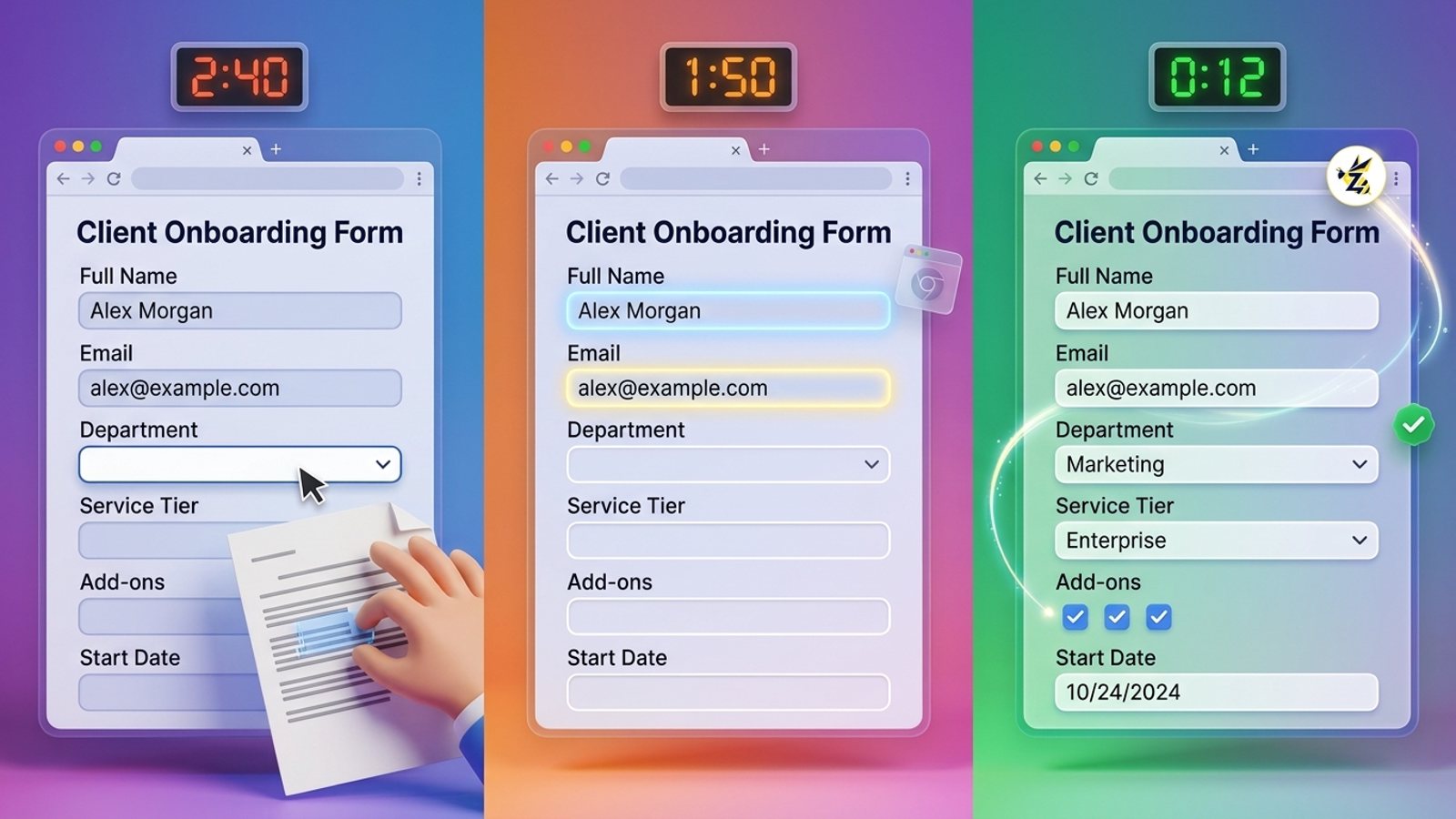
Chrome autofill only fills the simple fields it recognises, leaving dropdowns and checkboxes empty. Here are the realistic alternatives for filling client onboarding Google Forms end to end.
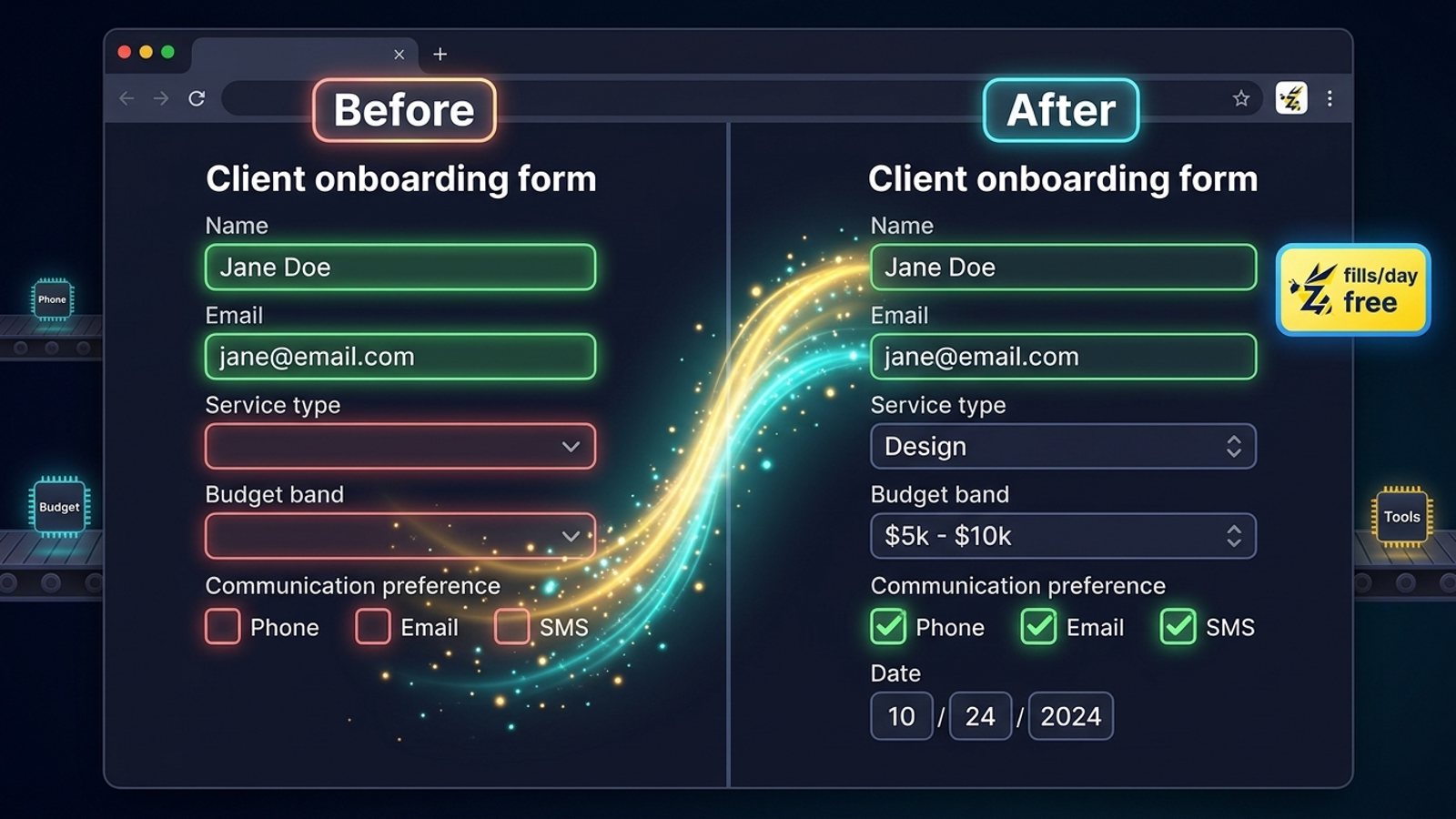
If you're filling a client's onboarding Google Form, the realistic google forms autofill alternative is an AI form filler Chrome extension that reads each question and fills the whole form — dropdowns, checkboxes and dates included. Chrome's built-in autofill only handles simple fields it recognises, and Google Forms doesn't render as standard HTML inputs, so the rest stays blank.
Client onboarding forms are one of the most common Google Forms templates — they gather contact details, referral source, service requirements, specs and budget (Doc2Form, 2026). That's a lot of field types in one form, and it's exactly where browser autofill falls down. If you'd rather see the whole form done in one pass, you can add Zipifil to Chrome — 3 fills a day free.
Why does Google Forms autofill leave half the onboarding form empty?
Chrome autofill is built for standard HTML inputs, and Google Forms doesn't use them. Google Forms renders through a custom JavaScript layer, so Chrome may catch your name or email and then leave the rest of the survey blank — a vendor blog (QuickForm, 2026) describes exactly this pattern, and a Super User thread from 2016 explains the underlying cause: Google Forms isn't a standard <form> with standard inputs.
On an onboarding form, that means the easy bits fill and the important bits don't:
- Text fields — name, email, sometimes phone.
- Dropdowns — service type, budget band, how did you hear about us.
- Checkboxes — communication preference, tools you use, priorities.
- Dates and grids — project start, linear-scale questions.
Chrome Help also notes that autofill only works for a category if "Save and fill" is turned on for it, and that when Chrome can't detect certain fields, it won't offer your saved info at all. So even a perfectly filled-out Chrome profile won't rescue a Google Form.
What are the realistic alternatives for filling client onboarding forms?
There are four, and they sit on a spectrum from "free but slow" to "fast but needs a tool". Here's the honest ranking for a freelancer filling a client's onboarding form.
1. Manual typing
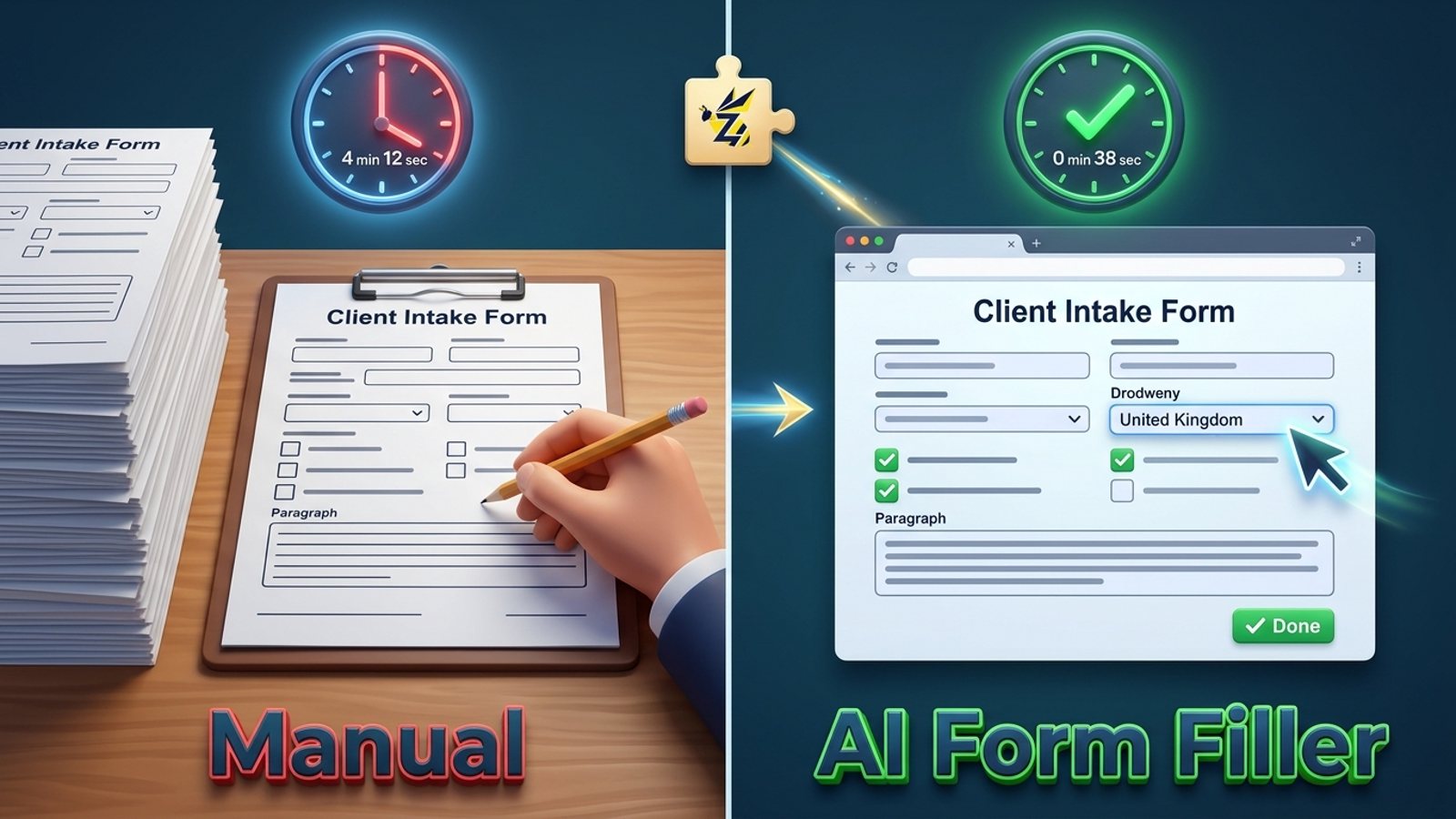
Most reliable, slowest, costs your time. You see exactly what you enter and nothing gets skipped by a machine. But it's every field, every form, every client — and on a long onboarding questionnaire, typos and omissions creep in (QuickForm, 2026). Best reserved for one-off forms and unusual questions where accuracy beats speed.
2. Copy-paste from a saved onboarding document
Faster for paragraphs, still field-by-field. Keep a Google Doc of your standard answers — project scope, business description, boundaries — and paste them in. It keeps your answers consistent across clients and needs no install. The catch: you still click into each box one at a time, it can't tick a checkbox or pick a dropdown option, and text can land in the wrong box if the form layout differs. One sample virtual-assistant onboarding questionnaire (huneesoinsane blog, 2026) is designed to be pasted into a Google Form section by section — useful as a source document, not as automation.
3. Google Forms prefill links
Great when you own the form, useless when the client sends you one. Prefill links are a free feature of Google Forms on the form-owner side. To build one you need owner access, exact option labels and correct entry IDs (GeekChamp, 2026). If a client emails you their intake form to complete, you have none of those things.
4. An AI form filler Chrome extension
Fills the whole form, including the fields the others can't touch. An AI filler reads the visible question text on the page and matches it to your data, so it can type into text boxes, select dropdown options, tick checkboxes and set date pickers — on Google Forms and on other forms where simpler fillers break.
This is where Zipifil fits. It fills every field type, works on Google Forms and tricky forms such as locked portals, iframes and custom dropdowns, and lets you set URL-specific rules once so it remembers your formatting and skipped fields forever. You can also upload a PDF or image — a supplier invoice, say — and the form fills itself.
How do you fill a client onboarding Google Form in minutes?
Set your standard answers once, then run the filler and review. Here's the practical sequence:
- List the repeating fields — contact details, service type dropdown, budget band, communication preference checkboxes.
- Save your simple details in Chrome via Settings → Autofill and passwords, for the name/email/address fields Chrome can handle.
- Teach the filler your non-standard answers — for Zipifil, that means custom rules per URL and custom AI instructions per page so it formats, skips or selects fields exactly how you want.
- Open the client's form and run the filler. It fills the whole form, not just the easy parts.
- Review dropdowns and checkboxes against the form's validation rules before submitting.
Say you run a small design studio and a new client sends you a five-section onboarding form: about your business, service requirements, budget, tools, and communication preferences. Manual typing takes a while and you'll still second-guess the budget band. With a filler that reads question text, the paragraphs come from your saved answers, the dropdowns get selected, the checkboxes get ticked — and you spend your time checking, not typing.
Which tool is the best Google Forms autofill alternative?
Of the tools we compared, Zipifil is our pick for filling client onboarding forms end to end. It's the one built to complete the whole form — dropdowns, checkboxes, date pickers and multi-step wizards — rather than just the text boxes. The free plan gives you 3 AI form fills every day with no credit card, and unlimited fills are $9.99 per month as of November 2026 (prices can change).
Zipifil is made by the team behind this blog. Here's how the options stack up.
| Option | Best for | Key features | Price/free option | Watch-outs |
|---|---|---|---|---|
| Zipifil (Our pick) | Filling whole onboarding forms repeatedly | All field types, Google Forms, per-URL rules, PDF/image upload | Free: 3 fills/day; $9.99/mo unlimited (as of Nov 2026) | Review answers before submitting |
| Chrome built-in autofill | Simple contact and address fields | Saved names, emails, addresses, cards | Free, built into Chrome | Skips Google Forms dropdowns and checkboxes |
| Google Form Auto Filler | Saving Q&A pairs by question text | Text, multiple choice, checkboxes, dropdowns, grids, sync storage | Free (store listing) | No auto-submit; ~1,000 users at listing date |
| AutoFill Pro | Profile-based fill with keyword mapping | Profile fill, keyword→value mapping, optional auto-submit | Free (store listing) | 2.7 from 3 ratings at listing date |
| docFiller | AI fill with your own API key | GenAI fill, 20+ field types | Free (store listing) | Requires your own AI API key |
| Manual typing / copy-paste | One-off forms, unusual questions | Nothing to install, full control | Free | Slow; typos and omissions |
A few honest notes. If you mainly need to save question-and-answer pairs and fill them by matching question text, Google Form Auto Filler is the more direct choice — its listing says it supports text, multiple choice, checkboxes, dropdowns, linear scales and grids, stores answers in Chrome sync and does not auto-submit. If you want profile-based filling with custom keyword mapping and optional auto-submit, AutoFill Pro offers that, though its store rating was 2.7 from 3 ratings at the listing date. If you already have your own AI API key and want a GenAI filler supporting 20+ Google Forms field types, docFiller is built for that. And Filler reads visible question text to fill text, dropdowns, radio buttons, checkboxes and long answers on Google Forms and other forms.
Ratings and user counts are as displayed on the store pages at the dates shown and change daily. None of these listings state paid tiers.
Can I autofill Google Forms dropdowns and checkboxes?
Not with browser autofill — but yes with a filler that matches question text or option labels. Chrome's autofill has no mechanism for choosing a dropdown option or ticking a checkbox on a Google Form, because it can't detect those fields in the first place. Extensions that read the visible question text and the option labels are the workaround, and that's the approach Google Form Auto Filler, Filler and Zipifil all take.
For a worked example, see how to auto-fill a Google Form with dropdowns, checkboxes and date fields.
What if the onboarding form has multiple pages or file uploads?
A filler that handles multi-step wizards moves from one page to the next. Zipifil goes from one page to the next on multi-page Google Forms, and it works on all Google Forms. For file upload questions, the practical approach is to have the file ready before you start so you're not hunting for it mid-form.
If you're dealing with a long multi-section form, our guide to filling a multi-page Google Form automatically walks through the section-by-section flow.
Is my client data safe in a form-filler extension?
Check where the extension stores your data before you install it. Several store listings state local-only storage — AutoFill Pro's, for example, says data is stored locally in the browser. Others use Chrome sync. Our recommendation: read the privacy section of any extension's listing before you put client details into it, and don't paste anything into a form you wouldn't want stored.
Client onboarding data is often personal and commercial, so the storage question matters more than the price.
Ready to stop retyping the same onboarding answers? Get Zipifil AI Form Filler Chrome Extension and fill your next client form in one pass.
Sources
- Chrome autofill help (Google Chrome Help, undated)
- Google Chrome autofill not working on Google Forms responses (Super User, 2016-08-04)
- How to autofill Google Forms in Chrome (QuickForm, vendor blog, 2026-06-09)
- Chrome autofill not working on some forms? (tidyleaf guide, undated)
- New Client Intro Google Form Template (Doc2Form, 2026-09-23)
- Free Virtual Assistant Client Onboarding Questionnaire (huneesoinsane blog, 2026-11-05)
- Google Form Auto Filler (Chrome Web Store, listing 2026-09-14, updated 2026-11-19)
- AutoFill Pro (Chrome Web Store, 2026-08-03)
- docFiller (Chrome Web Store, 2026-07-07)
- Filler – fill forms from your profile (Chrome Web Store, undated)
- Google Forms question types (Google Help, undated)
- Auto-fill in Google Forms guide (GeekChamp, 2026-05-14)
Frequently asked questions
Because Google Forms isn't built from standard HTML inputs Chrome can recognise. Chrome may fill your name or email and leave the rest blank, so recurring submissions mean retyping every time.
Of the tools we compared, Zipifil is our pick because it fills the whole form including dropdowns and checkboxes, works on Google Forms, and lets you set rules per site. If you only need saved Q&A pairs matched by question text, Google Form Auto Filler is a more direct fit.
Only the form owner can build prefill links, and doing so needs exact option labels and correct entry IDs (GeekChamp, 2026). If the client sends you the form to fill, prefill isn't available to you.
It varies. AutoFill Pro's listing offers optional auto-submit; Google Form Auto Filler's states it does not auto-submit. Our recommendation: review the answers yourself before submitting a client form.
Yes — it works on all Google Forms and goes from one page to the next on multi-page forms. It works best in English; for other languages you can ask support.