Google Forms autofill vs copy-paste from a document: which is faster for onboarding clients?
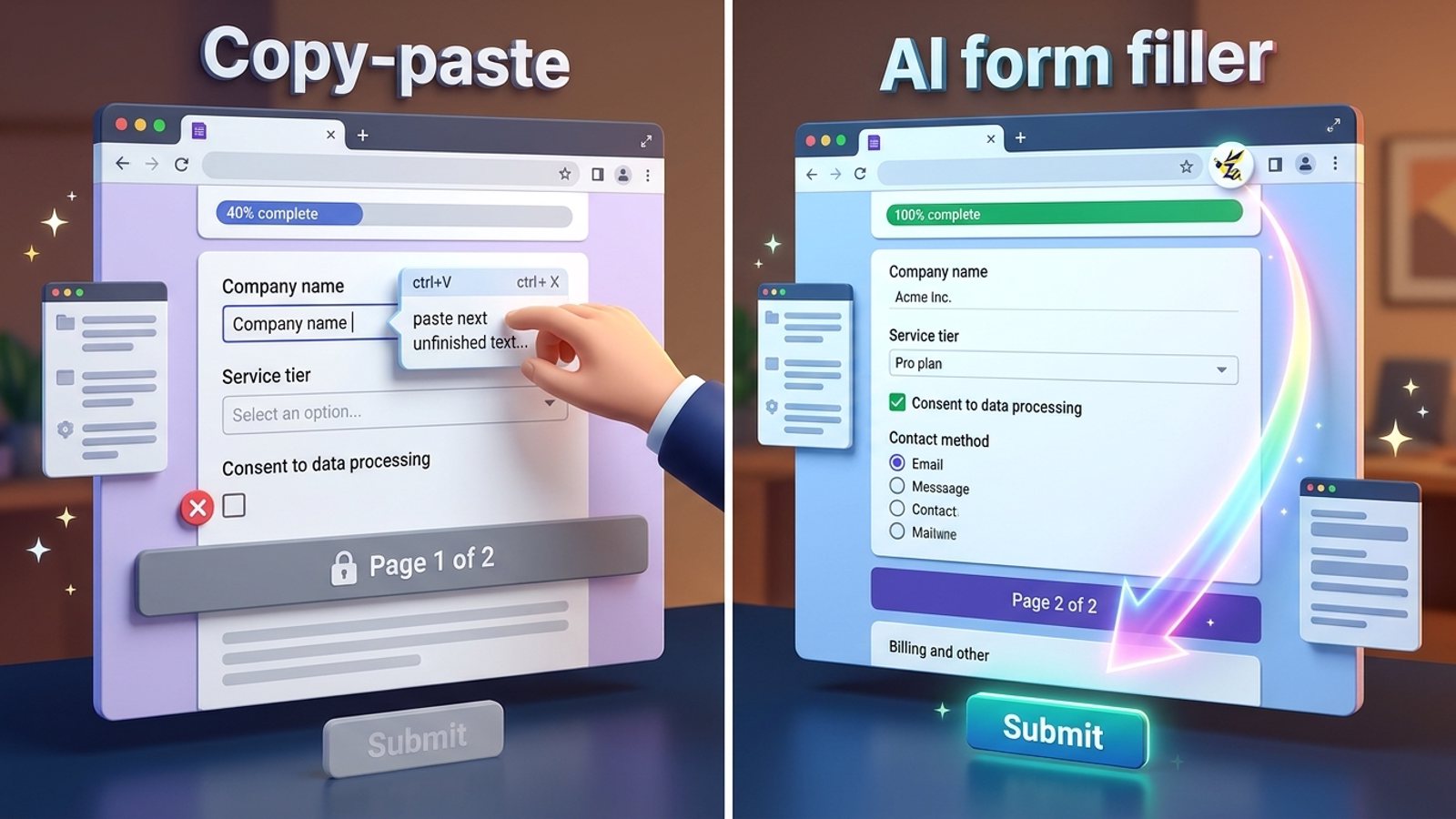
Copy-paste beats Chrome autofill on Google Forms, but an AI form filler is fastest of all — it fills dropdowns, checkboxes and every field in one pass.
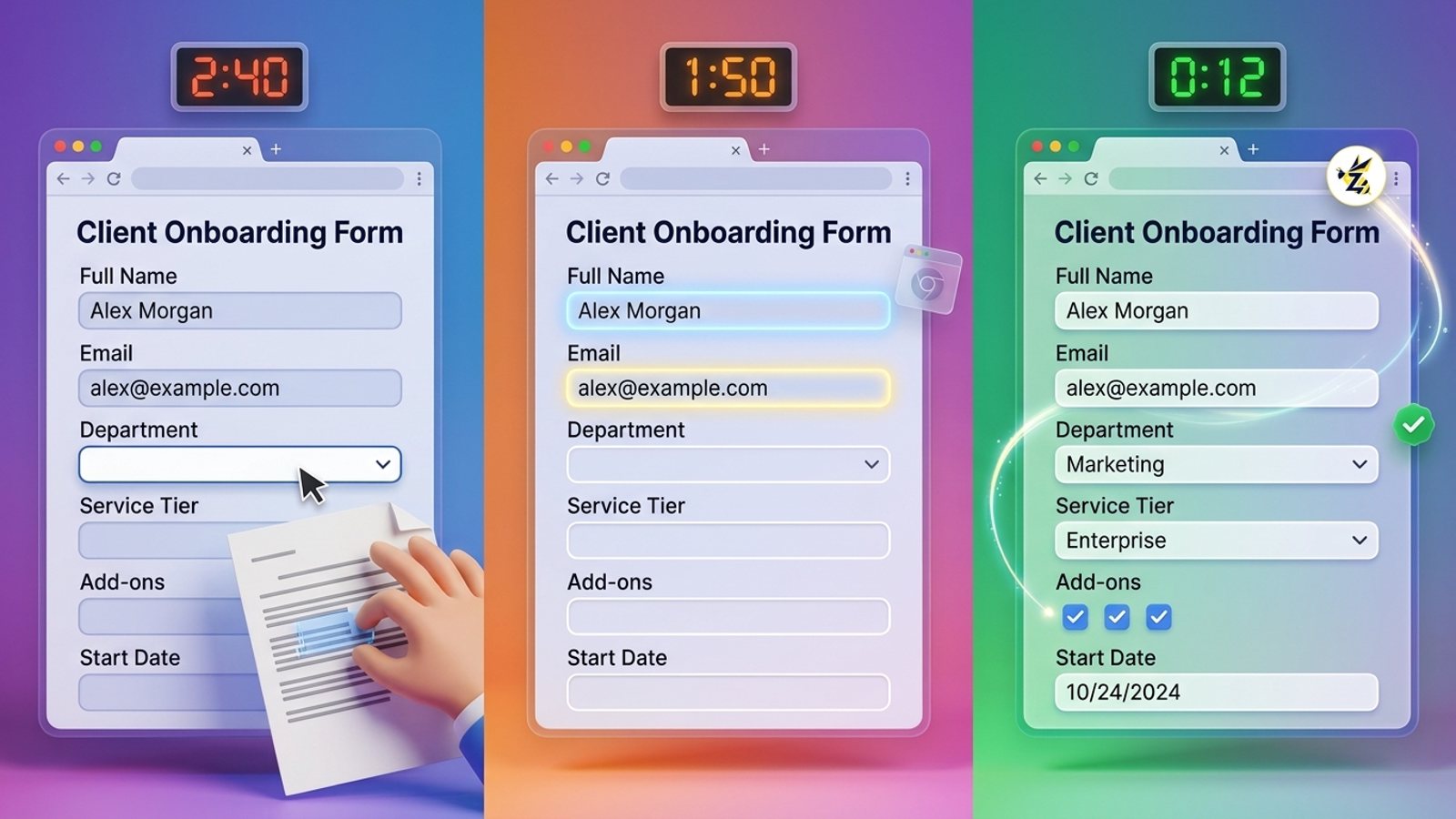
For a 20-question client onboarding form with dropdowns and checkboxes, copy-paste from a prepared document usually beats Chrome's built-in autofill — Chrome often fills only name and email on Google Forms and leaves the rest blank. But neither method finishes the job alone. An AI form filler is the fastest of the three, because it treats the whole form as one fill.
If you onboard clients for a living, you know the ritual: open the form, open the doc, switch windows, copy, paste, tab, repeat. Twenty questions later you've done it again — and the next client is waiting. The question is which of your two existing methods is actually faster, and where a third option fits.
Add Zipifil to Chrome and let it fill the whole onboarding form — 3 fills a day are free: Add to Chrome — 3 Fills/Day Free.
Is autofill faster than copy-paste for a 20-question onboarding form?
Usually no — not Chrome's built-in autofill on Google Forms. Copy-paste is slower per field but more complete, so on a form with dropdowns and checkboxes it tends to win against browser autofill.
Chrome autofill pulls from saved info in your Google Account — names, addresses, payment details — and it needs you signed in to work at all (Google Chrome Help, undated). On a form where the fields are properly marked up, that's a couple of seconds for your contact block.
Google Forms is not that form. It renders through a custom JavaScript layer rather than standard HTML inputs, so Chrome may catch your name or email and leave the rest of the survey blank (QuickForm blog, vendor blog, 2026). A 20-question onboarding form is mostly the rest: department, role, service tier, checkboxes for what the client bought, a start date.
Copy-paste covers all of it. It just costs you the switch, the select, the copy and the paste — twenty times.
How do the two methods actually compare, field by field?
Copy-paste wins on coverage; Chrome autofill wins on the handful of fields it recognises. Everything else is a tie at zero.
| Question type | Chrome autofill | Copy-paste from a doc |
|---|---|---|
| Name, email, phone | Fills quickly | Works, manual |
| Short answer / paragraph | Usually skipped | Works, manual |
| Dropdown | Usually skipped | Works, manual |
| Checkboxes | Usually skipped | Works, manual |
| Date picker | Usually skipped | Works, manual |
| Multi-page | Page by page | Page by page |
Google Forms question types include short answer, paragraph, multiple choice, checkboxes, dropdown, linear scale, grids, date, time and file upload (Google Help, undated). A realistic onboarding form uses five or six of those.
Chrome autofill doesn't select dropdown options from your saved profile — that generally needs prefill links, which require exact option labels, encoded spaces and correct entry IDs (GeekChamp, 2026). So the department dropdown, the role dropdown and the checkbox list are all yours to do by hand.
That's the whole comparison in one line: autofill saves you seconds on two fields, and copy-paste saves you nothing but never misses.
Why does Chrome autofill leave Google Forms dropdowns and checkboxes empty?
Because Chrome fills what the page tells it about, and Google Forms doesn't present its questions the way a standard contact form does.
Google's own help page is candid about the limits. It says that if Chrome can't detect certain fields in a form, autofill won't suggest your saved info. It also notes that "not all autofill features are available in all regions," and that Google's "smarter form understanding" — which helps with more complex forms — isn't compatible with all websites, with "enhanced autofill" limited to opted-in Gemini in Chrome users in the US aged 18+ (Google Chrome Help, undated).
There are also plain housekeeping reasons autofill goes quiet: a kind of info switched off, an incomplete saved address, or another extension — often a password manager — interfering (tidyleaf guide, undated).
None of that makes autofill useless. It makes it a contact-block tool, not an onboarding-form tool.
How long does copy-paste actually take on a 20-question form?
Longer than it feels. One vendor comparison of form submission estimates roughly 2 to 3 minutes per form with tab-switching (Donkey Directories, vendor blog, 2026).
That figure is for directory submissions, not Google Forms, and it's a vendor estimate — treat it as an order of magnitude, not a stopwatch. But the shape holds. Say you onboard 15 clients a month. At 2–3 minutes each, that's 30–45 minutes of pure copying, plus the mental tax of holding your place in two windows at once.
Per-field research gives you a sanity check on the other end. An old academic study measured roughly 3.4–6.9 seconds per date field depending on input design (Hindawi, 2011) — old, but useful as a per-field order of magnitude. Multiply by 20 and you're in the same ballpark.
Copy-paste isn't slow because any one paste is slow. It's slow because you do it twenty times, for every client, forever.
Where does an AI form filler beat both methods?
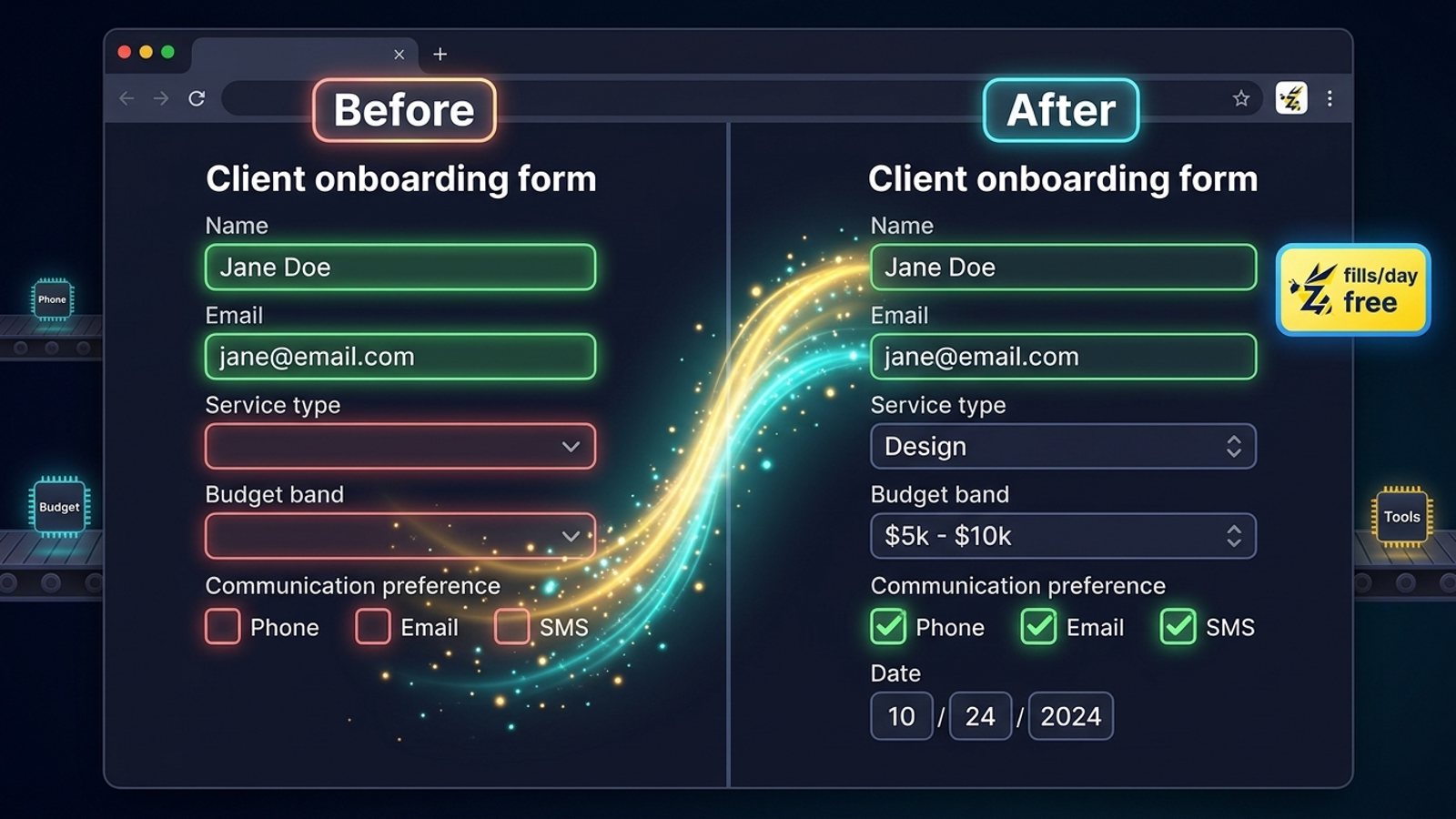
On the fields the other two methods leave to you. An AI form filler reads the form and fills the whole thing — text boxes, dropdowns, checkboxes, radio buttons, date pickers — in one pass, then you review.
That's the gap. Chrome autofill stops at Google Forms' custom fields. Copy-paste covers everything but charges you per field. A filler that works on the page itself does the coverage of copy-paste at the speed of autofill.
For repeat onboarding, the setup matters as much as the fill. Look for a tool that lets you:
- Set rules per form URL so phone formats, skipped fields and dropdown choices are handled the way you want, every time.
- Add custom instructions per page for the odd question — "always pick Standard tier unless the client is enterprise."
- Handle multi-page forms without you restarting the process on each page.
- Show you the filled form for review before anything is submitted.
That last one isn't optional. A vendor comparison of autofill methods is explicit that autofill requires a quick review step after filling — review, then submit (Donkey Directories, vendor blog, 2026). Autofill saves typing, not judgment.
Which option should you use? A comparison
Here's how the realistic options stack up for onboarding clients on Google Forms. Zipifil goes first because it's our product — and because it's the only entry built for the whole form.
| Option | Best for | Key features | Price | Watch-outs |
|---|---|---|---|---|
| Zipifil (Our pick) | Whole-form fills on Google Forms | All field types, per-URL rules, multi-page | Free 3 fills/day; $9.99/mo unlimited | English works best |
| Chrome autofill | Name, email, address | Built in, saves contact info | Free | Skips Google Forms fields |
| Copy-paste from a doc | One-off or unusual forms | Works on any field | Free | Manual every time |
| Google Forms prefill links | Forms you own | Presets answers via URL | Free | Needs exact labels, IDs |
| AutoFill Pro | Simple saved profiles | Keyword mapping, auto-submit | Free extension | Small user base; manual mapping |
Our pick: Zipifil. Of the tools we compared, it's the one built for this exact job — it fills text boxes, dropdowns, checkboxes, radio buttons, date pickers and multi-step wizards, including Google Forms, and it works on tricky forms such as locked portals, iframes and custom dropdowns. You set URL-specific rules once and it remembers them, and you can upload a PDF or image — a supplier invoice, say — and let the form fill itself. It runs in Chrome, Edge and Brave. Pricing as of November 2026: free forever with 3 AI form fills a day, no credit card, or $9.99 per month for unlimited fills, custom domain rules and prompts, PDF and image extraction, and priority execution — prices can change. One honest note from the team: it works best in English, and for other languages you can ask support.
The free plan is enough to test it on your real onboarding form before you decide: Add to Chrome — 3 Fills/Day Free.
Chrome built-in autofill is the right choice if all you need is your contact block on a standard form. It's free, it's already there, and on well-marked-up pages it's instant. It just isn't built to answer survey questions, and Google's own help pages say features vary by region. If you mainly need contact details filled, Chrome autofill is the more direct choice.
Manual copy-paste from a document suits one-off forms, unusual field types, and anyone who wants to see exactly what lands in each field. A vendor guide on compliance forms makes the case plainly: copy-paste works on any form, including fields browsers ignore (anyformfill, vendor blog, 2026). The trade-off is the per-field effort, and a forum discussion raises the clipboard-access privacy consideration that comes with pasting from third-party apps (Reddit, 2024 — forum opinion).
Google Forms prefill links are free and native, and they're genuinely useful when you own the form and send it to the same client twice. The catch is precision: exact option labels, encoded spaces, correct entry IDs, and branching that breaks if prerequisites aren't set (GeekChamp, 2026). A Google Help thread from 2022 also notes that a Google Form is a static page, so pre-filling the rest of a form from the first answer isn't native behaviour (Google Help thread). If you mainly need to preset a few answers on a form you control, prefill links are the more direct choice.
AutoFill Pro (GuinGreen) is a free Chrome extension that fills matching Google Forms fields from a saved profile, with custom "Keyword → Value" mapping, multiple profiles and optional auto-submit; its listing says data is stored locally in the browser (Chrome Web Store, updated August 2026). The listing shows a small user base and a 2.7/5 rating from 3 ratings, and the mapping approach means you set up each field by hand. If you mainly need a simple saved profile and don't mind manual keyword mapping, it's a reasonable free start.
Zipifil is made by the team behind this blog.
What's the fastest safe setup for onboarding 20-question forms?
The fastest safe setup is: one source of truth for your answers, one filler that handles every field type, and a review step you never skip. Here's the sequence.
- Build one answer document. Every contact detail, department, role option and checkbox list in a single doc — so copy-paste has one source and your filler has one reference.
- Time all three methods once. Fill your real onboarding form by copy-paste, by Chrome autofill, and by AI filler. Note where each stops or mis-fills.
- Check your Chrome autofill profile. Make sure saved info is complete and the relevant kinds of info are switched on — incomplete addresses are a common reason nothing appears.
- Confirm you're signed in to your Google Account. Chrome autofill and smarter form understanding both depend on it.
- If you own the form, generate prefill links for recurring clients, using exact option labels and testing branching before you send anything.
- Install a filler for the repeat forms. Set your per-URL rules once, fill, then review.
- Review, then submit. Every time. No exceptions.
If your form runs across several pages, the page-by-page problem has its own playbook: see how to fill a long multi-page Google Form faster. And if you're weighing tools more broadly, what is the best tool to fill Google Forms automatically? covers the field.
Is it safe to let an extension fill client onboarding forms?
Safety comes down to what the extension stores and where — check each extension's data declaration before you install it. Some store data locally in the browser, others use Chrome sync storage (Chrome Web Store, 2026).
For client onboarding specifically, you're handling other people's contact details, so treat the choice like any other vendor decision: read the privacy panel, use the minimum data needed, and review before submitting. Nothing here is legal advice, and data-protection rules vary by place — if you handle client data at scale, check what applies where you operate.
The practical answer: a filler that runs on the page and fills what you can see is doing the same job your keyboard was doing, faster. The risk you're managing is the same one you manage with any tool that touches client data.
Stop retyping the same twenty answers for every new client. Add Zipifil and fill the whole onboarding form in one pass: Add to Chrome — 3 Fills/Day Free.
Sources
- Google Chrome Help — autofill, saved info, region caveat (Google, undated)
- Chrome for Developers — autofill attributes (Google, undated)
- Google Help — Google Forms question types (Google, undated)
- Google Help thread — no native cascade prefill (Google, 2022-12-23)
- QuickForm blog — how to autofill Google Forms (vendor blog, 2026-06-09)
- tidyleaf guide — Chrome autofill failure modes (undated)
- GeekChamp — prefill links in Google Forms (2026-05-14)
- Donkey Directories — autofill vs copy-paste (vendor blog, 2026-09-22)
- anyformfill — government/compliance autofill vs copy-paste (vendor blog, 2026-08-23)
- Chrome Web Store — AutoFill Pro (GuinGreen) (updated 2026-08-04)
- Chrome Web Store — Google Form Auto Filler (2026-11-19)
- Reddit — copy paste vs autofill (forum, 2024-08-04)
- Hindawi — date entry input field timings (academic, 2011)
Frequently asked questions
Yes, usually. With no setup time to amortise, copy-paste from a prepared document is the simplest route for a form you'll fill once — one vendor comparison describes it as zero setup with roughly 2 to 3 minutes per form.
Yes, if you own the form. Prefill links can preset answers including dropdown options, but they need exact option labels, encoded spaces and correct entry IDs, and branching can break if prerequisites aren't set.
Chrome fills fields the page declares to it, and Google Forms renders its questions through a custom layer rather than standard inputs. Google's help pages also note that autofill won't suggest saved info when it can't detect the fields.
Of the tools we compared, Zipifil is the one built for whole-form fills on Google Forms — every field type, per-URL rules and multi-page support, free for 3 fills a day. If you only need contact details, Chrome autofill costs nothing and is already installed. If you only need preset answers on a form you own, native prefill links do that job.
Yes. Every autofill method needs a review step — fill, review, submit. A wrong dropdown on an onboarding form becomes a wrong client record.