How do I teach an AI to fill Google Forms exactly how I want?
Save standing instructions against a Google Form's URL so the filler applies your formatting, skip and routing rules automatically every time. Here's how to set it up once and trust every future fill.

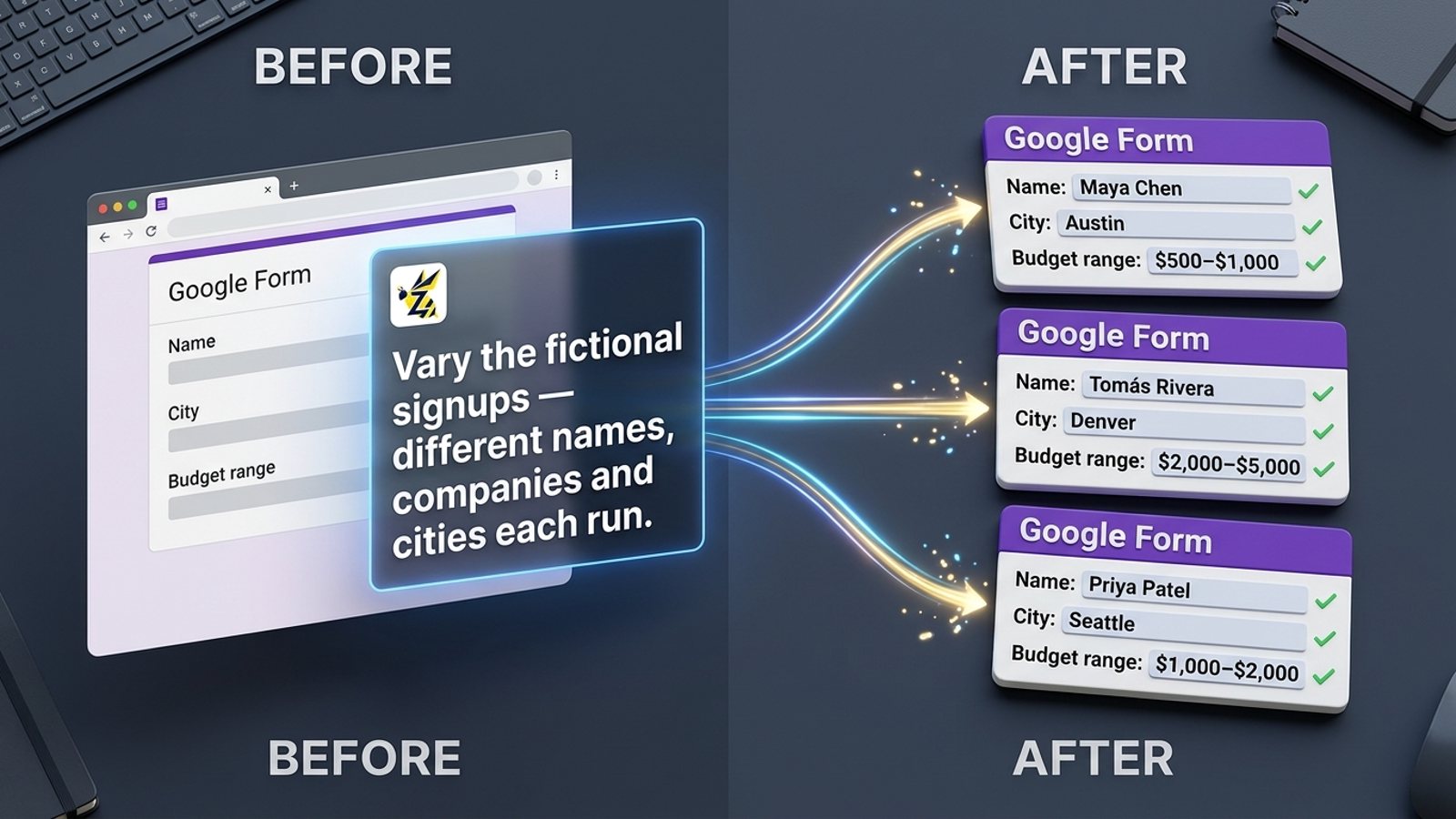
You teach an AI to fill Google Forms exactly how you want by saving standing instructions against that form's URL, so the filler applies your rules automatically every time the form opens. Three rule types do most of the work: how to format answers, which fields to skip, and which option to pick on branching questions. Zipifil is built around exactly this.
Ready to set your first rule? Add Zipifil to Chrome — 3 fills a day free and start on the next form you open.
What does it mean to teach an AI form filler?
It means giving the filler standing instructions for one specific form, so it stops guessing and follows your rules. The AI isn't learning in a general sense. You write down, once, what a correct answer looks like on that page — and the filler applies it every time that page loads.
That's the difference between a filler that guesses and one you've taught. Form Filler, a separate extension, reads form labels and marks its AI guesses with dashed amber outlines — useful, but it's inference, not instruction. A rule you wrote is not a guess.
Our recommendation: treat the first fill like a training session. Fill the form by hand once, correctly, and note the exact wording of every dropdown option and checkbox label. That's your reference sheet for writing rules.
How do I give a filler instructions for one Google Form only?
Save the instruction against that form's URL. Zipifil lets you save custom instructions for any page and remembers them for that address — so your rules for one Google Form don't leak onto every other site you visit.
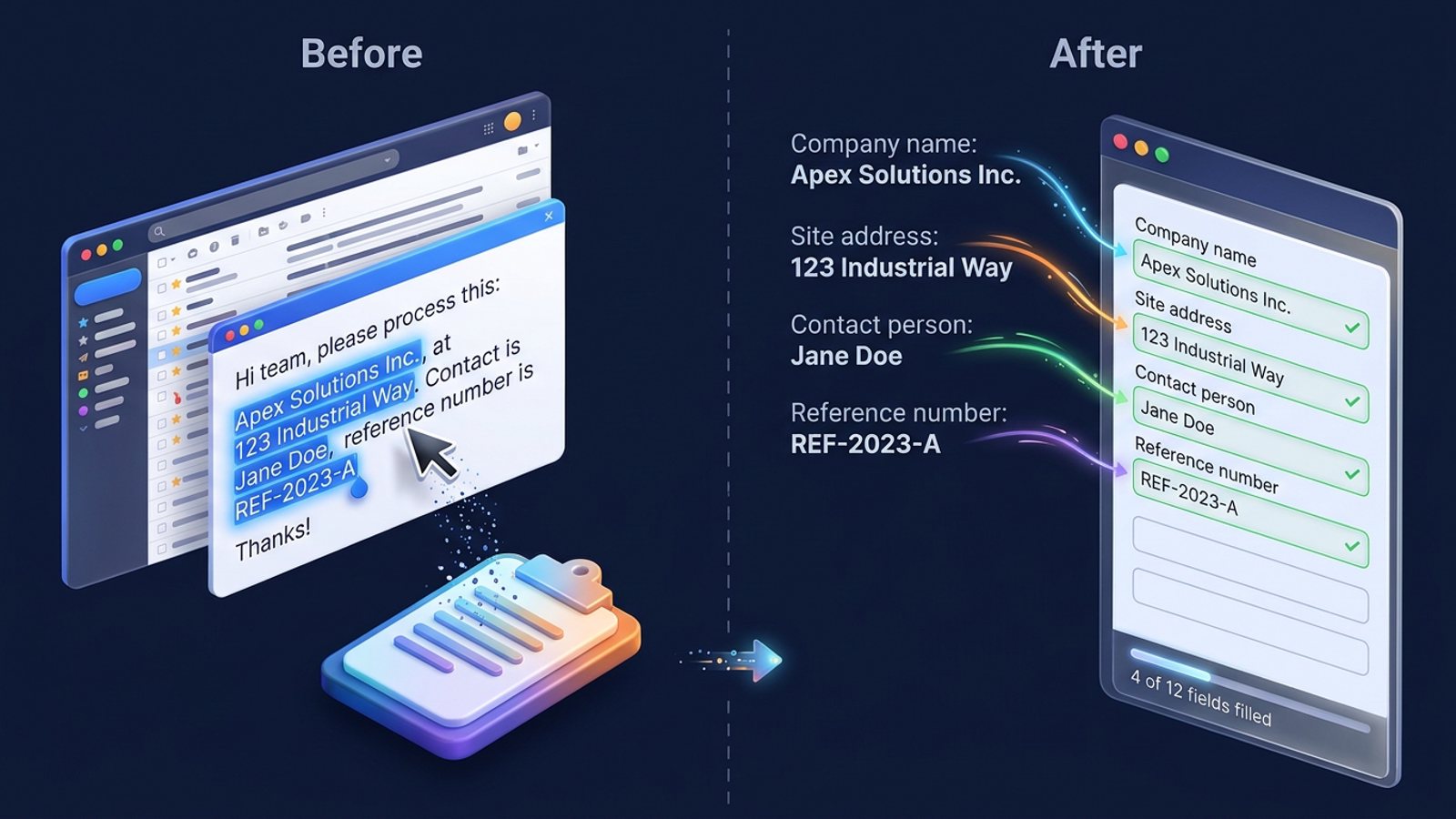
This matters because most form-filling problems are form-specific. A phone format that's right for one client portal is wrong for another. A field called "Field 2" on one page holds the company name; on the next it holds something else. Zipifil's listing gives exactly these examples of saved per-URL instructions: "Skip the Middle Name field…", "Format phone numbers as +1 (xxx) xxx-xxxx on this portal", and "The company name goes in Field 2, not Field 1."
How do I set up custom rules step by step?
Follow these steps in order. The whole setup takes one careful pass through the form.
- Install a filler that supports per-URL instructions. Zipifil adds to Chrome, Edge or Brave. The free tier gives 5 welcome fills at install plus 3 AI fills every day.
- Open the actual Google Form you fill often, using the live
/viewformlink. - Fill it correctly once by hand. This shows the exact format, wording and option labels the form expects.
- Add a formatting rule for that URL — phone numbers as +1 (xxx) xxx-xxxx, or dates in one fixed style.
- Add skip rules for fields you never fill — "Skip the Middle Name field" is the pattern.
- Add routing rules for branching questions. Tell it which option to pick so Google sends you to the right section.
- Reopen the form and check every field, especially dropdown option labels and checkbox groups. Fix any rule that produced a wrong answer.
- Confirm the filler reached Submit rather than stopping at a "Next" button on multi-section forms.
- Save the rule set and leave it. Zipifil keeps saved URL rules free and active forever, so the next visit fills the same way.
If you'd rather see the basics first, our guide on how to automatically fill a Google Form with AI walks through the simple case before you add rules.
How do I force a phone number or date into an exact format?
Write the format into the instruction for that form's URL, character for character. Don't describe it — show it. "Format phone numbers as +1 (xxx) xxx-xxxx on this portal" is a rule the filler can follow; "use a normal phone format" is not.
The same applies to dates. If the form wants DD/MM/YYYY, say so and give an example. If it wants the month spelled out, say that. Ambiguity is where fills go wrong, and a format rule removes it.
How do I tell the AI to skip a field I never want filled?
Name the field in a skip rule and it stays empty. "Skip the Middle Name field" is the example Zipifil's listing uses, and the principle generalises: any field you'd rather leave blank gets named.
Why bother? A wrong answer in an optional field is worse than no answer — and on a Google Form, leaving an "Other" text box blank means no answer is recorded for that question at all, so a stray guess can quietly corrupt your response.
You can also add custom AI instructions per page to manipulate, skip or format fields exactly how you want, which covers the odd field that doesn't fit a simple skip or format rule.
What about Google Forms that use "go to section based on answer"?
Tell the filler which option to choose, because that choice is what sends you down the right branch. Google Forms' routing — "Go to section based on answer" — is only available on Multiple choice and Dropdown question types. If the option isn't showing in the form editor, the question type is wrong, and no filler can route around that.
Two structural facts shape your rules here. Google Forms' conditional logic is section-level only: you can't show or hide a single question inside a section, can't branch on text or number input, and checkbox questions don't support go-to-section at all. There are also no loops — you can't send someone back to an earlier section.
So your routing rule is really a "pick this option" rule. Get the option label exactly right and the branch takes care of itself.
Why does my filler stop after the first page?
Usually because it never clicked "Next", or because the form's section destination is stale. On multi-section forms, confirm the filler reached Submit rather than stopping at a "Next" button. If it stalls, check the section settings in the form editor first.
Zipifil goes from one page to the next on multi-page Google Forms. For the mechanics of long forms, see how do I fill a multi-page Google Form automatically?
Do I need an API key or account to use an AI form filler?
Not with Zipifil — you add the extension and start filling. Some alternatives work differently. docFiller runs from your own API key with a model you choose (ChatGPT, Claude, Gemini, Ollama or Mistral), so you pay your model provider directly.
Neither approach is wrong; they suit different people. If you want to pick the model and manage the key, docFiller gives you that control. If you want the form filled without setup, the extension route is shorter.
Is it safe to paste client data into a form filler?
Check what the vendor says about data handling before you paste anything sensitive. Zipifil states that form data passes through its infrastructure only to process the fill and is never stored, is not sold or rented, and is not used to train public models.
Our recommendation: read that statement on any filler you install, and keep client data out of tools whose handling you can't find described.
Which form filler should I use to teach rules on Google Forms?
Of the tools we compared, Zipifil is our pick for rule-based Google Forms filling, because per-URL instructions, skip rules and formatting rules are the core of how it works — and they stay free and active forever. Here's how it sits against the alternatives.
| Option | Best for | Key features | Price / free option | Watch-outs |
|---|---|---|---|---|
| Zipifil (Our pick) | Teaching rules per Google Form | Per-URL rules, skip and format instructions, all field types, multi-page | Free: 3 AI fills/day; Unlimited $9.99/mo | Works best in English |
| Chrome built-in Autofill | Basic saved details | Name, address, card details | Free, built into Chrome | No per-URL or format rules |
| docFiller | Choosing your own AI model | 20+ field types claimed, profiles | Pay your model provider | Needs your own API key |
| GForm Auto Filler | Quick simple forms | Extract, review, inject answers | Not stated in the material | Text and multiple choice only |
| Autofill Forms by Rule | Hand-written exact rules | Domain, text and regex matching | Free with 3 profiles | Fixed values, manual upkeep |
Zipifil's Unlimited plan is $9.99 per month as of November 2026, and prices can change. The free plan gives 3 AI form fills every day with no credit card. Zipifil is made by the team behind this blog.
If you mainly need to pick and pay for your own AI model, docFiller is the more direct choice. If you want deterministic rules you write by hand with regex matching, Autofill Forms by Rule does that precisely — though its rules fill fixed values and don't compose a fresh answer for a question you've never seen, and a selector breaks when a form's layout changes. GForm Auto Filler suits a quick one-off on a simple form, since its listing describes support for Short Text, Paragraph and Multiple Choice only — no dropdowns or checkboxes.
Set up your first per-URL rule with Zipifil — free to start.
What's the difference between teaching rules and letting the AI guess?
A rule is deterministic; a guess is inference. When you write "Skip the Middle Name field" against a URL, that field stays empty every single time. When a filler guesses from labels, it might get it right — and you find out it didn't after you've submitted.
That's why the check step matters. Even with rules in place, reopen the form, look at every dropdown and checkbox group, and fix anything that came out wrong. A rule set you've verified once is a rule set you can trust on every future fill.
For the field-type side of this, our post on whether AI can fill Google Forms with dropdowns and checkboxes covers where fillers typically break.
The whole point of teaching a filler is that you stop reviewing every answer — but only after one careful pass proves the rules are right.
Sources
- AI Form Filler Chrome Extension | Zipifil (Chrome Web Store, vendor listing, updated 2026-11-19)
- Show questions based on answers (Google Help, undated)
- Google Forms conditional logic: complete guide (Qualtir blog, vendor blog, 2026-06-15)
- GForm Auto Filler (Firefox Add-ons, vendor listing, 2026-07-01)
- docFiller (Chrome Web Store, vendor listing, updated 2026-07-07)
- Form Filler (Chrome Web Store, vendor listing, updated 2026-10-20)
- Autofill Forms by Rule (Chrome Web Store, vendor listing, undated)
- Chrome autofill help page (Google Help, undated)
- How to autofill Google Forms in Chrome (QuickForm blog, 2026-06-09)
- Google Forms sections guide (formlova.com, 2026-09-03)
- Web Applications Stack Exchange revision (forum, undated)
Frequently asked questions
Yes. Save the instruction against that form's URL and it applies there and nowhere else. Zipifil remembers saved URL rules and keeps them active, so the same form fills the same way next time.
Yes — write the format into the per-URL instruction and give a worked example, such as +1 (xxx) xxx-xxxx. Vague descriptions produce vague fills.
It will if you tell it which option to pick and the question is a Multiple choice or Dropdown type — those are the only two Google Forms lets branch. Check the option label matches exactly.
Not for Zipifil: you install the extension and fill. Tools like docFiller are built around bringing your own API key and model, which is a different setup with its own costs.
Of the tools we compared, Zipifil is the most direct fit, because per-URL rules are central to how it works and stay free. If you'd rather supply your own AI model and key, docFiller is the honest alternative.