Which AI form filler extension keeps my data private on government systems?
Privacy on government systems comes down to four checks before you install: what data leaves your device, how much site access the extension asks for, whether it reaches locked portals and iframes
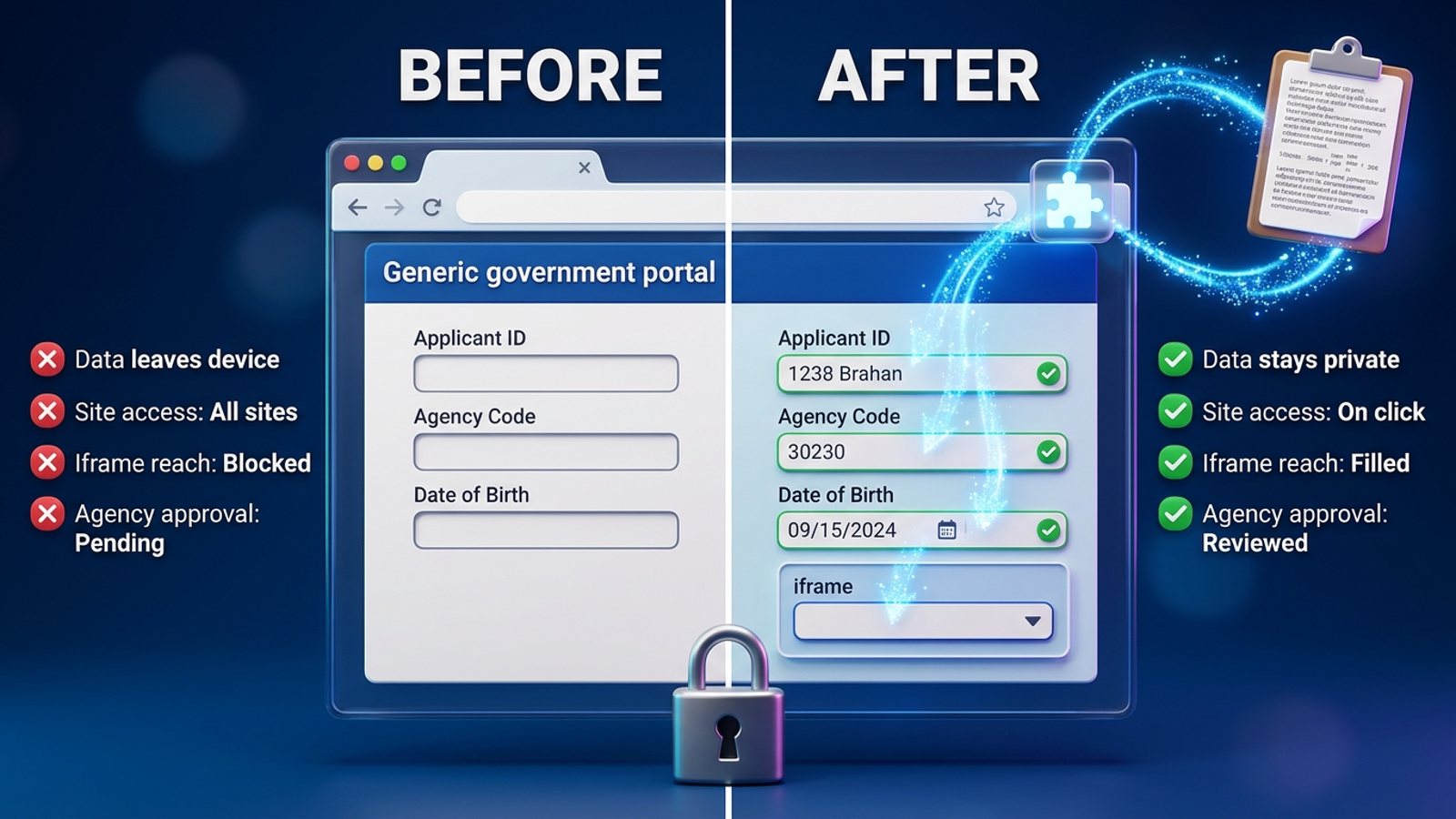
No extension is private by name alone. What keeps your data private on a government system is four checks before you install: what it sends off your device and to whom, how much site access it asks Chrome for, whether it can reach locked portals and iframes, and whether your agency has approved it. Zipifil, a private form filler Chrome extension with a 100% private API, is built for this.
Ready to try it on a real form? Add Zipifil to Chrome — 3 fills a day free and see how it handles your portal.
What data does a form filler actually send off my device?
Whatever its listing and privacy policy say it sends — and to whom. Read that before you read permissions.
Chrome Web Store's Limited Use policy says an extension may only collect, use or transmit data necessary for its disclosed single purpose (Chrome for Developers, no date). On 1 July 2026, Google announced policy updates effective 1 August 2026: stricter Limited Use, a disclosure requirement for all data collection, and a new ban on extensions built to bypass AI safeguards (Chrome for Developers blog, 2026-07-01).
Safeguard's summary of the user-data policy adds the rest: a current privacy policy link, affirmative consent before installation, and modern cryptography for any transfer (Safeguard blog, 2026-10-18).
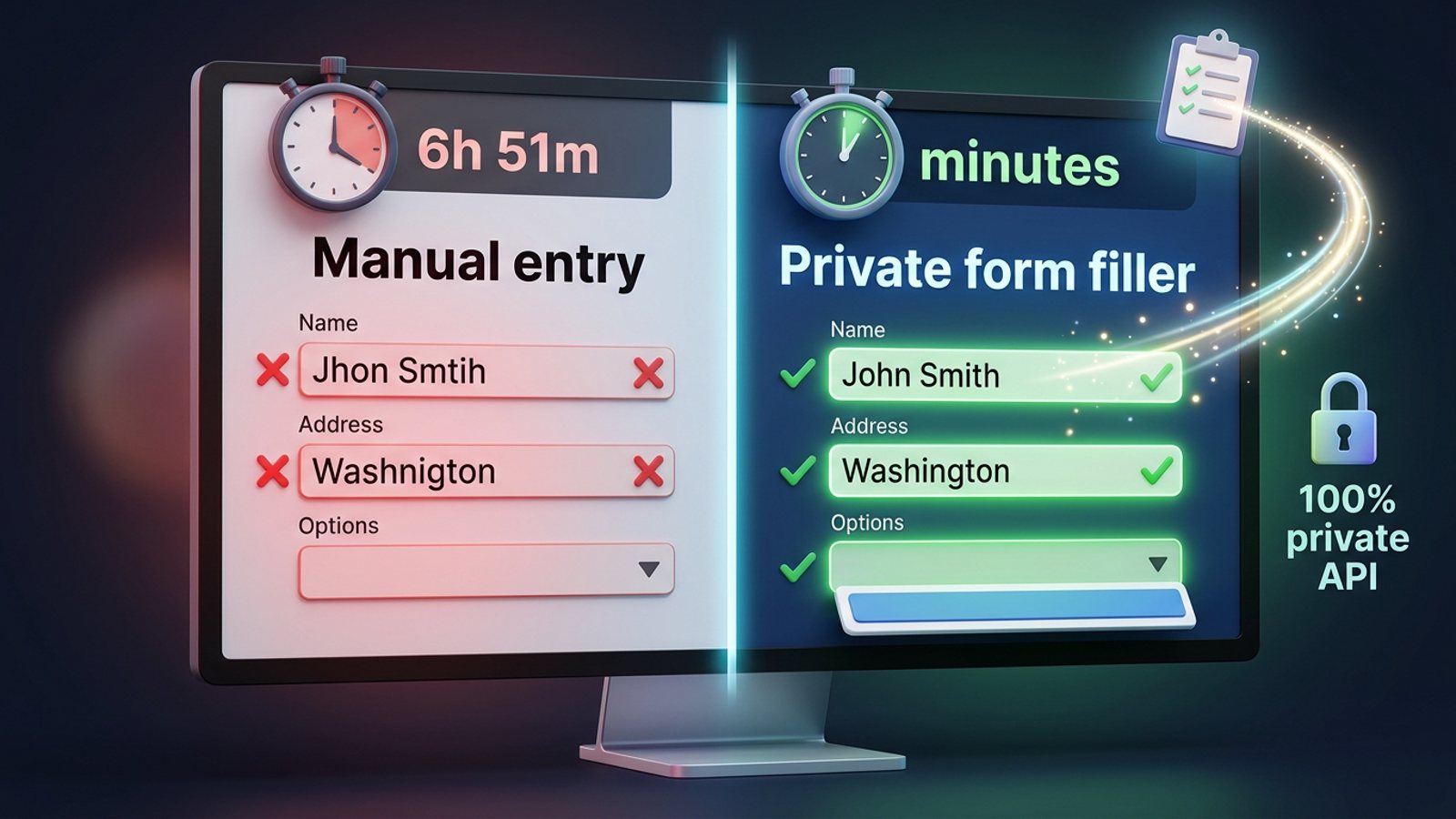
Zipifil's approach is a 100% private API, which the product describes as safe for government use and sensitive data. You can read the details at Zipifil's data privacy page.
Is Chrome's Autofill safe for government forms?
It is safe in the narrow sense that your data stays inside your Google account — but it typically gives up on long government forms.
Chrome's built-in Autofill only works when you're signed in with your Google Account, and if "Save and fill" is off for a category such as payments, contact info, identity documents or travel info, autofill won't work for that data (Google Help, no date). Not all features are available in every country.
Why does Autofill stop halfway down a long government form?
Because those forms are built on labels and field types browser autofill wasn't trained on (my-id.ca, 2026-08-17). And when a form spans origins — a normal pattern; about 20% of payment forms on the web spanned multiple origins at the time of that Chromium doc — Chrome's autofill only fills a field if the origins line up (Chromium docs, no date).
Google's shared-autofill proposal lets a parent frame mark trusted cross-origin iframes for autofill, aimed at payment forms; it is described as open for testing (Chrome for Developers blog, no date).
What about Chrome's Gemini-powered autofill?
Chrome's Gemini-enhanced autofill, announced 28 October 2026, can suggest details from Gmail such as order numbers and flight bookings under a "Suggested by Gemini" label. You must click a suggestion before Chrome inserts it, and Chrome does not submit the form (Yahoo Tech, 2026-10-28; Yahoo Tech, 2026-10-29).
TechRepublic (as republished by Tech Times) says this raises privacy questions because Chrome can retrieve details users never saved in the browser (TechRepublic via Tech Times, 2026-10-29).
Can any extension fill a form inside a cross-origin iframe?
Yes — but only through Chrome's extension permission model, not a rendering trick. Cross-origin iframes can't be read or filled by ordinary page JavaScript because of the same-origin policy (Volcengine Q&A, 2026-08-28; Volcengine Q&A, 2026-07-24).
That's the real reason locked government portals defeat many fillers. If the tool can't see inside the frame, it can't type into it.
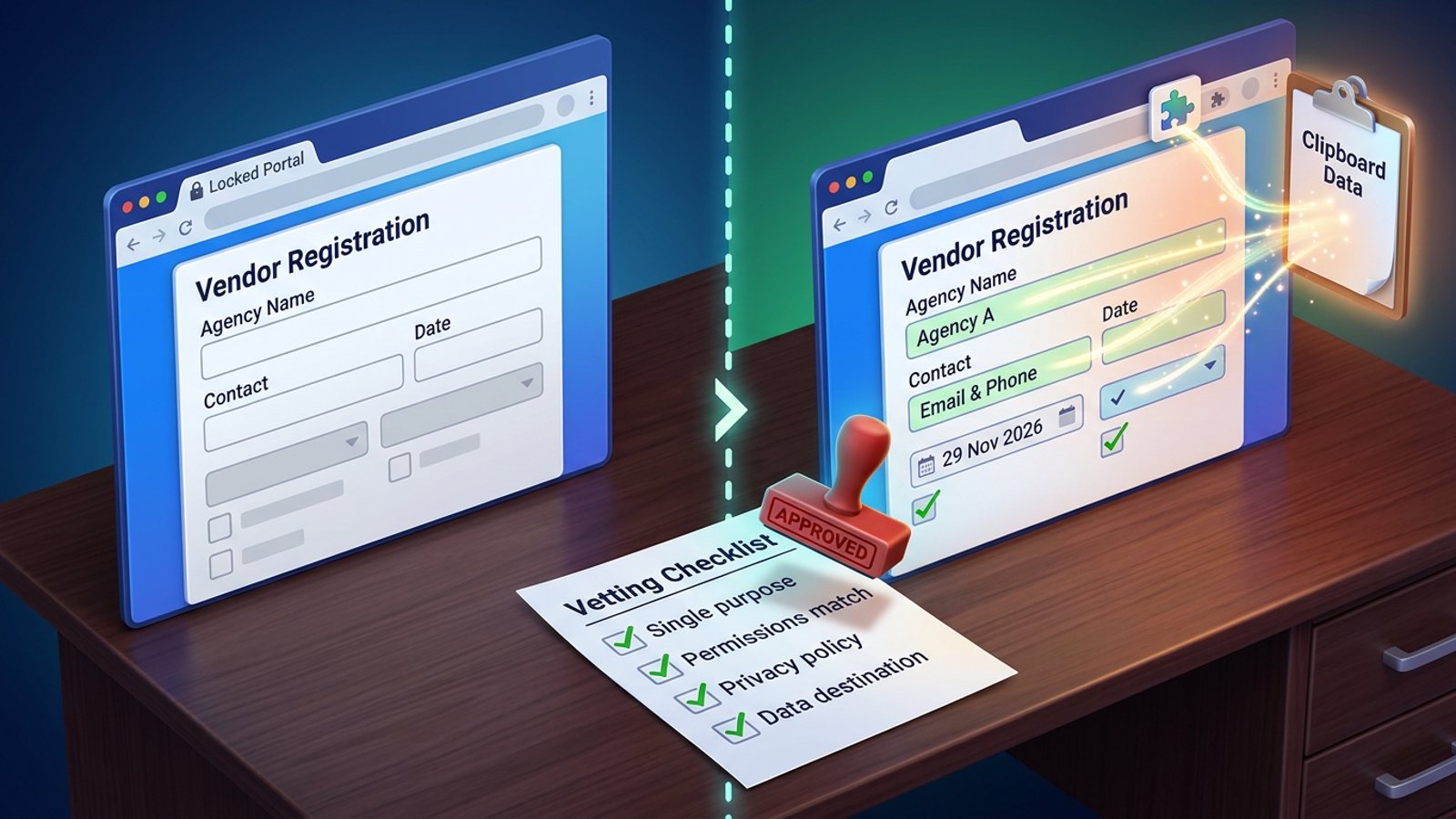
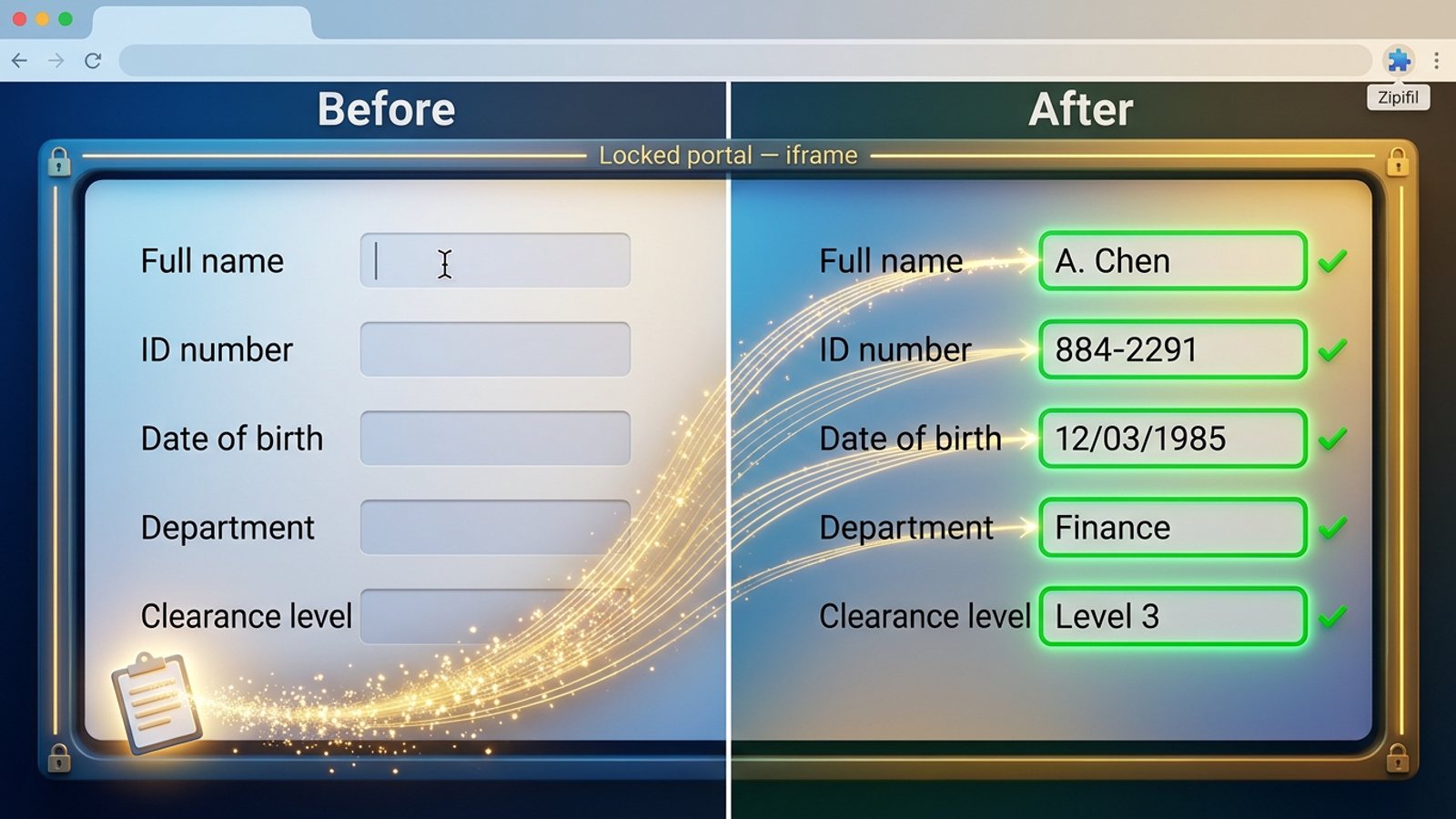
Zipifil is built for exactly this: it works on locked portals and iframes that other extensions can't see, and fills text boxes, drop-downs, checkboxes, radio buttons and date pickers. Our post on which form filler extension won't break on a locked government portal covers the mechanics.
Does the extension need access to "all sites", or only the page I'm on?
Only the page you're on, unless it truly needs more. Chrome's site-access setting lets you pick "On click", "On specific sites" or "On all sites"; "On click" means the extension reads a page only when you invoke it (Safeguard blog, 2026-10-17).
Chrome's own developer guidance makes the same point from the other side: the more permissions granted, the more avenues an attacker has, so extensions should not request permissions they don't currently need (Chrome for Developers, no date).
The activeTab permission is the model to look for: it grants temporary access to the current tab only when you invoke the extension, access is cut off when you navigate away or close the tab, and it shows no install warning (Chrome for Developers, no date).
What do Chrome's permission warnings mean in plain language?
They are plain sentences like "Read your browsing history" or "Read data you copy and paste". A warning is not proof an extension is malicious — it tells you what the extension could do if compromised (Safeguard blog, 2026-10-17).
Keep that framing in mind, because extensions run with broad permissions: they can read every page you visit, modify page content, access cookies, make network requests and auto-update silently (Safeguard blog, 2026-01-16).
Chrome also stores a granted permission set and an active set per extension, and it disables an extension on update if the new version asks for more privilege than you granted (Chromium source, no date).
How do I check an extension before installing it on a government system?
Run these seven steps in order. Each one takes minutes and saves you a policy headache.
- Check your organization's policy first — before installing any extension on a government system (Brown University OIT, no date).
- Read the store listing and privacy policy — what it collects, whether data leaves your browser, and to whom (Safeguard blog, 2026-10-18).
- Read the install-time permission warnings — a warning isn't proof of malice, but it tells you what the extension could do (Safeguard blog, 2026-10-17).
- Set site access to "On click" or "On specific sites" unless the tool truly needs every page (Safeguard blog, 2026-10-17).
- Test on a non-sensitive form first, including one with an iframe, to see whether it can reach the fields at all (Chromium docs, no date).
- Re-check permissions after each auto-update, since access can expand with a new version (Safeguard blog, 2026-01-16).
- Review installed extensions periodically and remove anything unused (Brown University OIT, no date).
Where can I check an extension's security before installing it?
LayerX published ExtensionPedia, a public resource scoring the security of more than 200,000 browser extensions for Chrome, Edge and Firefox (TMCnet, 2025-05-28).
For IT teams, SpinMonitor for Work audits installed extensions' permissions and risk (Chrome Web Store, 2026-01-19; Socket, 2024-10-14). GuardDog, a Chrome extension security monitor, claims "over 30 malicious Chrome extensions were discovered" in 2025–2026 — a vendor claim in its store listing (Chrome Web Store, no date).
Which AI form filler keeps data private on government systems: the options
Here's how the tools we compared stack up. Our pick is Zipifil, for the reasons below — but the right choice depends on your job.
| Option | Best for | Key features | Price / free option | Watch-outs |
|---|---|---|---|---|
| Zipifil (Our pick) | Locked portals, iframes | 100% private API; all field types; URL rules | Free: 3 fills/day; $9.99/mo unlimited | Chrome, Edge, Brave only |
| Chrome Autofill | Short standard forms | Built into Chrome; Google Account sync | Free | Stalls on long forms; iframe origin rules |
| Lightning Autofill | Rule-based per-site filling | Keeps data local | Not confirmed in our sources | Network features on paid plans; no label reading |
| Magical | Short repeated answers | Text-expander speed | Not confirmed in our sources | Syncs templates to its servers; weak on complex portals |
| Firefox Fill it Up! | Firefox users | Rule-based filling | Not confirmed in our sources | Firefox only |
| Filling by hand | One-off, unapproved forms | Nothing leaves your device | Free | Slow and error-prone on long forms |
Prices for other tools were checked as of November 2026 and can change. Zipifil's price is also as of November 2026 and can change: free forever with 3 AI form fills per day, unlimited at $9.99 per month.
Zipifil is made by the team behind this blog. A few honest notes on the rest:
- Chrome Autofill is the simplest choice if your forms are short and standard (Google Help, no date).
- Lightning Autofill suits people who like building rules and want data to stay local — though it doesn't read unfamiliar field labels on its own, and adds network features on paid plans.
- Magical is fast for short repeated answers, but syncs templates to its servers and is weakest on complex portals.
- Firefox Fill it Up! is the direct choice if your agency runs Firefox — Zipifil does not work on Firefox or Safari, and only runs on Chrome, Edge and Brave.
If you mainly need a rule-based filler that never leaves your machine, Lightning Autofill is the more direct choice. If you need a filler that reaches locked portals and iframes without sending your data to an ad-funded service, that's where Zipifil earns its place.
Get Zipifil — free for 3 fills a day and run it against a test form before you commit.
How does Zipifil keep data private on a locked portal?
It uses a 100% private API and URL-specific rules you set once, so it doesn't need to re-learn your formatting on every visit. Here's the flow:
- Add the extension to Chrome, Edge or Brave.
- Provide your data — or upload a PDF or image with the information, and Zipifil extracts it.
- Let the AI read the form and fill each field appropriately, including dropdowns, checkboxes and date pickers.
- Set custom rules per URL to fine-tune formatting or skip fields — once, and they apply forever.
- Work free for 3 fills a day, or upgrade for unlimited.
You can also highlight text, right-click and map it to a form field in two clicks — useful when a case note holds the one reference number a portal wants.
What if my portal is a Google Form?
Zipifil works on all Google Forms, and it moves from one page to the next on multi-page forms. It works best in English; for other languages you can ask support. Our guide to the best AI form filler for Google Forms with checkboxes and radio buttons goes deeper.
The tool that keeps your data private on a government system is the one whose data flow you can explain out loud to your IT lead — everything else is a guess.
Before you install anything, confirm it fits your organization's policy — then add the AI form filler for government portals to Chrome and test it on a non-sensitive form.
Sources
- Why browser autofill fails on government forms (my-id.ca, 2026-08-17)
- Use Chrome to autofill (Google Help, no date)
- Chrome autofill now pulls details from Gmail (Yahoo Tech, 2026-10-28)
- Chrome now autofills forms using Gemini suggestions (Yahoo Tech, 2026-10-29)
- Gemini-enhanced autofill raises privacy questions (TechRepublic via Tech Times, 2026-10-29)
- Autofill across iframes (Chromium docs, no date)
- Shared autofill: initial proposal (Chrome for Developers blog, no date)
- Extension user privacy guidance (Chrome for Developers, no date)
- Chrome extension permissions (Chromium source, no date)
- Chrome site access: on click vs all sites (Safeguard blog, 2026-10-17)
- Chrome extension permission warnings decoded (Safeguard blog, 2026-10-17)
- Browser extension permission model and supply chain risk (Safeguard blog, 2026-01-16)
- Chrome Web Store Limited Use policy (Chrome for Developers, no date)
- Chrome Web Store policy updates 2026 (Chrome for Developers blog, 2026-07-01)
- Chrome Web Store user data policy explained (Safeguard blog, 2026-10-18)
- Managing Chrome browser extensions safely (Brown University OIT, no date)
- LayerX launches ExtensionPedia (TMCnet, 2025-05-28)
- GuardDog – Extension Security Monitor (Chrome Web Store, no date)
- SpinMonitor – Free Extension Security Checker (Chrome Web Store, 2026-01-19)
- SpinMonitor listing analysis (Socket, 2024-10-14)
- Cross-origin iframe form filling feasibility (Volcengine Q&A, 2026-08-28)
- How extensions reach cross-origin iframe fields (Volcengine Q&A, 2026-07-24)
Frequently asked questions
For locked portals and iframes, Zipifil is our pick of the tools we compared: a 100% private API, all field types, and rules that stick per URL. If your agency runs Firefox only, Fill it Up! is the more direct fit — Zipifil doesn't work there.
It keeps data inside your Google account, but it typically stalls on long government forms and won't fill across origins under Chrome's iframe rules. For short standard forms it's fine; for casework portals it usually isn't enough.
Only if it has extension permissions that reach the frame — ordinary page JavaScript can't, because of the same-origin policy. That's why some fillers appear to break on government portals.
Zipifil uses a 100% private API, described as safe for government use and sensitive data. Read the full detail at Zipifil's data privacy page, and check it against your agency's rules before you install.
Yes — 3 AI form fills every day, free forever, no credit card needed. Unlimited fills are $9.99 per month as of November 2026, and prices can change. It runs on Chrome, Edge and Brave only.