Is a private form filler Chrome extension better than manual entry for long forms?
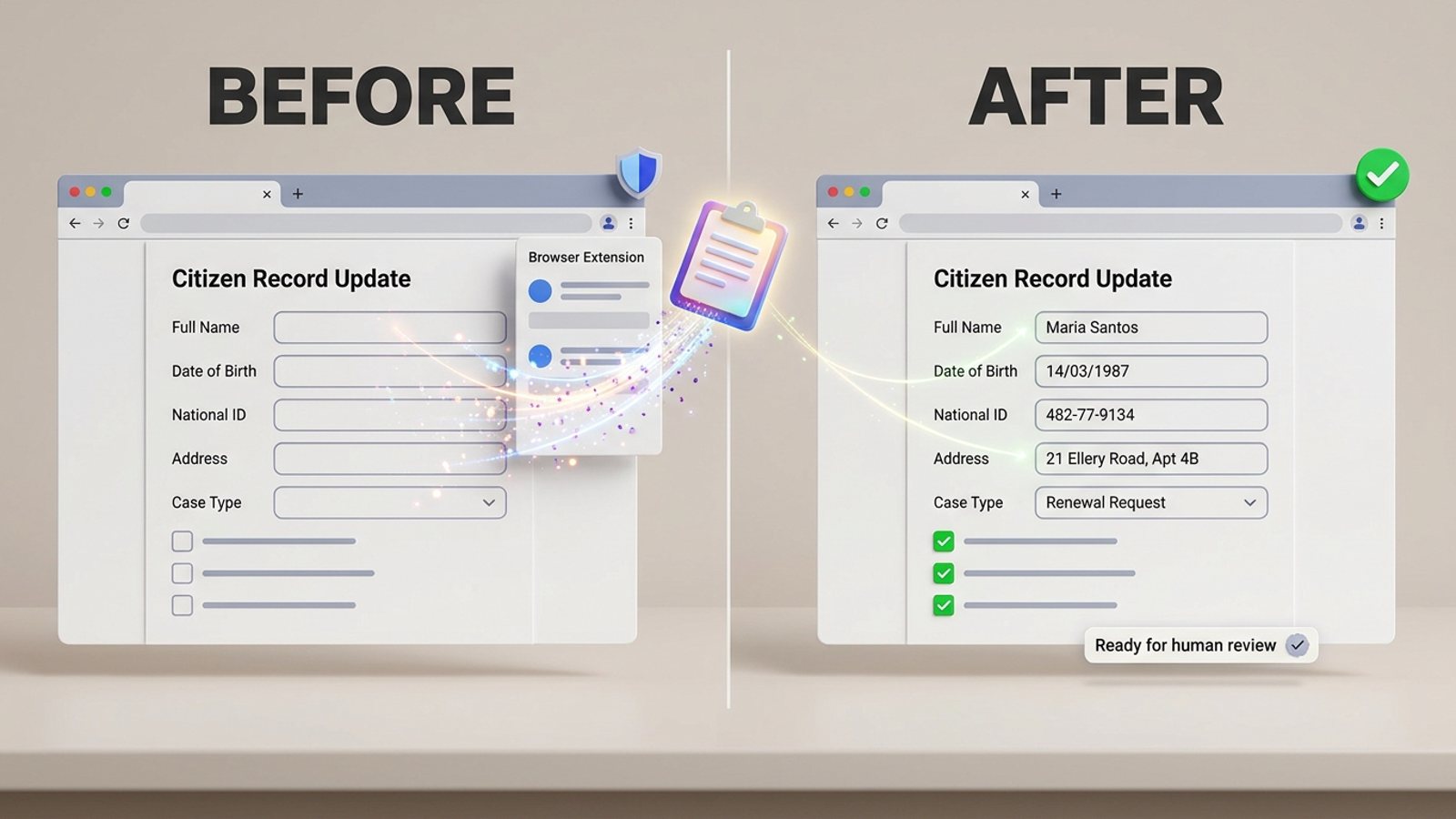
For long, repetitive forms, a private form filler Chrome extension beats manual entry on speed and typos — if it reaches every field and keeps your data on your machine.
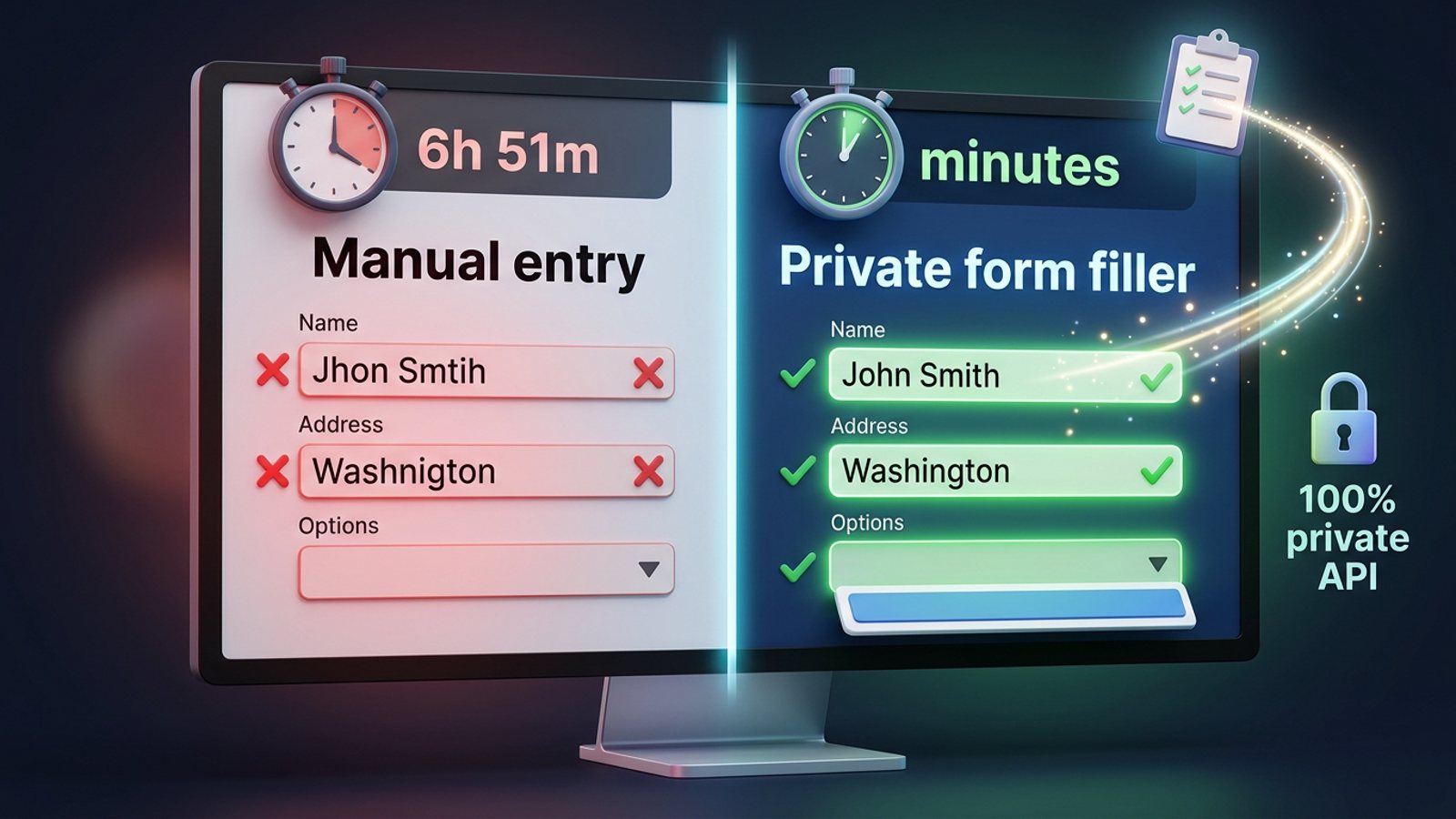
Yes — for long, repetitive forms, a private form filler Chrome extension usually beats manual entry on speed and typos. Chrome's own research found autofill users finished forms about 35% faster and abandoned them 75% less often than people typing (Chrome for Developers, 2024). The condition: the tool must reach the fields and keep your data on your machine. Check your organization's policies before using any extension on government systems.
Want to see it on your own portal before you decide? Add Zipifil to Chrome — 3 fills a day free, no credit card needed.
How much faster is a form filler than typing?
Chrome's team analysed thousands of address and card forms across millions of pageviews on top US sites. Autofill users abandoned forms 75% less often and filled them about 35% faster than people typing values (Chrome for Developers, published 17 December 2024).
Read those numbers carefully, because the Chrome team states the caveats itself:
- The study is correlational. People who use autofill may already be faster and more form-comfortable.
- It ran in the US, on ordinary web forms — not government portals.
- "Autofill-assisted" meant the user autofilled some fields, not all. Partial fills were the majority case and still correlated with big drops in abandonment and completion time.
The speed case for automation is real, but it's strongest on ordinary forms — the harder question is whether a tool can reach the fields on the portals you actually use.
Why do long government forms hurt manual entry so much?
Because the time adds up fast, and every typo costs more to fix than it did to make. USCIS, for example, publishes a public reporting burden of 6 hours 51 minutes for Form I-485 and 1.817 hours for I-130, plus 50 minutes for the I-130A supplement (figures quoted by Instafill.ai, 2 June 2025).
On the error side, a vendor cost framework puts US data-entry keyer pay at $20.82/hour (citing BLS May 2025) and argues a mistyped field typically costs 5–100× the original keystroke to correct, through the find–trace–fix–verify–notify chain (ImageToTable.ai, 15 September 2026 — vendor estimate).
Vendor case studies point the same way, though they're single-firm and not independent: one immigration-law firm reported a three-form family case dropping from 3–4 hours by hand to 45–60 minutes with an AI filler (Instafill.ai case study, 3 December 2025). A government IT contractor reported an RFP attachment form dropping from 10–15 minutes to under 2 minutes (Instafill.ai case study, 29 October 2025).
What does "private" actually have to mean?
It means the extension can only see what it needs, and your data doesn't leave your machine. Chrome's guidance to developers is blunt: request only the permissions the extension depends on, don't "future proof" by asking for data it doesn't yet need, and remember "the less data an extension can access, the less data it can accidentally leak" (Chrome for Developers, no date).
Here's what to check, in plain terms:
- The permission prompt. Extensions must declare their access in manifest permissions, and changing host access triggers a user-facing warning (Chrome for Developers, no date). If a filler wants to read every site you visit, ask why.
activeTabversus broad host access.activeTabgrants temporary access to the current tab only when you invoke the extension, ends when you navigate away, and shows no install warning (Chrome for Developers, no date). That's the safer pattern.- Where data lives. Chrome warns that extension storage is not encrypted, so sensitive data shouldn't be kept on the client side (Chrome for Developers, no date). Check whether the tool stores locally or syncs to the cloud.
- What the store policy allows. The Chrome Web Store Limited Use policy limits extensions to collecting and transmitting data necessary for their disclosed single purpose (Chrome for Developers, 31 October 2022).
Will my IT team even let me install it?
Often not by default — many organizations block all extensions and allow only approved ones through Chrome's blocklist/allowlist policies or force-install (Helperbird Help Center, 15 June 2026). Chrome Enterprise admins can allow or block installs by the permissions an extension requests (Google Help, no date).
So the practical order is: check policy first, then install. A guide to getting an extension approved internally covers security review and managed deployment, and states plainly that it does not bypass organizational policy (SN Utils docs, updated 4 August 2026).
Does a form filler work on locked government portals and iframes?
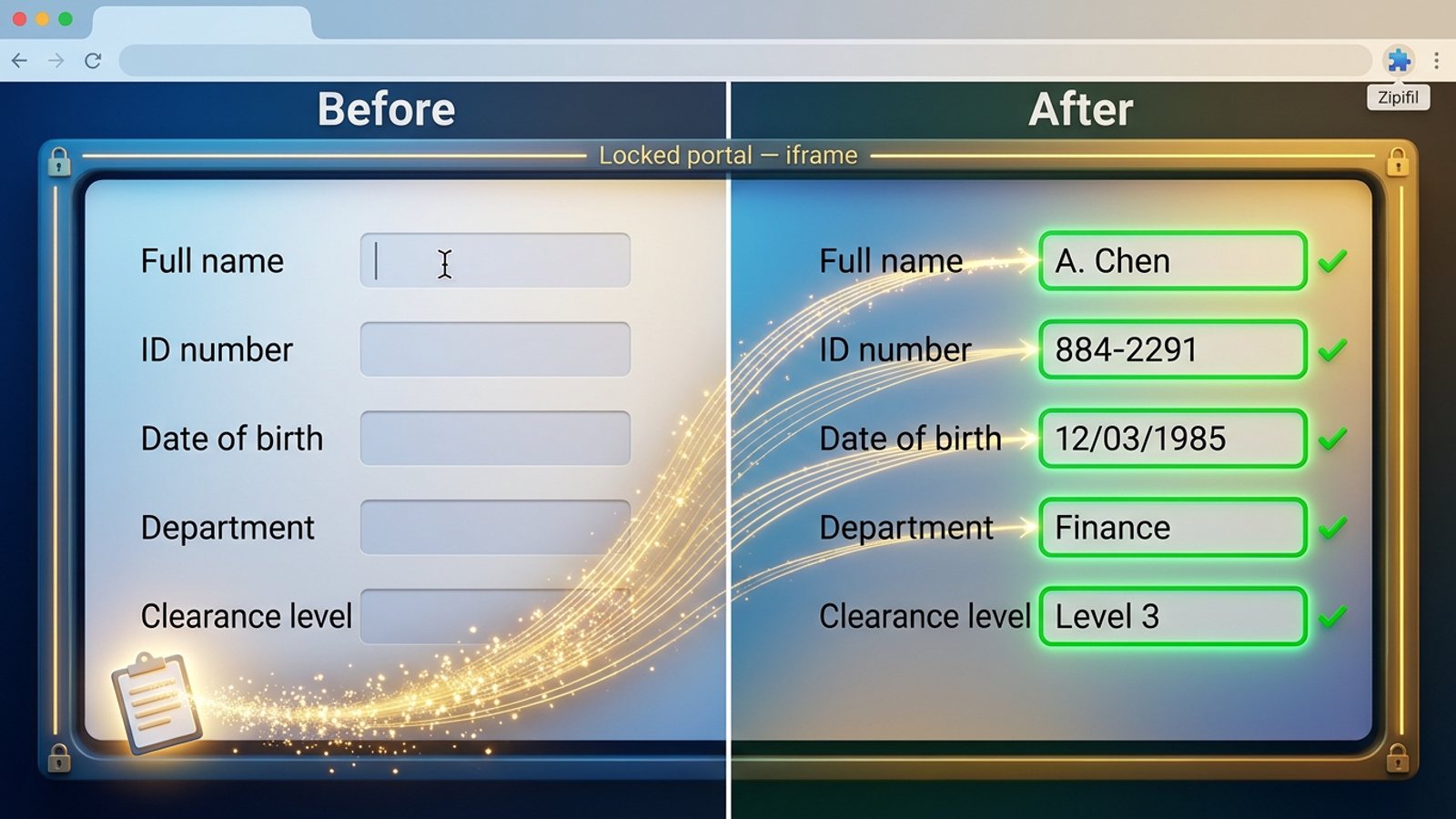
Not all of them — the common failure points on complex portals are fields buried in iframes, dropdowns that ignore code, and layouts that change often. That's exactly where a private form filler Chrome extension earns its keep, or doesn't.
Chrome's built-in autofill is the clearest example of the limit. Its server-assisted "smarter form understanding" is explicitly not compatible with all websites and forms (Google Help, no date). And Chrome's autofill skips fields when "Save and fill" is off for that category, the saved address is incomplete, or the form is built so Chrome can't recognise it (Google Help, no date).
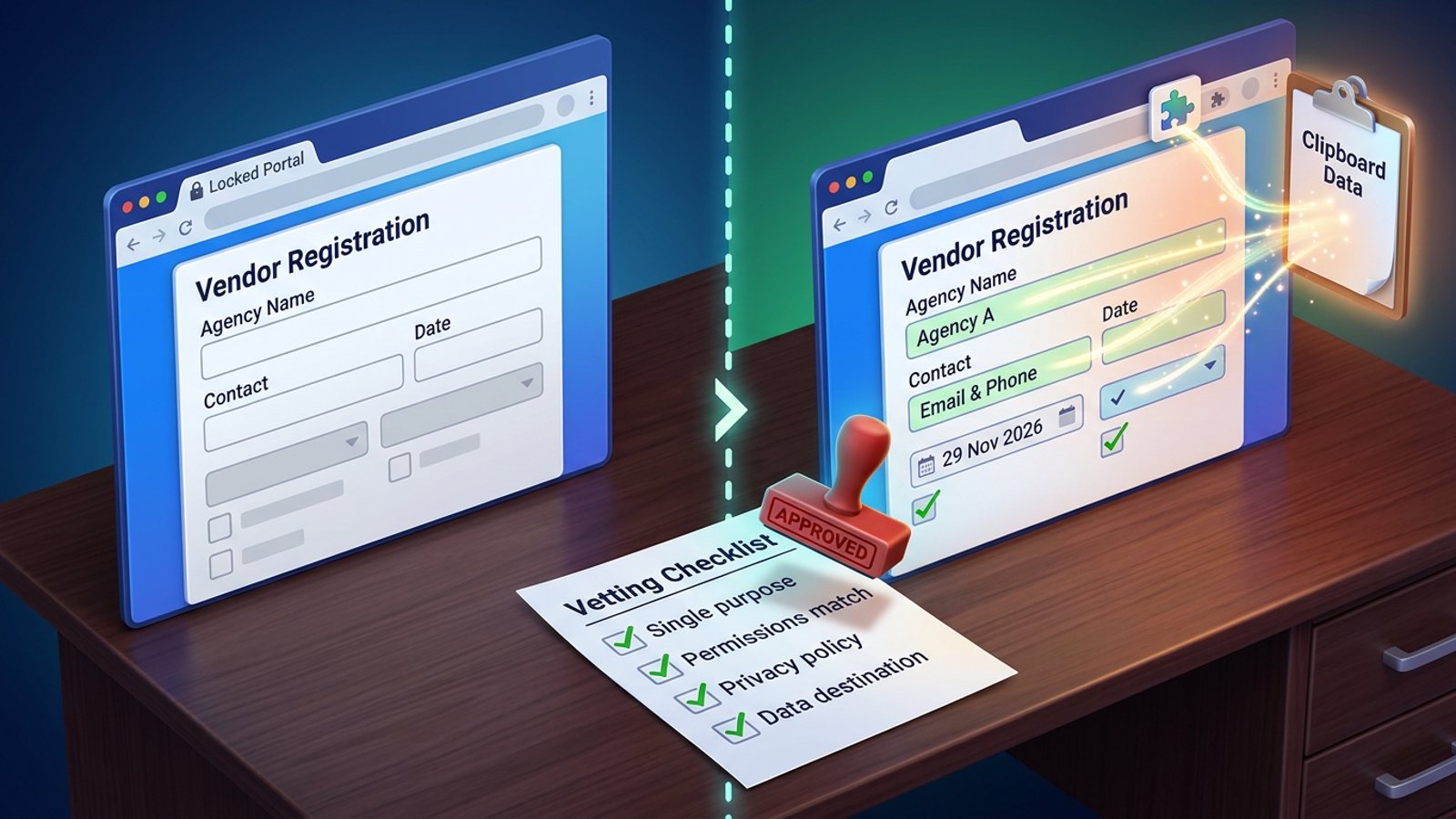
This is the gap Zipifil was built for. It fills text boxes, drop-downs, checkboxes, radio buttons and date pickers, and it works on locked portals and iframes that other extensions can't see. It uses a 100% private API, which is what makes it usable for sensitive government data. You can read the details at Zipifil's data privacy page.
How do I test a private form filler Chrome extension before trusting it?
Run a short, structured test — don't start with the 40-field portal form.
- Check your organization's policy first. Confirm extensions are allowed on the system you're using and whether IT needs an allowlist entry (Helperbird Help Center, 2026; SN Utils docs, 2026).
- Read the permission prompt before installing. Note what the extension can access, and question anything broader than the job needs (Chrome for Developers, no date).
- Prefer least access. Look for
activeTabor optional permissions over broad host access, and check whether storage is local or cloud (Chrome for Developers, no date). - Test on a short form first. Fill name, address and dropdowns, then compare against what you'd type yourself. Don't put passwords or identifiers into unencrypted local extension storage (Chrome for Developers, no date).
- Compare on a long form. Time one manual run against one filled run, and count corrections. Keep the manual or copy-paste route for fields the filler can't reach.
- Keep a paste-in fallback. Save a plain local copy of recurring values so any field that blocks automation can still be pasted by hand.
- Recheck after updates. Chrome disables an extension whose update asks for more privilege than you granted (Chromium source, no date).
How does Zipifil handle the parts that usually break?
It handles them in a few concrete ways, all from the product's own documentation.
- Locked portals and iframes. It fills fields other extensions can't see — the exact failure point on complex government systems.
- URL-specific rules. Set custom formatting or a skip once, and it applies forever on that page — fewer corrections on every repeat visit.
- Custom AI instructions per page. Tell it to manipulate or skip specific fields on a given form.
- PDF and image extraction. Upload an invoice or a sheet and the form fills itself.
- Highlight, right-click, map. Two clicks to send a piece of text into the right field.
- Unstructured input. Copy an entire email — even one with irrelevant detail — and it picks out only the parts the form needs.
It works on Chrome, Edge and Brave, and it works best in English. It does not work on Firefox or Safari, and there's one account per user rather than a team plan. For the fuller walkthrough, see our guide to the AI form filler Chrome extension.
Pricing is simple: a free forever plan with 3 AI form fills per day, or unlimited fills at $9.99 per month as of November 2026 — prices can change. Add Zipifil to Chrome — 3 fills a day free and test it on your own portal.
Which is better: a private form filler Chrome extension or the alternatives?
It depends on the form and your policy. Here's how the realistic options compare, based on the sources in this article.
| Option | Best for | Key features | Price / free option | Watch-outs |
|---|---|---|---|---|
| Zipifil (Our pick) | Locked portals, iframes, all-day form work | All field types, URL rules, PDF extraction, private API | Free: 3 fills/day; unlimited $9.99/mo (Nov 2026) | Chrome, Edge, Brave only; English works best |
| Chrome built-in Autofill | Common personal fields on ordinary sites | Name, address, email, cards from your Google Account | Free, built in | Skips fields; server-assisted understanding not compatible with all forms |
| Lightning Autofill | Power users wanting profile rules and JS | Profiles, JS rules and variables on Pro; local storage | Free: 10 profile runs/day; Plus/Pro paid | Local data not encrypted; exact prices not shown in our sources |
| Magical | Repetitive messaging and text expansion | Text expansion plus light form autofill | Free tier; Pro pricing not publicly listed | Vendor policy says don't store passwords or sensitive data |
| Filling by hand | One-off forms, policy-restricted systems | No third-party access, nothing to approve | Free in licence terms; labour cost | Slow; typos cost 5–100× to fix (vendor estimate) |
Zipifil is made by the team behind this blog. Of the tools we compared, it's our pick for government-style work because it's the one documented to reach locked portals and iframes while using a private API — the two things that decide whether a filler is usable at all on official systems.
Chrome built-in Autofill is the zero-effort baseline. It's free and already installed, and it's fine for name and address fields on ordinary sites. If your forms are short and public-facing, it's genuinely enough.
Lightning Autofill is the more direct choice if you mainly need scriptable profile rules and don't mind managing them. It moved to freemium with Manifest V3 after 14 years free (Chrome Web Store, 19 June 2025; Lightning Autofill docs, 17 September 2026). It states no Google Analytics, no tracking pixels and no cookies, with data stored locally unless you use cloud sync. But the vendor itself advises caution with sensitive data because local storage isn't encrypted (ExtensionAuditor scan, 24 October 2026, quoting the vendor's listing).
Magical suits repetitive messaging and text expansion more than heavy form work. Its own privacy policy says not to store passwords, card data or patient health information through the service (as quoted by UgliAI Hub, 19 July 2026), and a third-party review notes its most valuable team features are paid (Extension Reviewer, 19 August 2026).
Filling by hand stays the right answer when policy bars extensions, when the form won't accept fills, or when a tool's privacy terms are unclear. It costs nothing to approve and gives no third party access to page data.
What about very long official forms — is automation still worth it?
Yes, and the longer the form, the wider the gap. A vendor cost framework prices a 25-field form at roughly $1.04 of direct labour at $20.82/hour (BLS May 2025, quoted by the vendor), before any rework (ImageToTable.ai, 15 September 2026).
Those are single-firm vendor case studies, not independent benchmarks — but the direction matches Chrome's own 2024 findings and the burden figures USCIS publishes.
The honest rule: automate the fields the tool can reach, and keep a paste-in fallback for the ones it can't. That combination beats both pure manual entry and blind trust in automation.
If your main worry is data handling rather than speed, our post on which AI form filler extension keeps my data private on government systems goes deeper.
Sources
- Autofill in action: real-world insights (Chrome for Developers, published 2024-12-17)
- Protecting user privacy (Chrome for Developers, no date)
- Chrome apps & extension permissions, admin (Google Help, no date)
- Declare permissions (Chrome for Developers, no date)
- Extension permissions (Chromium source, no date)
- Chrome Web Store Limited Use policy (Chrome for Developers, 2022-10-31)
- POC: tabs API bypasses user-restricted-sites overlay, issue 517461056 (Chromium issue tracker, 2026-05-27)
- Chrome autofill help (Google Help, no date)
- Smarter form understanding not compatible with all forms (Google Help, no date)
- Lightning Autofill (Chrome Web Store, 2025-06-19)
- Freemium Notice (Lightning Autofill Docs, 2026-09-17)
- Lightning Autofill security analysis (ExtensionAuditor, 2026-10-24)
- Magical review (UgliAI Hub, 2026-07-19)
- Magical Text Expander review (Extension Reviewer, 2026-08-19)
- The real cost of manual form data entry (ImageToTable.ai, 2026-09-15)
- How much time does automating PDF forms with AI save? (Instafill.ai blog, 2025-06-02)
- USCIS immigration forms case study (Instafill.ai, 2025-12-03)
- Government RFP form case study (Instafill.ai, 2025-10-29)
- Allowlisting extensions when blocked (Helperbird Help Center, 2026-06-15)
- Getting an extension approved for organizational use (SN Utils docs, updated 2026-08-04)
- Tax document keypunch error study (Arizona Auditor General, 1985)
Frequently asked questions
Usually yes, on speed and typos — Chrome's 2024 study found autofill users finished about 35% faster with 75% less abandonment. It's only better in practice if the extension reaches the fields on your portal and keeps data on your machine; otherwise manual entry or copy-paste remains the safer route.
Of the tools we compared, Zipifil is our pick because it's documented to fill locked portals and iframes and uses a 100% private API. If you mainly need scriptable profile rules, Lightning Autofill is the more direct choice. If policy blocks extensions entirely, fill by hand.
No. Fields inside iframes, dropdowns that ignore code and frequently changing layouts are the common failure points, and Chrome's own server-assisted form understanding is not compatible with all websites and forms (Google Help). Test on a short form before relying on any tool for a long one.
It depends on the extension. Chrome warns that extension storage is not encrypted, so check whether a tool stores locally or syncs to the cloud, and read its declared permissions. Zipifil states that it uses a 100% private API and publishes its privacy details at zipifil.com/data-privacy.
Only with approval. Many organizations allow only approved extensions through Chrome's allowlist policies or force-install (Helperbird Help Center, 2026), and approval guides state they don't bypass organizational policy. Ask your IT team before installing anything on a government system.