What's the safest AI form filler extension for a small government office?
The safest AI form filler is the one your office can vet: one purpose, minimal permissions, a published privacy policy, and a clear statement of where data goes. Here's a practical checklist and an
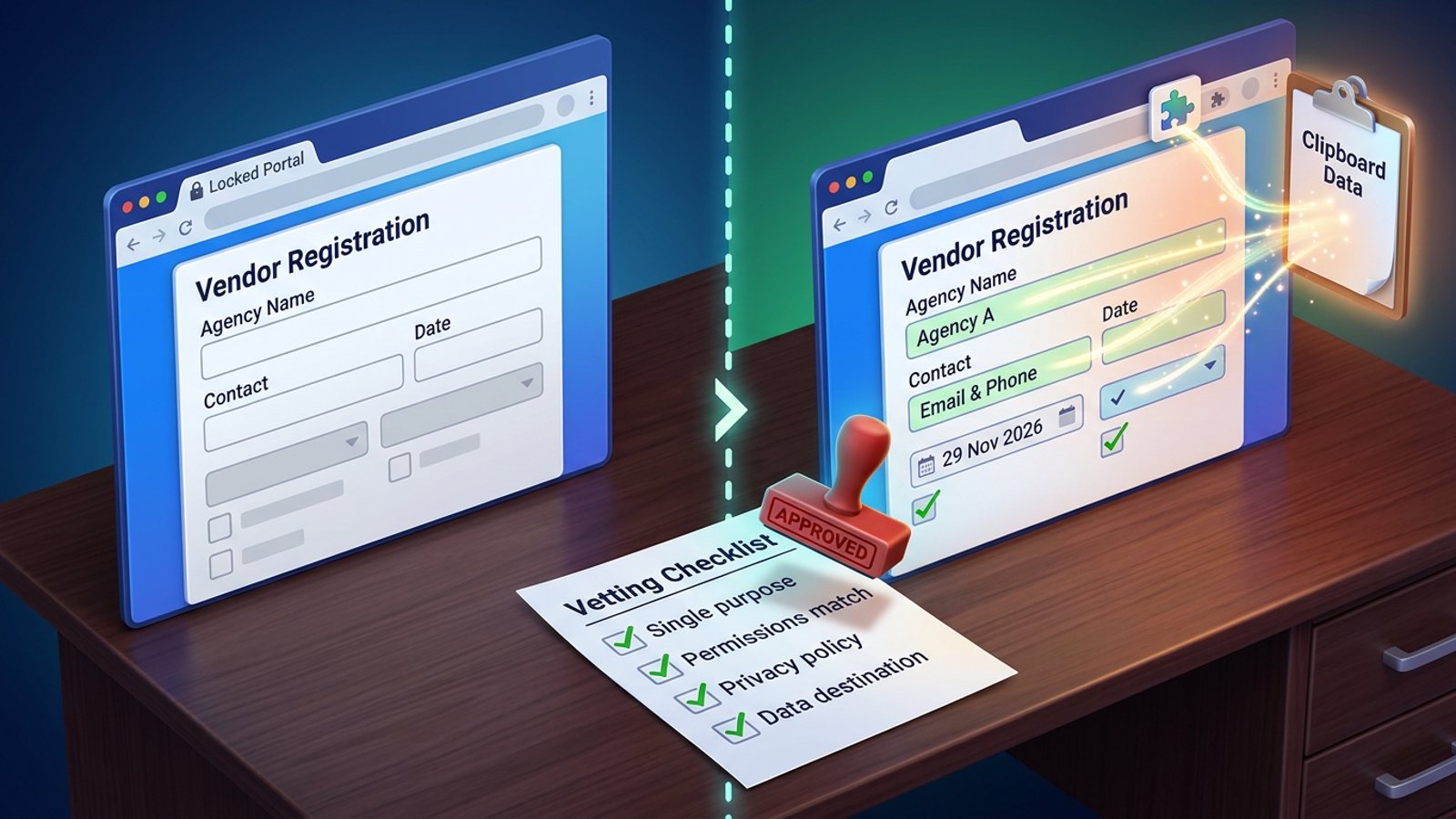
For a small government office, the safest AI form filler extension is the one your office can vet and document: a single, narrow purpose, permissions that match that purpose, a published privacy policy, and a clear statement of where form data goes. No source ranks form fillers by safety — so pick on evidence, not on claims.
Most offices start this search the same way: someone has a stack of portals to get through, someone else asks "is this thing safe?", and nobody has a checklist. Here's one you can actually use — and where a safest AI form filler extension decision usually lands.
If you want to see how a private-by-design filler handles locked portals, you can add Zipifil to Chrome — 3 fills a day free and test it on your own forms before anyone signs off.
What makes an AI form filler extension "safe" for a government office?
Safe means the extension does one job, asks only for what that job needs, and tells you plainly what happens to the data it touches. Chrome Web Store policy backs this up: extensions may only collect, use or transmit user data necessary for their disclosed single purpose, and collecting browsing activity is prohibited except where it's needed for a prominently described feature (Chrome for Developers, policy last updated 2022-11-01).
That gives a small office a practical test. A form filler should answer three questions in plain language:
- What does it read? The fields on the page you're filling — or more?
- Where does the data go? Stays in your browser, or travels to a server?
- Who can see it? The policy should say whether humans can read your data and under what conditions.
Under the same Chrome policy, transfers of user data to third parties are only allowed if necessary to the single purpose, to comply with law, to fight abuse, or in a merger or acquisition with prior explicit consent. Selling data for ads, to data brokers, or for credit decisions is prohibited. And humans can't read user data unless you explicitly consent to specific data, it's aggregated for internal operations, security requires it, or law requires it.
What should I check before installing a form filler on a government computer?
Start with the job, not the tool. A municipal review checklist says offices should judge an extension on its purpose, permissions, publisher and support needs before using it with work information — and should first check whether an already-approved tool handles the task (black-rock.tech, 2026-11-01).
Then work through the extension itself:
- Name the job. List the exact portals and form types staff fill. If an approved tool already covers them, you're done.
- Check for a single, narrow purpose. Safeguard's summary of Chrome Web Store rules lists an accurate, current privacy policy linked in the Developer Dashboard, collection limited to the disclosed single purpose, Limited Use rules on transfers and human access, affirmative consent before installation, and modern cryptography for transmission (Safeguard blog, 2026-10-18).
- Read the privacy policy for the Limited Use statement and whether data leaves the device.
- Review the permissions and reject anything unnecessary for the stated purpose. Cyber Defense Magazine's guidance is that organisations must understand and regularly review the permissions an extension requests and limit or block extensions asking for permissions unnecessary for their purpose (Cyber Defense eMagazine, April 2025 issue).
- Vet the publisher. Spin.AI's guidance suggests researching the developer — full name, a real product website, business contact details rather than a free webmail address — plus reading third-party reviews and checking update history (Spin.AI blog, vendor blog, listed 2024-11-18).
- Cross-check a risk score. LayerX launched ExtensionPedia in May 2025, a free public database scoring the risk of 200,000+ Chrome, Edge and Firefox extensions on factors such as permission scope and publisher reputation (TMCnet press release, 2025-05-28).
- Record the approval and re-review. Brown University IT recommends reviewing browser extensions periodically, noting that malicious extensions have compromised millions of devices and that extensions often request permissions letting them access or interact with data entered in the browser (Brown University OIT).
How do I compare the main options for a small office?
Compare them on what each one can see and where the data sits — not on marketing. Here's how the options we looked at line up.
| Option | Best for | Key features | Price / free option | Watch-outs |
|---|---|---|---|---|
| Zipifil (Our pick) | Locked government portals | All field types; iframes; private API | Free: 3 fills/day; $9.99/mo | Chrome, Edge, Brave only |
| Chrome built-in Autofill | Basic contact fields | Fills saved names, addresses, cards | Free with Chrome | Few government-style fields |
| Lightning Autofill | Rule-based profiles | Multi-line textareas; no tracking per vendor | Free: 10 profile runs/day; paid tiers | Paid tiers add sync, scripting |
| Magical | Text expansion | Templates, workflow automation | Free plan; paid tiers | Pricing unclear across sources |
| Filling by hand | Nothing leaves the browser | No extension to vet | No licence cost | Slow on long forms |
Zipifil — our pick of the tools we compared
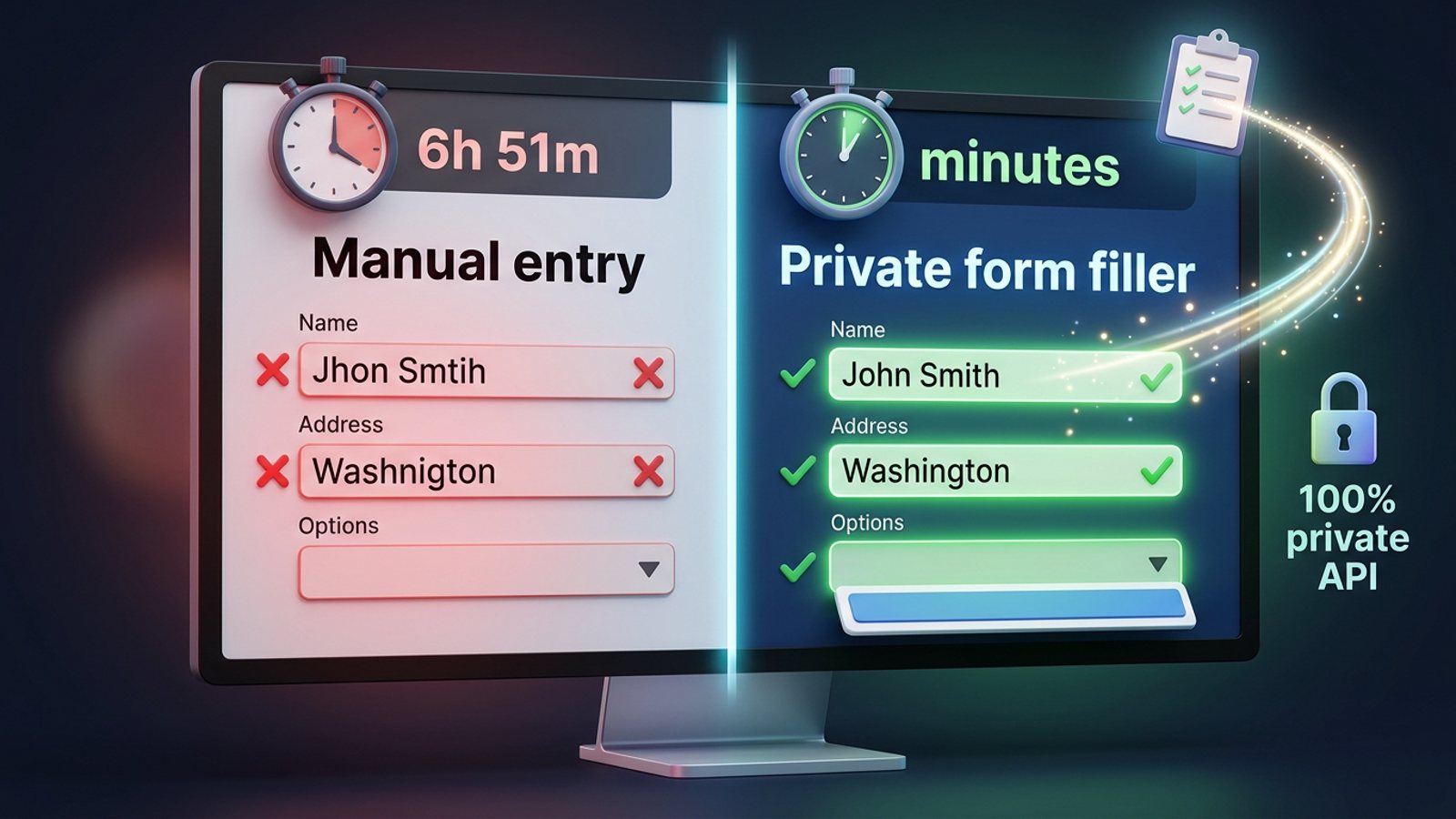
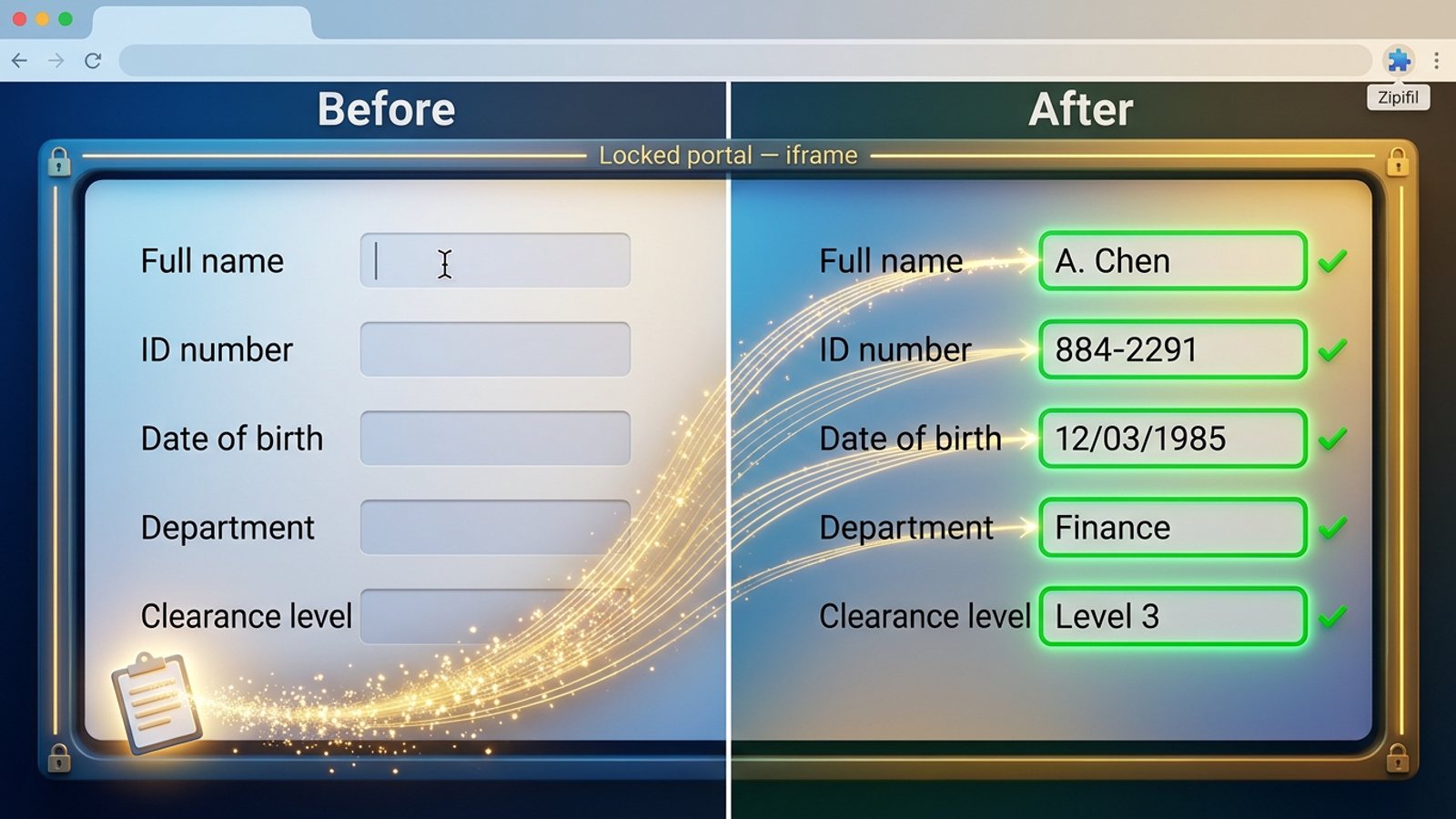
Zipifil is built for exactly this reader: government staff and contractors filling complex forms all day. It fills text boxes, drop-downs, checkboxes, radio buttons and date pickers, and it works on locked portals and iframes that other extensions can't see. Its 100% private API is described as safe for government use and sensitive data, and you can set URL-specific rules once so formatting and skipping apply forever.
The honest limits: it works only on Chrome, Edge and Brave, and it does not work on Firefox or Safari. On price, the free plan gives 3 AI form fills every day with no credit card needed, and the unlimited plan is $9.99 per month as of November 2026 — prices can change.
Zipifil is made by the team behind this blog.
You can try the AI form filler for government portals on your own forms before you ask anyone to approve it.
Chrome built-in Autofill
Best if your staff only need names, addresses, email, phone and card numbers. It fills saved data without a third-party extension to vet, and it needs a Google Account with "Save and fill" turned on per category (Google Help, undated). Limitations: not all autofill features are available in every country or region, and it won't fill categories where "Save and fill" is off. Google announced a Gemini-powered "enhanced autofill" on 28 October 2026 that can suggest details from Gmail — which raised privacy questions because Chrome can surface details users never saved (Yahoo Tech, 2026-10-28; Tech Times, 2026-10-29).
Lightning Autofill
Best if you want rule-based profile filling with multi-line textarea support. The vendor states data is never tracked, shared or sold and that the extension has no Google Analytics, tracking pixels or cookies (Chrome Web Store listing, 2025-06-19). It moved to freemium after 14 years free: the Free tier allows 10 profile executions per day, Plus adds unlimited executions plus cloud sync to Google Sheets, and Pro adds JavaScript rules and variables (Lightning Autofill docs, 2026-09-17). Concrete currency prices weren't published on the pages we read. Chrome-Stats notes user complaints centre on the switch to subscription, gating, and some reliability issues when updating or hitting limits (Chrome-Stats, page updated 2025-11-17).
If you mainly need cloud-synced profiles across a team and you've assessed that sync, Lightning Autofill is the more direct choice.
Magical
Best if your office already runs on text expansion and templates across tools like Gmail, Salesforce or LinkedIn (Text Blaze blog, vendor blog, 2026-04-05). Its Core plan is for individuals and doesn't support adding members (Magical Help Center, 2026-02-03). Third-party listings disagree on pricing — one lists Solo at $6.50 per user/month and Team at $10 (MoreAI.tools, 2026-05-21), another says paid plans start at about $10/mo (finde.tools, 2026-07-11), and a third says no clear list price is published (Tops AI Tool, 2026-10-30). Treat any figure as needing verification.
Filling forms by hand
Still the option with nothing to vet: nothing leaves the browser and there's no extension to approve. It's also slow and error-prone on long forms repeated all day — a trade-off rather than a measured figure, since the sources don't quantify it.
Is Chrome's built-in Autofill enough for government forms?
Usually not, because it only fills the fixed set of fields it knows. It's excellent for names, addresses and contact details, but it has nothing to say about the long dropdowns, date pickers, conditional sections and iframes that government portals are built from — which is where staff lose the time.
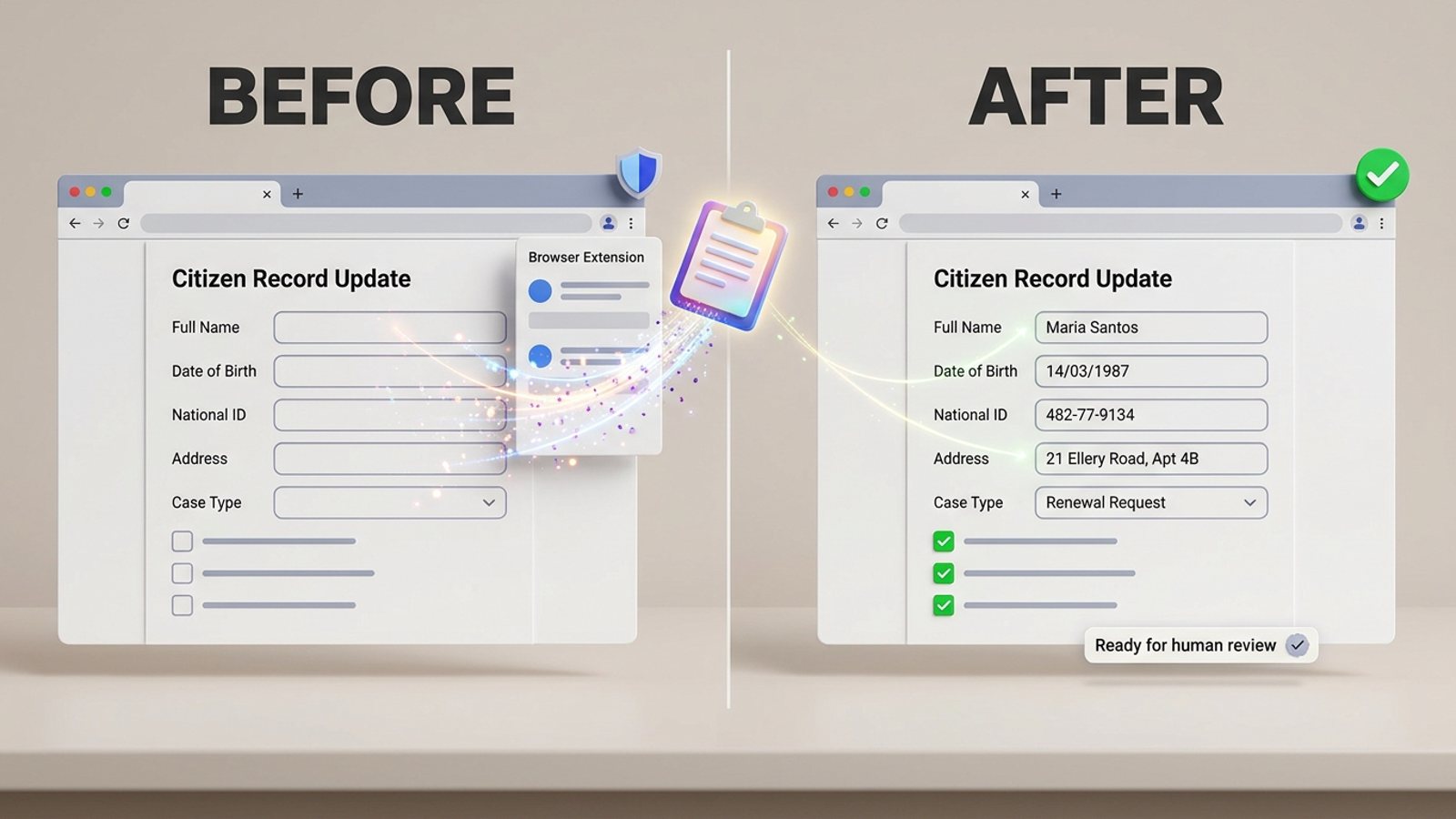
That's the gap an AI form filler for government portals closes: reading the form and filling each field appropriately rather than matching a fixed list. Zipifil also works from unstructured data — you can copy an entire email with irrelevant parts and it picks out only what the form needs.
Does a privacy policy on the Chrome Web Store page actually mean anything?
Yes, because the policy is tied to enforceable store rules. An extension handling user data must disclose that its use complies with the Limited Use restrictions on a website it owns — for example a dedicated page or a privacy policy link (Chrome for Developers, last updated 2022-11-01).
So when you read a policy, look for the Limited Use statement, whether data leaves the device, and who can read it. If a listing has no linked policy, that's your answer.
Is a free tier safer than a paid tier?
Not automatically — but the tiers usually differ in what they add. Paid plans are where cloud sync and scripting tend to appear: Lightning Autofill's Plus tier adds cloud sync to Google Sheets and Pro adds JavaScript rules (Lightning Autofill docs, 2026-09-17). Those are useful features and also new data paths your office has to assess.
Our recommendation: start everyone on the free tier, confirm the core filling behaviour on your real portals, then decide whether the paid features are worth the extra review.
Who should sign off, and in what order?
Split the review so no single person carries it. A local-government AI policy guide recommends a cross-functional review group covering IT, cybersecurity, privacy, legal, procurement, records, HR and service departments (Rotten WiFi blog, 2026-10-06).
A workable order for a small office:
- IT confirms what the extension can see and keep.
- Legal reviews records and disclosure obligations.
- HR reviews the staff rules.
- The service lead confirms it solves the actual form problem.
Does our office need an AI policy before staff use an AI tool?
No — a one-page set of rules plus training beats waiting for a full policy. GovAI (a local-government AI vendor) argues offices need an approved tool plus a one-page set of rules and training before a full AI policy, because staff otherwise use unapproved AI on personal accounts while a policy is being written (GovAI blog, vendor blog, undated).
GovAI's suggested starter rules: city or county work goes into the approved tool, not a personal account or a free app on a phone; share only what the task needs; and a person reviews AI output before anything goes out. The gaps reviewers most often find in first AI policies are records and retention, disclosure of AI use, what supervisors can see, who approves buying new tools, and the front-counter staff who handle residents' details all day.
One sample public-agency policy prohibits representing AI-generated content as solely human-created in external communications, regulatory filings, sworn statements or official documentation (SHAARC board packet, undated agency document). That's a useful line to borrow. This is not legal advice, and rules vary by place.
Ready to test it on your own portals? Add Zipifil to Chrome — 3 fills a day free and see how it handles the forms your staff fill all day.
Sources
- Limited Use | Chrome Web Store Program Policies (Chrome for Developers, last updated 2022-11-01)
- Chrome Web Store single purpose and data use rules, for users (Safeguard blog, 2026-10-17)
- What does the Chrome Web Store user data policy require of extensions? (Safeguard blog, 2026-10-18)
- Chrome Web Store policy updates (Google Chrome for Developers blog, 2026-07-01)
- Municipal Browser Extensions: A Practical Review Checklist (black-rock.tech, 2026-11-01)
- Managing Chrome Browser Extensions Safely (Brown University OIT)
- Cyber Defense eMagazine, April 2025
- How to Ensure Your Google Chrome Extensions Are Safe (Spin.AI blog, listed 2024-11-18)
- LayerX Launches ExtensionPedia (TMCnet press release, 2025-05-28)
- SpinMonitor – Free Extension Security Checker (Chrome Web Store, 2026-01-19)
- Do we need an AI policy before staff start using AI? (GovAI blog)
- SHA Board Packet June 2026 (SHAARC agency document)
- How to Create a Local Government AI Use Policy (Rotten WiFi blog, 2026-10-06)
- Autofill in Chrome (Google Help)
- Chrome's Gemini-enhanced autofill (Yahoo Tech, 2026-10-28)
- Gemini-enhanced autofill privacy questions (Tech Times, 2026-10-29)
- Lightning Autofill – Chrome Web Store listing (2025-06-19)
- Lightning Autofill Freemium Notice (Lightning Autofill docs, 2026-09-17)
- Lightning Autofill stats (Chrome-Stats, updated 2025-11-17)
- Core Plan: Everything you need to know (Magical Help Center, 2026-02-03)
- Magical pricing listing (MoreAI.tools, 2026-05-21)
- Magical Preise & Kosten 2026 (finde.tools, 2026-07-11)
- Magical Review (Tops AI Tool, 2026-10-30)
- 12 Best Free TextExpander Alternatives (Text Blaze blog, 2026-04-05)
Frequently asked questions
Of the tools we compared, Zipifil is our pick because it works on locked portals and iframes, uses a 100% private API described as safe for government use, and lets you set URL-specific rules once so they apply forever. It runs only on Chrome, Edge and Brave. If you mainly need cloud-synced profiles and have assessed that sync, Lightning Autofill is the more direct choice.
Yes. Zipifil's free plan gives 3 AI form fills every day with no credit card needed, which is enough to run a pilot on real forms with dummy data before anyone approves a rollout.
It needs the fields on the form it's filling. Anything beyond that — browsing history, data from other tabs — should be treated as a red flag under Chrome Web Store's Limited Use rules, which prohibit collecting browsing activity except where needed for a prominently described feature.
Periodically, not once. Brown University IT recommends reviewing browser extensions regularly because permissions and publishers change over time, and SpinMonitor for Work is a free Chrome extension that audits installed extensions on whether requested permissions are necessary or excessive.
Zipifil works only on Chrome, Edge and Brave and does not work on Firefox or Safari, so plan around a supported browser. Fill it Up! is a Firefox add-on and therefore isn't an option on a Chrome-based office setup.