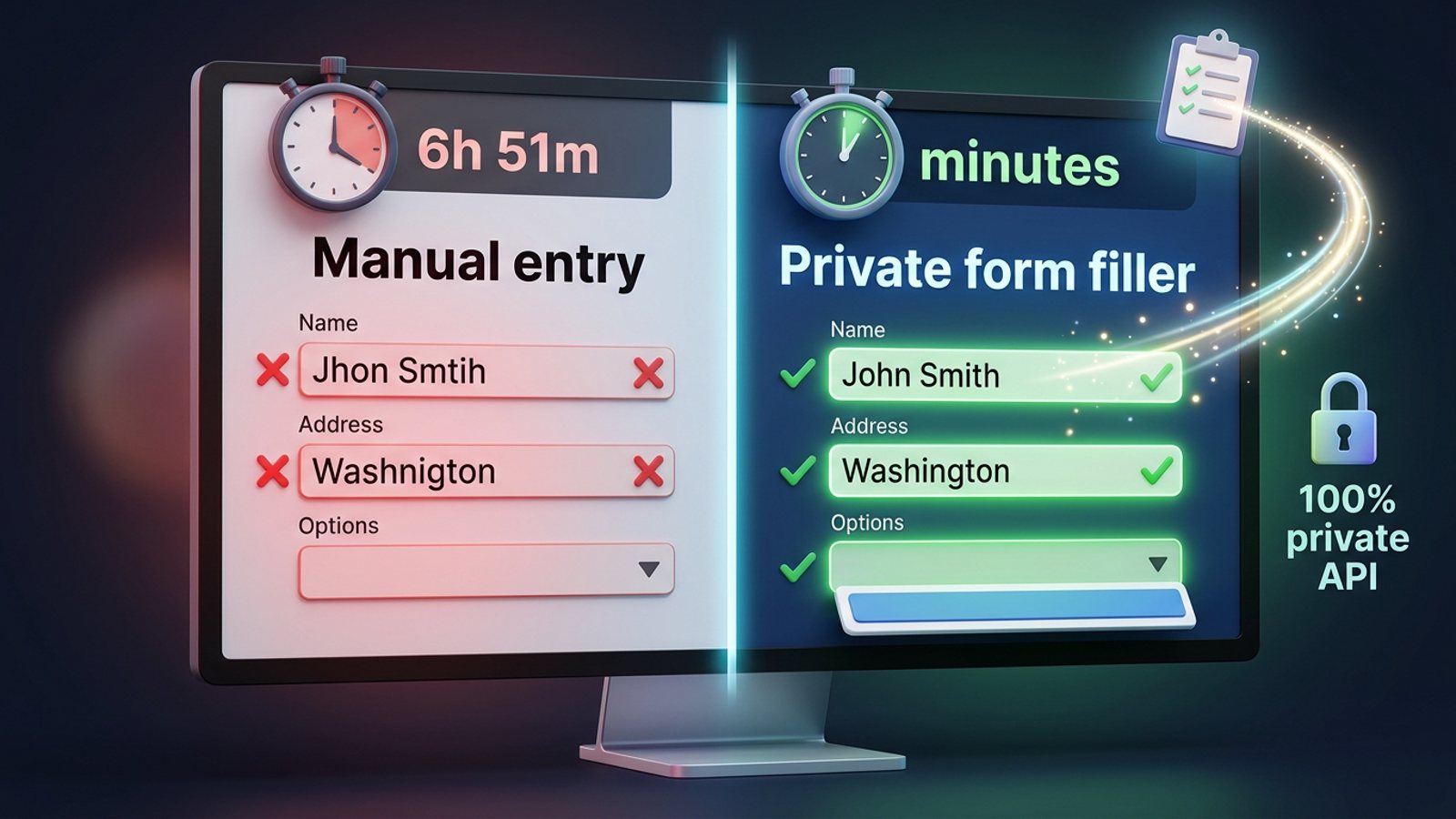
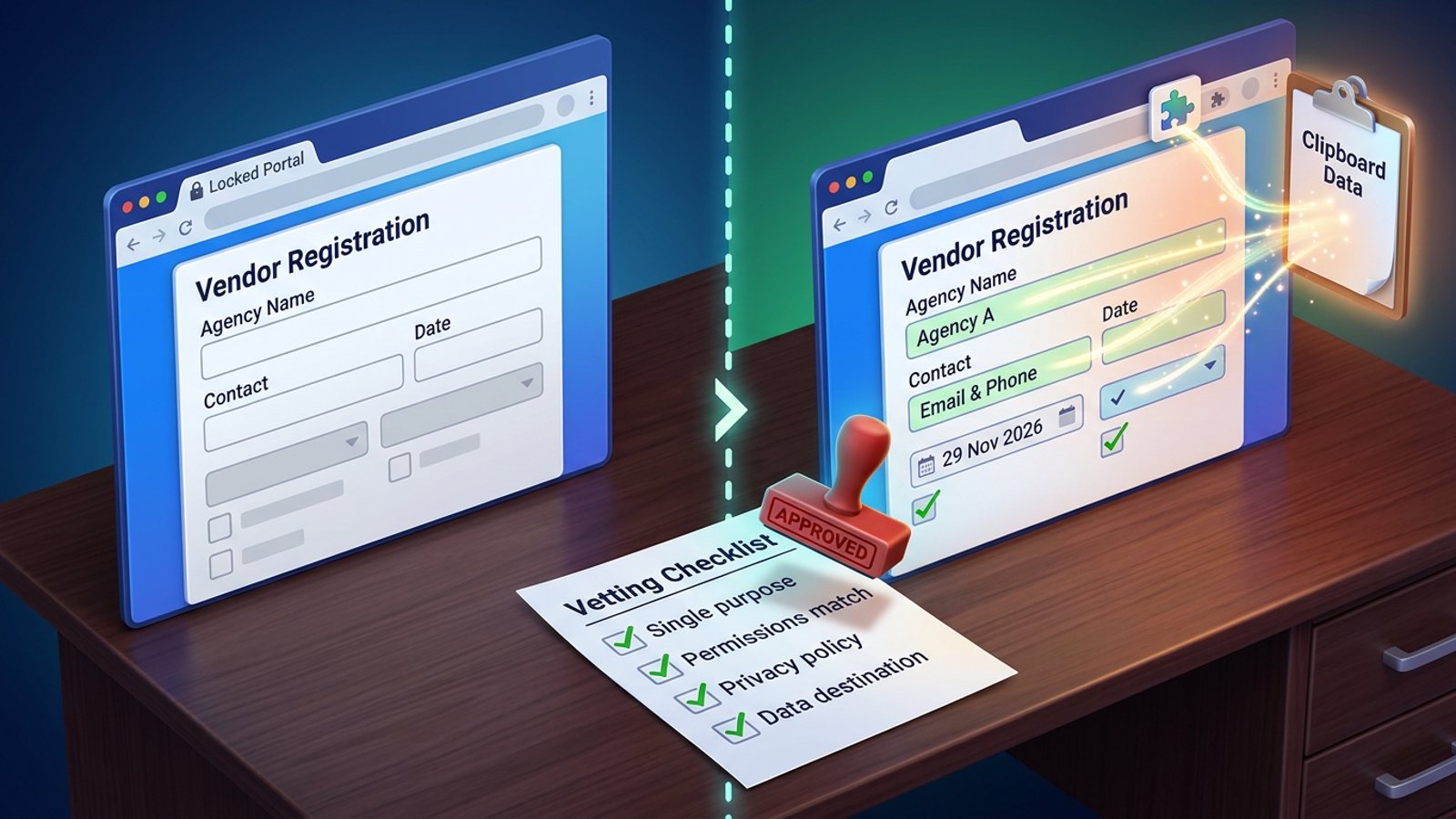
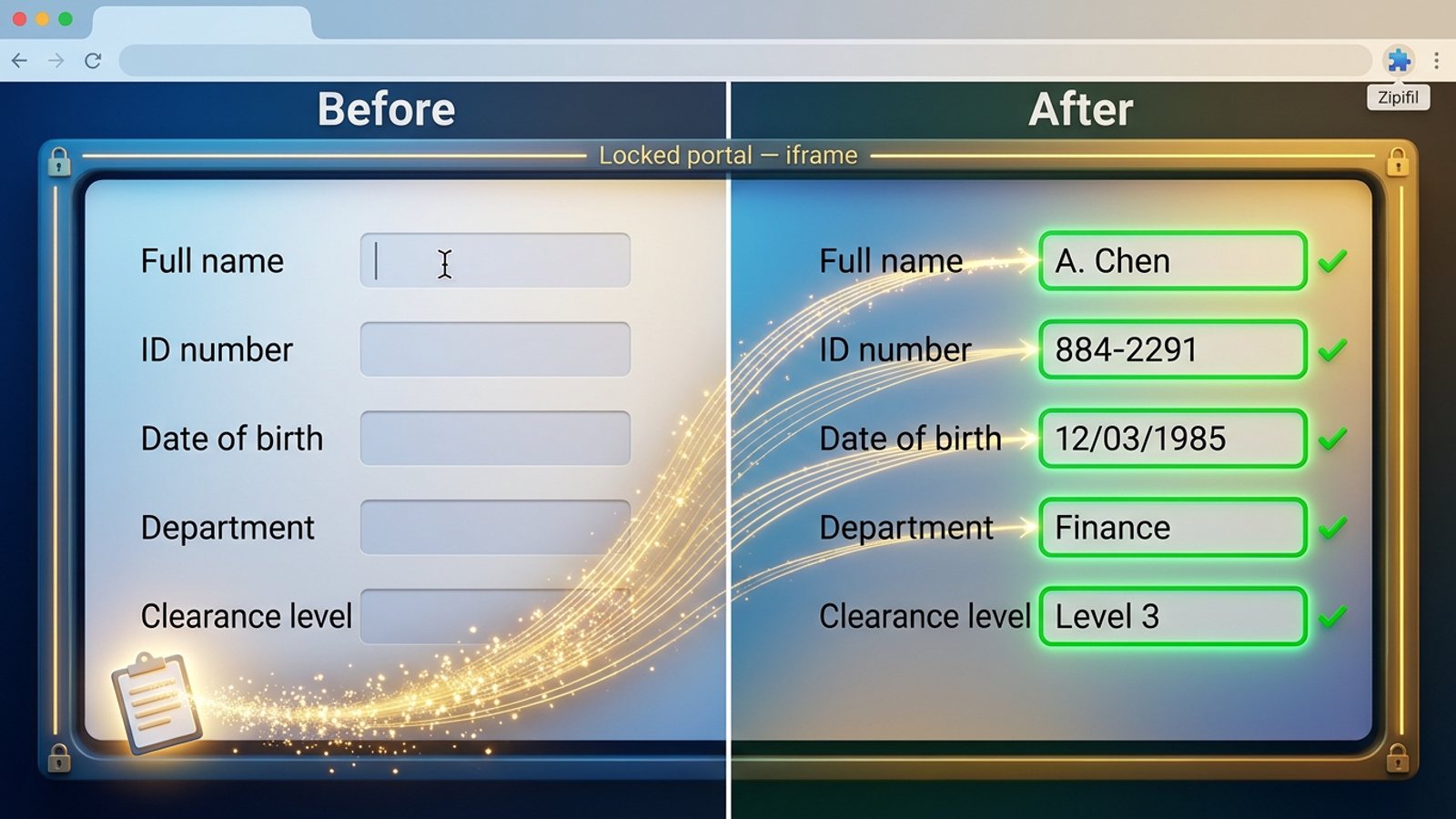
What's the fastest secure AI form filler for caseworkers on Chrome?
Speed and security pull against each other in a form filler. Here's which tool wins for long, locked government portals — and how to check one is safe before you install it.
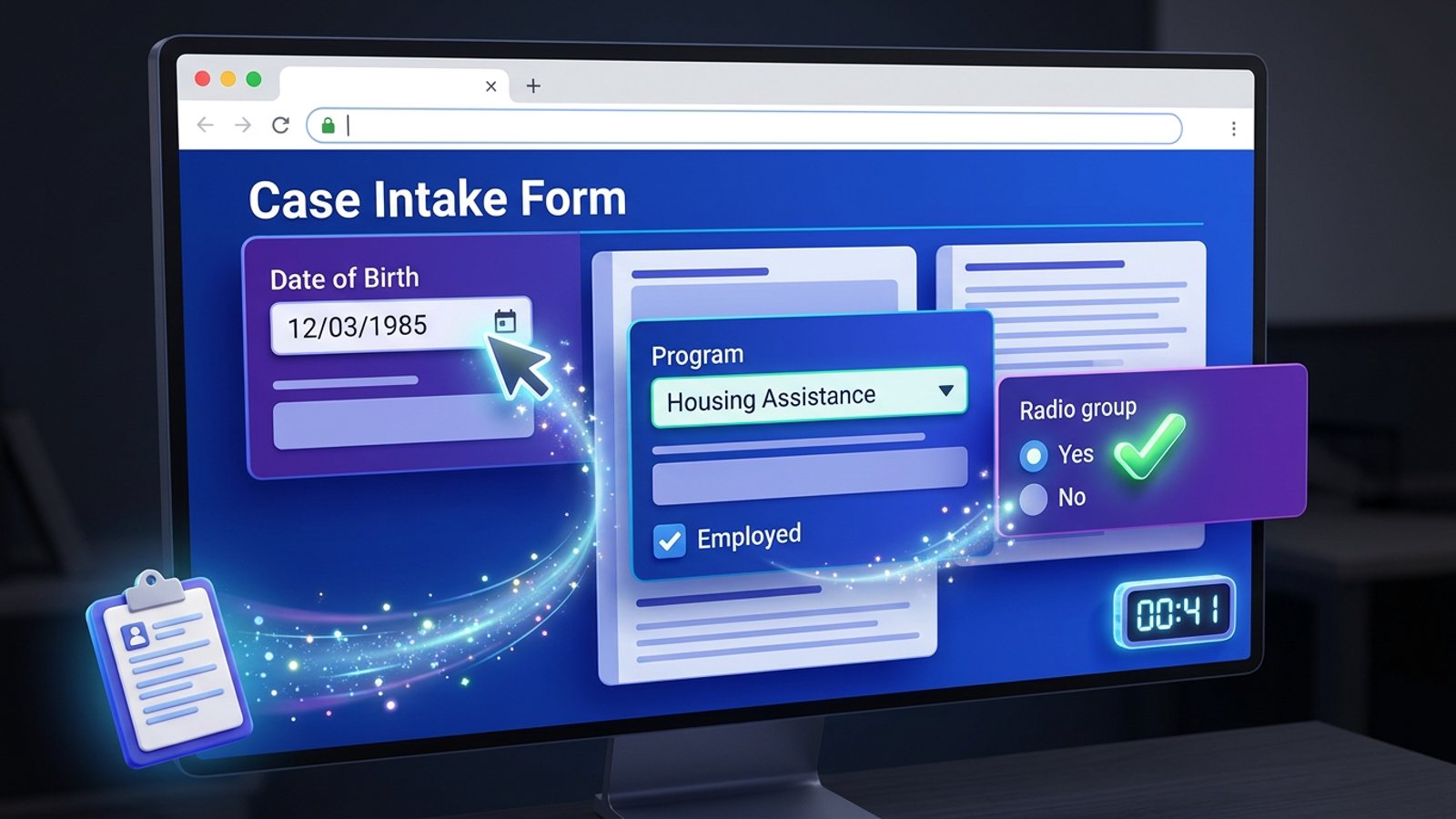
If you're filling long, nested government portals, Zipifil is our pick for the fastest secure AI form filler on Chrome: it fills locked portals and iframes, uses a 100% private API, and remembers your rules per URL. Chrome's built-in Autofill is quicker on short contact forms but stops partway through long case forms.
Ready to try it on your next intake form? Add Zipifil to Chrome — 3 fills a day free.
Why is the fastest option not always the safest one?
Because speed in an extension comes from how much of the page it can touch, and that same access is what you have to trust. A filler that reads every site you visit is fast to set up but broad in reach; one restricted to a few sites is narrower but needs more configuration.
No independent source in our research times these tools head to head. What the sources do explain is what each tool is built to be quick at — and where it slows down or stops.
The fastest secure filler is the one that finishes the form without you re-keying half of it — and that you're allowed to use on your device.
What makes a form filler fast on a government portal?
Three things: it reaches every field, it understands unfamiliar labels, and it doesn't bog down the page. Miss any one and you're back to typing.
Reaching the fields. Many portal forms put fields inside iframes. A content script only reaches the main page by default; to touch elements inside an iframe you must set all_frames: true in the manifest or inject into the frame separately (volcengine, 2026-07-27). Chrome's own autofill only fills a control when the autofill origin and the field's origin match, or the field's origin matches the top-level page (Chromium Docs, no date) — which is why some portal fields simply don't fill.
Reading the labels. Browser autofill is built around a small fixed vocabulary — names, addresses, email, phone, card numbers — so on long government forms it fills a couple of fields and stops (my-id.ca, 2026-08-17). Rule-based tools are fast on fields you've already mapped, but they don't read unfamiliar labels on their own.
Not slowing the page. A content script shares the main thread with the page, so a heavy bundle slows every matching tab, and the mutation-observer callback blocks layout and paint until it returns (Bitwarden clients repo, 2026-11-25). One extension performance test found the default document_idle injection timing "barely helps" page speed compared with other loading strategies (DEV Community, 2026-11-16).
How do you check a filler is secure before you install it?
Start with the permission prompt, then narrow the access. Here's the routine we recommend:
- Check your organisation's policy first — and on a managed device, whether extensions are allowed at all. You can't add extensions on a Chromebook as a guest or on a work/school device managed by an administrator (Google Help, no date).
- Read the permission prompt. Extensions must declare what they can access — permissions, host permissions and content-script matches — and adding host match patterns triggers a user-facing warning (Chrome for Developers, no date).
- Watch for broad host access. Wildcard host permissions grant access to websites, and security scanners flag them as a supply-chain risk (Socket, 2026-06-16).
- Restrict it to the sites you use. From
chrome://extensionsor the extension's context menu you can set it to run on click, on specific sites, or on all requested sites; "run on click" gives temporary access to the host you clicked (Chrome for Developers, no date). At the time of writing, menus may differ. - Ask what leaves the browser. Some AI fillers send form questions and answers to third-party AI services via a user-supplied API key and say they cannot guarantee whether those providers retain the data (docFiller privacy policy, effective 2025-01-03).
- Re-check after updates. Chrome disables an extension on update if the new version requests higher privilege than you've granted (Chromium source, no date).
What's the fastest secure AI form filler for caseworkers on Chrome?
Our pick of the tools we compared is Zipifil, because it's built for the two things that stall other fillers: locked portals and iframes. It fills text boxes, drop-downs, checkboxes, radio buttons and date pickers, and it uses a 100% private API that the product describes as safe for government use and sensitive data.
The speed comes from not re-teaching it. You set URL-specific rules once — custom formatting or fields to skip — and they apply every time that page loads. You can also give custom AI instructions per page to manipulate or skip fields. And you don't have to hand-type your data: upload a PDF or image such as an invoice or sheet and the form fills itself, or highlight text, right-click and map it to a field in two clicks.
Say you're a caseworker with a 60-field intake portal spread across three iframes. With built-in Autofill you'd fill your name and address, then type the rest. With Zipifil you load your data, let it read the form, and correct anything it gets wrong — then set a rule so that correction sticks.
How does Zipifil compare with the alternatives?
Here's how the options stack up for a caseworker on Chrome. Prices for other tools are as of November 2026 and can change.
| Option | Best for | Key features | Price / free option | Watch-outs |
|---|---|---|---|---|
| Zipifil (Our pick) | Long, locked portals and iframes | All field types, private API, URL rules, PDF/image extraction | 3 fills/day free; $9.99/month unlimited | Chrome, Edge, Brave only |
| Chrome built-in Autofill | Simple contact and payment forms | Saved names, addresses, cards; Gemini suggestions from Gmail | Free with Chrome | Fixed field set; origin matching limits iframes |
| Rule-based autofill extensions | The same form, over and over | Fast repeat filling once mapped | Not confirmed in our research | Don't read unfamiliar labels |
| Text expanders | Short, templated text fields | Typing a trigger expands saved text | Not confirmed in our research | No evidence they fill dropdowns or checkboxes |
| Filling by hand | Portals where extensions are banned | Works everywhere, no install | Free | Slowest; errors grow with form length |
Zipifil is made by the team behind this blog.
Chrome built-in Autofill is the fastest thing you already have, and it's free. It needs you signed in to Chrome, and if "Save and fill" is off for a category — payments, contact info, identity documents, travel info — autofill won't work for that data (Google Help, no date). Not all features are available in every country. Since 28 October 2026 it can also suggest details from Gmail such as order numbers and flight bookings under a "Suggested by Gemini" label; you must click a suggestion before Chrome inserts it, and Chrome does not submit the form (Yahoo Tech, 2026-10-29). If you mainly need your address and card filled on short forms, this is the more direct choice.
Rule-based autofill extensions reward setup: map the fields once and repeat fills are near-instant. The trade-off is that they don't read unfamiliar labels, so a new portal means new setup. Compare them on their own listings.
Text expanders are quick and deterministic on fields you've templated — good for a standard case note. They're designed for snippets, and the material we reviewed gives no evidence they fill dropdowns, checkboxes or complex portal fields.
Filling by hand is the fallback that always works, needs no permissions and is the right answer when a portal or agency policy forbids extensions. It's also the slowest, and errors scale with form length and repetition.
Want to test it on a real portal? Get the Zipifil AI form filler Chrome extension and run your next intake form through it.
Can your IT admin block or pin the extension?
Yes — managed Chrome gives admins several levers. Admins of managed Chromebooks can pin an extension to a version, block extensions not from the Chrome Web Store, limit which URLs an extension may modify, and block extensions requesting certain permissions (Google for Developers, updated 2025-12-30). That's usually a good thing for caseworkers: a pinned version is a reviewed version.
If your device is managed, ask before you install rather than after. And if you're choosing a tool for a team, look for one that documents its access in a security page written for admins and reviewers — covering what it can access, how data moves and what controls exist (GovDash, 2024-12-11, updated 2026-06-03). Zipifil publishes its data-privacy page at zipifil.com/data-privacy.
Does an AI filler send your case data to a third party?
It depends on the tool, and it's the question worth asking before you paste anything real. Some fillers route form content through external AI providers; a privacy-first extension for government-adjacent work can instead keep case data in the Chrome profile, send it only to the official government site, and store it locally with no analytics or data sale (Case Orbit privacy policy, effective 2026-09-15).
Zipifil's product facts state it uses a 100% private API, safe for government use and sensitive data. Either way, our recommendation is to confirm the data flow fits your organisation's data-handling rules before you use any extension with live case data — and to check your organisation's policies before using any extension on government systems.
Sources
- Google Help — How Chrome Autofill works (no date)
- my-id.ca — Why browser autofill fails on government forms (2026-08-17)
- Yahoo Tech — Chrome now autofills using Gemini (2026-10-29)
- Chromium Docs — Autofill across iframes (no date)
- volcengine — Content scripts and iframes (2026-07-27)
- Seunghan — iframe async rendering & IME fix in a government-site autofill extension (2026-01-22)
- Bitwarden clients — Content script instrumentation design (2026-11-25)
- DEV Community — Chrome extension performance: 4 loading strategies tested (2026-11-16)
- Chrome for Developers — Declare permissions (no date)
- Chromium source — Extension permissions (no date)
- Chrome for Developers — Runtime host permissions (no date)
- Google for Developers — ChromeOS extension development / admin controls (updated 2025-12-30)
- Google Help — Add extensions on Chromebook (no date)
- Socket — TrustPanel package security analysis (2026-06-16)
- GovDash — Dash browser extension security documentation (2024-12-11, updated 2026-06-03)
- Case Orbit — Privacy policy (effective 2026-09-15)
- docFiller — Privacy policy on Firefox Add-ons (effective 2025-01-03)
- Aanjibimaadizing — Program policies (approved 2023-09-14, effective 2023-10-01)
- North Dakota DHS — Policy manual (revised 2004-04-01)
Frequently asked questions
For long, iframe-heavy government portals, Zipifil is our pick of the tools we compared, because it reaches locked portals and iframes and remembers your rules per URL. If you only fill short contact or payment forms, Chrome's built-in Autofill is free and already there.
Because it's built around a small fixed vocabulary of field types, so on long government forms it fills a couple of fields and stops (my-id.ca, 2026-08-17). Origin-matching rules also stop it filling fields that sit in cross-origin iframes (Chromium Docs, no date).
It can. A content script shares the main thread with the page, so a heavy bundle slows every matching tab (Bitwarden clients repo, 2026-11-25). Restricting the extension to the sites you actually use keeps the rest of your browsing untouched.
Only if it injects into frames — all_frames: true in the manifest, or a script injected into the iframe separately (volcengine, 2026-07-27). That's why iframe-heavy portals separate the fillers that work from the ones that give up.
Only if your organisation's policies allow it. Check retention, audit-logging and sharing rules first — some programs require quarterly access audits and multi-year log retention (Aanjibimaadizing, effective 2023-10-01). This is not legal advice, and rules vary by place.