Is there a secure AI form filler extension that works on locked portals?
Yes — a private API and iframe-aware filling are the two tests that matter. Here's how to check an extension before you install it on a government system.
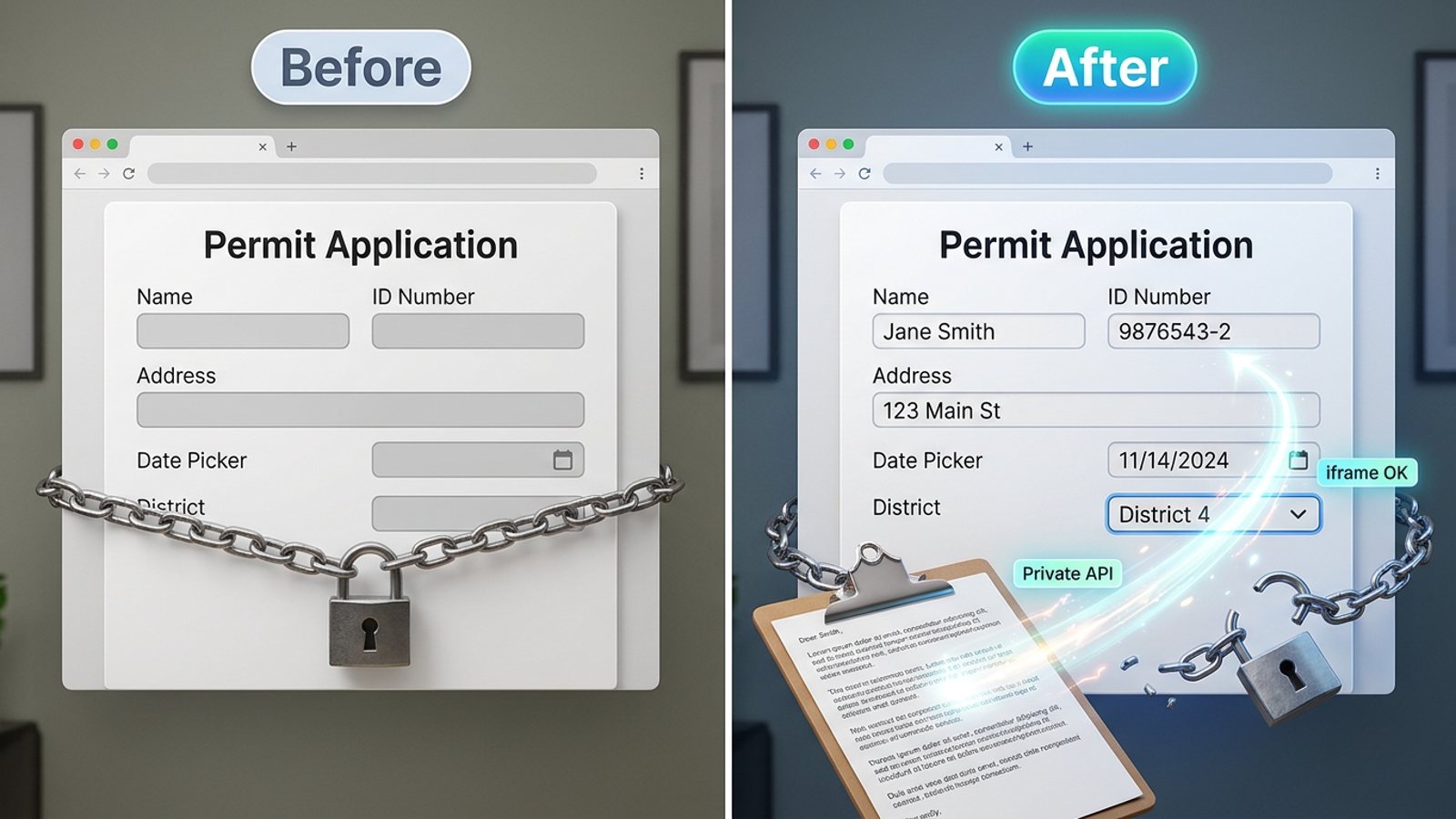
Yes — but "secure" and "works on locked portals" are two separate tests, and most extensions pass only one. Chrome's built-in Autofill is private but skips fields inside cross-origin iframes and fields marked autocomplete="off". An AI form filler built around a private API and iframe-aware filling fits both tests — confirm your organization's policy first.
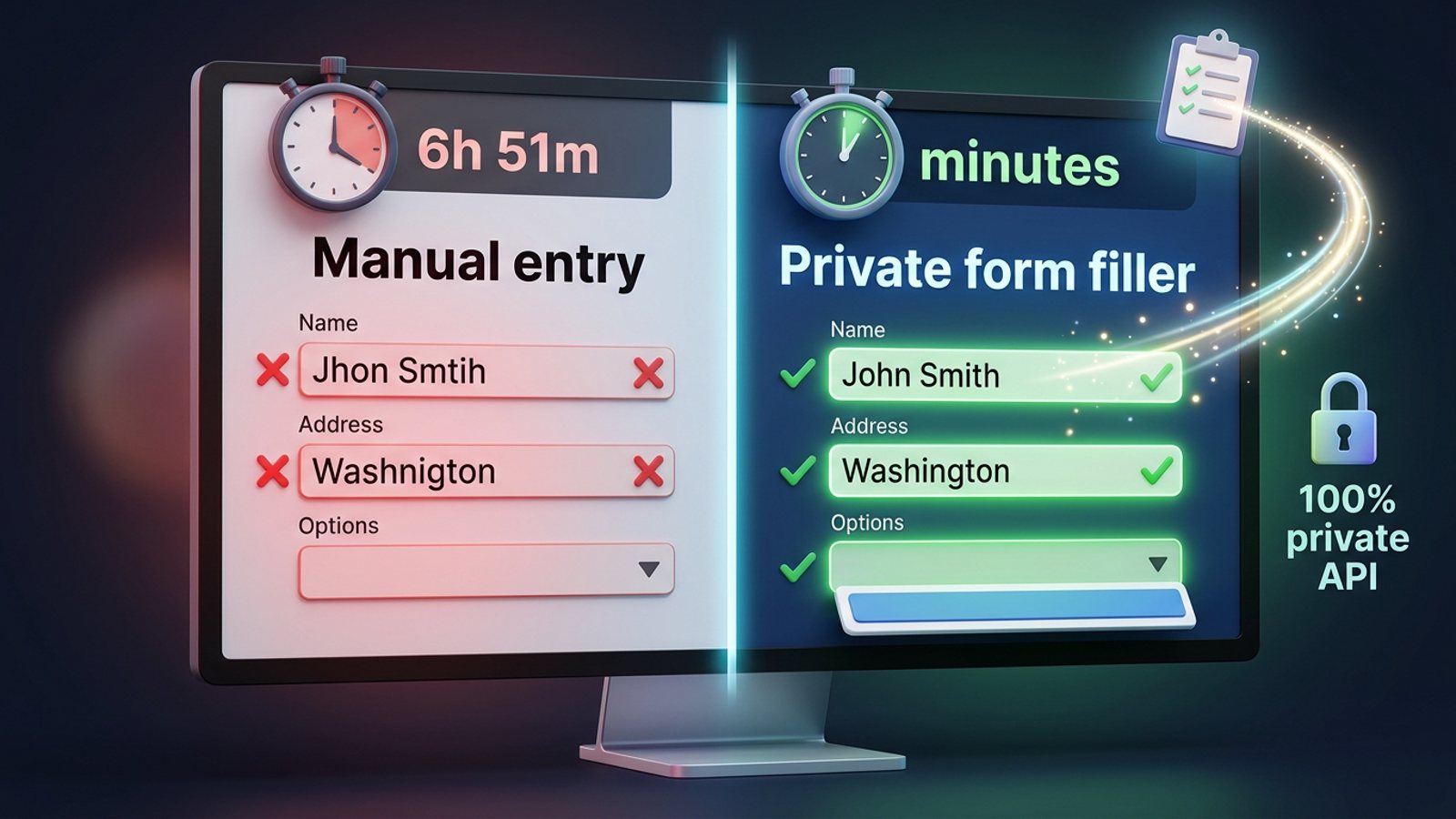
If you fill government forms all day, you know the pattern: you paste your name and address, then spend twenty minutes on dropdowns, date pickers and a nested section that refuses a single keystroke. So the real question is whether a secure AI form filler can be both private and stubborn enough to reach the hard fields. You can try Zipifil free with 3 fills a day on a real portal before deciding anything.
Is there a secure AI form filler that works on locked portals?
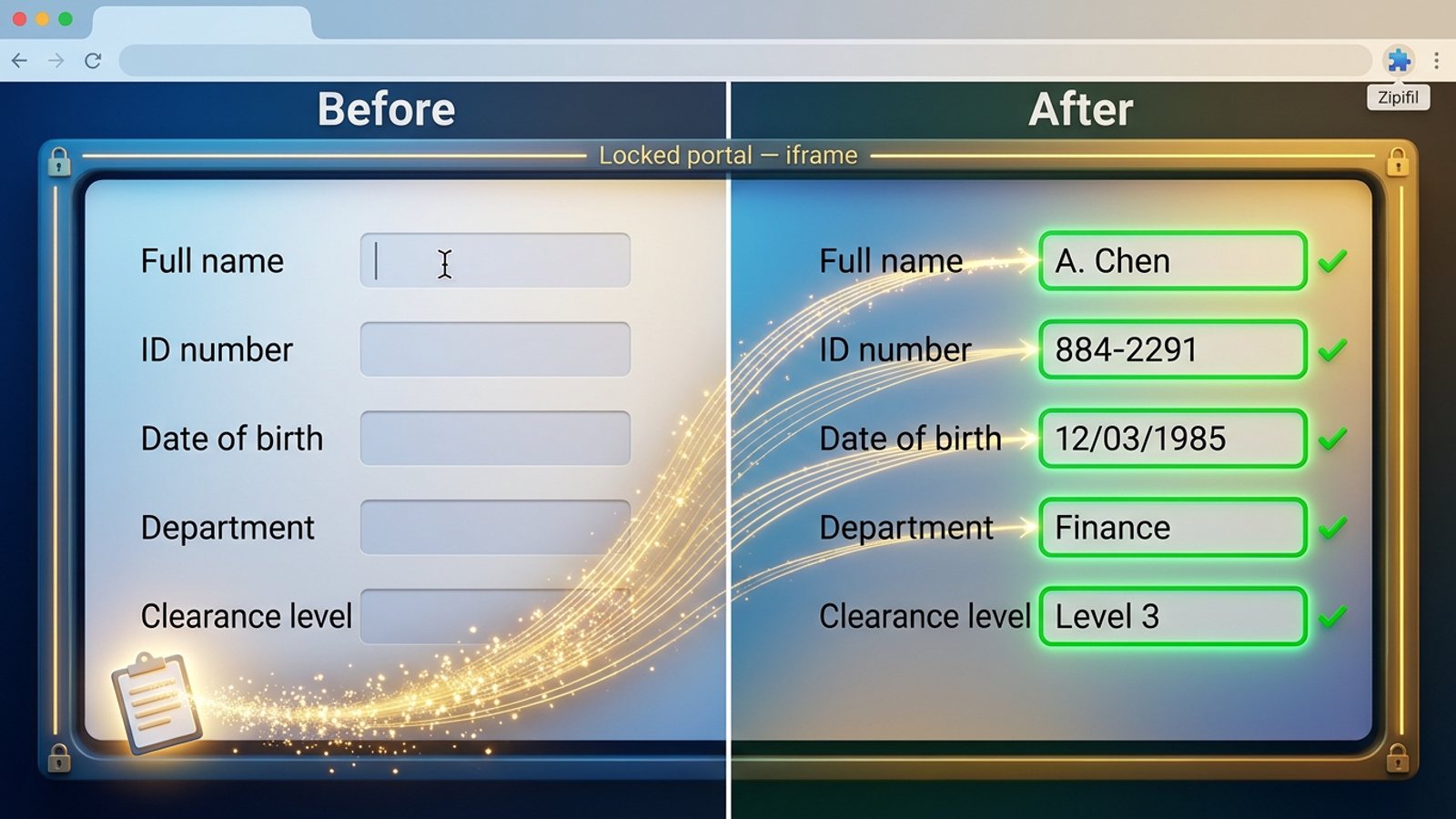
Yes — of the tools we compared, Zipifil fits both tests. It fills fields inside locked portals and iframes that other extensions can't see, and it runs on a 100% private API described as safe for government use and sensitive data.
It fills text boxes, drop-downs, checkboxes, radio buttons and date pickers, and it takes unstructured input: paste an entire email — even one with irrelevant paragraphs — and it picks out only the parts the form needs. You can set URL-specific rules once (custom formatting, or skipping a field) and they apply forever, which is where most of the correction work disappears.
The free plan gives 3 AI form fills every day, no credit card. Unlimited is $9.99 per month as of November 2026, and prices can change. The honest limits: it works only on Chrome, Edge and Brave — not Firefox or Safari — and it works best in English.
Add Zipifil to Chrome — 3 fills a day free.
What does "locked portal" actually mean?
A locked portal is a page where ordinary autofill can't reach the fields — usually because the fields sit inside a cross-origin iframe, or because the page sets autocomplete="off".
The mechanism is old and deliberate. Pages from a different domain loaded into an iframe are treated as a separate window, and JavaScript in the top page cannot reach into them — the browser security rule behind most "locked" fields (Stack Overflow, 2013). A later thread on filling a government site's inputs automatically shows the same restriction still being hit in 2016.
Chrome's documentation explains the second half: Autofill fills a field only if the autofill's origin and the field's origin match, or the field's origin matches the top-level page's origin — which is why cross-origin iframe fields are often skipped (Chromium Docs, undated). Chrome is replacing that rule with a policy-controlled autofill feature that lets a page decide which embedded content may receive autofilled input (Chromium Docs, undated).
Why does Chrome Autofill leave half of a government form blank?
Two reasons: the origin rule above, and a narrow vocabulary. Browser autofill was built around a small fixed set of field types — name, address, email, phone, card number — which is why it covers only a handful of the fields on a long government form (my-id.ca, 2026). Chrome Autofill also fails on sites that set autocomplete="off", use custom fields Chrome can't recognise, or add security scripts that block automation (Techactiv, 2026).
So the half-blank form isn't a setting you forgot. It's the design.
Is Chrome's new Gemini autofill an AI form filler?
Partly. Chrome added Gemini-powered "enhanced autofill" in October 2026: with Personal Intelligence on, Gemini can suggest details from Gmail under a "Suggested by Gemini" label, you must click a suggestion before Chrome inserts it, and Chrome does not submit the form (Yahoo Tech, 2026). Privacy commentators flag that it can surface details the user never saved in the browser (TechRepublic, 2026).
That's a suggestion engine, not a form filler. It still doesn't know what an immigration number or a permit reference is, and it still lives inside Chrome's origin rules.
What should "secure" mean for a form filler extension?
Secure means the extension discloses how it handles form data, transmits it over HTTPS, encrypts what it stores, and asks only for the permissions it needs.
This isn't our opinion — it's the Chrome Web Store rulebook. Extensions must disclose how they handle user data even when it is processed or stored only locally on the user's device (Chrome for Developers, User Data FAQ). "User data" explicitly includes government-issued identification numbers and form data. Extensions handling user data must post a privacy policy, transmit over HTTPS/WSS, and store at rest using a strong method such as RSA or AES.
And the risk is real. In June 2024 the FTC finalised an order banning Avast from selling or licensing web browsing data for advertising and requiring a $16.5M payment, after finding it sold browsing data collected through its extensions and antivirus while marketing privacy protection (FTC, 2024).
The word "private" on an extension listing is a claim to verify, not a feature to trust.
How do I check an extension before using it on government systems?
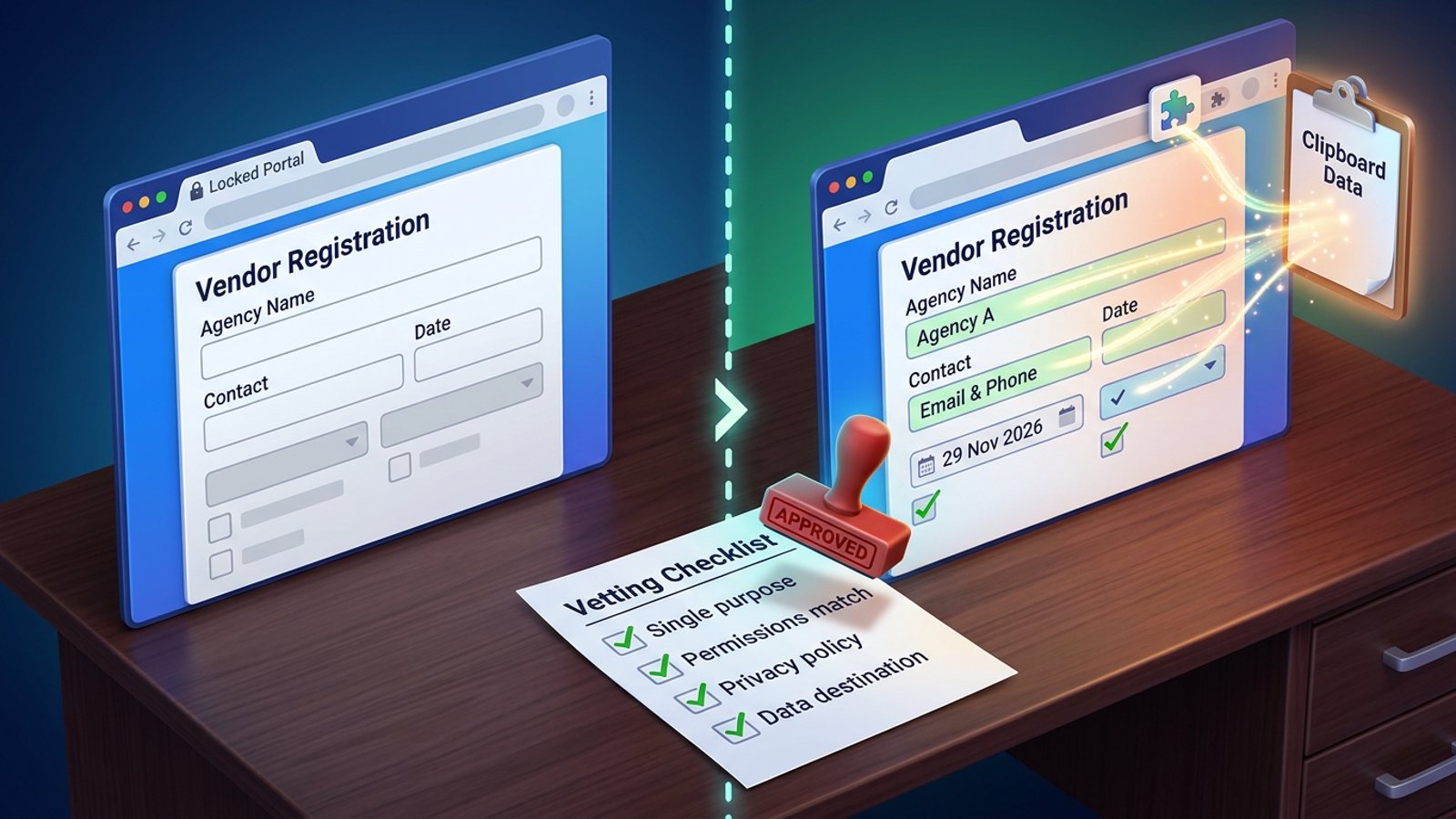
Five steps, in this order. Do them before you install anything on a machine that touches citizen data.
- Identify what "locked" means on your portal. Right-click a stubborn field and choose Inspect. If it sits inside an
<iframe>from another domain, that's your blocker (Chromium Docs, undated; Techactiv, 2026). - Check your organization's policy first. Find out whether extensions need approval and whether they may run on the portal's host. Type
chrome://policyto see what your organization enforces (Robility AI docs, 2026; black-rock.tech, 2026). - Read the permissions and the privacy policy. Ask: does it disclose local handling, encryption, and what leaves the browser? (Chrome for Developers, User Data FAQ; Safeguard, 2026).
- Test on a practice form or a sandbox copy before live citizen data.
- Re-check after every update. Permissions can change quietly (Google, 2024).
Privacy and data security: check your organization's policies before using any extension on government systems; rules vary by agency and by place. This article is general guidance, not legal advice.
How does Zipifil compare with the alternatives?
Here's how the options stack up on the two tests that matter: reaching locked fields, and handling data honestly. Zipifil goes first because it's our pick of the tools we compared.
| Option | Best for | Key features | Price / free option | Watch-outs |
|---|---|---|---|---|
| Zipifil (Our pick) | Locked portals, iframes, privacy-sensitive teams | All field types; iframe-aware; private API; URL rules; PDF/image extraction | Free: 3 fills/day; $9.99/mo unlimited | Chrome, Edge, Brave only; best in English |
| Chrome Autofill (+ Gemini) | Names, addresses, cards | Suggests from Gmail; you click to insert; never submits | Free with Chrome | Skips cross-origin iframes and autocomplete="off"; narrow field set |
| Lightning Autofill | Rule-based, high-volume filling | All field types except file inputs; text, regex, CSS/XPath rules; rules generator | Free: 10 profile runs/day; paid tiers | Stored data not encrypted; manual field mapping |
| Manual copy-paste | Zero new software on the machine | Nothing new reads the page | Free (costs your time) | Slow, error-prone; no help inside iframes |
| Internal script built by IT | Full control of code and data path | You own the review; can be force-installed | Internal development cost | Still bound by cross-origin iframe rules; ongoing maintenance |
Zipifil is made by the team behind this blog.
When is another option the better choice?
Be honest about the job in front of you.
If you mainly need names, addresses and card details on ordinary websites, Chrome Autofill is the more direct choice — free, private by default, and it never submits a form for you (Chromium Docs, undated). It just won't carry you through a government application.
If your forms are stable and you don't mind mapping fields once, Lightning Autofill is strong: it has run since 2010 with roughly 600,000 users, fills all field types except file inputs, and its rules can use text, regex, CSS selectors or XPaths, with a generator for non-coders (Chrome Web Store listing). Its free tier allows 10 profile executions a day, and Plus/Pro include a 3-day trial with no credit card. The catch: it moved from free to freemium after 14 years (Lightning Autofill Docs, 2026), and its listing states stored data is not encrypted.
If your policy forbids third-party extensions entirely, manual copy-paste from a secure notes file is the honest answer — nothing new reads the page. It's also the slowest, and it gives no help with iframe fields beyond pasting into them one at a time.
If you have developers, an internal script gives you full control of the code and data path and can be force-installed by IT (Google, 2024). It is still bound by the browser's cross-origin rules for iframes, and it needs maintenance.
For the deeper head-to-head, our comparison of the best AI form filler for Chrome that works on locked portals walks through each one on real portal layouts.
What does "private API" mean in practice?
It means the form data goes to the vendor's own API rather than being spread across third-party services — and that the vendor has published what it does with it. Zipifil's data-privacy page states everything is 100% private, and the product uses a 100% private API described as safe for government use.
Other small AI fillers show the range of what "private" can look like, which helps you read any policy. Fillin, an open-source AI form filler, states it runs no developer server, stores the AI endpoint/key and an optional profile in chrome.storage.local, and does not sell data or run analytics (Fillin PRIVACY.md, 2026) — though its optional backup file is unencrypted JSON. SnapForm sends the form's HTML structure to the AI provider you configure, only when local detection fails, directly without an intermediary server and using your own API key; without an AI provider it makes no network requests (SnapForm PRIVACY_POLICY.md, 2026).
Different architectures, all disclosed. That's the standard to hold any filler to.
Can my organization block an extension even if it's allowed by name?
Yes. Chrome Enterprise lets IT block extensions by permission, not just by name, block where an extension may run, and force-install approved ones — and an extension needing a blocked permission is disabled rather than deleted (Google, 2024).
That's why the permission review matters more than the brand name. Google's enterprise guide sets three IT priorities: protect user and company data, prevent malicious installs, and still give users the tools they need. A municipal-focused checklist makes the same point for local-government PCs — review purpose, permissions, publisher and support needs before using an extension with work information (black-rock.tech, 2026).
What's the fastest safe way to start?
Start on a practice form, not a live case. Install the extension, paste your data or upload a PDF, and watch which fields it fills and which it skips. Then set your URL-specific rules on that practice page so the first live form is already tuned.
With Zipifil the flow is short: add the extension to Chrome, Edge or Brave, provide your data or upload a PDF or image with the information, and let the AI read the form and fill each field. Set custom rules per URL to fine-tune behaviour, and use the highlight-text → right-click → map-to-field shortcut when a field needs a specific value. You get 3 free fills daily; upgrade for unlimited at $9.99 per month as of November 2026, and prices can change.
Add Zipifil to Chrome — 3 fills a day free.
Sources
- Autofill across iframes (Chromium Docs, undated)
- Autofill across iframes, main branch (Chromium Docs, undated)
- Chromium commit adding autofill-across-iframes doc (Christoph Schwering, 2023-08-16)
- Why Chrome autofill fails on government and long application forms (my-id.ca, 2026-08-17)
- Chrome Autofill not working on sites (Techactiv, 2026-08-26)
- Fill input text forms on other website in iframe (Stack Overflow, 2013-10-02)
- Set values of input fields of different website (Stack Overflow, 2016-04-07)
- Chrome now pulls details from Gmail (Yahoo Tech, 2026-10-28)
- Gemini Chrome autofill and Gmail (TechRepublic, 2026-10-29)
- User Data FAQ (Chrome for Developers, undated; policy effective 2019-10-15)
- Managing Extensions with Chrome Enterprise (Google, updated April 2024)
- Group Policies (Robility AI docs, 2026-10-30)
- How to approve a browser extension for company use (Safeguard, 2026-10-17)
- Municipal browser extension review checklist (black-rock.tech, 2026-11-01)
- FTC finalises order with Avast (FTC, 2024-06-26)
- Fillin privacy policy (GitHub, updated 2026-07-27)
- SnapForm privacy policy (GitHub, updated 2026-03-12)
- Lightning Autofill Chrome Web Store listing (date not given)
- Lightning Autofill Docs: freemium (2026-09-17)
Frequently asked questions
Yes — of the tools we compared, Zipifil fits both tests: it fills fields inside locked portals and iframes, and it uses a 100% private API described as safe for government use. Chrome Autofill is private but can't reach cross-origin iframe fields, and rule-based fillers reach more fields but need manual mapping.
Because Chrome fills a field only when the autofill's origin and the field's origin match, or the field's origin matches the top-level page — so cross-origin iframe fields are often skipped (Chromium Docs, undated). It also fails on pages that set autocomplete="off" or use custom controls (Techactiv, 2026).
Manual copy-paste from a secure notes file, or an internal script your IT team builds and controls. Both keep the data path inside your organization; the trade-off is speed on long forms and, for an internal script, the same browser iframe restrictions.
Not necessarily — it means the data goes to a single, disclosed destination rather than being spread across third parties. Read the vendor's privacy policy for what is sent, when, and how it's stored; Chrome's User Data FAQ requires that disclosure even for data handled only locally.
No. Zipifil works only on Chrome, Edge and Brave. It also works best in English; for other languages you can ask support.