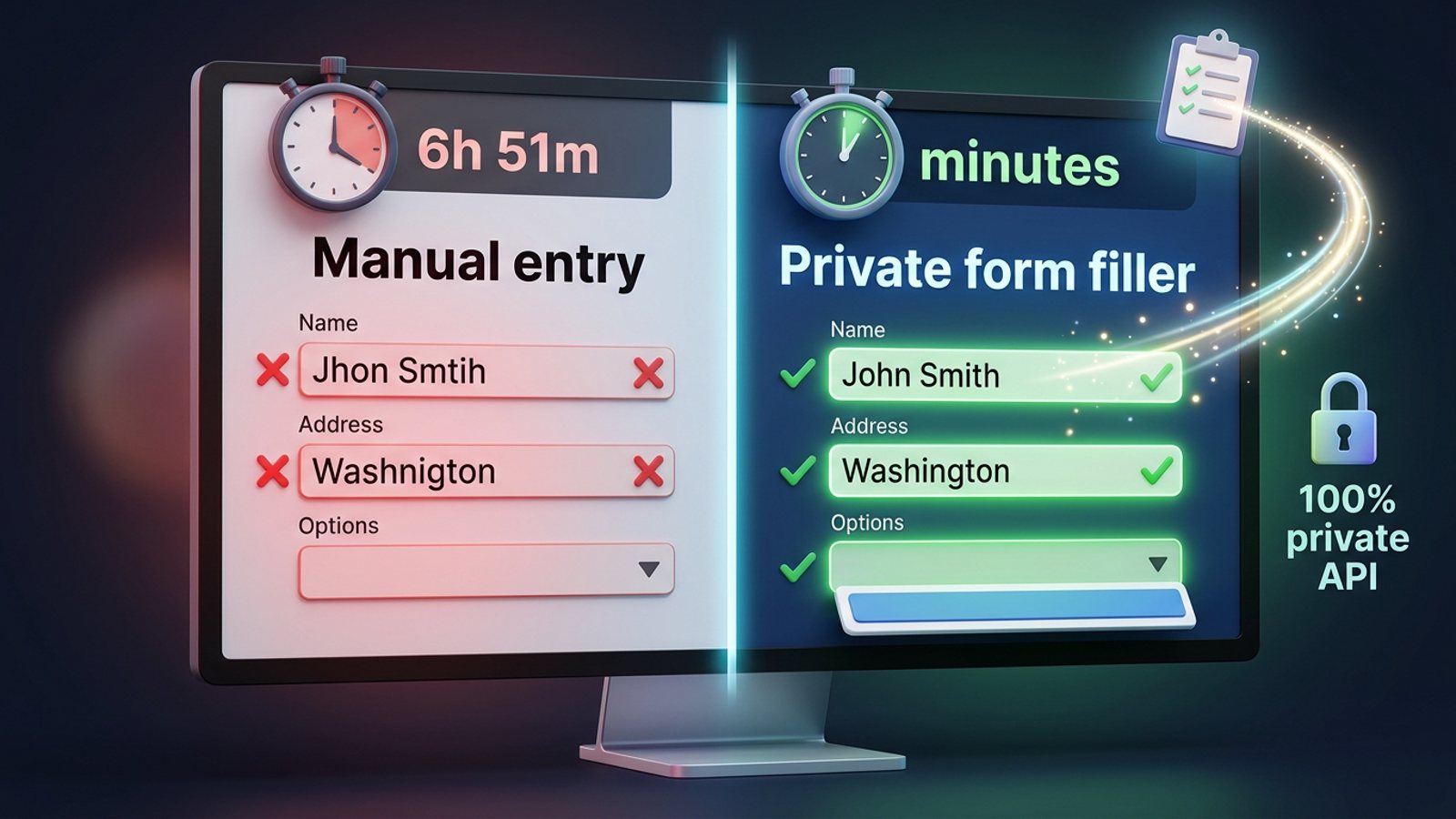
Which AI form filler extension works on portals that block autofill?
Chrome skips fields inside cross-origin iframes by design, which is why government portals look blocked. Here's which AI form filler extensions actually get past that wall.
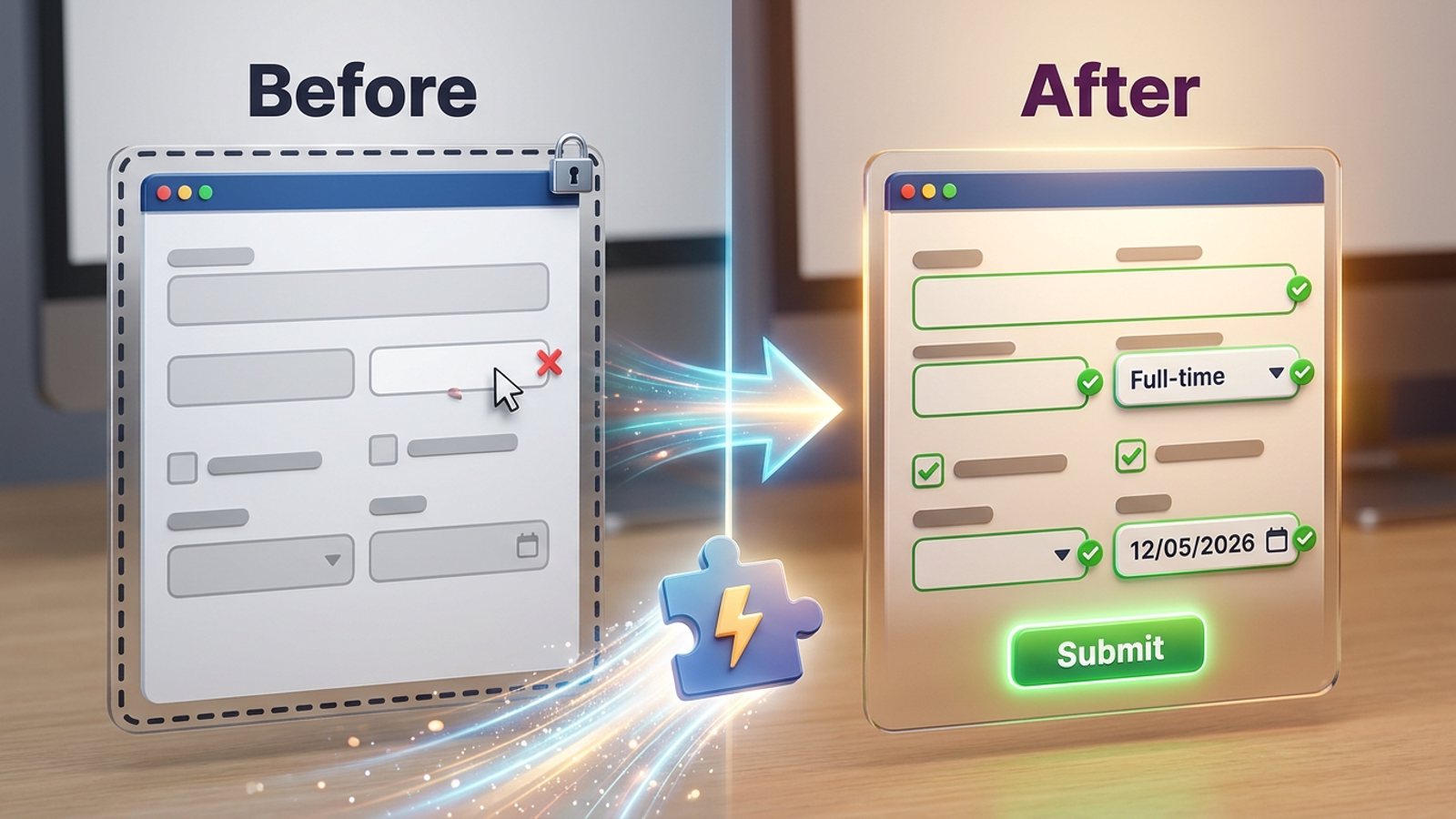
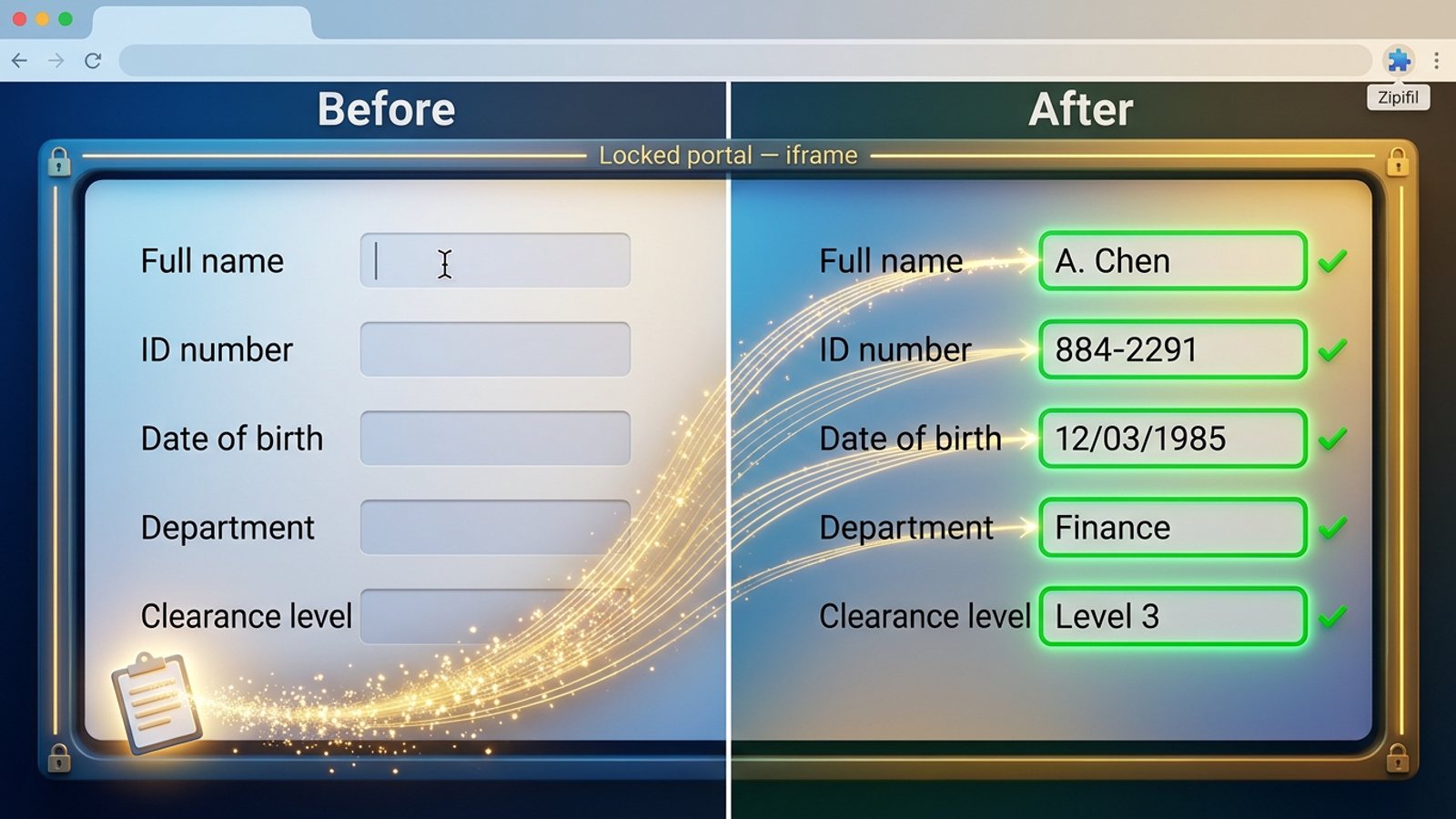
Most "blocked autofill" failures on government portals come from fields Chrome deliberately skips — especially inputs inside cross-origin iframes — and from forms that only recognise a narrow set of field types. An ai form filler extension works there when it can inject into every frame and read the whole form. Zipifil is built for exactly that, including locked government portals and iframes.
If you fill long government applications all day, the wall usually appears on page two: you click into a field, nothing happens, and the cursor just sits there. Here is what is actually going on, and which tools get past it.
If you want the short version: add Zipifil to Chrome — 3 fills a day free and test it on the portal that is giving you trouble before you change anything else in your setup.
Why does Chrome autofill skip fields on government portals?
Chrome fills a field only when the autofill's origin and the field's origin match, or when the field's origin matches the top-level page — which is why fields inside cross-origin iframes are often skipped (Chromium Docs, autofill-across-iframes). That single rule explains most "the portal blocks autofill" complaints.
There are three common causes behind a portal that fights back:
- Fields live inside an embedded frame. Pages from a different domain loaded into an iframe are treated as a separate window, and JavaScript in the top page cannot reach into them (Stack Overflow, 2013 — old, but it explains the mechanism).
- The form uses field types Chrome doesn't recognise. Browser autofill was built around a small fixed vocabulary — name, address, email, phone, card number. One help site's worked example found it covered four fields out of a long list on a government form (my-id.ca, 2026).
- The page actively discourages filling. Chrome autofill is known to fail on sites that set
autocomplete="off", use custom fields Chrome can't recognise, or add security scripts that block automation (Techactiv, 2026).
So the fix isn't a setting you toggle. It's a tool with a different way in.
Can any extension actually fill fields inside a locked portal's iframe?
Yes — extensions can inject a content script into every frame ("all_frames": true), which is how extension-based fillers reach fields a page's own JavaScript cannot touch (Stack Overflow, 2023). That is the technical door.
Two caveats worth knowing before you buy anything. First, frame injection alone isn't a complete answer: the developer who asked that 2023 question still hit a cross-origin error. Second, in Manifest V3 the background service worker can act in a target tab's MAIN world with chrome.scripting.executeScript, and frames can be addressed (intigraph/creel developer docs, 2026 — documentation for a different project, describing the Chrome API).
Where the parent page and the iframe owner cooperate, postMessage is the standards-compliant route. Without that cooperation, the only route is browser-extension capability injection in your own browser (火山引擎, 2026).
The difference between "the portal blocks autofill" and "autofill works" is usually whether your tool can see inside the frame at all.
What should an AI form filler extension do on a blocked portal?
It should see every field, understand what each one wants, and fill it without you mapping anything by hand. That is the bar. Here is how to test any candidate against it.
Step 1: Confirm the field is really inside an iframe
Right-click the stubborn field → Inspect and look for an <iframe> wrapping the input. If there is one, you now know why Chrome skipped it, and you can stop fiddling with settings.
Step 2: Rule out the simple Chrome problems first
Open chrome://settings/autofill and check that password, payment and address toggles are on and that there are no duplicate or outdated entries. If Chrome shows stale suggestions, clearing "Autofill form data" (not cookies or passwords) removes the corrupted cached entries while keeping your saved addresses and cards (SolveTechToday, 2026).
Step 3: Turn other extensions off one at a time
Disable an extension, reload the page, retry. If autofill works normally everywhere but one site, the usual cause is another extension blocking it (SolveTechToday, 2026).
Step 4: Accept that Chrome itself won't reach the frame
Stop retrying the built-in filler on iframe fields and move to a tool that injects into frames, or a specialised AI filler.
Step 5: Check your organization's policy before installing
Chrome requires extensions to disclose how they handle user data even when it is processed or stored only locally — and "user data" explicitly includes government-issued identification numbers and form data (Chrome for Developers, User Data FAQ). Your agency may go further than Chrome does.
Step 6: If the submit button does nothing, it's not autofill
Check the browser console for a mixed-content error. When an HTTPS page posts its form to an HTTP address, Chrome has blocked that submission since 2017 — the fix is on the page's side, not the extension's (php.cn, 2026).
How does Zipifil handle a portal that blocks autofill?
Zipifil is built for the case where the portal fights back: it works on locked portals and iframes that other extensions can't see, and it fills text boxes, drop-downs, checkboxes, radio buttons and date pickers. That combination is the direct answer to a blocked form.
The workflow is short:
- Add the extension to Chrome, Edge or Brave.
- Provide your data or upload a PDF or image with the information — it can also pull from unstructured text, so you can paste a whole email and it picks out only the parts the form needs.
- Let the AI read the form and fill each field appropriately.
- Set custom rules per URL once — formatting or skipping that then applies every time you return to that page.
It uses a 100% private API, which is the part that matters for government work. Pricing as of November 2026: a free forever plan with 3 AI form fills per day, no credit card needed, and an unlimited plan at $9.99 per month — prices can change.
Which tools work on portals that block autofill?
Here is how the realistic options compare, with Zipifil first because it is the one built for this exact problem.
| Option | Best for | Key features | Price / free option | Watch-outs |
|---|---|---|---|---|
| Zipifil (Our pick) | Locked portals, iframes, government forms | Fills all field types; iframe support; private API; URL rules | Free, 3 fills/day; $9.99/mo unlimited | Chrome, Edge, Brave only |
| Chrome built-in Autofill | Checkout-style forms | Name, address, email, phone, card | Free, built in | Skips cross-origin iframes |
| Lightning Autofill | Users who map fields by hand | Rule-based; JS rules on Pro | Free tier, 10 runs/day | Manual mapping; storage notice |
| Magical | Text expansion and writing | Shortcuts, AI writing, tab-to-tab | Free tier, AI metered | Not built for iframe portals |
| Filling by hand | Portals that ban extensions | Nothing to install | Free | Slow; no help on long forms |
Zipifil is our pick of the tools we compared because it is the only one here whose stated purpose is filling complex forms inside locked government portals and iframes, with a private API and per-URL rules that stick. Its honest limit: it works only on Chrome, Edge and Brave — not Firefox or Safari. You can try the private form filler Chrome extension free with 3 fills a day and see whether it clears your worst portal.
Chrome's built-in Autofill is free, needs no install, and is private by design. Its new Gemini-powered "enhanced autofill" (announced 28 October 2026) can suggest details from Gmail under a "Suggested by Gemini" label — you click each suggestion and Chrome does not submit the form (Yahoo Tech, 2026). But it skips cross-origin iframe fields by origin rule, and its fixed vocabulary covers only a few fields on a long government form. Privacy commentators also flag that enhanced autofill can surface details you never saved in the browser (TechTimes, 2026). If you mainly need name-and-address checkout filling, Chrome is the more direct choice.
Lightning Autofill is rule-based, so you control exactly what goes where, and its developer says it does not collect or sell user data (Lightning Autofill Docs, 2026). It moved from free to freemium with the MV3 migration after 14 years free; the Chrome Web Store listing (updated June 2025) lists Free at 10 profile executions per day, Plus and Pro above that. The developer's 2024 announcement gave Plus at $4.99/mo and Pro at $9.99/mo — that post is almost two years old, so confirm on the current pricing page. The store listing also carries a notice about stored data and encryption; read it yourself before storing anything sensitive. If you mainly need JavaScript-level field rules and will map every field, Lightning is the more direct choice.
Magical is a text expander with AI writing and inter-tab data moving, popular in Gmail, Salesforce and LinkedIn (Text Blaze, 2026). The developer cites 500,000+ users on the Chrome listing (2024) and 750,000 users across 60,000+ companies on its Edge listing (2026) — vendor figures, and the two numbers differ, so treat them as approximate. It has a free plan, but AI features are metered on the free tier (TypeFire, 2026 — competitor blog), and a competitor's comparison says there is no public pricing page (TextExpander, 2024). If you mainly need snippets and shortcuts, Magical is the more direct choice.
Filling by hand is the honest fallback for portals where your organization bans extensions entirely. Nothing to install, nothing leaves the browser, zero policy risk — and no help at all with the iframe problem. A VA.gov team issue from 2024 shows even a government agency's own engineers still investigating browser autocomplete workarounds on their forms.
Zipifil is made by the team behind this blog.
What if the portal still won't accept autofill?
Sometimes the answer is that the portal wins, and the useful move is knowing which layer is failing. Work down this list:
- Field skipped, page one only — almost always the iframe or field-type problem. A frame-capable filler is the fix.
- Works, then stops on page two — Firefox users report whole portals rejecting autofill after a few minutes or on the second page, with no setting fix (Mozilla Support forum, 2024 — anecdotal). If that is your pattern, test a different browser or tool rather than hunting for a setting.
- Login fails with "email not recognized" — fill the login manually, then let the filler handle the application itself.
- Submit button does nothing — mixed-content block on the page's side. Nothing you install will fix it; report it to the portal owner.
For a deeper look at the security side, see is there a secure AI form filler extension that works on locked portals? If you are weighing a free tool against a paid one, is a free secure AI form filler extension worth it for government work? covers the trade-offs.
Ready to test it on your own portal? Add Zipifil to Chrome — 3 fills a day free and run it on the form that has been fighting you.
Sources
- Chromium Docs — autofill across iframes
- Chromium Docs — autofill-across-iframes (main branch)
- Chromium commit on cross-origin autofill (Christoph Schwering, 2023-08-16)
- Why Chrome autofill fails on government and long application forms (my-id.ca, 2026-08-17)
- Chrome Autofill Not Working on Some Sites (Techactiv, 2026-08-26)
- Filling input text forms in an iframe (Stack Overflow, 2013-10-02)
- Chrome Extension Manifest V3 fill form data in an external iframe (Stack Overflow, 2023-01-30)
- creel bridge — Chrome extension README (intigraph, GitHub, 2026-08-07)
- 跨域iframe文本框识别与填充 (火山引擎, 2026-07-24)
- 跨域场景下如何在iframe加载时自动填充 (火山引擎, 2026-10-26)
- 为什么HTML中autocomplete="off"在Chrome、Firefox登录页不生效 (火山引擎, 2026-11-03)
- Why Chrome cannot submit form data on some government sites (php.cn, 2026-06-27)
- Chrome Autofill Has Stopped Working: Here's the Fix (SolveTechToday, 2026-05-15)
- Chrome Autofill Isn't Filling In Forms Anymore (SolveTechToday, 2026-05-17)
- Chrome now pulls details from Gmail for autofill (Yahoo Tech, 2026-10-28)
- Google Gemini Chrome autofill privacy concerns (TechTimes, 2026-10-29)
- Google Chrome autofill help (Google Help, undated)
- Firefox version 56 autofill blocked on portal (Mozilla Support forum, 2024-06-01)
- Chrome Web Store User Data FAQ (Chrome for Developers, policy effective 2019-10-15)
- Lightning Autofill Chrome Web Store listing (updated 2025-06-20)
- Lightning Autofill — Freemium Notice (Lightning Autofill Docs, 2026-09-17)
- Happy New Year! Automate → Autofill v12 (Lightning Autofill, 2024-02-09)
- Magical — AI Writer & Autofill Text Expander (Chrome Web Store, 2024-04-08)
- Magical — Text Expander & Autofill (Microsoft Edge Add-ons, 2026-04-07)
- TextExpander vs Magical (TextExpander, 2024-08-13)
- Magical vs TypeFire (TypeFire, 2026-02-25)
- 12 Best Free TextExpander Alternatives (Text Blaze, 2026-04-05)
- Disable auto-fill on sam.gov / login.gov (LinkedIn, Fabian Warislohner, 2026-07-29)
- VA.gov 10-10CG browser autocomplete investigation (GitHub va.gov-team, 2024-10-07)
Frequently asked questions
Not reliably. Putting autocomplete="off" on the whole form does not necessarily stop Chrome — moving it to the individual input can change whether it applies (Stack Overflow, undated). Modern Chrome and Firefox also deliberately ignore autocomplete="off" on login and password fields when they decide a box is an account field (火山引擎, 2026).
That is your organization's call, not the extension's. Chrome requires every extension to declare how it handles user data, including government-issued identification numbers and form data, even when that data stays local (Chrome for Developers, User Data FAQ). Check your agency's extension policy before installing anything.
Of the tools compared here, Zipifil is the closest fit, because it is built to fill locked portals and iframes and to handle every field type. If you would rather map fields yourself and want JavaScript-level rules, Lightning Autofill is the more direct choice. If your organization bans extensions outright, fill by hand.
Chrome's enhanced autofill suggests details from your Gmail that you click to insert, and it does not submit the form (Yahoo Tech, 2026). It still follows Chrome's origin rules, so it skips cross-origin iframe fields. A dedicated filler injects into frames and reads the whole form, including fields Chrome has no category for.
It can, on login screens. Users on login.gov report automatic username autofill producing "email is not recognized" errors (LinkedIn user report, 2026 — anecdotal). The practical workaround is to type login credentials manually and let the filler handle the application pages after sign-in.